Track time on a task
Estimate a task, log time with one click or your own entry, and run the timer while you work.
Who can do this: Everyone in the organization
Write down how long a task should take and how long it really took. Log time afterwards with one click, or let the timer run while you work.
Estimate the task
- Open the task. Time Tracking is in the panel on the right.
- Click Est., type the estimate in minutes and choose Save estimate (the check mark).
Log time
Choose one of the quick buttons (15 minutes, 30 minutes, 1 hour or 2 hours) to log that time for today.
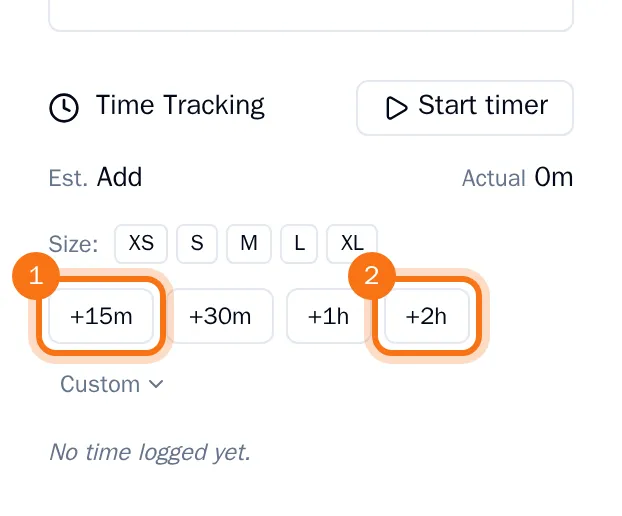
For any other amount, choose Custom, type the minutes, change the date if the work was on another day, add a note if you like and choose Log.
Every entry is listed with who logged it and when. Actual adds them up and shows the difference from the estimate. The bar under it turns amber when you get close to the estimate and red when you go over.
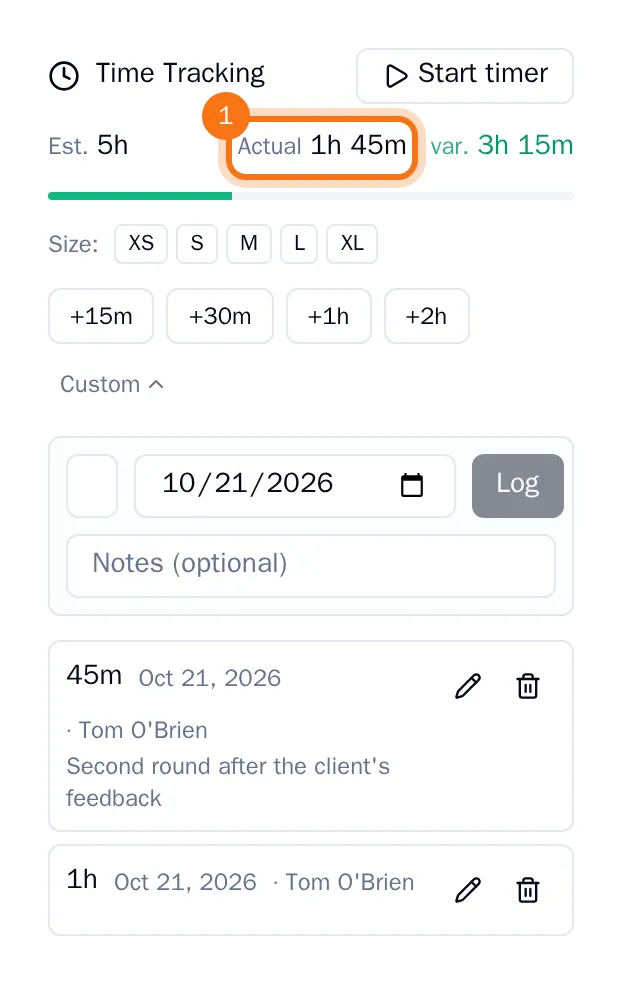
To correct an entry, choose Edit entry or Delete entry next to it.
Run the timer
- Choose Start timer. The timer appears at the bottom right and keeps running while you move around OKiDO.
- Working on several tasks at once? Open another task and choose Add to timer. The time is shared equally between the tasks on the timer.
- When you finish a task, choose Stop and log this task (the check mark next to it) to log its time. The other tasks keep running.
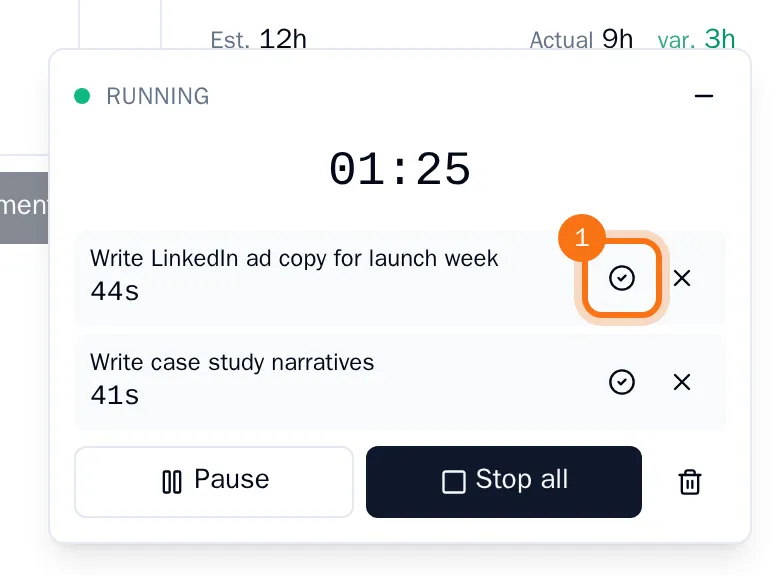
- To finish everything, choose Stop all. Check the minutes for each task, add notes or mark time as billable, then choose Confirm & log.
Choose Pause for a break. The minus sign at the top tucks the timer away in the header, where you can open it again.