Attach files and record a briefing
Attach files to a task and record a short video of your screen and voice that explains the work.
Available onStarterProBusiness
Who can do this: Everyone in the organization
Give the person doing the work everything they need in one place. Attach the brief and the examples to the task, and record a short briefing in which you show your screen and talk them through it.
Attach files
- Open the task and choose Add attachment (the paper clip at the top of the task).
- Pick the file on your computer.
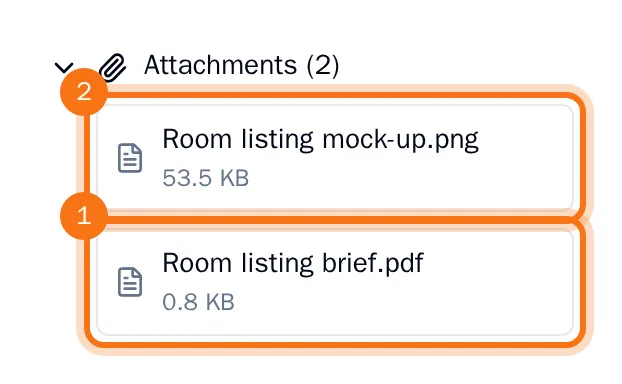
The file is listed under Attachments in the panel on the right, with its size. Click it to open it in a new tab. Repeat the steps for every file you want to attach.
Tip: To put an image or a file inside the description or a comment, use the upload button in its toolbar.
Record a briefing
- Choose Record briefing (the camera at the top of the task).
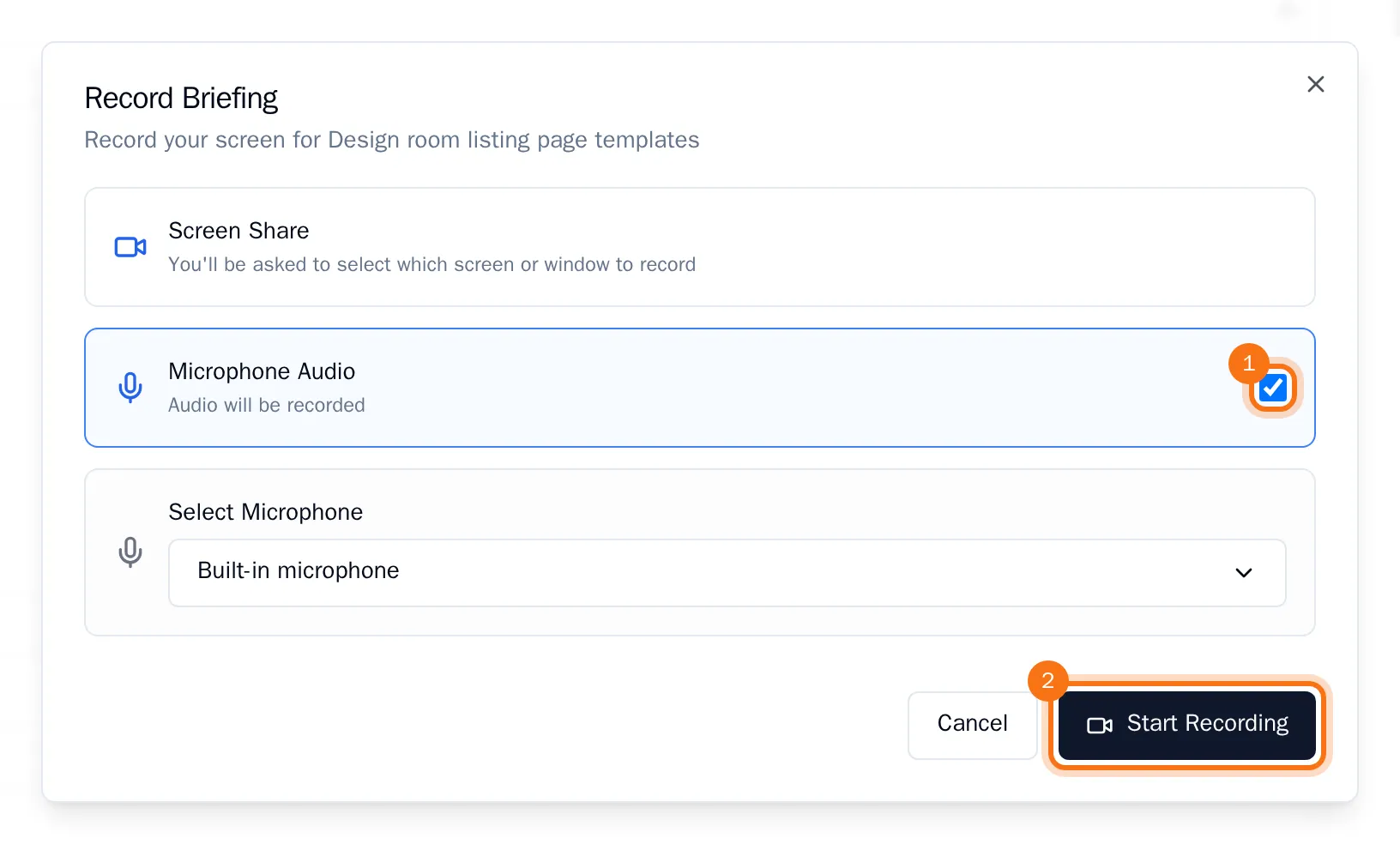
- Leave Microphone Audio on to record your voice, and choose your microphone if you have more than one.
- Choose Start Recording. Your browser asks which screen, window or tab to share: choose one and confirm.
- After a countdown of three seconds the recording starts. Show the work and explain it. Choose Pause if you need a moment, and Stop Recording when you are done.
- Watch the preview. Give the briefing a title, add a description if you like and choose Save Recording. Not happy with it? Choose Re-record to start again.
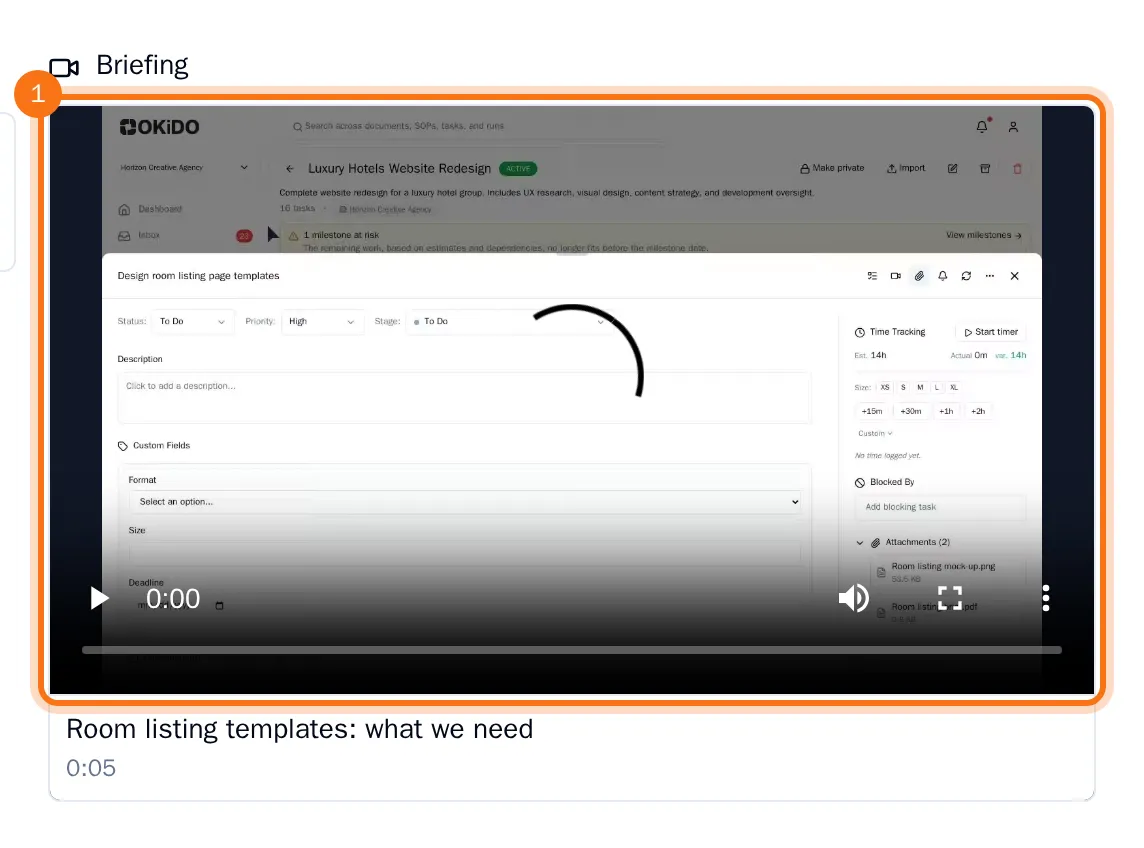
The briefing now sits next to the task's description, ready to play for everyone who opens the task.