Change your plan and billing
See your organization's plan and usage, switch plans or to yearly billing, and cancel or check your billing history.
Who can do this: Owner, Admin
The Plans tab shows the plan your organization is on, how much of its limits you use, and what the other plans offer. From there you manage the subscription: move to another plan, switch to yearly billing, buy add-ons, cancel, and look up your invoices.
Only owners and admins can change the plan and the billing.
See your plan and usage
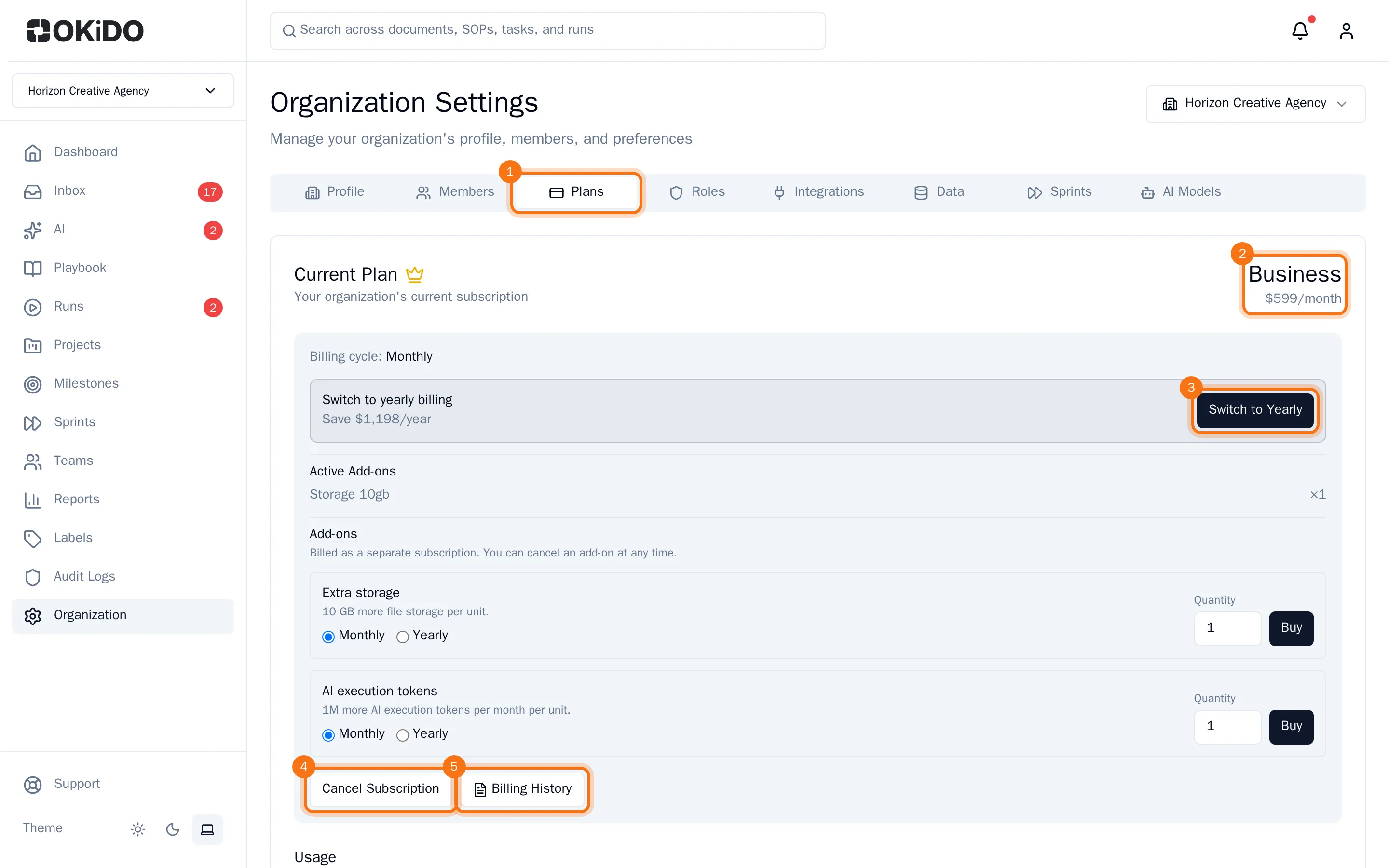
In the menu on the left, choose Organization, then the Plans tab.
Under Current Plan you see your plan, its price and your billing cycle, the add-ons you have, and the buttons to manage your subscription.
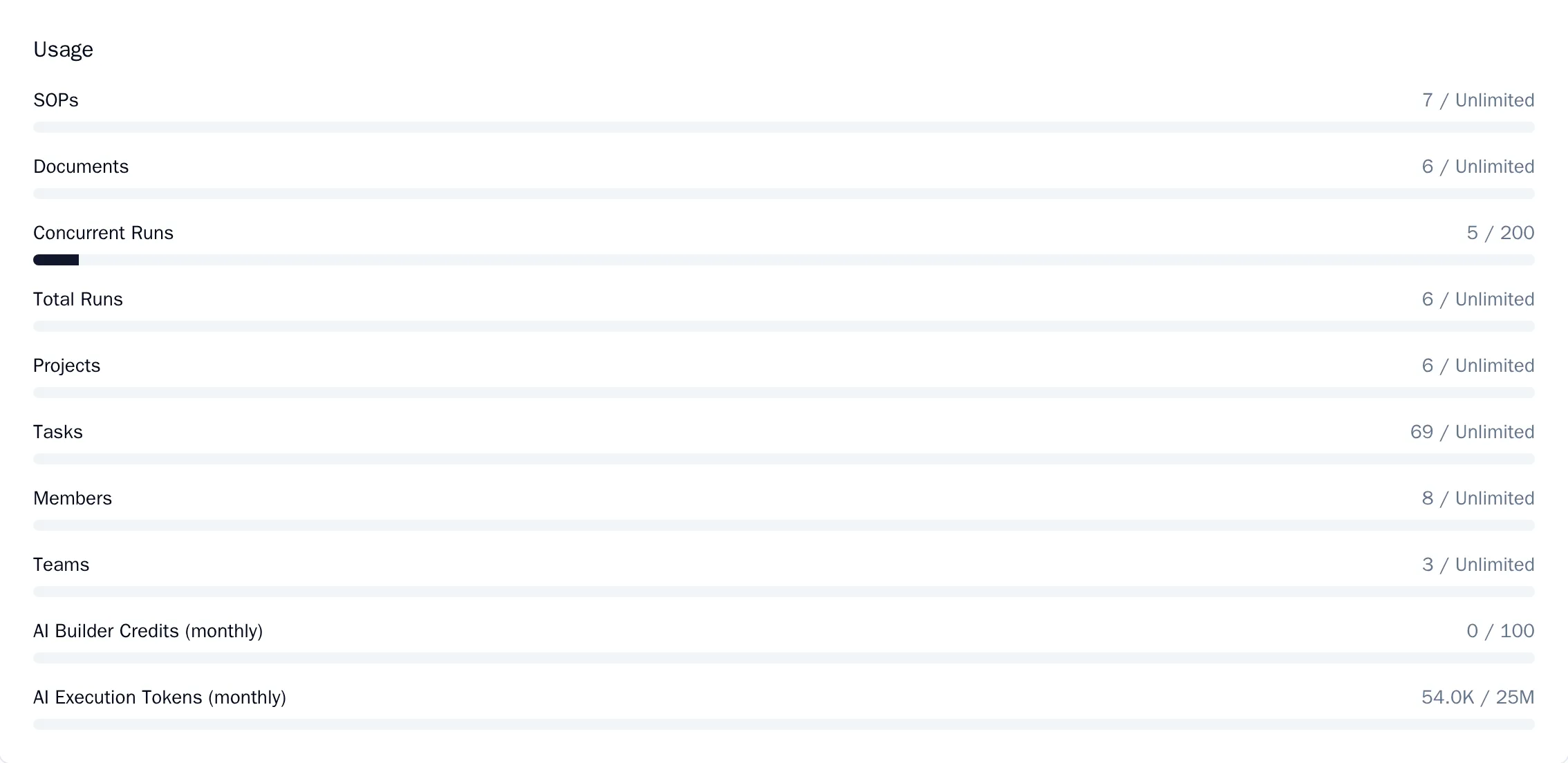
Under Usage you see, for each limit of your plan, how much your organization uses: SOPs, documents, runs, projects, tasks, members, teams and AI. A warning sign appears from 75 percent of a limit, and the bar turns red from 90 percent.
Need more file storage or AI tokens without a bigger plan? See Buy extra storage or AI tokens.
Switch to yearly billing
Paying monthly? Under Current Plan, Switch to yearly billing shows how much you save in a year. Choose Switch to Yearly. You keep your plan, and from then on it is billed once a year.
Switch to another plan
- Under Available Plans, compare the plans: the price per month, the price per month with yearly billing, and what each plan includes.
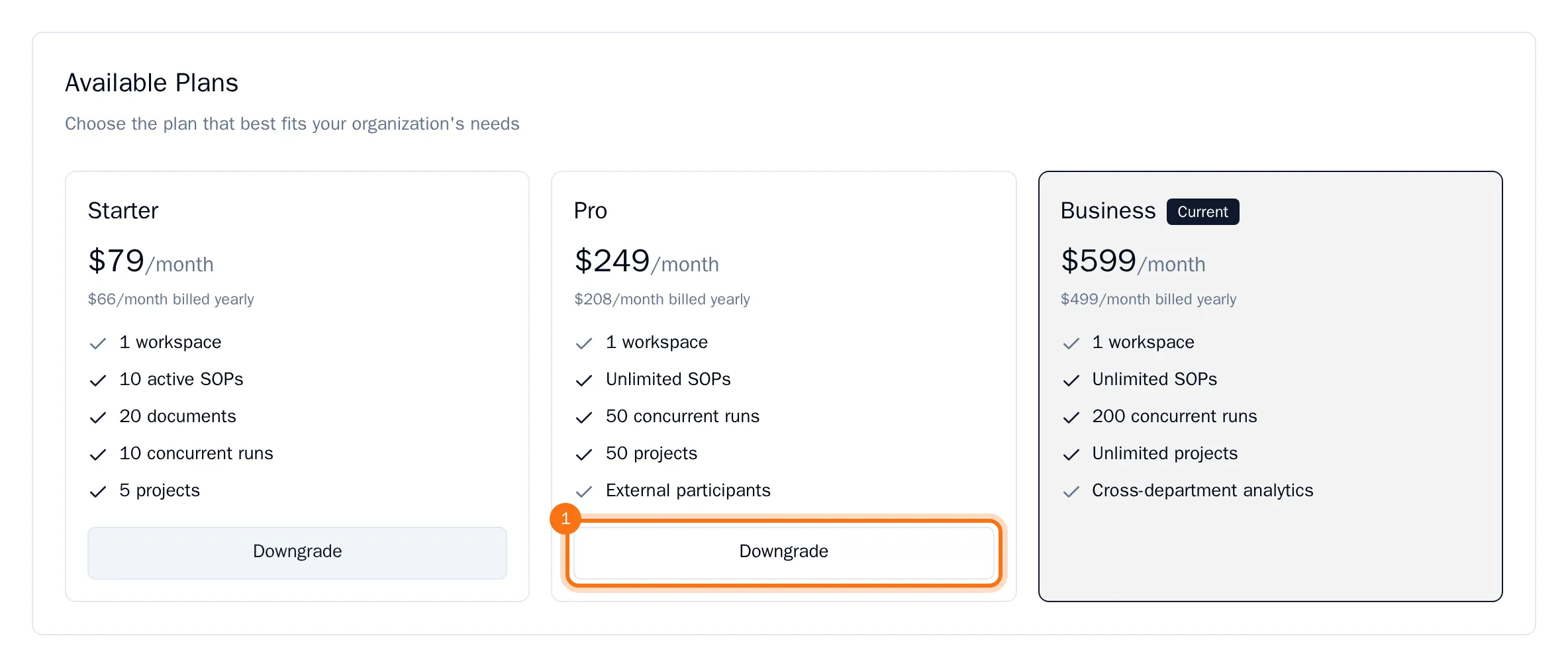
- Choose Upgrade or Downgrade on the plan you want.
- Choose Monthly or Yearly billing. Yearly billing gives you two months for free. The summary below shows the total.
- Choose Confirm, or Confirm Downgrade for a smaller plan.
An upgrade takes effect right away, and you get a credit for the part of the current plan you have not used. A downgrade takes effect at the end of the current billing period, and you keep everything your current plan includes until then. Until that day the tab shows the Scheduled downgrade; choose Cancel Downgrade to keep your plan after all.
Start a paid plan
Is your organization on the Free plan? Then choosing a plan starts a subscription, with a 14-day free trial.
- Under Available Plans, choose Upgrade on the plan you want.
- Choose Monthly or Yearly billing, then Continue.
- Enter the Billing Email for your invoices and your company's address. The company name and VAT number are optional.
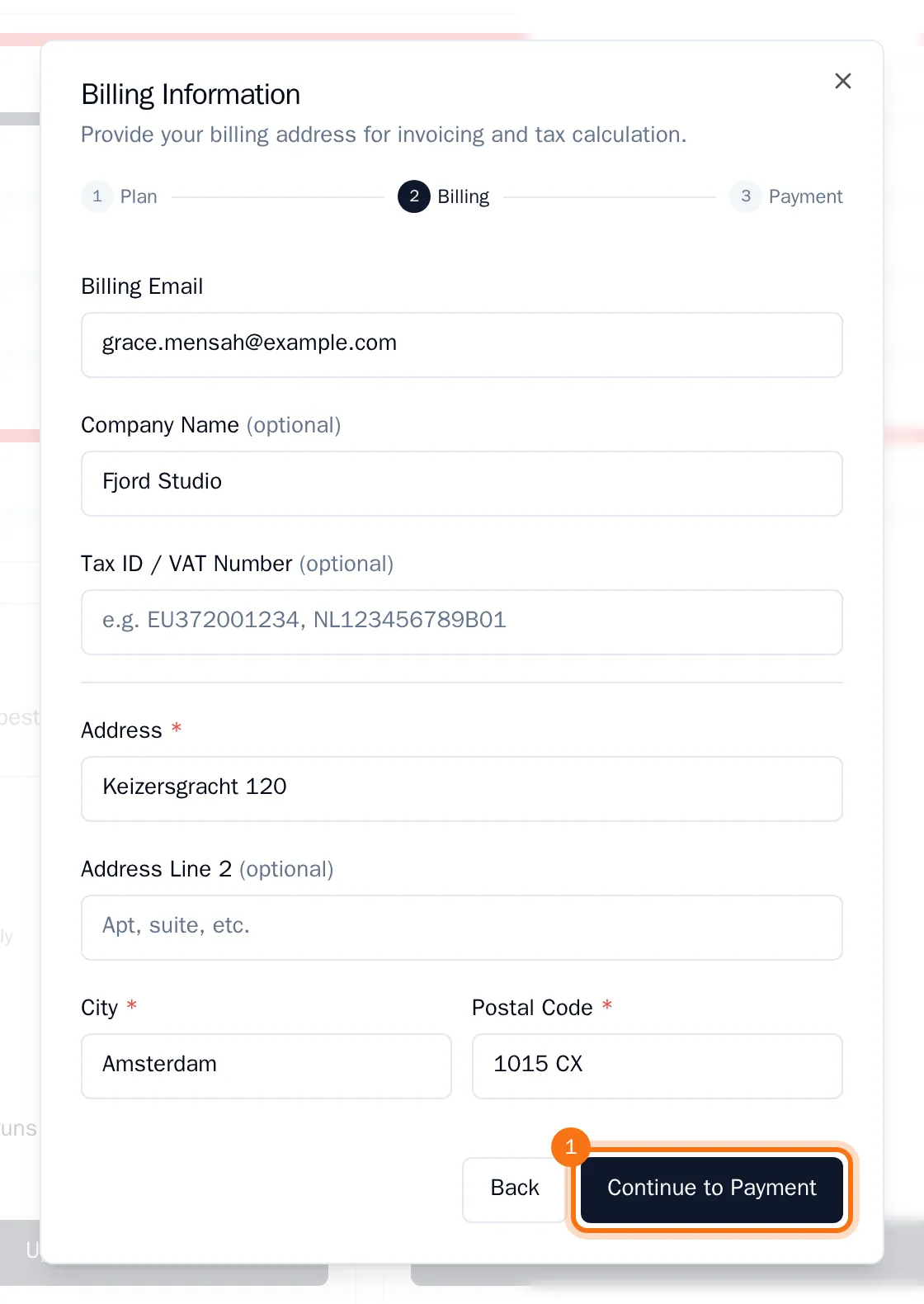
- Choose Continue to Payment, enter your payment details and confirm the subscription.
Cancel or reactivate your subscription
Under Current Plan, choose Cancel Subscription. The subscription stops at the end of the current billing period: until then you keep your plan, and after that your organization moves to the Free plan. The tab shows until when you have access.
Changed your mind before that day? Choose Reactivate next to the notice, and the subscription goes on as before.
See your billing history
Under Current Plan, choose Billing History. You see your recent invoices with their date, amount and status, each with a link to its PDF or receipt.