Sync your tasks to Google Tasks
See the OKiDO tasks assigned to you in Google Tasks and Google Calendar, in one list or in a list per project.
Who can do this: Everyone in the organization
Plan your day in Google Calendar? OKiDO can copy the tasks assigned to you into Google Tasks, so they show up next to your appointments. Changes made in either place are synced both ways. OKiDO checks Google for changes every 5 minutes.
The sync is personal: it covers the tasks assigned to you, and only you see its settings.
Connect your Google account
- Open the account menu (the person icon at the top right) and choose Settings.
- Choose the Calendar tab.
- Choose Connect Google account.
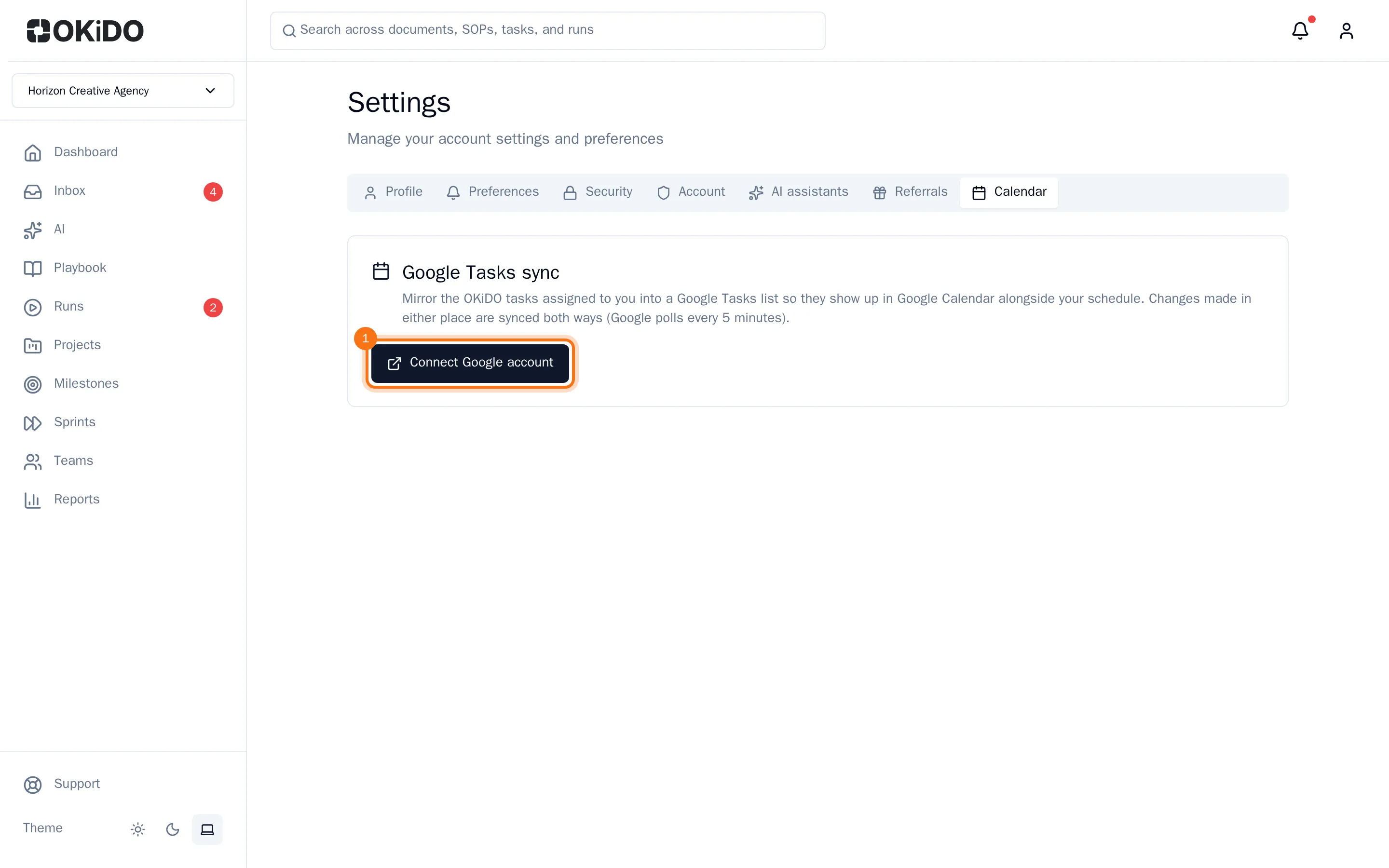
- Sign in to Google and allow OKiDO to manage your tasks.
You are back on the Calendar tab, which now shows the Google account you connected.
Choose the lists
- Under Default Google Tasks list, choose the Google Tasks list your tasks go into.
- Want a new list for them? Type its name under Create a new Google Tasks list and choose Create. Then choose it as the default list.
- To give a project a list of its own, choose the project under Add an override, choose Add, and pick its list. Untick Sync this project to keep a project's tasks out of Google.
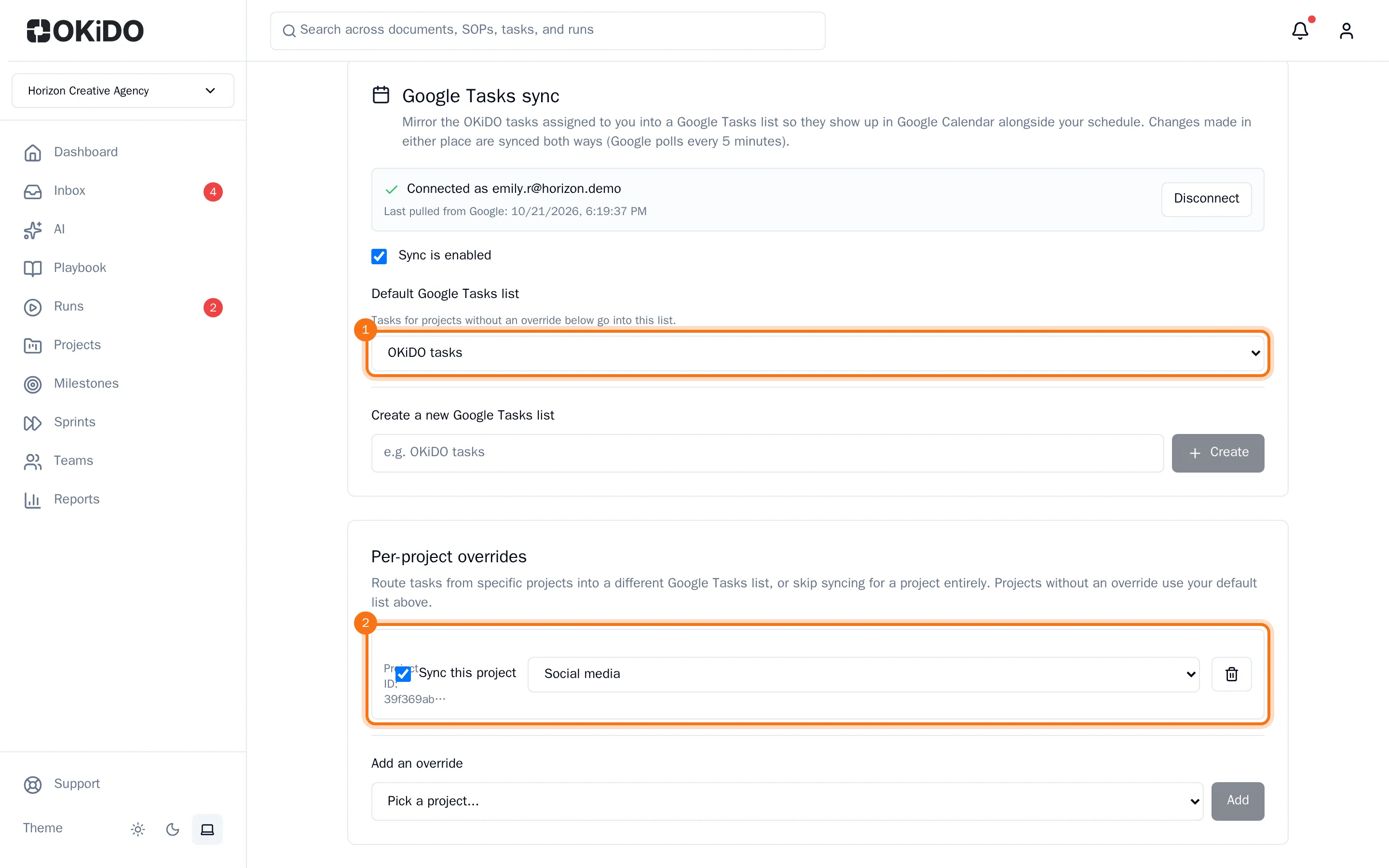
Your settings are saved as soon as you change them. To pause the sync, untick Sync is enabled. To stop it, choose Disconnect: the tasks already in Google stay there, but no longer change with OKiDO.