Create a project
Create a project, choose its type and decide who can see and edit it.
Who can do this: Everyone in the organization
A project holds the tasks for one piece of work, such as a client campaign or a website redesign. Everyone in the organization can create public and template projects. Its type decides who can see it and who can change it.
Create a project
- Choose Projects in the sidebar, then New Project.
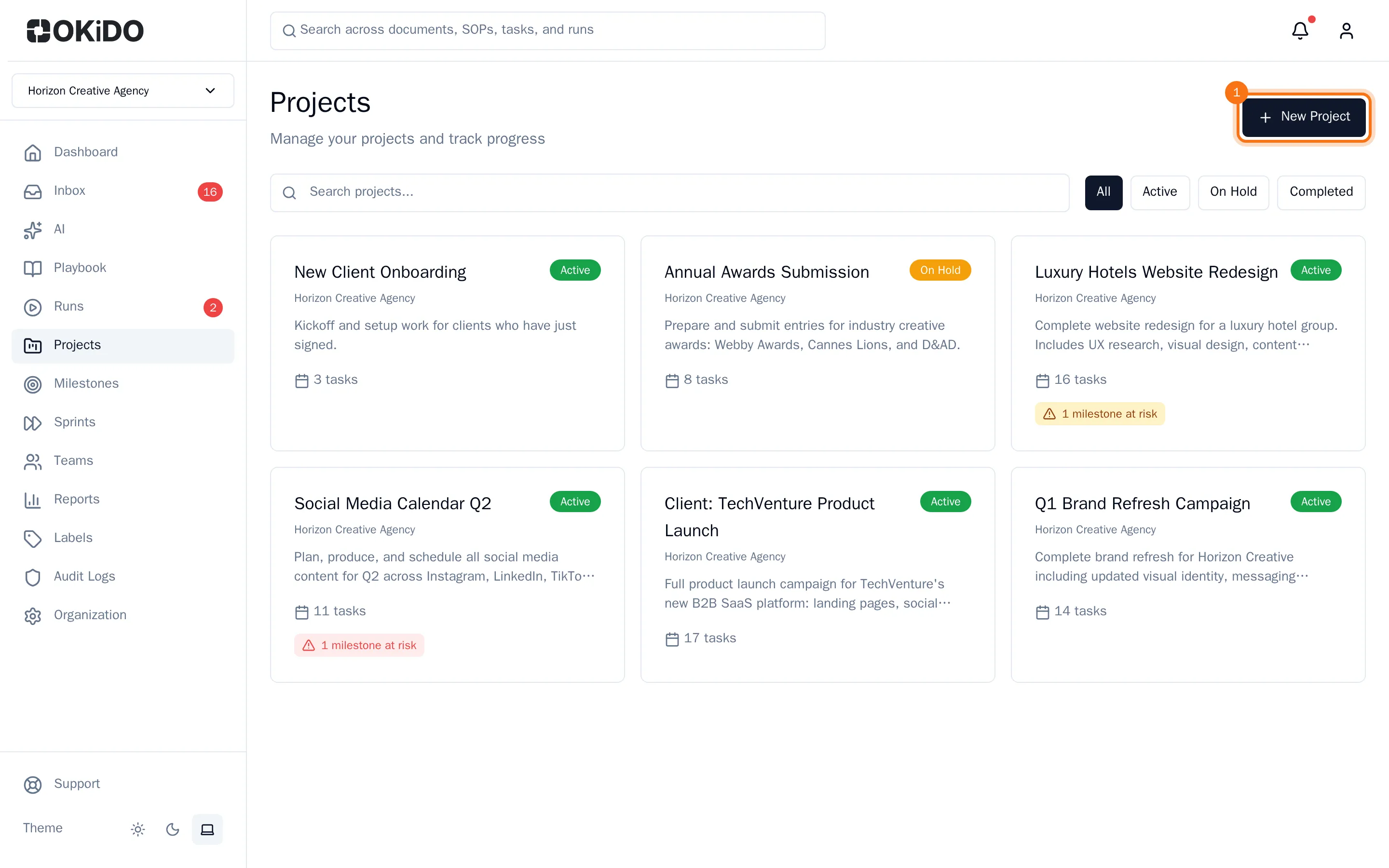
- Enter a Project Name.
- Choose a Project Type:
- Public Project: everyone in the organization can see and edit it.
- Private Project: only the people and teams you choose can see it.
- Comment-Only Project: everyone can see it and comment, but only the people and teams you choose can edit it.
- Template Project: a reusable blueprint with relative due dates, see Reuse a project as a template.
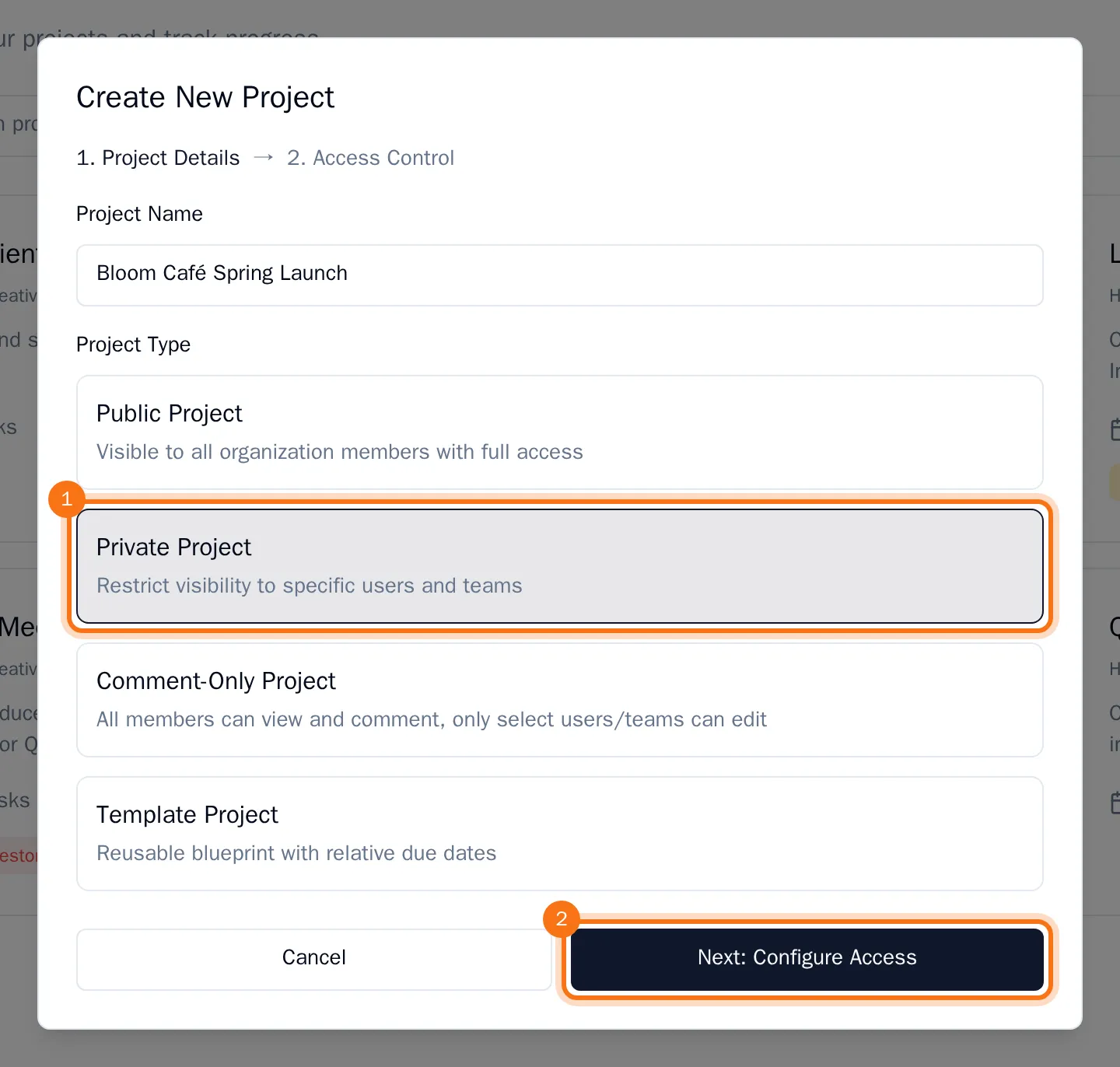
- For a public or template project, choose Create Project. For a private or comment-only project, choose Next: Configure Access and continue below.
Private, comment-only and template projects are available on the PRO and BUSINESS plans. On STARTER, every project is public.
Choose who gets access
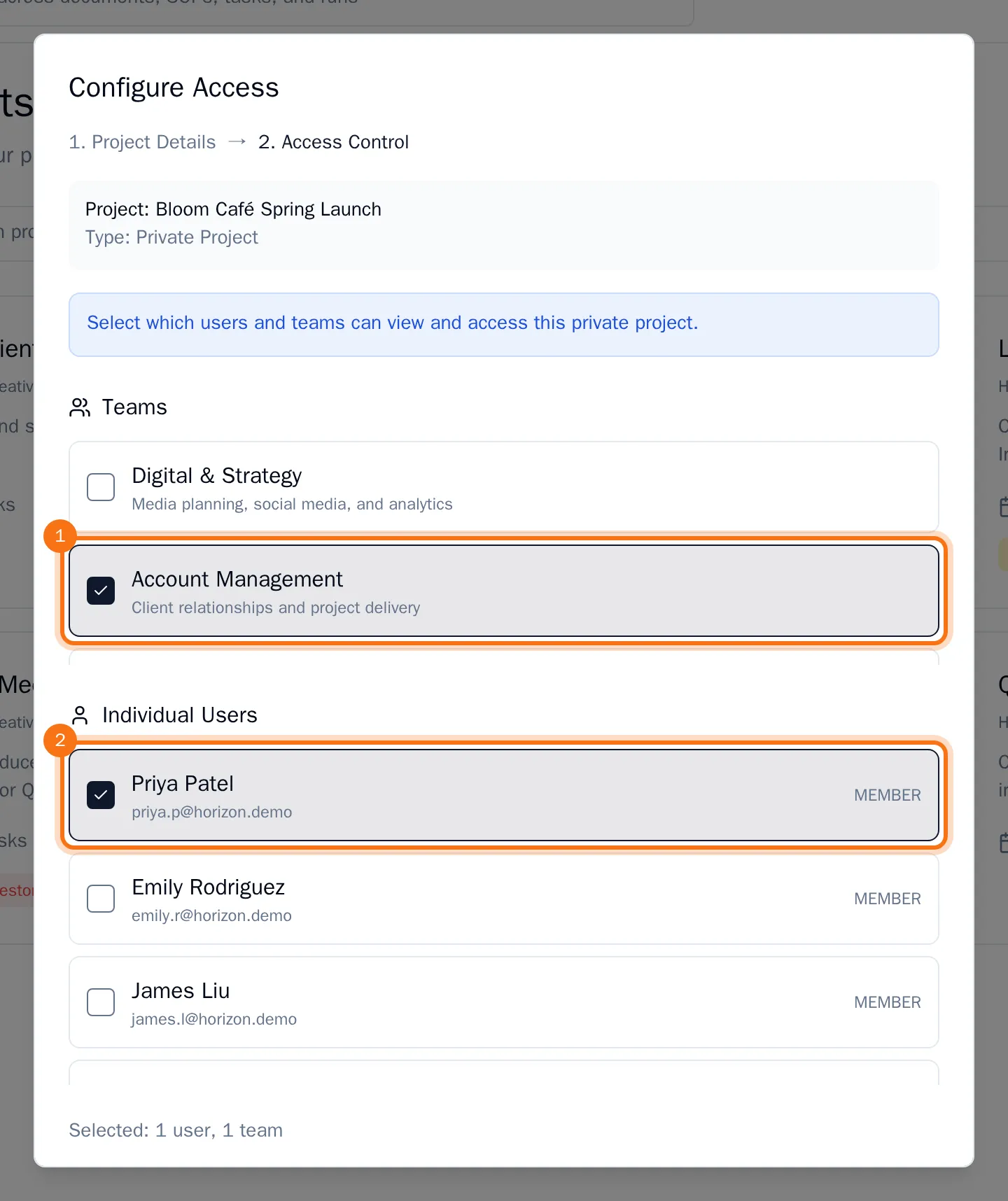
A private project needs at least one person or team who can see it. A comment-only project needs at least one person or team who can edit it. Choosing them takes an organization owner or admin: for members, this step cannot load the people and teams.
- Select the teams under Teams and the people under Individual Users. Select a team to include everyone in it.
- Choose Create Project.
The new project appears at the top of the project list, with a badge for its type. Its board starts with three columns: for tasks to do, in progress and done. You always keep access to a private project you created.
Tip: Changed your mind later? The person who created a project can switch it between public and private, see Control who can see a project.