Make an agent start on its own
Add triggers so an agent wakes up on a schedule or when something happens in OKiDO.
Available onStarterProBusiness
Who can do this: Owner, Admin
Without triggers, an agent only works when someone gives it work: a task assigned to it, a mention or a question in AI Chat. A trigger makes it start by itself, for example every Monday morning, or each time a task is completed.
Add a trigger
- Open the agent: AI, the Agents tab, then the agent.
- Choose the Triggers tab, then Add Trigger.
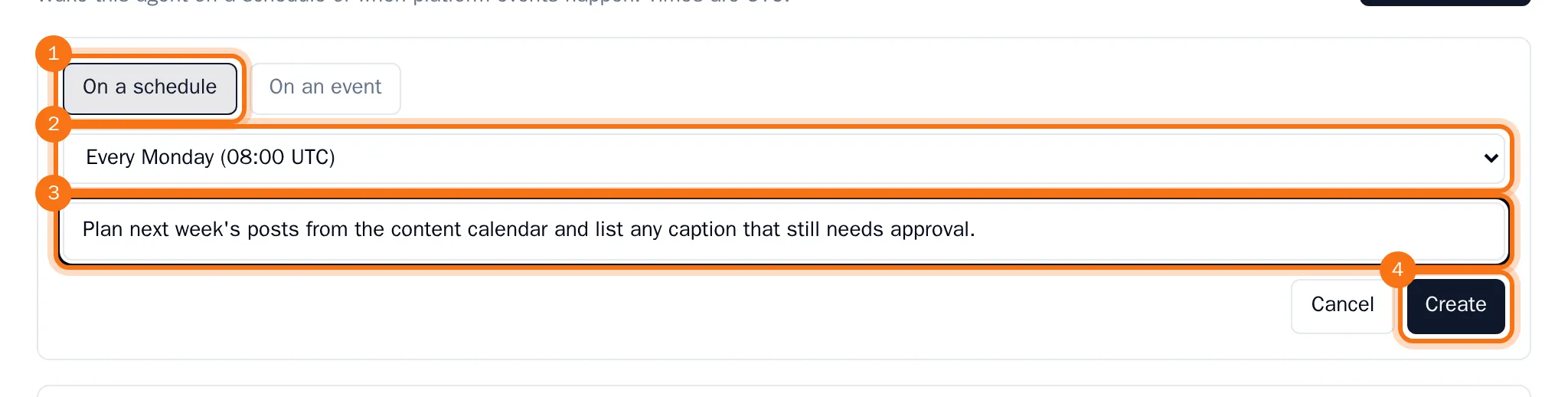
- Choose when the agent starts:
- On a schedule: pick a moment from the list, such as Every Monday (08:00 UTC). With Custom… you type a cron expression for any other schedule. Times are in UTC.
- On an event: pick what happens in OKiDO, for example
task.completedwhen a task is completed orcomment.createdwhen someone comments.
- Describe what the agent should do when the trigger fires. This is optional, but it tells the agent why it woke up.
- Choose Create.
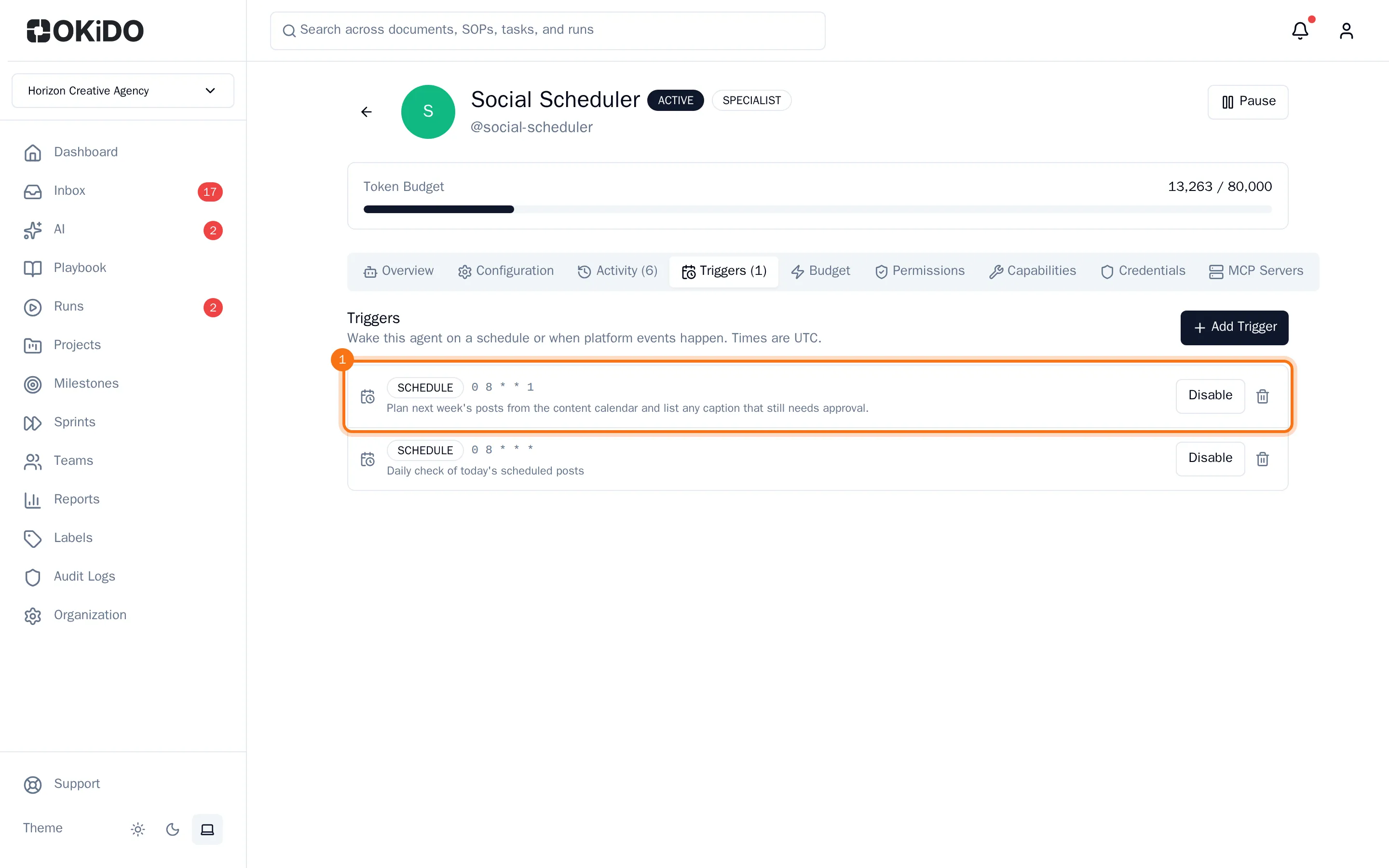
The trigger is added to the list with its schedule or event and its description.
Turn a trigger off or delete it
- Choose Disable to pause a trigger; it is marked Disabled until you choose Enable.
- To remove a trigger, choose the bin next to it, then Delete.
Tip: To make an agent react to what happens in one project only, such as new tasks or comments there, deploy it to that project and pick its triggers in the project's briefing (see Put an agent to work on a project).