Run a system
Start a run of a published system, follow it node by node, approve its sign-offs and cancel it when it is no longer needed.
Who can do this: Everyone in the organization
A run is one pass through a system, for example the launch of one new client. OKiDO works through the nodes in order: it starts the SOP runs, creates the tasks, and waits wherever a person has to approve or decide.
Start a run
- In the Playbook, open the folder and choose the system. You see its flow and, on the right, its Recent Runs.
- Choose Run System.

- Enter a Run Name, such as the client's name. The newest published Version is already chosen.
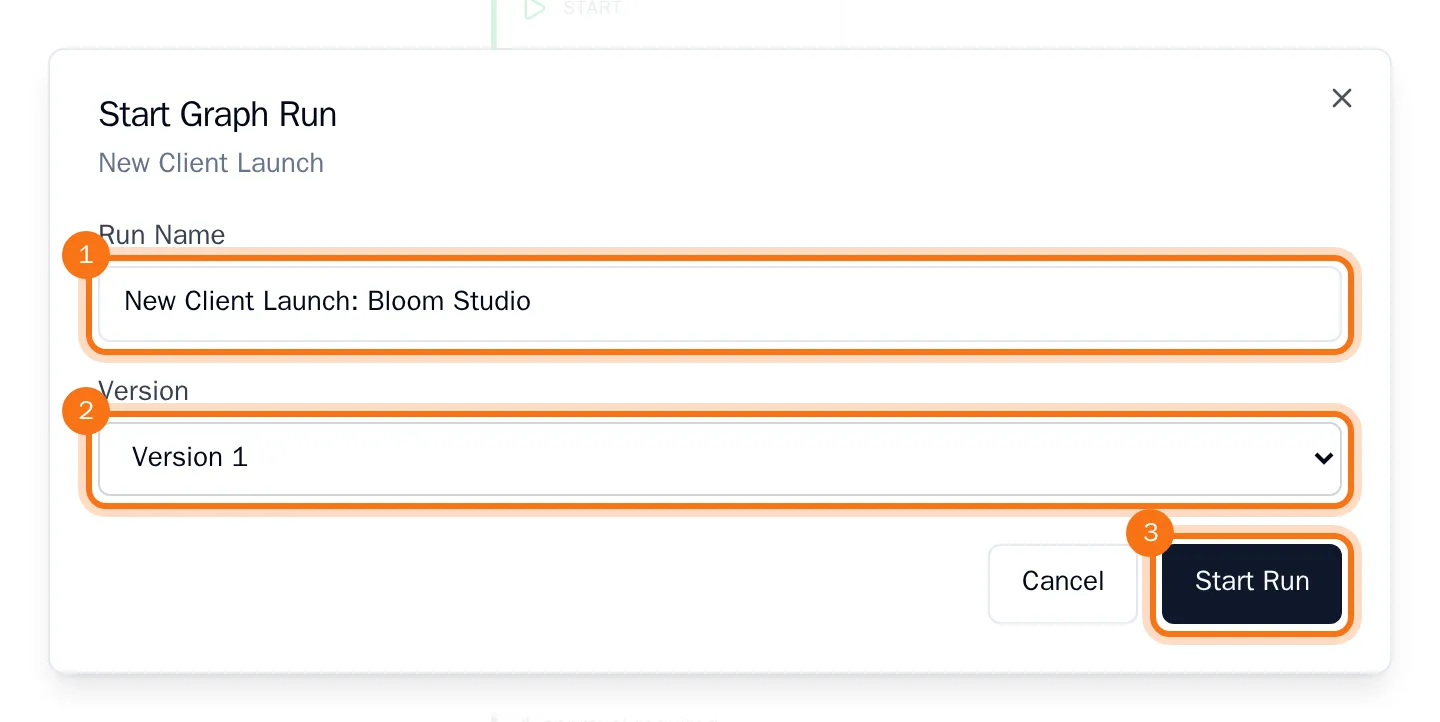
- Choose Start Run.
The run opens and its first nodes start right away. You find every run on the Runs page, under System Runs.
Follow a run
The run shows the system with its progress: a green frame around the nodes that are done, and a pulsing ring around a node that waits for a person. Above it you see the run's status and how far it has come.
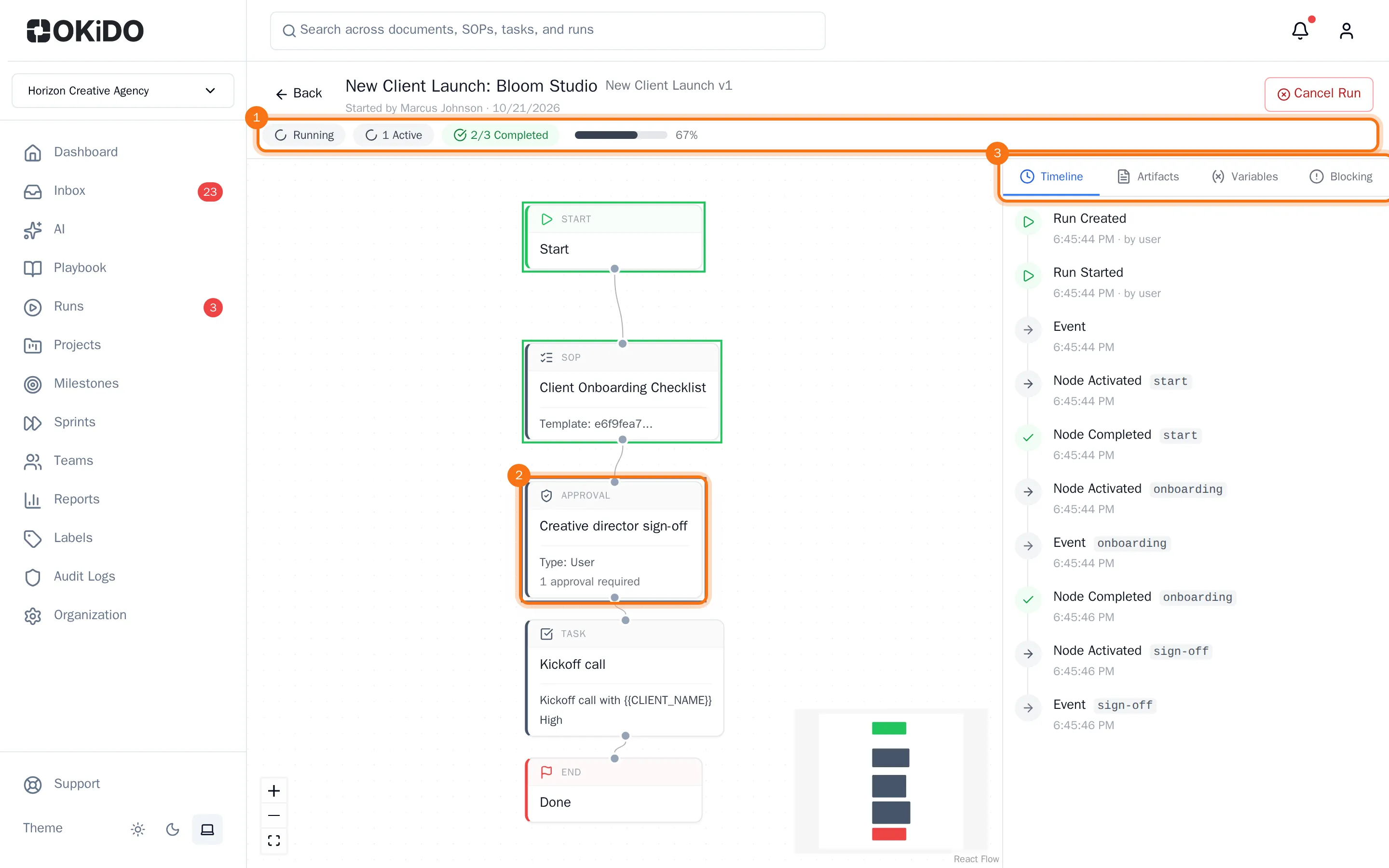
The tabs on the right show more:
- Timeline: everything that happened in the run, with the time.
- Artifacts: what the run created, such as SOP runs and tasks.
- Variables: the values the run works with.
- Blocking: why a node is waiting.
Approve or reject a step
When a run reaches an Approval node, the approver gets a notification in the Inbox, under Approvals Pending. The notification opens the run.
- In the run, choose the approval node with the pulsing ring.
- Add a note if you like.
- Choose Approve or Reject.
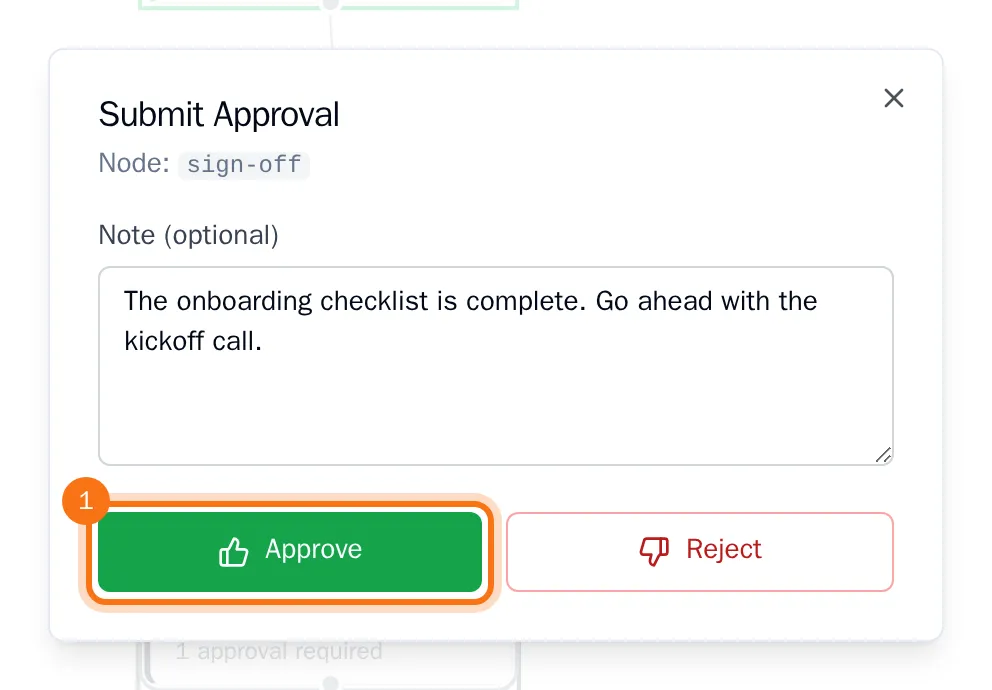
After an approval the run goes on with the next node. After a rejection the run stops at this node.
The approver set on the node (or a member of the approving team) can approve or reject it, and so can owners and admins.
Cancel a run
- Open the run and choose Cancel Run at the top.
- Confirm with Cancel Run.
The run stops and shows as cancelled. Owners, admins and the person who started the run can cancel it.