Break a task into subtasks
Split a task into smaller steps, put them in order and tick them off as the work gets done.
Who can do this: Everyone in the organization
When a task has several steps, add them as subtasks. Everyone can see what is left, and the card on the board counts how many steps are done.
Add subtasks
- Open the task and choose Add subtask (the list icon at the top of the task).
- Type the title of the first step and press Enter, or choose Add.

- For the next step, choose Add subtask below the list and repeat.
Put them in order
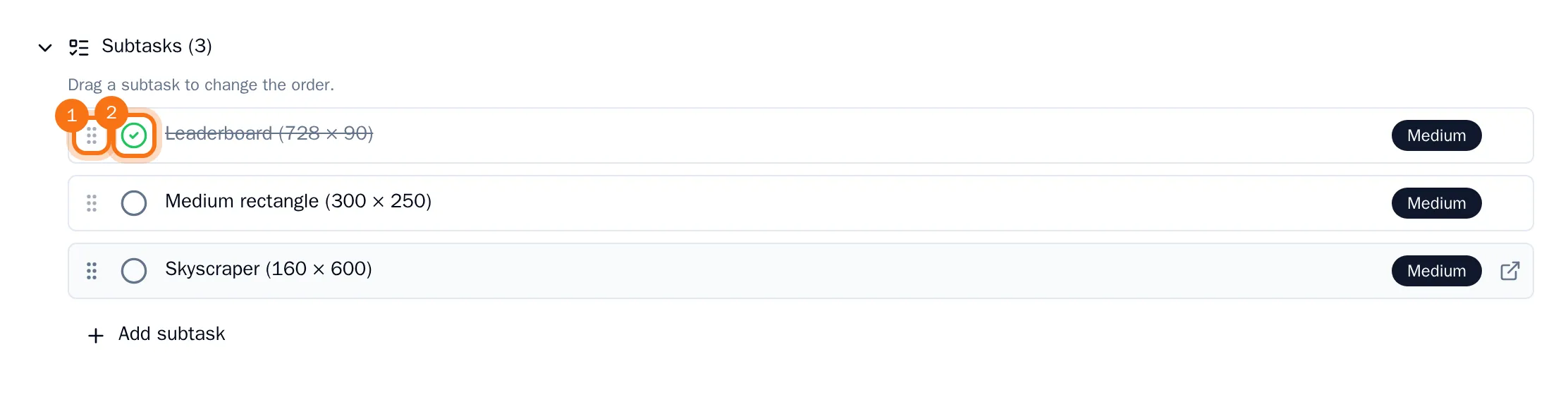
Drag a subtask up or down the list by its handle on the left. The new order is saved as soon as you let go.
Tick them off
Click the circle in front of a subtask to mark it as done. Click it again if you need to reopen it.
The card on the board shows how many subtasks are done, for example 1/3, and turns green when all of them are.
Tip: A subtask is a task of its own. Click its title to open it and give it an assignee, a due date or a description. The name of the main task at the top takes you back.