Find anything with Ctrl+K
Open quick search with Ctrl+K (Cmd+K on a Mac), jump to a result, or open the full search page and narrow it down with filters.
Who can do this: Everyone in the organization
Search finds projects, tasks, runs, SOP templates and documents across your organization, from any page. Quick search gets you to something in seconds; the full search page helps when you need to dig deeper.
Jump to a result with quick search
- Press Ctrl+K (Cmd+K on a Mac), or choose the search box at the top of any page.
- Type at least two letters, for example part of a task or project name.
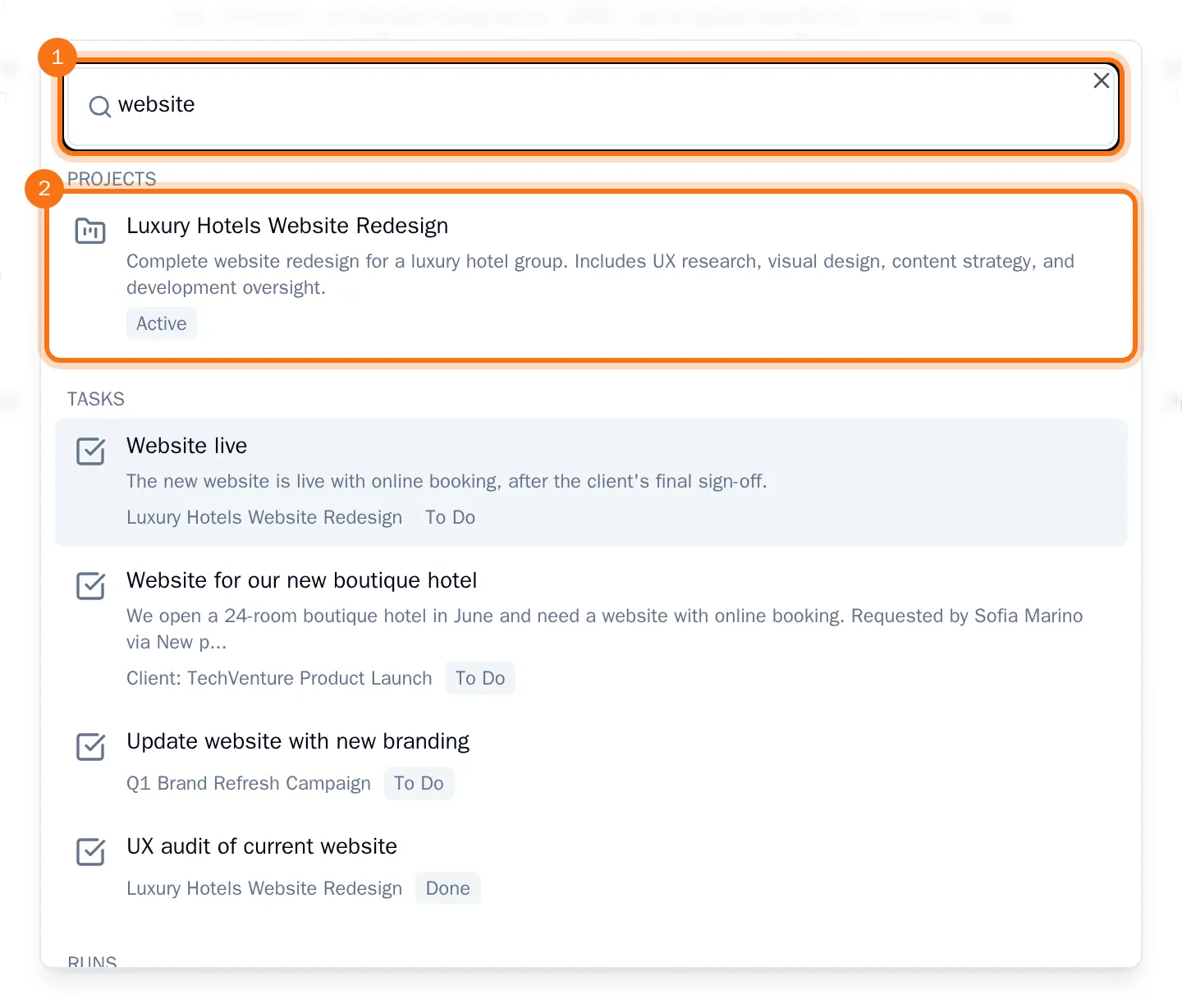
- Choose a result, or move to it with the arrow keys and press Enter.
The project, task, run or document opens. Results are grouped by type, with the project and status shown under each one. Press Esc to close quick search without opening anything.
Open the full search page
- In quick search, choose View all results below the results.
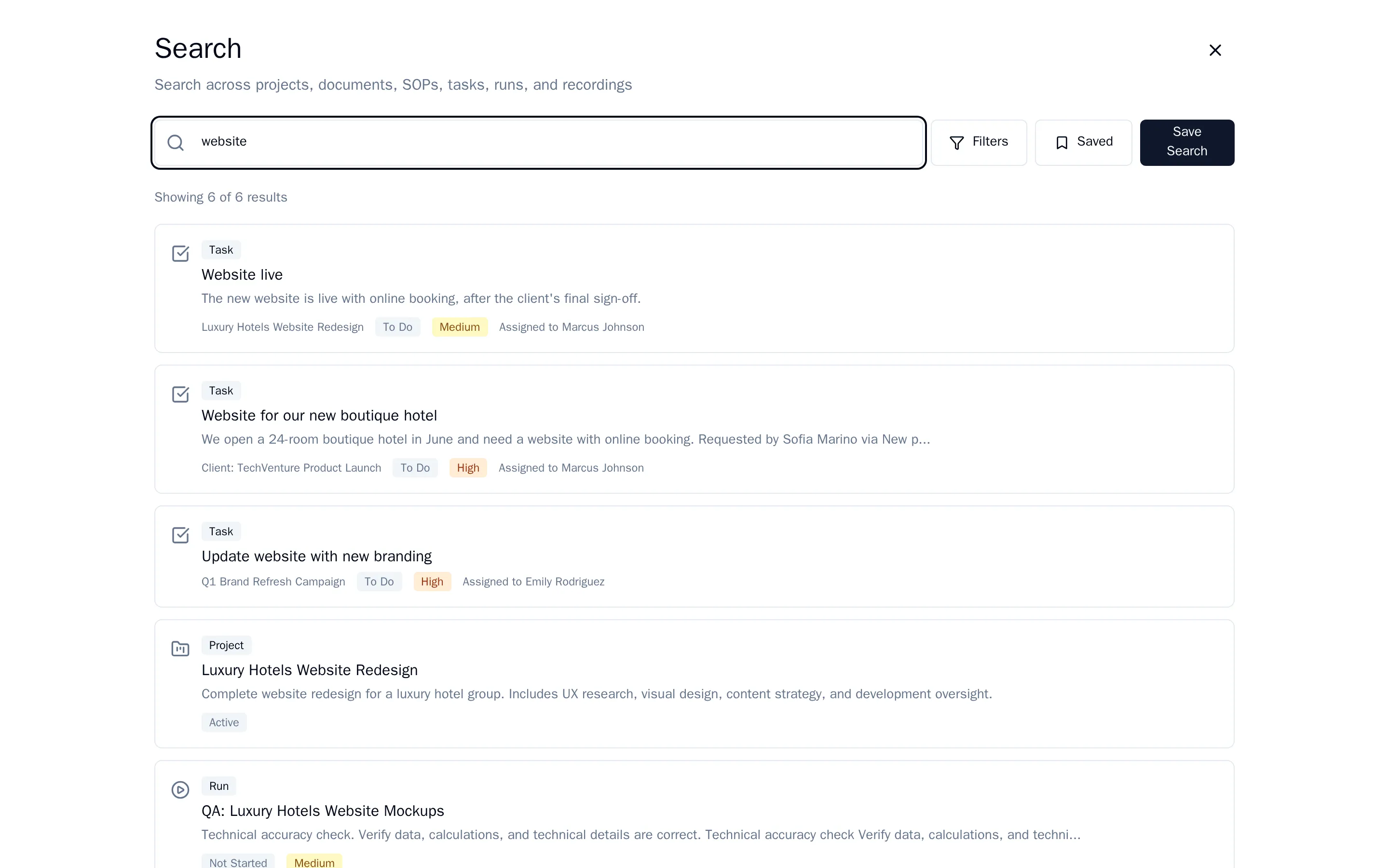
The Search page shows up to 20 results per page, each with its type, a short excerpt and who it is assigned to. Choose a result to open it, or the cross at the top right to go back to where you were.
Narrow it down with filters
- On the search page, choose Filters.
- Set what you need:
- Type: projects, documents, SOP templates, tasks, runs or Playbook recordings only.
- Priority: tasks of one priority.
- Assigned to and Created by: a person or a whole team.
- Date From and Date To: only what changed in that period.
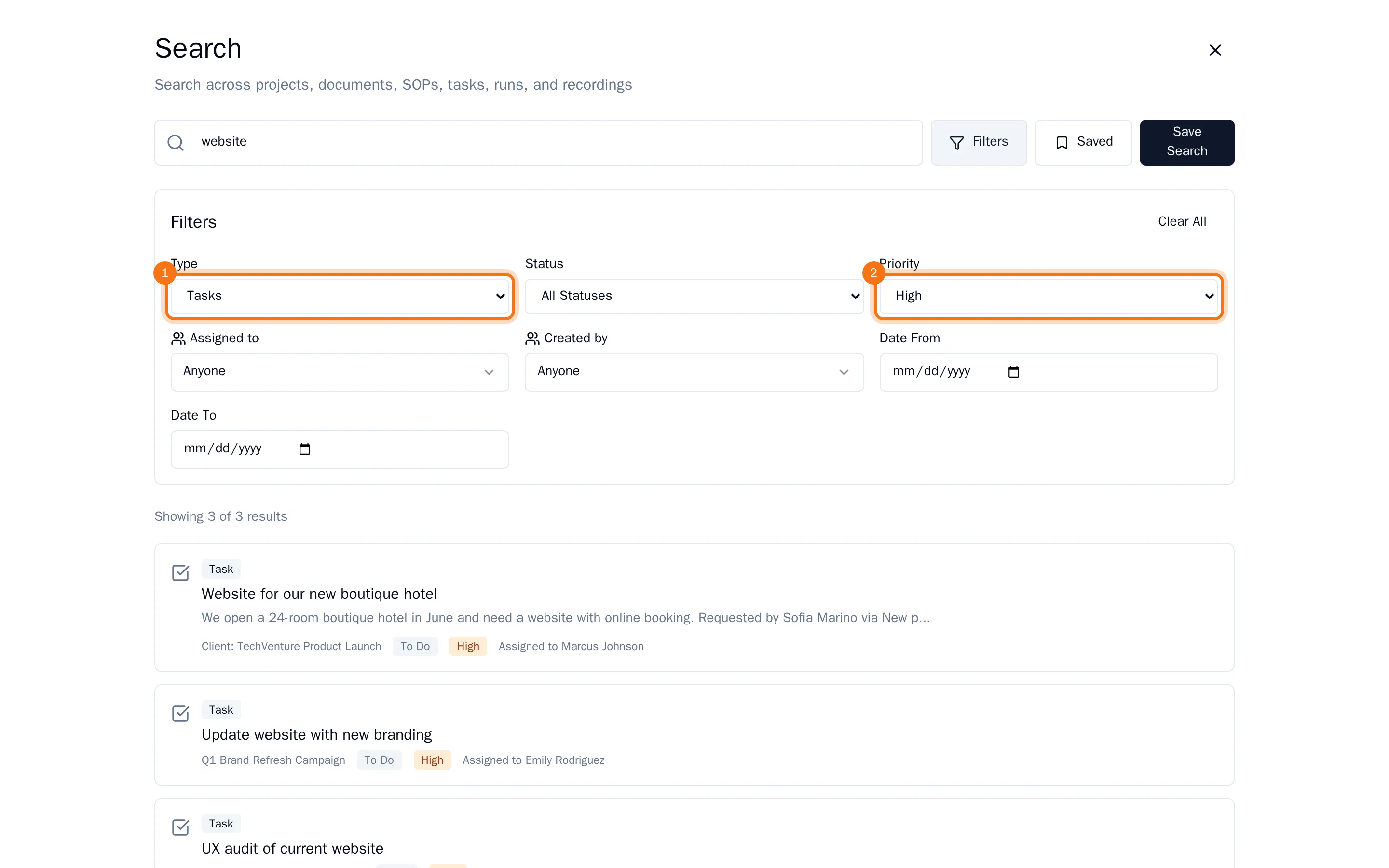
The results update as soon as you change a filter. Choose Clear All to remove all filters. With several organizations selected, you can also limit the search to one Organization.
Tip: Searching for the same thing often? Save it: see Save a search.