Create a Smart Label
Create a label with a name, color, category and description to put on tasks, documents and SOP templates.
Who can do this: Owner, Admin
Labels mark what work is about, such as a client, a type of work or a deadline. One set of labels serves the whole organization: put them on tasks, documents and SOP templates, and filter by them. Labels in OKiDO are Smart Labels: besides a name and a color, they can carry their own fields, see Add custom fields to a label.
Organization owners and admins create and change labels. Everyone else sees them read-only.
Create a label
- Choose Labels in the sidebar.
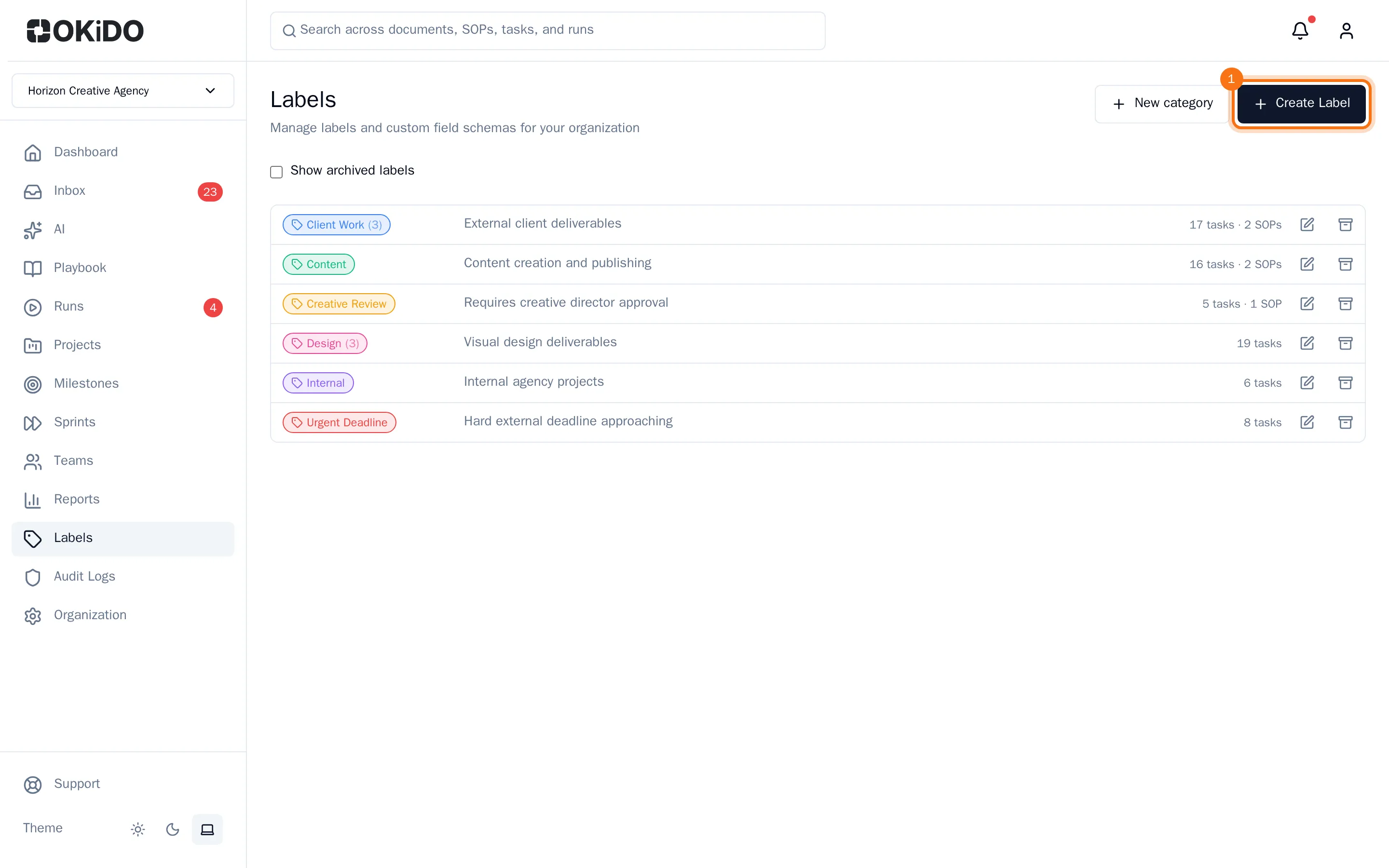
- Choose Create Label.
- Enter a Name.
- Choose a Category if you group your labels, or keep None (Other).
- Add a Description that says when to use the label.
- Pick a Color, or choose any color with the color field below the swatches.
- Choose Create Label.
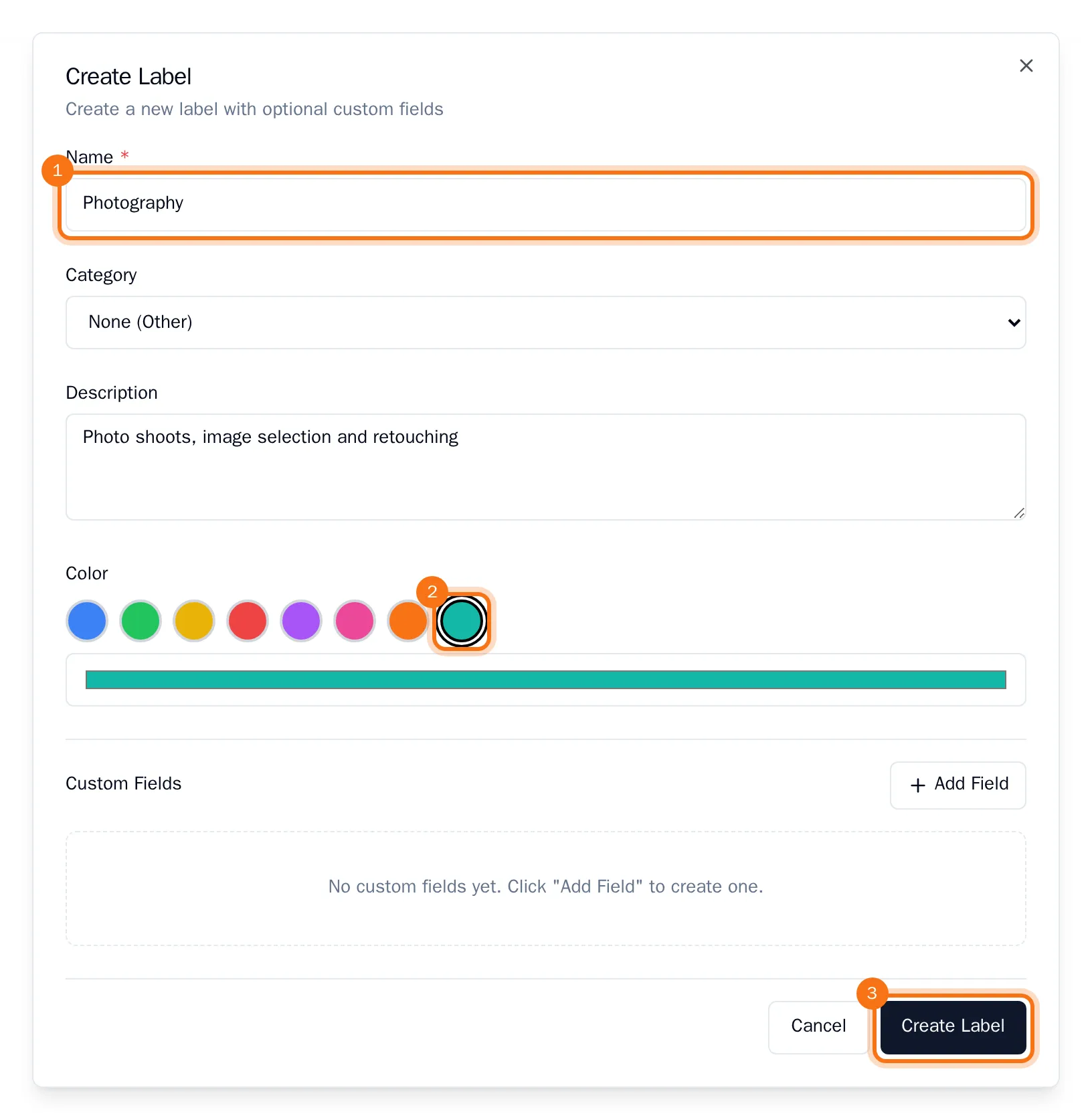
The label appears on the Labels page, marked "Not used yet" until it is on a task, document or SOP template. Two labels in the same category cannot have the same name.
Change a label
- On the Labels page, choose the pencil next to the label.
- Change what you need, then choose Update Label.
The change shows everywhere the label is used. To stop using a label, archive it: see Organize labels into categories.