Turn on push notifications
Allow browser push notifications so new tasks, mentions and approvals reach you even when OKiDO is closed.
Who can do this: Everyone in the organization
With push notifications on, your computer or phone shows an alert the moment a task is assigned to you, someone mentions you or an approval waits for you, even when OKiDO is not open. Choose an alert to go straight to the item.
Allow notifications in your browser
- Open your Inbox. When your browser has not asked about notifications for OKiDO yet, a blue bar at the top invites you to turn them on.
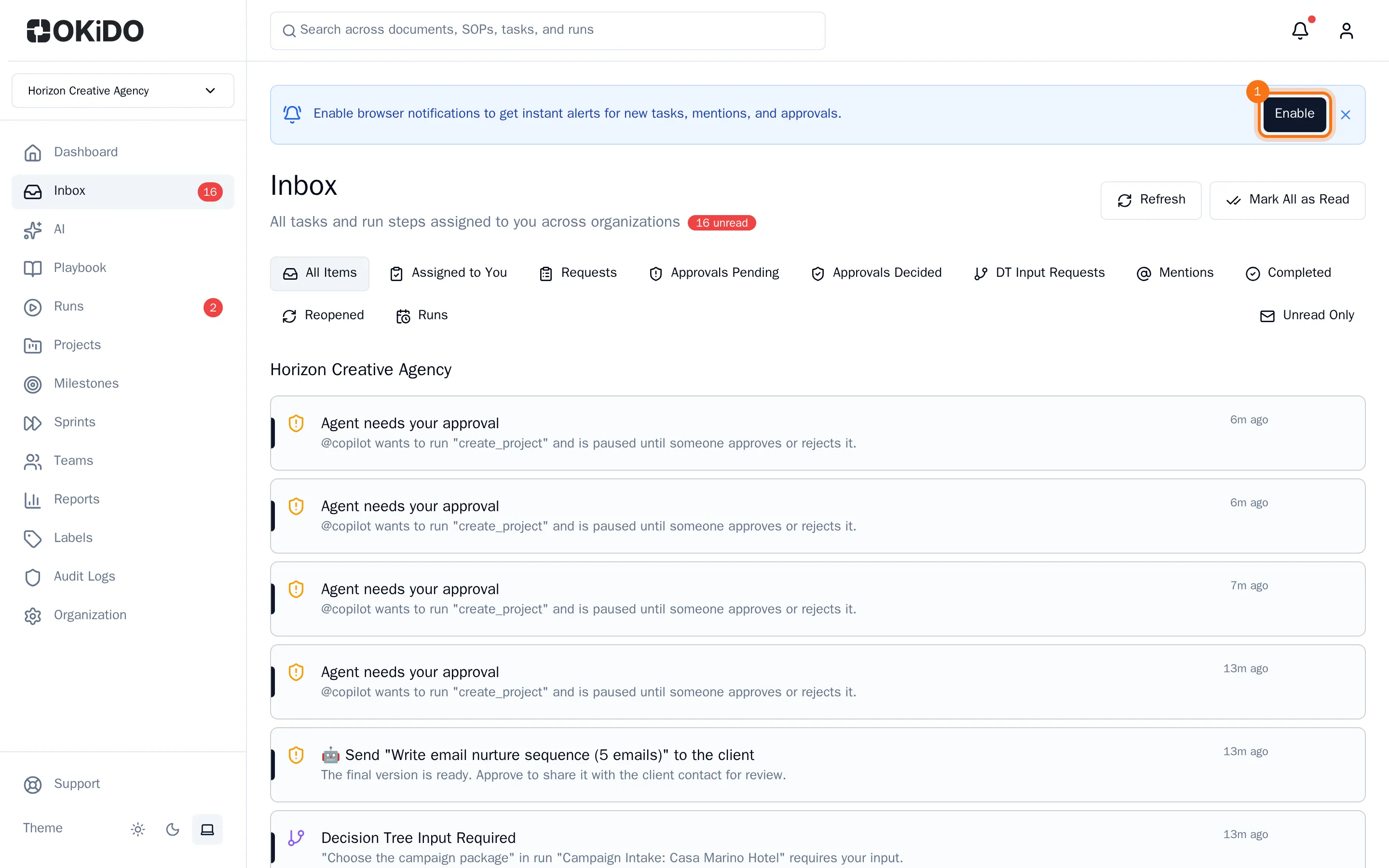
- Choose Enable.
- Your browser asks whether OKiDO may show notifications. Choose Allow.
The bar disappears, and from now on new notifications pop up on this device. Do this once on every computer and phone where you want alerts.
Tip: On an iPhone or iPad, install OKiDO on your home screen first and open it from there: Safari only shows push notifications for installed apps (see Install OKiDO as an app).
Check that push is on in your settings
Push notifications also have to be on in your OKiDO settings. They are, unless you turned them off.
- Open the account menu (the person icon at the top right) and choose Settings.
- Choose the Preferences tab.
- Under Notification Channels, make sure Push notifications is checked.
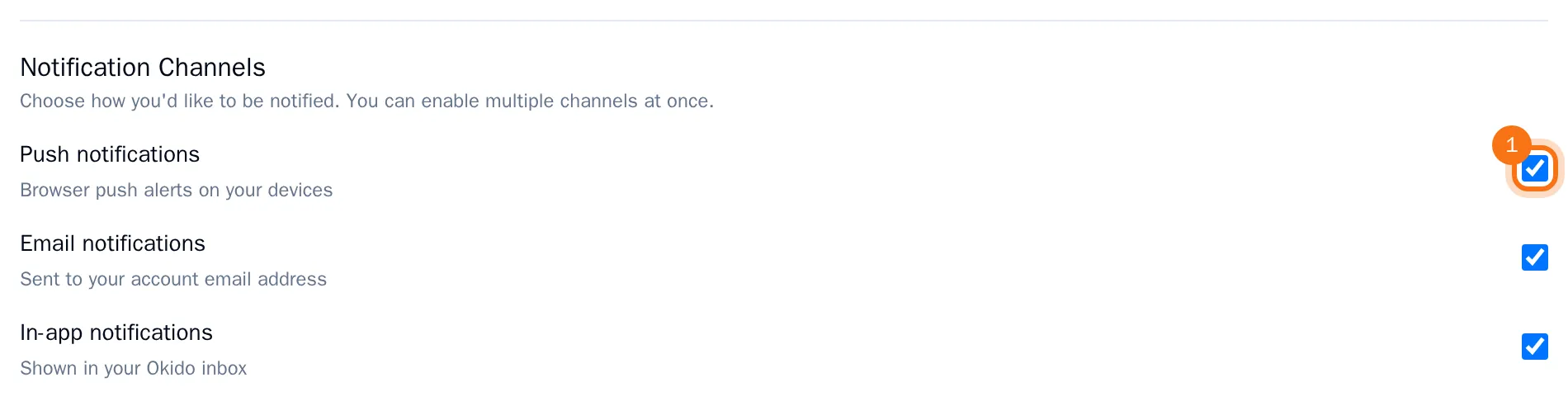
- If you changed it, choose Save Preferences.
Tip: Chose Block by accident? The bar does not come back. Allow notifications for OKiDO in your browser's site settings (in most browsers, the icon to the left of the web address), then reload the page.