Configure an agent
Change an agent's instructions, model and runtime limits, and pause, activate or deactivate it.
Who can do this: Owner, Admin
Each agent has its own page with everything about it: what it did, how it is set up and what it may do. Here you sharpen its instructions, give it another AI model, limit how much one run may take, and stop it for a while or for good.
Open an agent
- In the menu on the left, choose AI, then the Agents tab.
- Choose the agent.
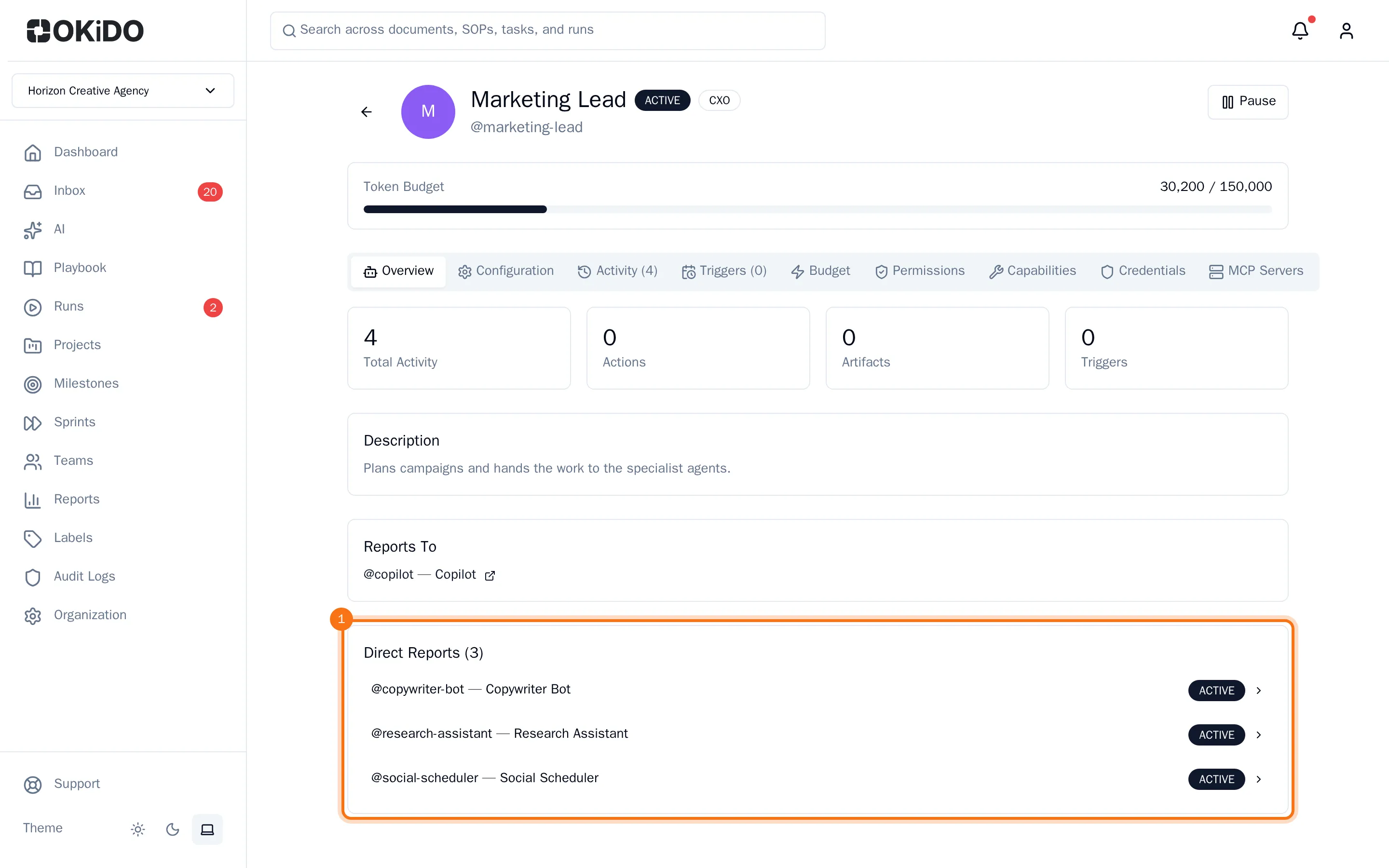
The agent's page opens on Overview: how many runs, actions, artifacts and triggers it has, what it does, who it reports to and which agents report to it. The bar at the top shows how much of its token budget it has used.
Change its instructions, model and limits
- Choose the Configuration tab.
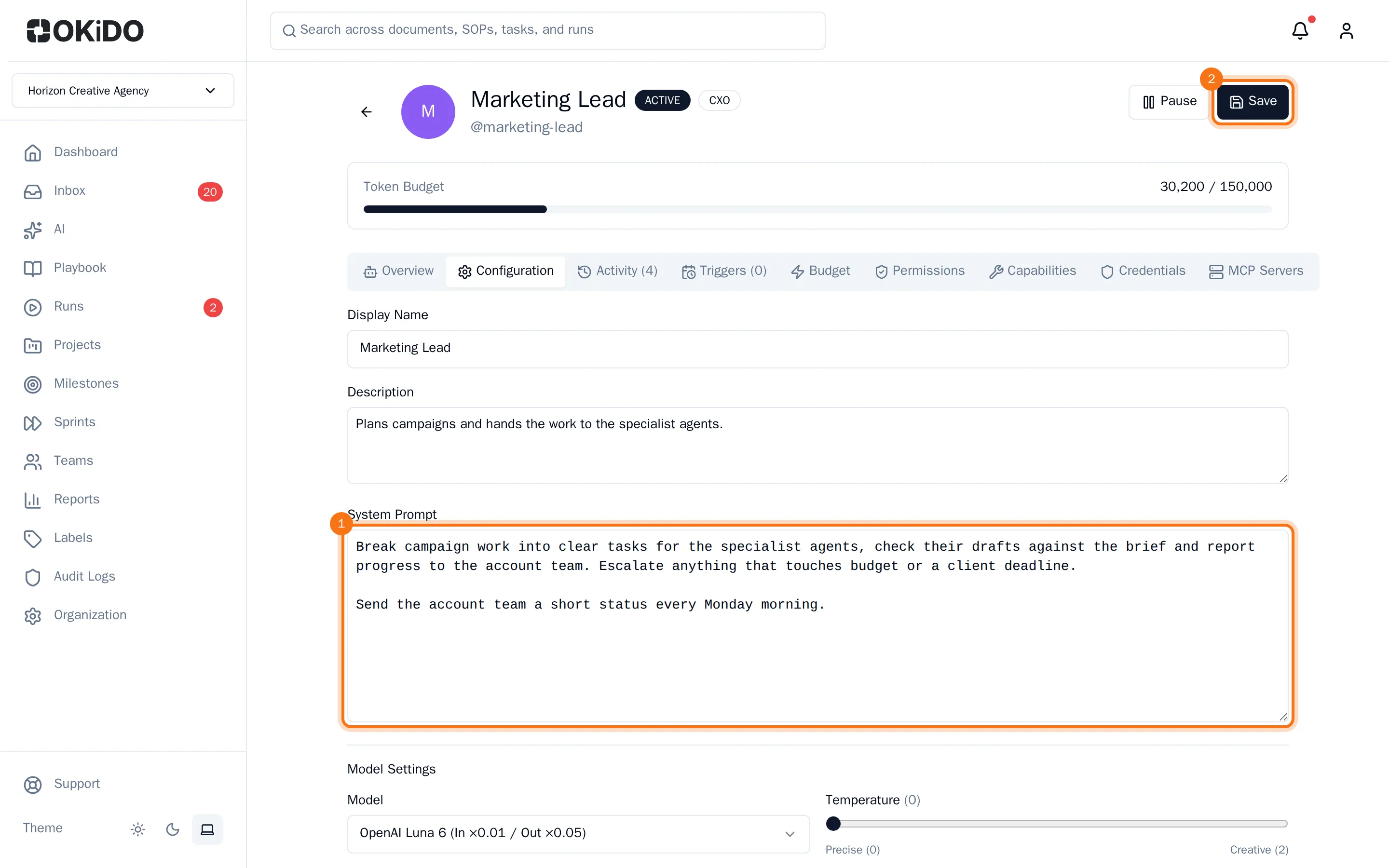
- Change the Display Name, the Description or the System Prompt: the instructions the agent follows on every run.
- Under Model Settings, choose a Model. With Organization default, the agent uses the models set for your organization (see Choose AI models and auto-recharge). Move Temperature to the left for precise answers, to the right for more creative ones.
- Under Runtime Limits, set the Token Budget and how much one run may take: Max Tokens / Response, Max Tool Calls / Run, Max Iterations and Max Runtime (seconds).
- Choose Save at the top of the page. The button appears as soon as you change something.
The agent uses the new settings from its next run on.
Pause or activate an agent
Choose Pause at the top right. The agent's status changes to PAUSED, and it takes on no new work until you choose Activate.

Deactivate an agent
When you no longer need an agent:
- On the Configuration tab, under Danger Zone, choose Deactivate Agent.
- Choose Deactivate.
The agent stops working and you are back on the agent list, where the agent stays with the status ARCHIVED. Agents that reported to it are deactivated as well. To use it again, open it and choose Activate.