Send a request through a form
Fill in a colleague's request form from its link or from a board column, then open the task it creates.
Who can do this: Everyone in the organization
When a team takes work in through a request form, use the form instead of a message or a hallway chat. The form asks for everything the team needs, and your request becomes a task on their board that you can follow.
Fill in a form from its link
- Open the link a colleague shared with you. You need to be signed in to OKiDO.
- Enter a Title and, if you like, a Description.
- Fill in the form's other fields. Fields marked with a red star are required.
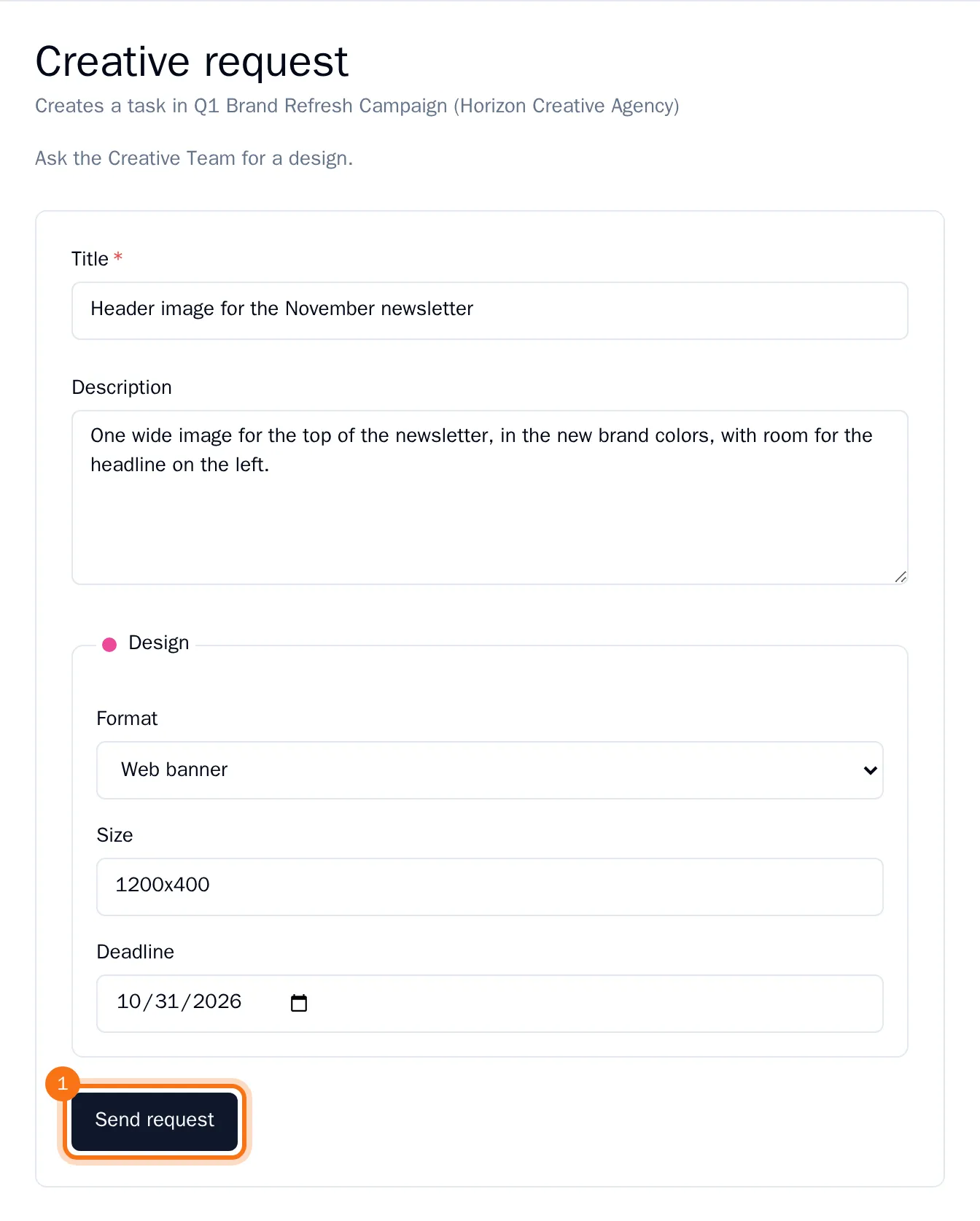
- Choose Send request.
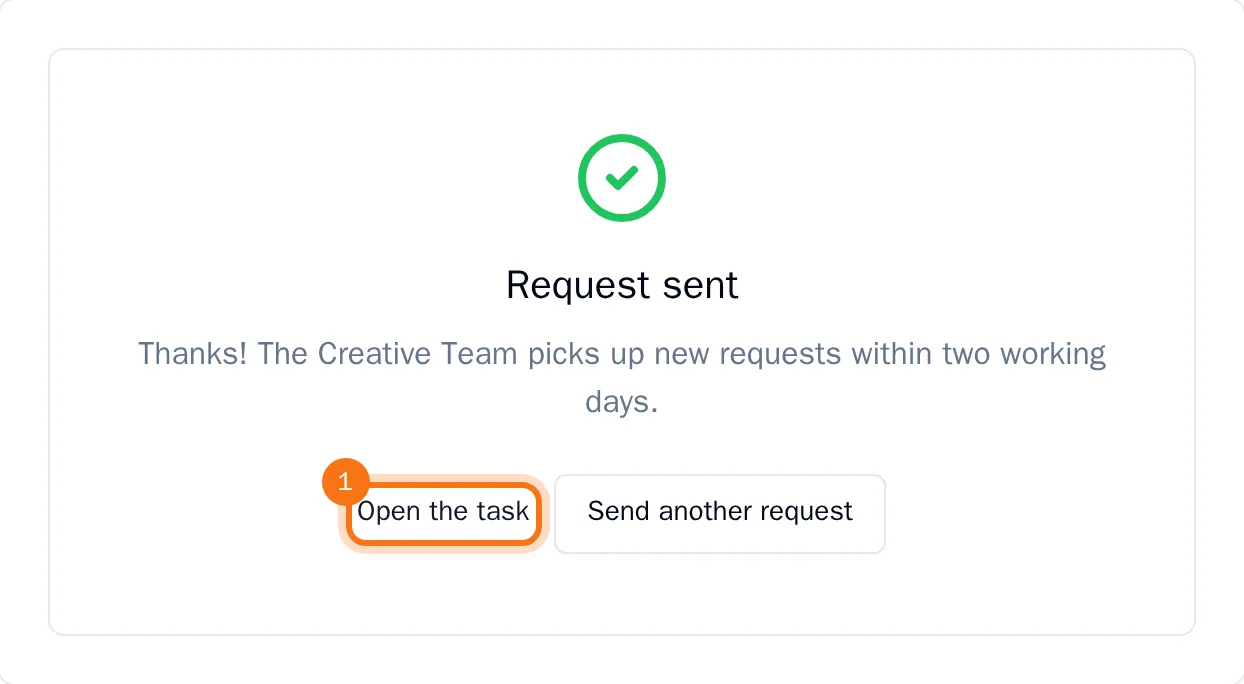
You see the form's message after sending. Choose Open the task to see the task your request became, or Send another request to send one more.
Fill in a form from the board
Every active form of a project shows as a button under the column its requests go to, below Add Task.
- Open the project and find the form under its column.
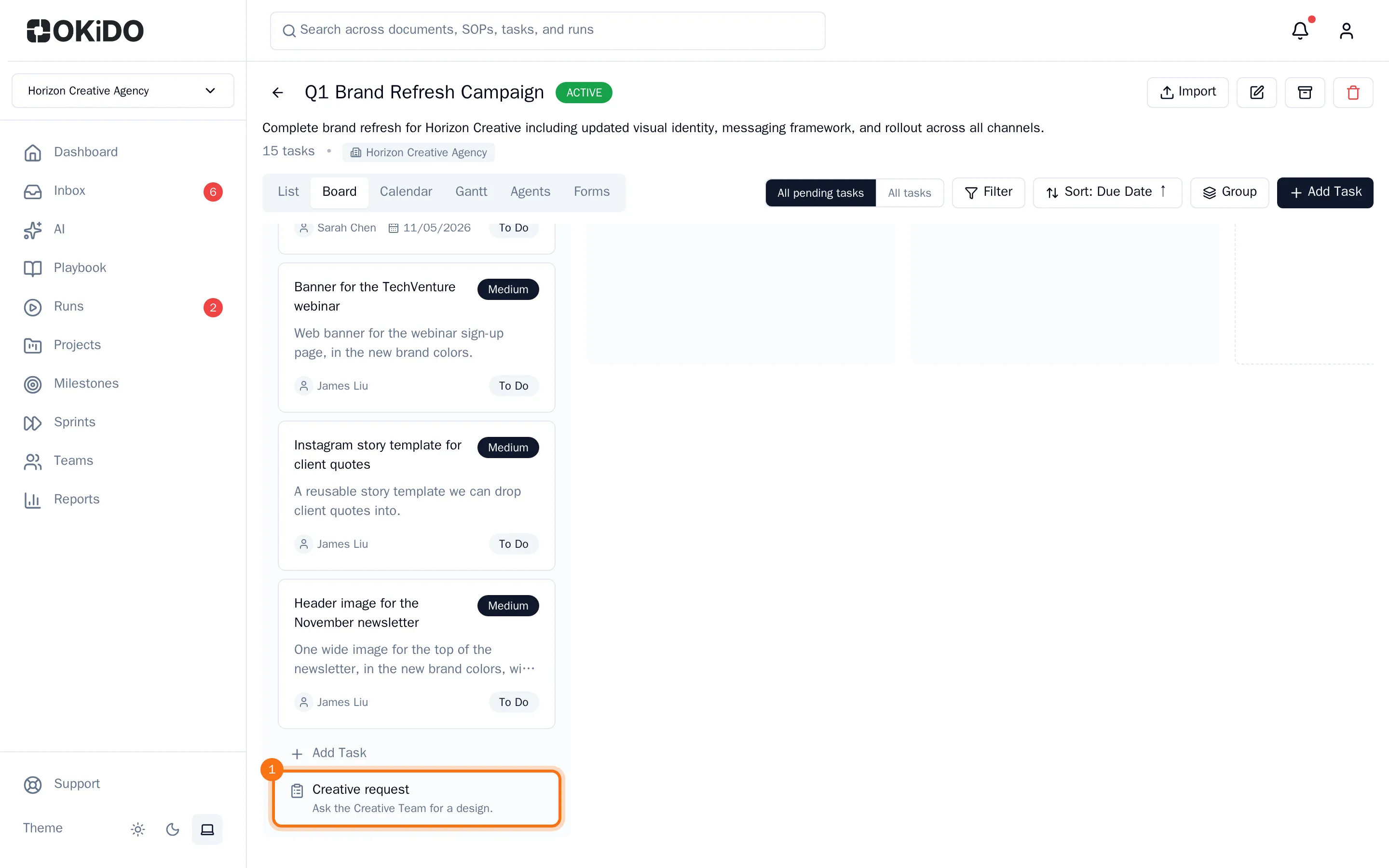
- Choose the form, fill it in and choose Send request.
- Choose Open the task to open the new task right there.
You can also choose Fill in on the form in the project's Forms tab.
What happens next
The new task is in the form's column, with the form's labels and the values you filled in. It shows which form it came from and who sent it. If the form assigns new requests to a person or a team, they get it right away, and the person who made the form gets a notification.