Create a milestone
Turn a task into a milestone and link the tasks that lead up to it.
Who can do this: Everyone in the organization
A milestone marks a moment your project works toward, such as the client approving the designs or the website going live. Link the tasks that have to be finished first: the milestone shows how many of them are done, and OKiDO warns you when the remaining work no longer fits before its date.
Turn a task into a milestone
- Open the task that stands for the moment, for example "Booking flow signed off". Give it a Due Date: that is the date of the milestone.
- Choose More actions (the three dots at the top), then Convert to milestone.
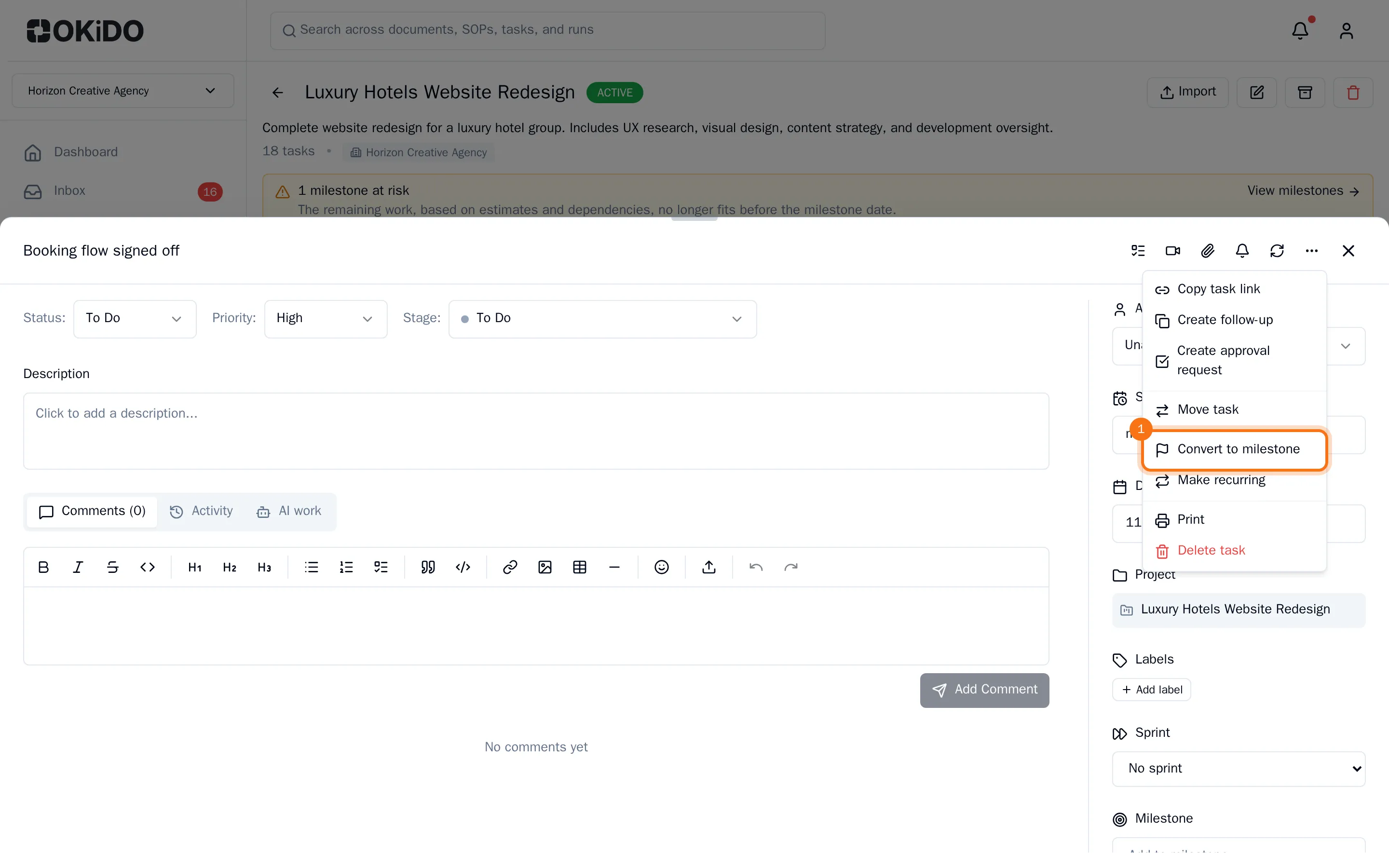
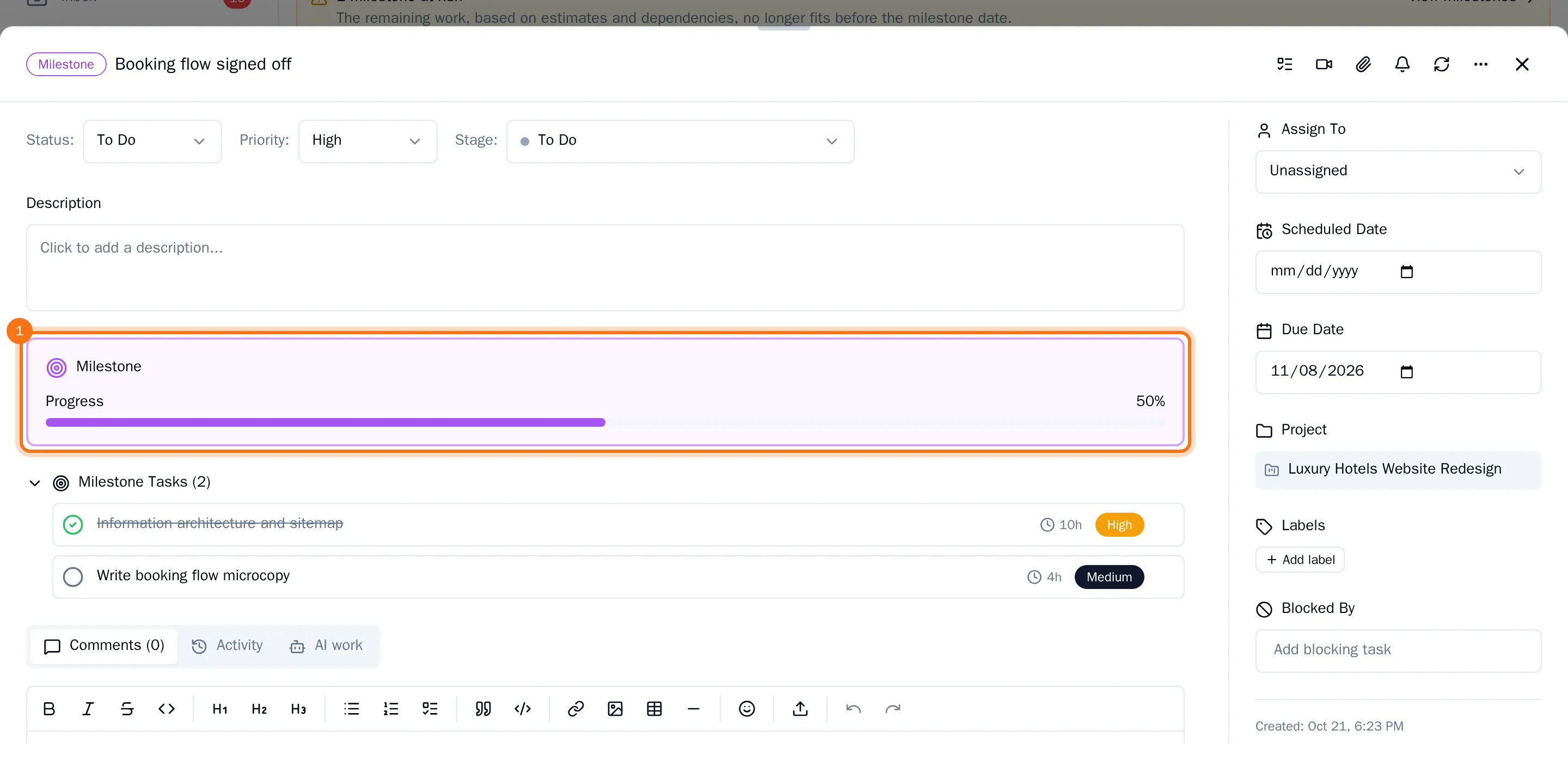
The task is now a milestone. On the board it has an amber border and a target icon, and in the task a Milestone panel shows its progress.
Link the tasks that lead up to it
- Open a task that has to be finished before the milestone.
- In the panel on the right, under Milestone, choose Add to milestone.
- Choose the milestone.
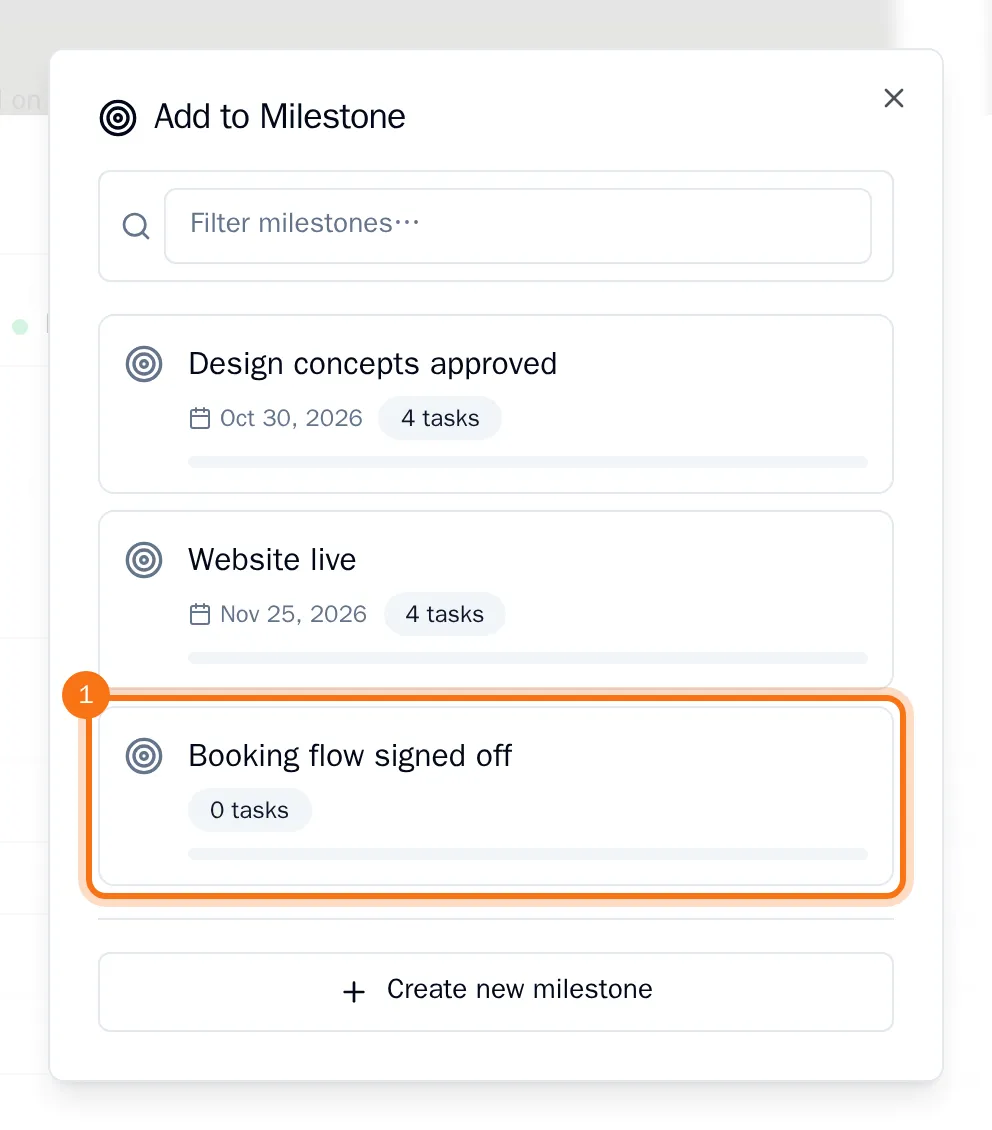
Repeat this for each task that leads up to the milestone. A task belongs to one milestone at a time. The button in the task now reads View milestone: choose it to link the task to another milestone, or choose Remove from milestone to unlink it.
Tip: No milestone yet? In the same list, choose Create new milestone, type its name and choose Create & Add. OKiDO creates the milestone and links the task in one go. Give the new milestone a due date afterwards.
Follow its progress
Open the milestone. Its Milestone panel shows the share of its tasks that are done, with the tasks listed below it. Click a task in the list to open it.
Every milestone from all your projects is also on the Milestones page, with a warning when the remaining work no longer fits before its date. See Track milestones and spot risk.