Make a task repeat
Give a task a schedule, so that it comes back by itself with the next date each time you complete it.
Available onStarterProBusiness
Who can do this: Everyone in the organization
Work that comes back every week or every month, such as a monthly report, needs only one task. Give it a schedule: each time you complete it, it reopens with the next date on the schedule.
Set a schedule
- Open the task, choose More actions (the three dots at the top), then Make recurring.
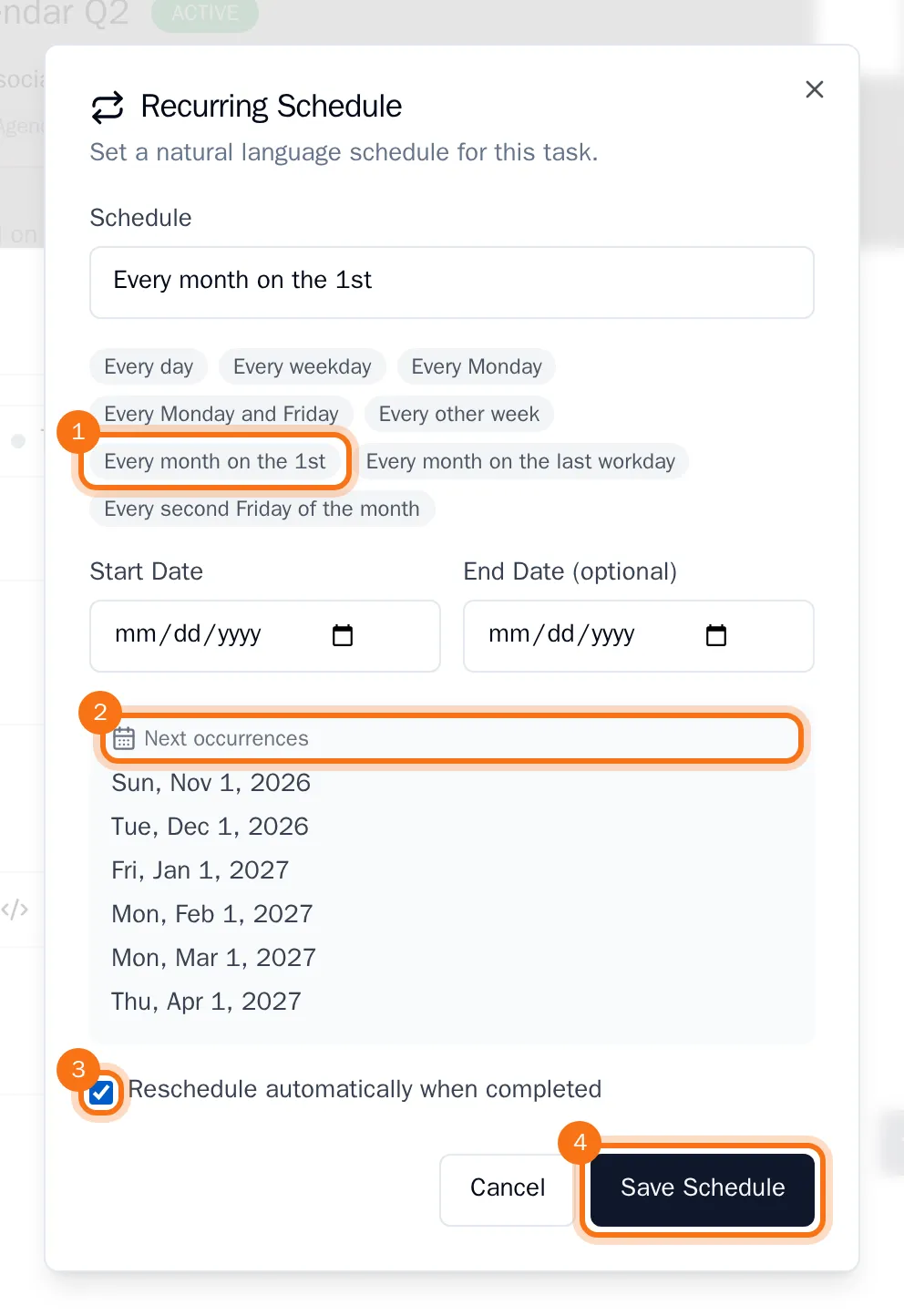
- Under Schedule, describe when the task comes back, for example
Every month on the 1st, or click one of the suggestions below the box. Write the schedule in English, like the suggestions. - If the schedule should only start later or end on a date, fill in the Start Date and the end date.
- Check the dates under Next occurrences.
- Tick Reschedule automatically when completed: this is what brings the task back. Then choose Save Schedule.
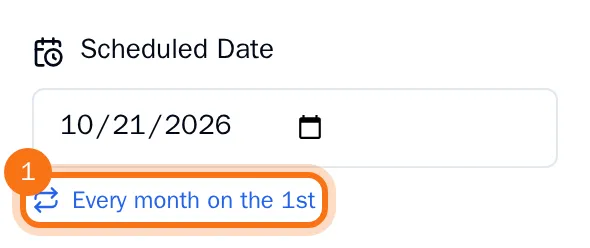
The schedule now shows under Scheduled Date in the task.
Complete a repeating task
Mark the task as done when the work is finished. It comes straight back with the status To Do, and its scheduled date moves to the next date on the schedule.
Change or stop the schedule
Click the schedule under Scheduled Date, or choose Edit recurring schedule in the task menu. Change the schedule and save it, or choose Remove to stop the task from repeating.