Filter, sort and group tasks
Use quick filters, field filters, sorting, grouping and list columns to find the tasks you need in a project.
Who can do this: Everyone in the organization
The toolbar above a project's tasks narrows down what you see, in every view. Your choices last while you work in the project and reset when you leave it. They change only what you see, never the tasks themselves.
Show pending or all tasks
Choose All pending tasks to hide done tasks, or All tasks to see them too. A project opens with done tasks hidden.
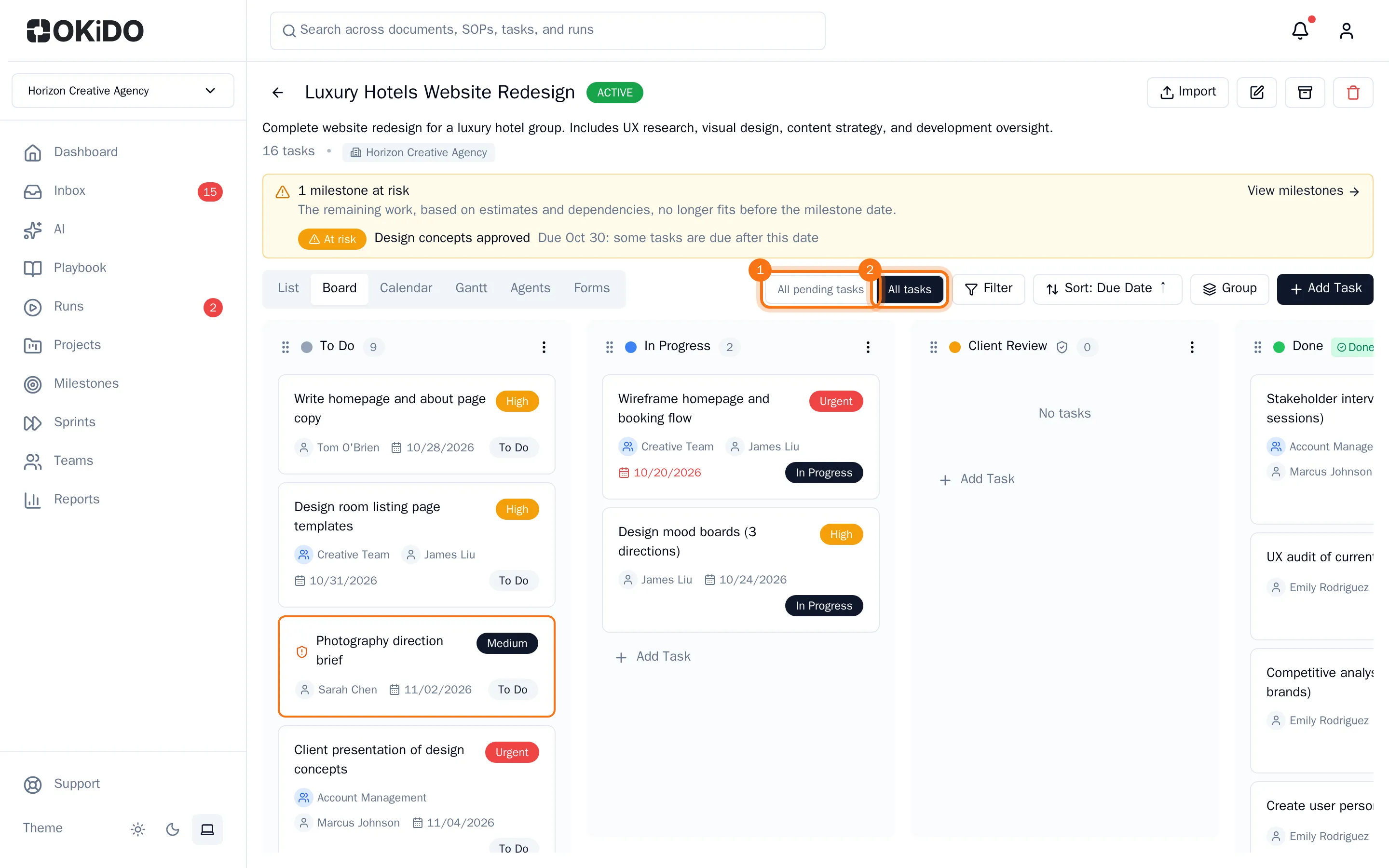
Filter tasks
- Choose Filter.
- Under Quick Filters, choose Assigned to me, Past due or Due this week.
- Or choose a value under Status, Priority, Assignee, Team, Sprint or Created By. Sprint only appears in projects with sprints.
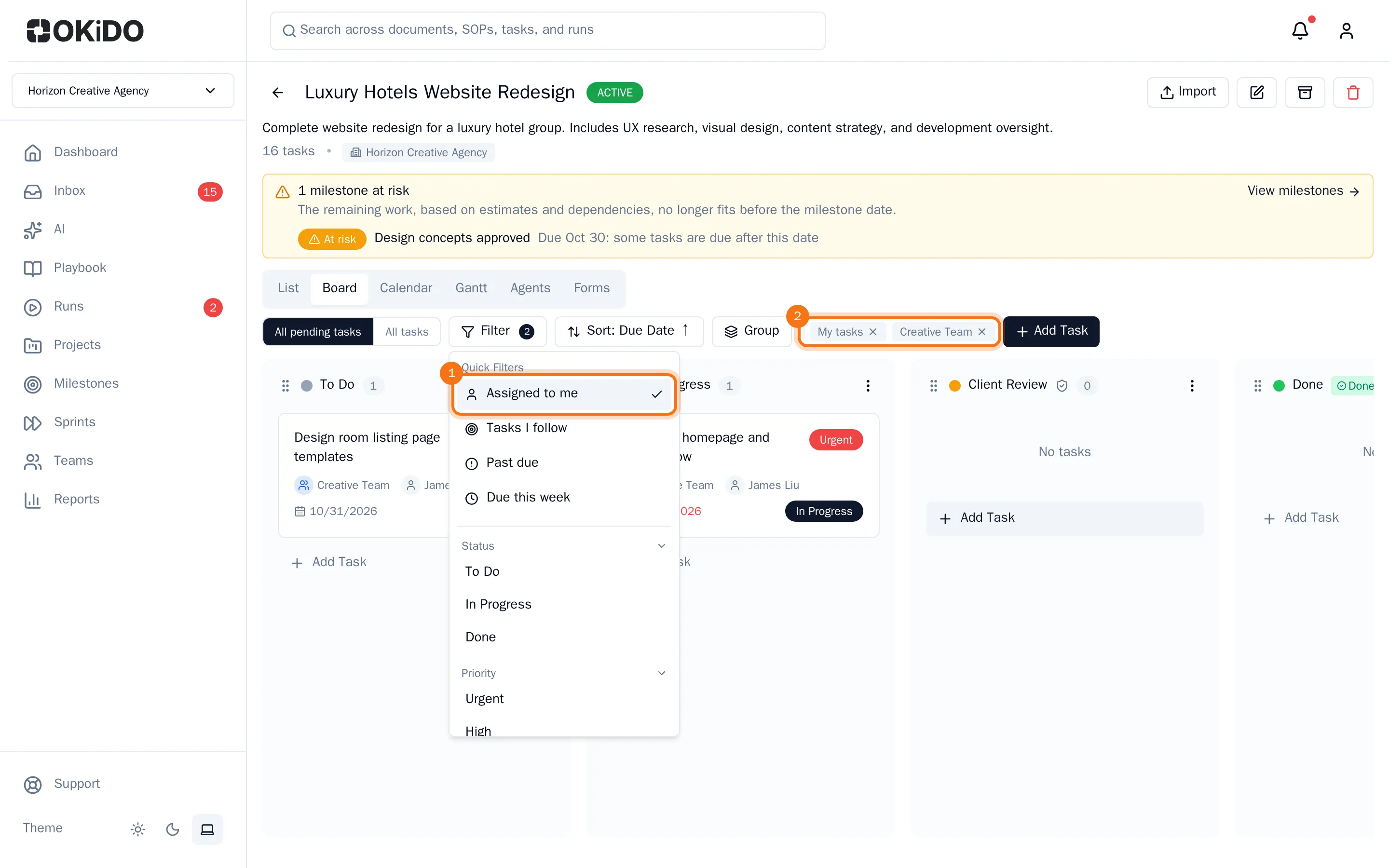
Each filter you choose narrows the tasks further: a task shows only when it matches all of them. Assigned to me also includes tasks waiting for your approval.
The Filter button shows how many filters are on, and the filters appear next to the toolbar. Choose the cross on one to remove it, or Clear all filters in the filter panel to remove them all.
Sort tasks
- Choose the sort button next to Filter. It shows the current order.
- Choose Due Date, Assignee, Created, Modified, Completed, Priority or Alphabetical.
Choose the same field again to reverse the order. Tasks are sorted by due date at first, earliest first.
Group tasks in the list
Grouping works in the List view.
- Choose Group.
- Choose Status, Priority, Assignee, Team, Stage or Sprint.
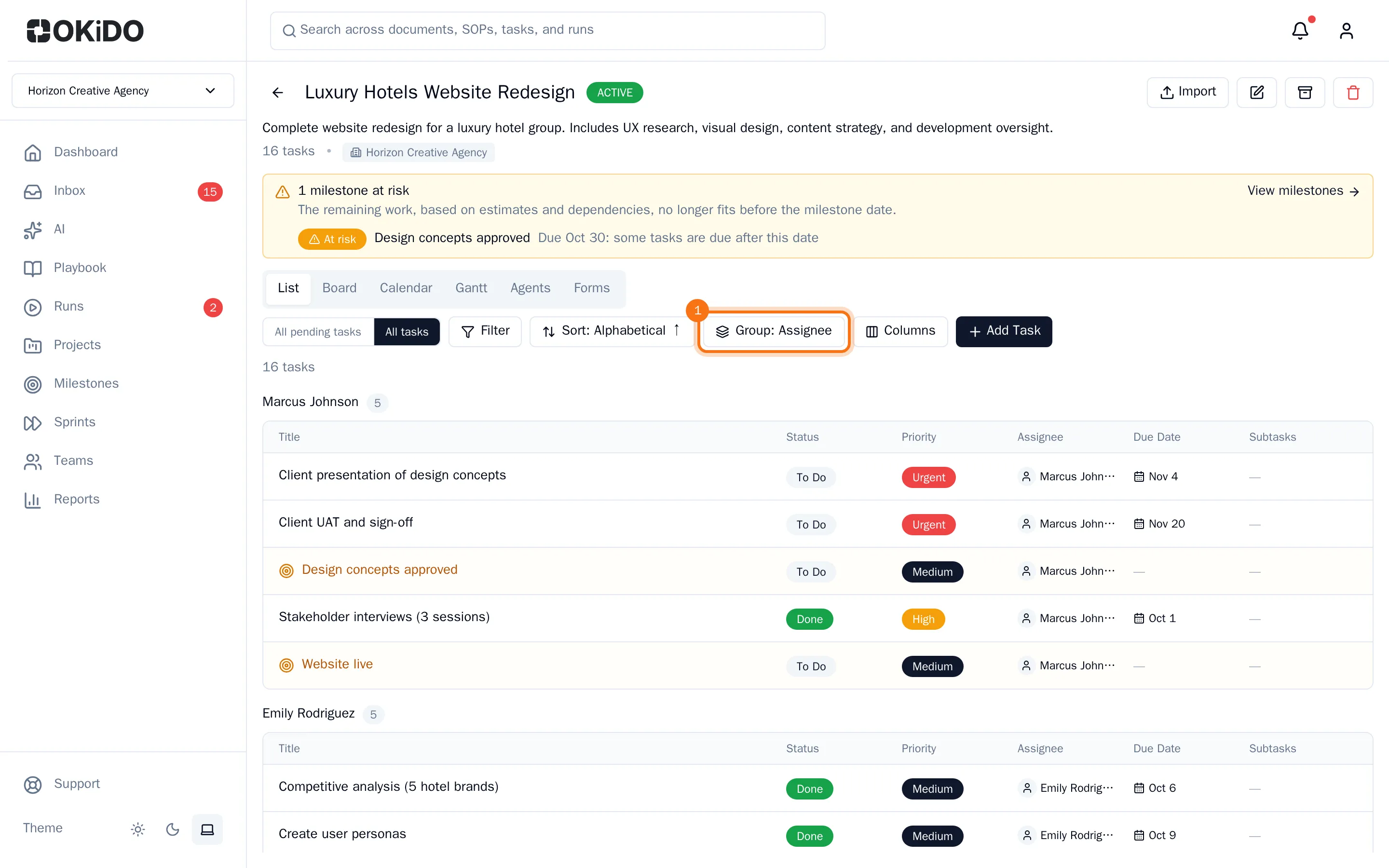
The list now shows a heading with a count for each group. Choose None to show one list again.
Choose the list columns
- In the List view, choose Columns.
- Choose a column to show or hide it, for example Team, Stage or Created.
A check mark shows which columns are on.