Track and manage runs
Find runs by status, change a run's status or priority, and cancel or delete runs you no longer need.
Available onAll plans
Who can do this: Everyone in the organization
All runs of your organization are on the Runs page. There you see at a glance which runs are under way, which are stuck and which are done.
Find a run
- In the menu on the left, choose Runs. The SOP Runs tab shows every run as a card, with its status, the template and version it was started from, who started it, its number of steps and its due date.
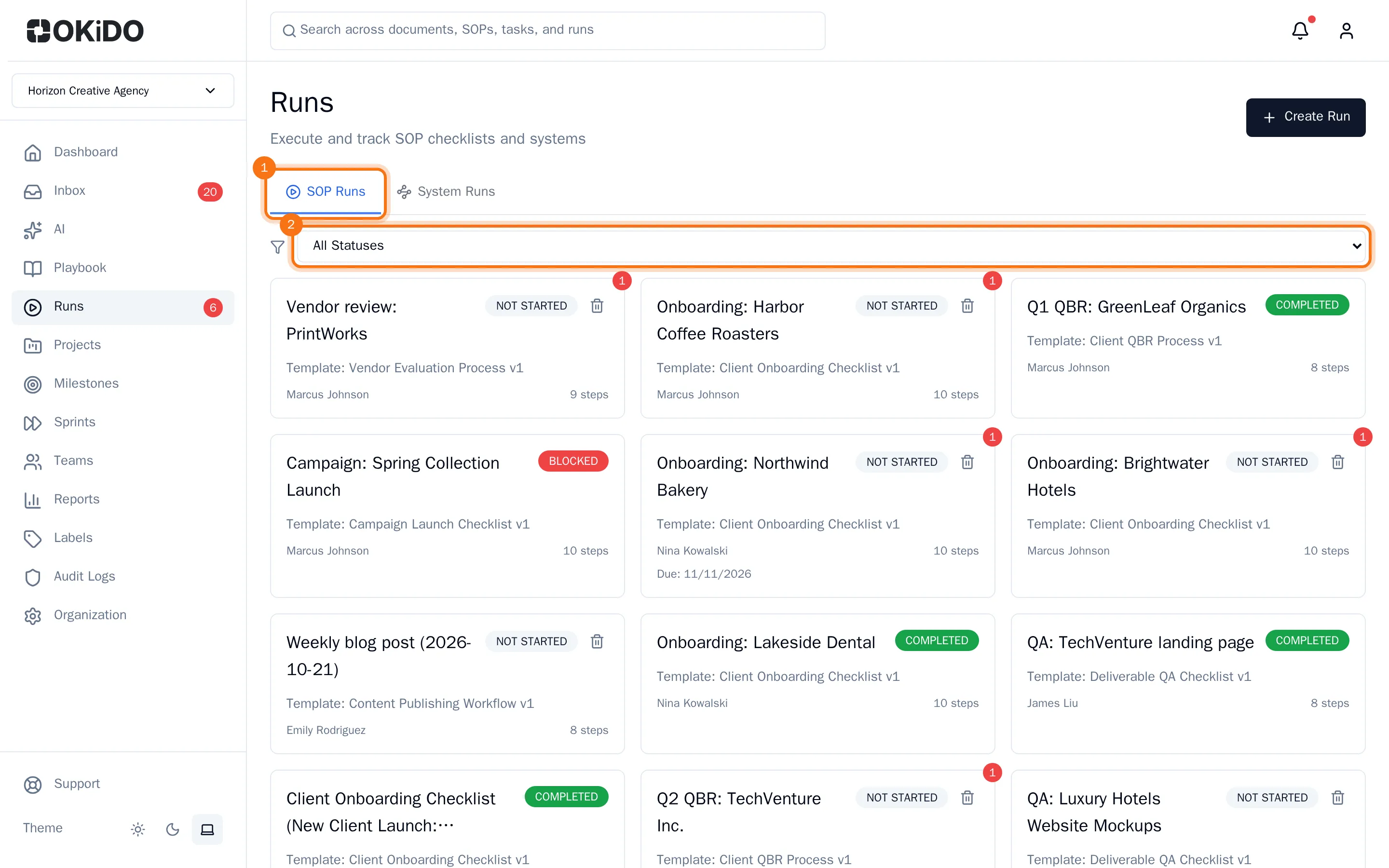
- To see only runs with a certain status, choose it in the list above the cards, for example Blocked.
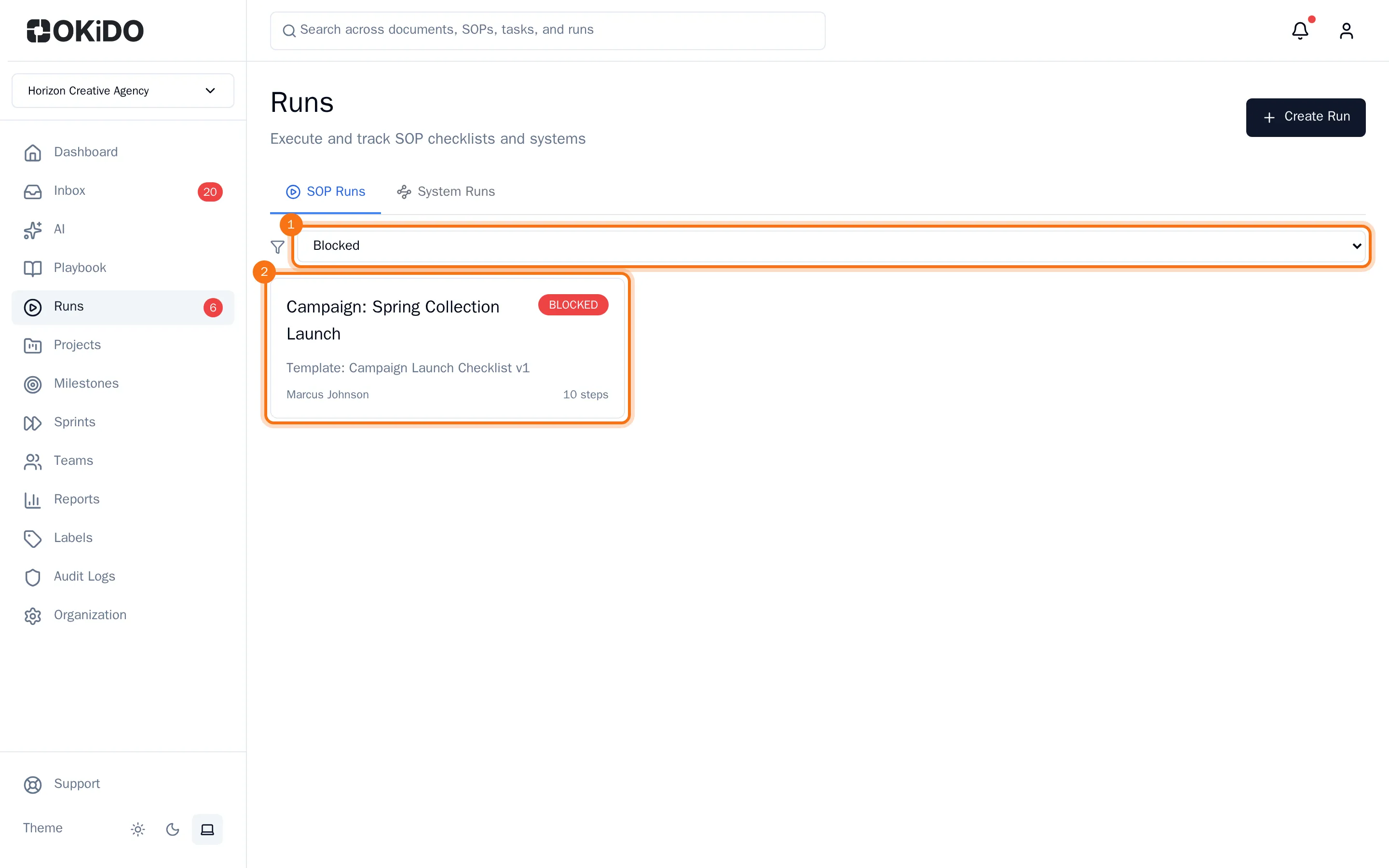
Select a card to open the run.
Change the status or the priority
The person who started a run can change its status and priority, and so can owners and admins. Everyone else sees them without a menu.
- Open the run.
- Choose the status under the run's name, and pick what to do:
- Start Run for a run that has not started yet,
- Mark Blocked when the run is stuck, then Resume Run to carry on,
- Complete Run to finish it.
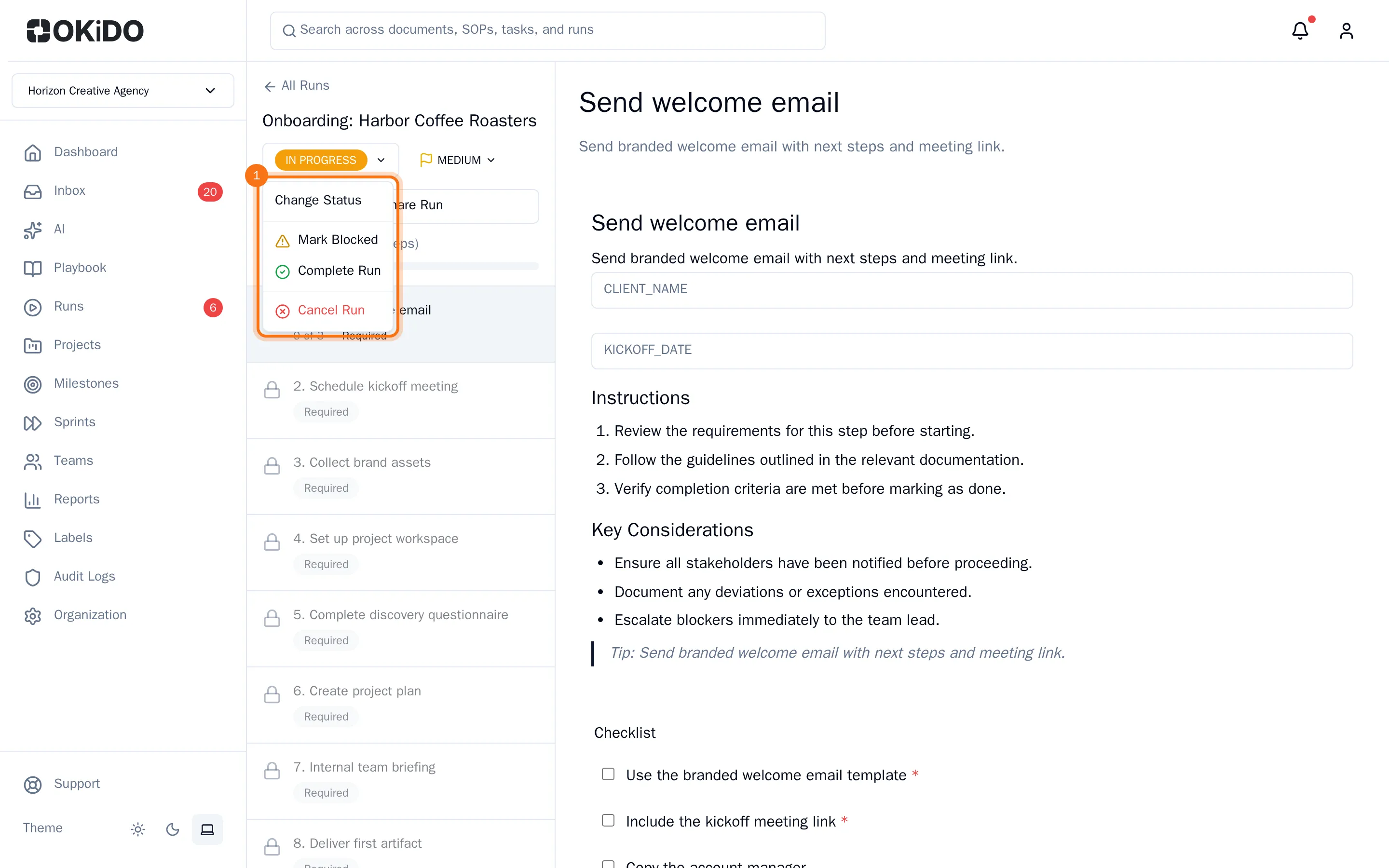
- To change the priority, choose the priority next to the status and pick another one.
Cancel or delete a run
- To stop a run you no longer need, open it, choose its status, then Cancel Run. The run keeps its history and shows as cancelled; its steps can no longer be completed.
- Owners and admins can delete a run that has not started. On the Runs page, choose Delete run (the bin on the run's card), then Delete Run. This cannot be undone.