Create a task
Add a task to a project and fill in who does it, its status, priority, dates, sprint and description.
Available onStarterProBusiness
Who can do this: Everyone in the organization
Every piece of work in a project is a task. A new task opens as soon as you add it, so you can give it a title and fill in the details right away.
Add a task
- Open the project and choose Add Task at the top right. The task is added to the first column of the board.
- To add a task to another column instead, choose Add Task at the bottom of that column.
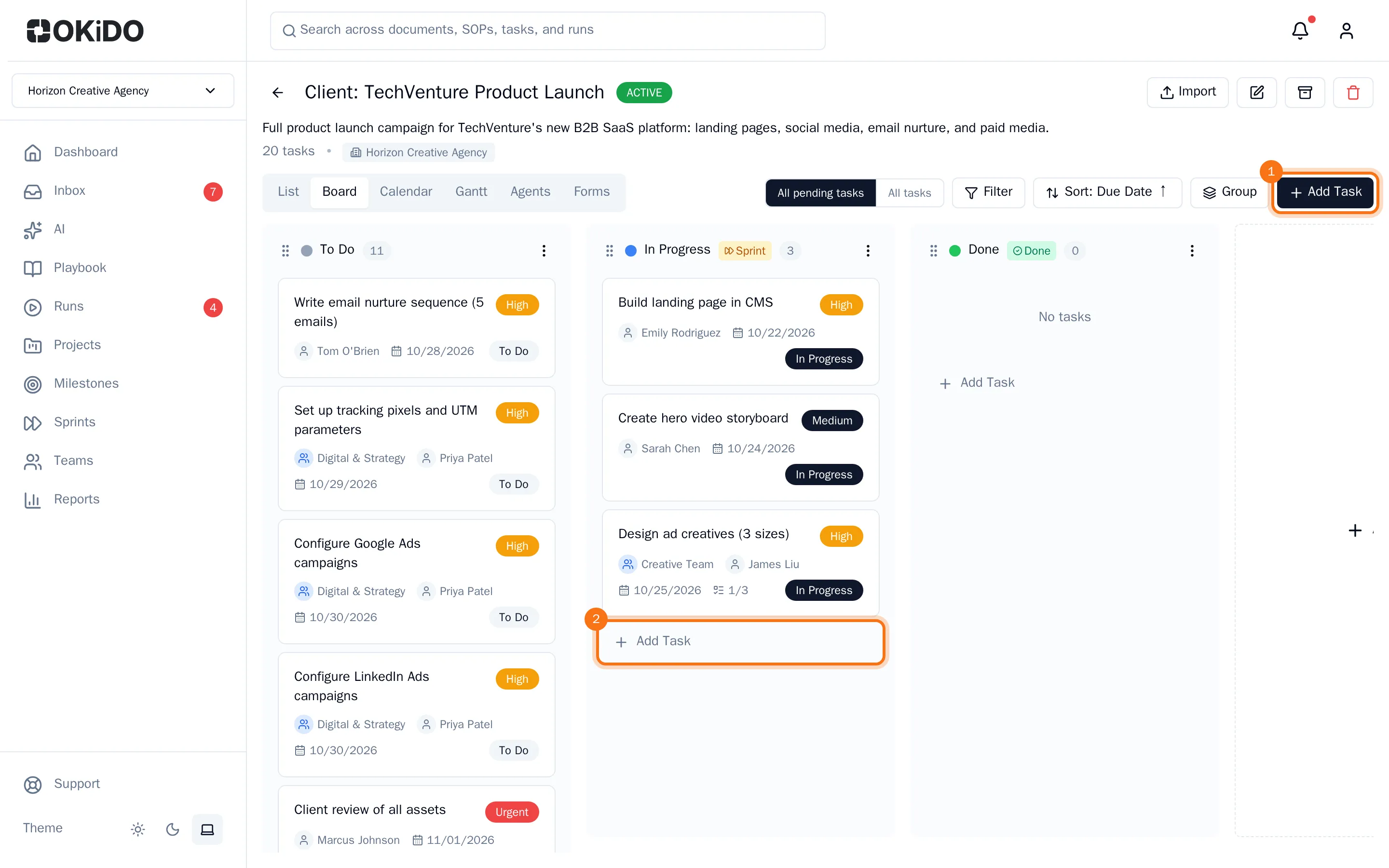
- The new task opens with its title selected. Type a title and press Enter.
Fill in the details
Everything you change in the task saves right away.
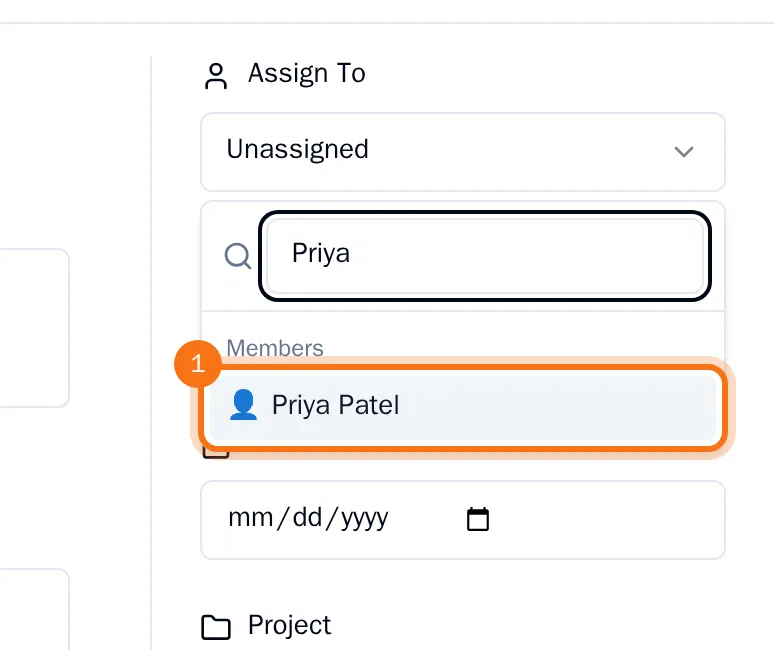
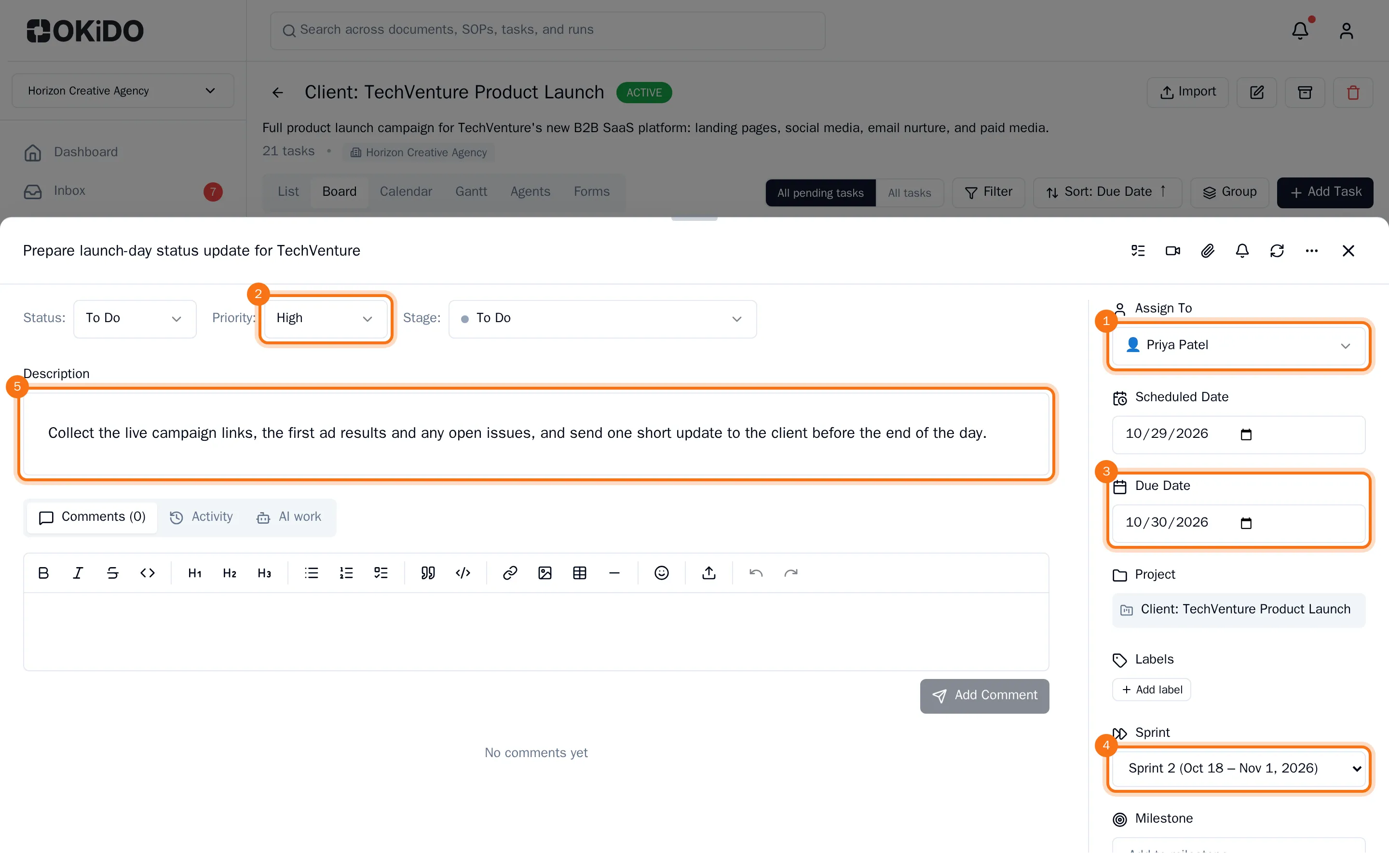
- Under Assign To, choose who does the work: a person, a team or an AI agent. Type a few letters to find them.
- At the top of the task, choose its Status and Priority.
- In the panel on the right, set the Due Date. Set a Scheduled Date as well if you plan to work on it on a particular day.
- Under Sprint, choose the sprint the task belongs to if the project works in sprints.
- Click the box under Description and write what needs to be done. The description saves while you type. Choose Done when you are finished.
Close the task to go back to the board. Its card shows the title, the assignee, the due date, the priority and the status.
Tip: Click the title at the top of an open task to rename it at any time.