Give new tasks default labels
Choose the labels every new task in a project starts with, in the project settings.
Who can do this: Everyone in the organization
When every task in a project should carry the same labels, such as Client Work for a client project, make them default labels. Every new task in the project then starts with them, whoever creates it. People can still remove a label from a single task.
The project owner chooses the default labels: the person who created the project, or an organization owner or admin. Everyone else can look at them.
Choose the default labels
- Open the project and choose the project settings button (the pencil) at the top right.
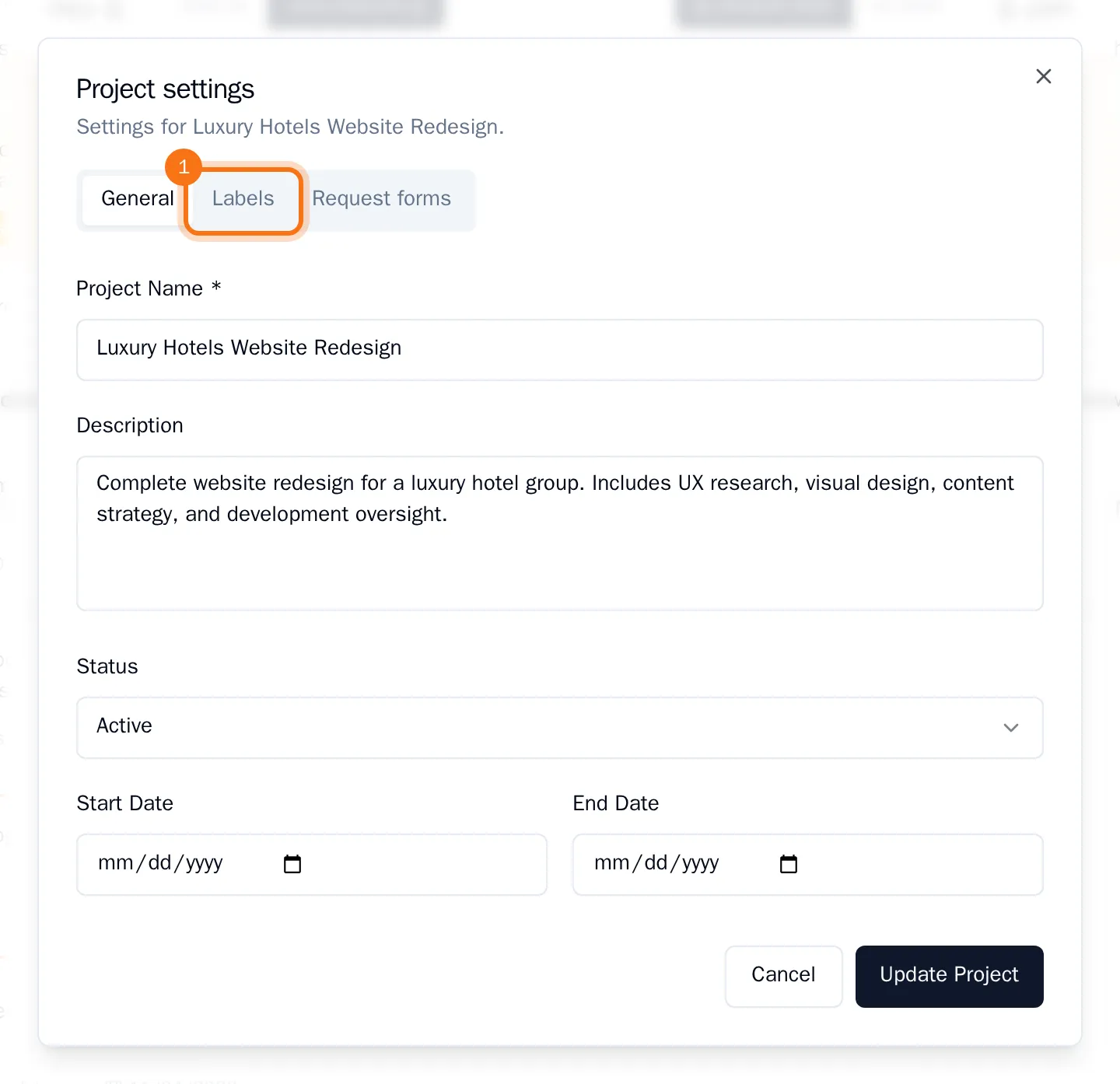
- Open the Labels tab.
- Choose Add a label and pick a label. Repeat for each label.
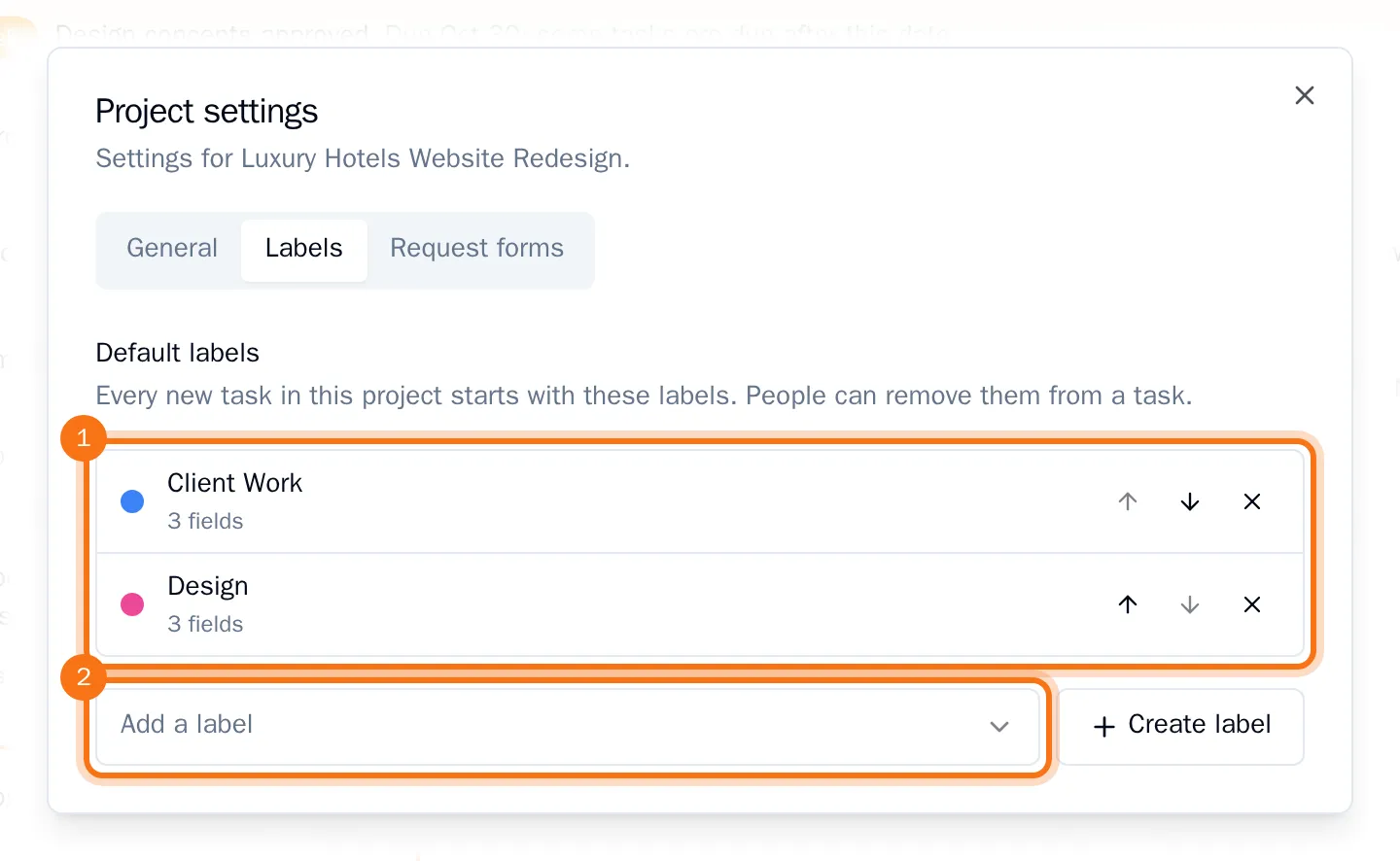
Every change is saved right away. The labels apply to tasks created from now on: tasks already in the project keep the labels they have.
Change the default labels
- Use the arrows next to a label to change the order.
- Choose the cross next to a label to remove it.
- Need a label that does not exist yet? Choose Create label, fill in the label and save. It is created for the whole organization and added to the project's default labels. See Create a Smart Label.
Tip: Default labels also come along when you start a project from a template. See Reuse a project as a template.