Put an agent to work on a project
Deploy an agent to a project, brief it with a goal and instructions, choose what starts it and test it on a sample event.
Who can do this: Owner, Admin
An agent works on a project once you deploy it there. The project's Agents tab is where you do that, and where you brief the agents: a goal and instructions that every agent on the project follows, and for each agent what makes it start, how often it asks for approval and instructions for that agent only.
Owners and admins manage a project's agents, and members who have the Advanced AI features. Everyone else sees the tab without changing it.
Open the project's agents
- Open the project and choose the Agents tab.
At the top you see the Project goal and the Project instructions, shared by every agent on the project. Below them, under Briefing for, are the agents working here; choose one to see and change its settings. On the right, Briefing shows what the agent reads before it starts, Memory what agents remember about the project, and Recent runs what the agent did here lately.
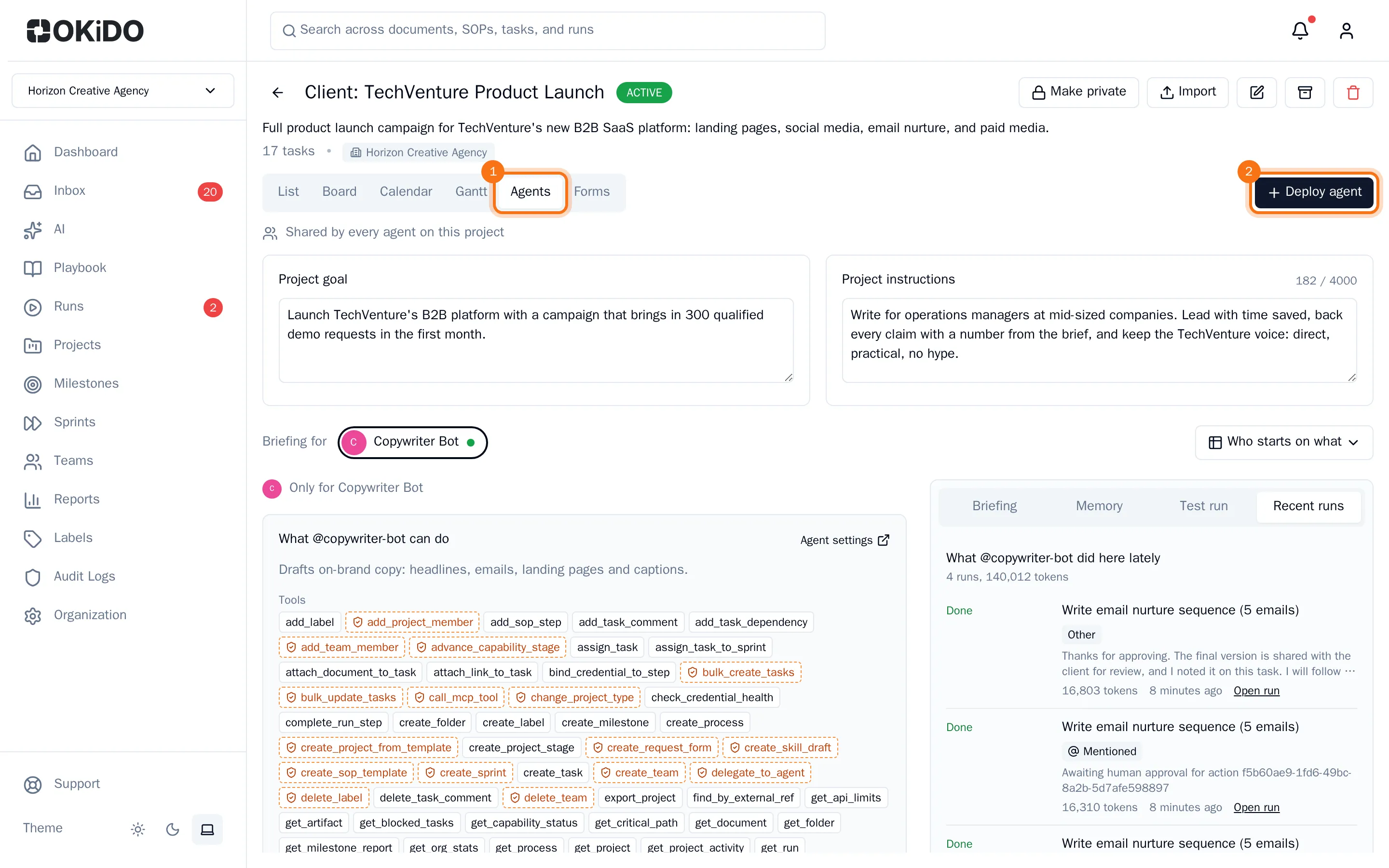
Deploy an agent
- Choose Deploy agent.
- Choose an agent from the list. It shows your organization's active agents that are not on this project yet.
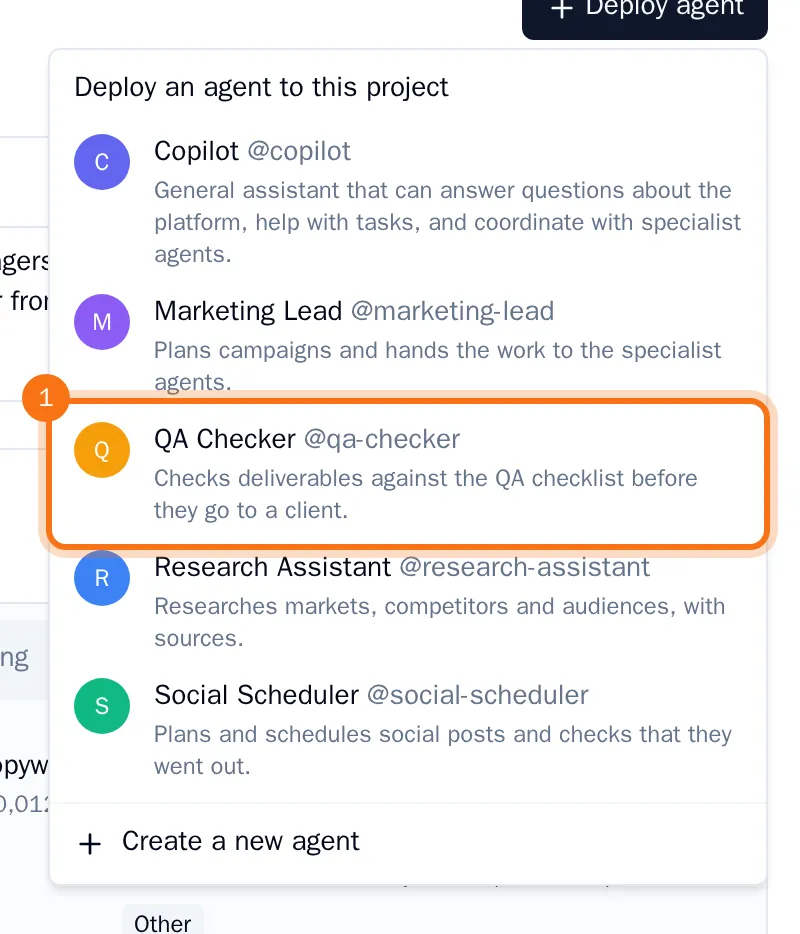
The agent is added to the project. It starts when it is assigned a task or @mentioned in a comment on this project.
Brief the agent
- Fill in the Project goal and the Project instructions if the project does not have them yet. Every agent on the project gets them.
- Under Briefing for, choose the agent.
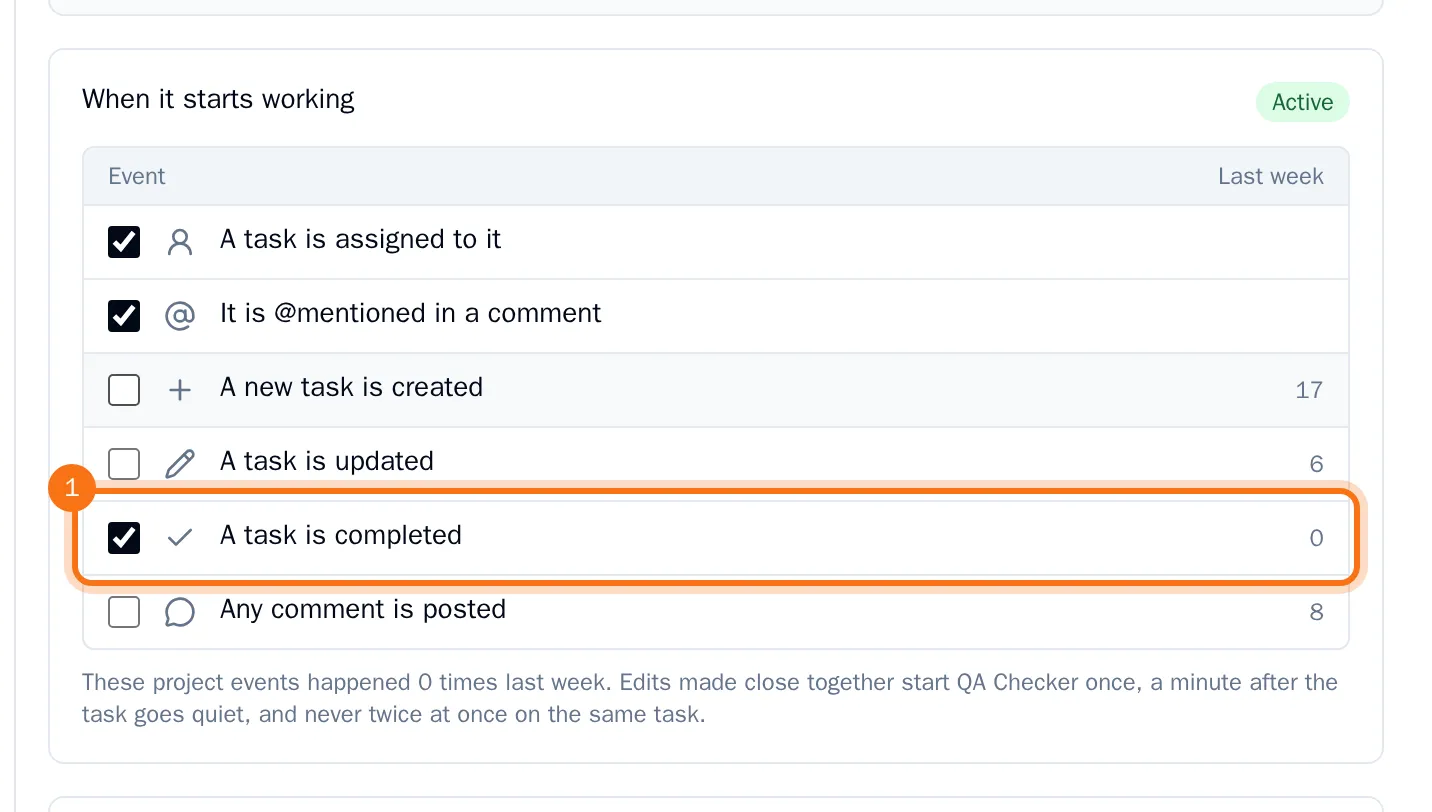
- Under When it starts working, tick the events that start it: a task assigned to it, an @mention, a new task, an updated task, a completed task or any comment. Next to each event you see how often it happened in the project last week.
- Under How often it asks for approval, choose how careful the agent is, from None (never asks) to Full (asks before every change).
- Write instructions for this agent only, if it needs any.
- Choose Save changes in the bar at the bottom.
The agent follows the new briefing from its next run on. Choose Who starts on what to see for all agents at once which events start them.
Test the agent on a sample event
- On the right, choose Test run.
- Pick an Event and, under About task, a task of the project. For a comment event, type the comment too.
- Choose Run test.
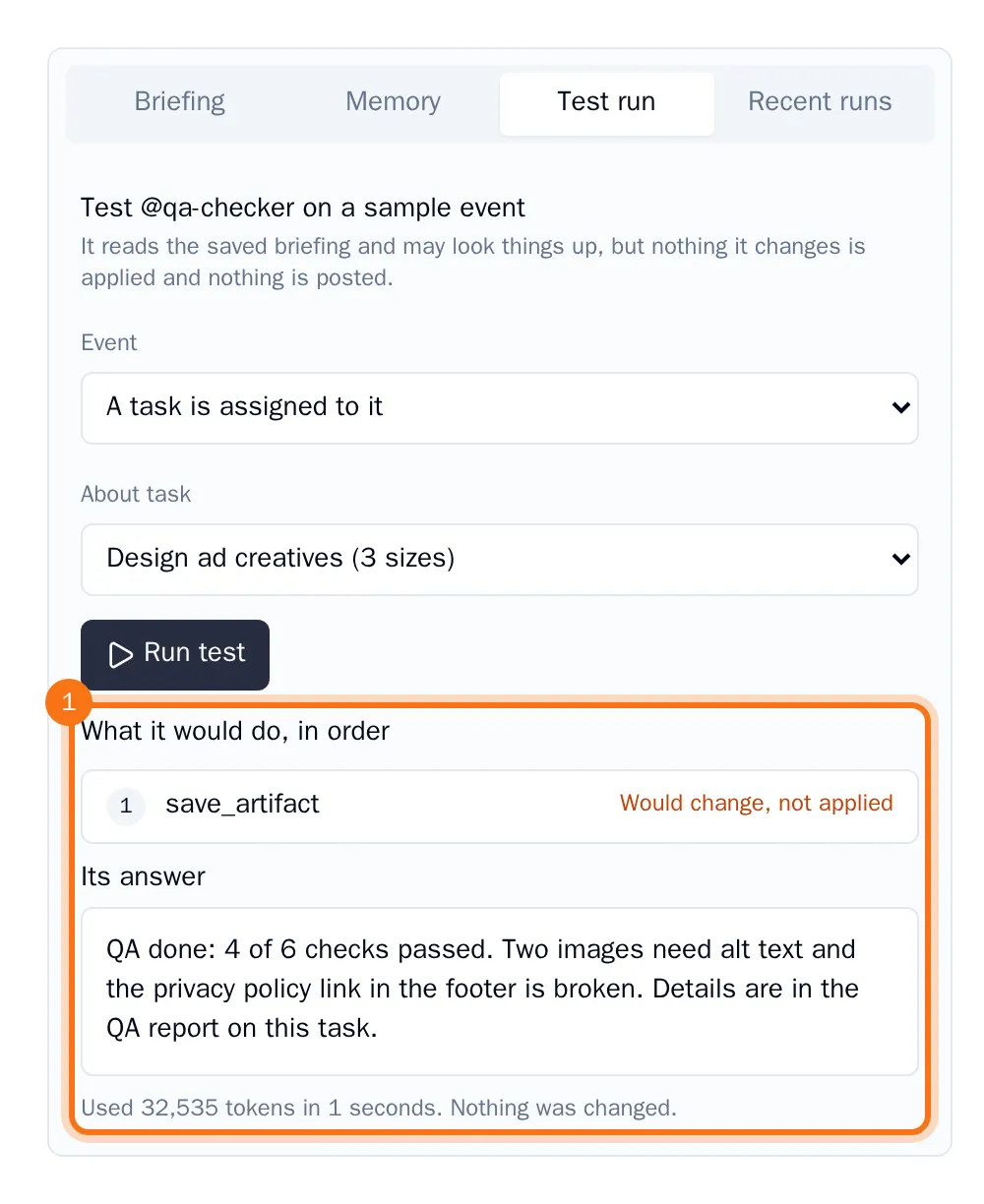
You see what the agent would do, in order, and its answer. Nothing it would change is applied and nothing is posted. The test uses the saved briefing, so save your changes first.
Tip: To take an agent off the project, choose it under Briefing for and choose Remove from project. Its settings elsewhere stay the same.