Organize the Playbook with folders and processes
Create folders and processes, rename and move them, and add documents, SOPs, recordings and decision trees to a process.
Available onAll plans
Who can do this: Owner, Admin
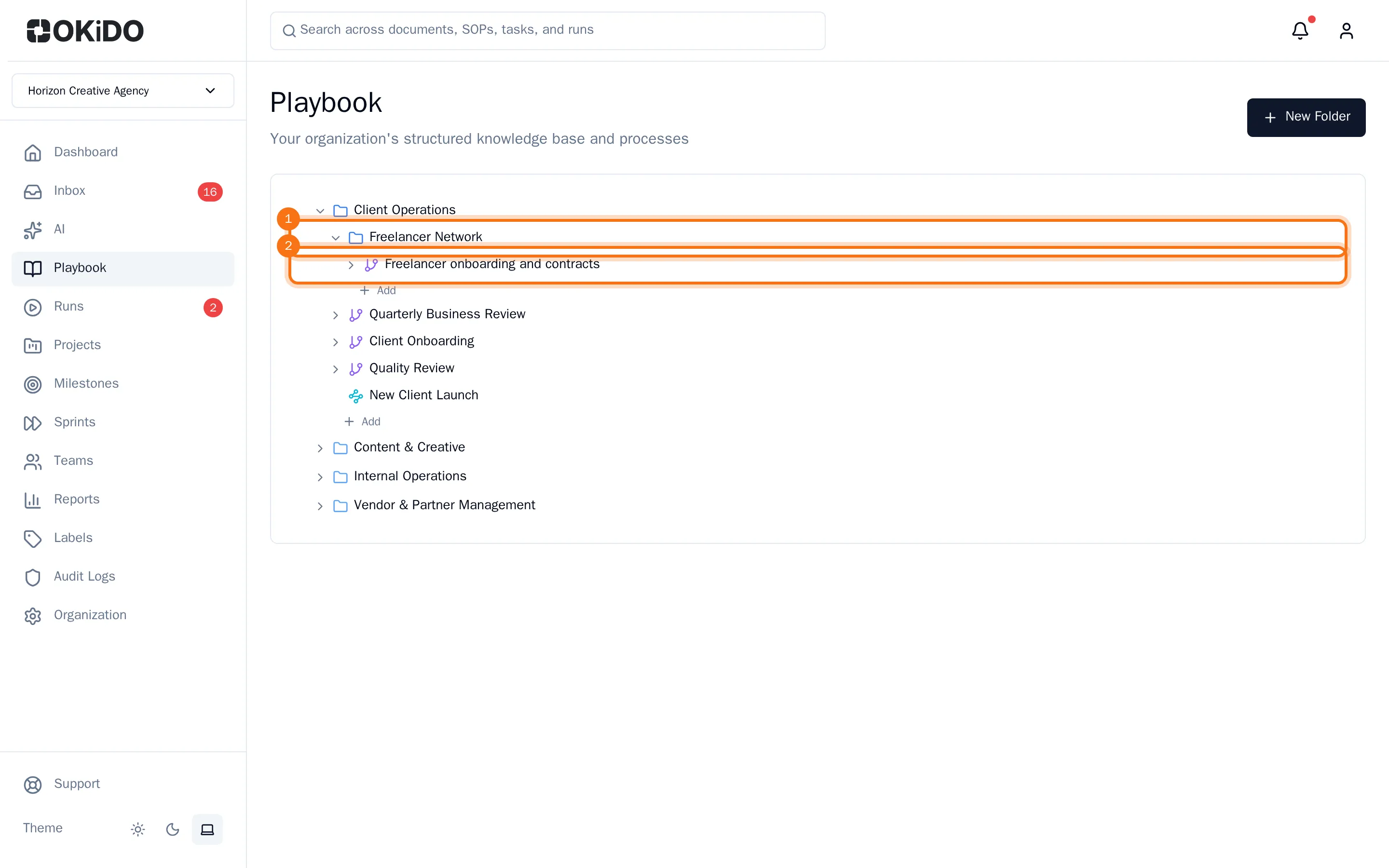
The Playbook holds how your organization works. Folders group the areas of your work, such as client operations. A process inside a folder describes one way of working, such as onboarding a client, and holds its documents, SOP checklists, recordings and decision trees.
Only owners and admins can create, rename and move folders and processes.
Create a folder
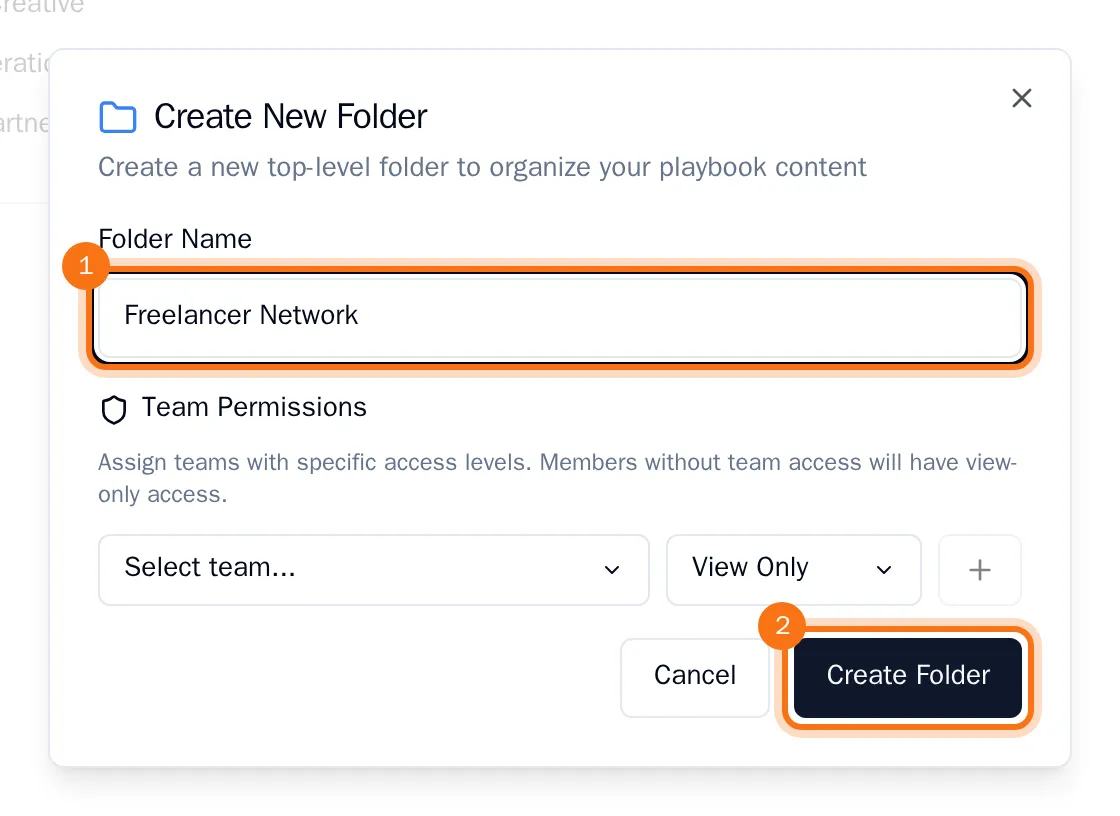
- Open the Playbook and choose New Folder.
- Type the Folder Name. To decide right away which teams may work in it, add them under Team Permissions (see Give teams access to a folder).
- Choose Create Folder.
Add a process
- Click the folder to open it, then choose Add below its contents.
- Choose Process. You can also add a subfolder here (Folder) or a system.
- Type the Process Name and choose Create.
Add documents, SOPs, recordings and decision trees
- Click the process to open it, then choose Add below its items.
- Choose what to add: a Document, an SOP Checklist, a Recording or a Decision Tree.
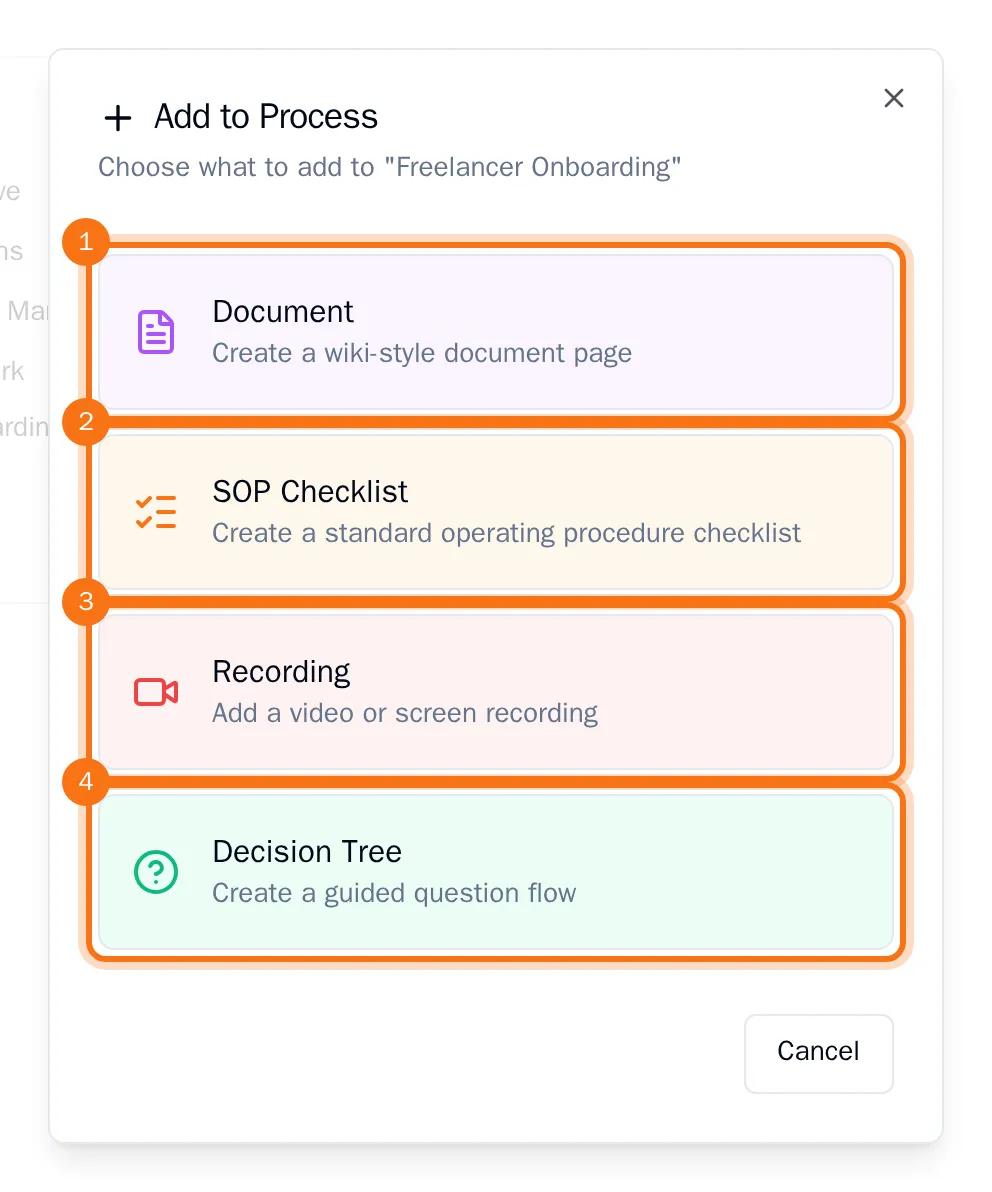
OKiDO then opens the editor or the recorder for the new item. See Write a document, Record your screen, Create an SOP template and Build a decision tree.
Rename and move
- To rename a folder or a process, right-click it and choose Rename. Type the new name and choose Rename again.
- To move a folder into another folder, drag it onto that folder. Drag it just above or below another folder to change the order instead.
- To move a process to another folder, drag it onto that folder. Drag it onto another process in the same folder to change the order.