Find your way around
Learn what each item in the sidebar and the mobile bottom bar opens, and where to find your settings and sign out.
Who can do this: Everyone in the organization
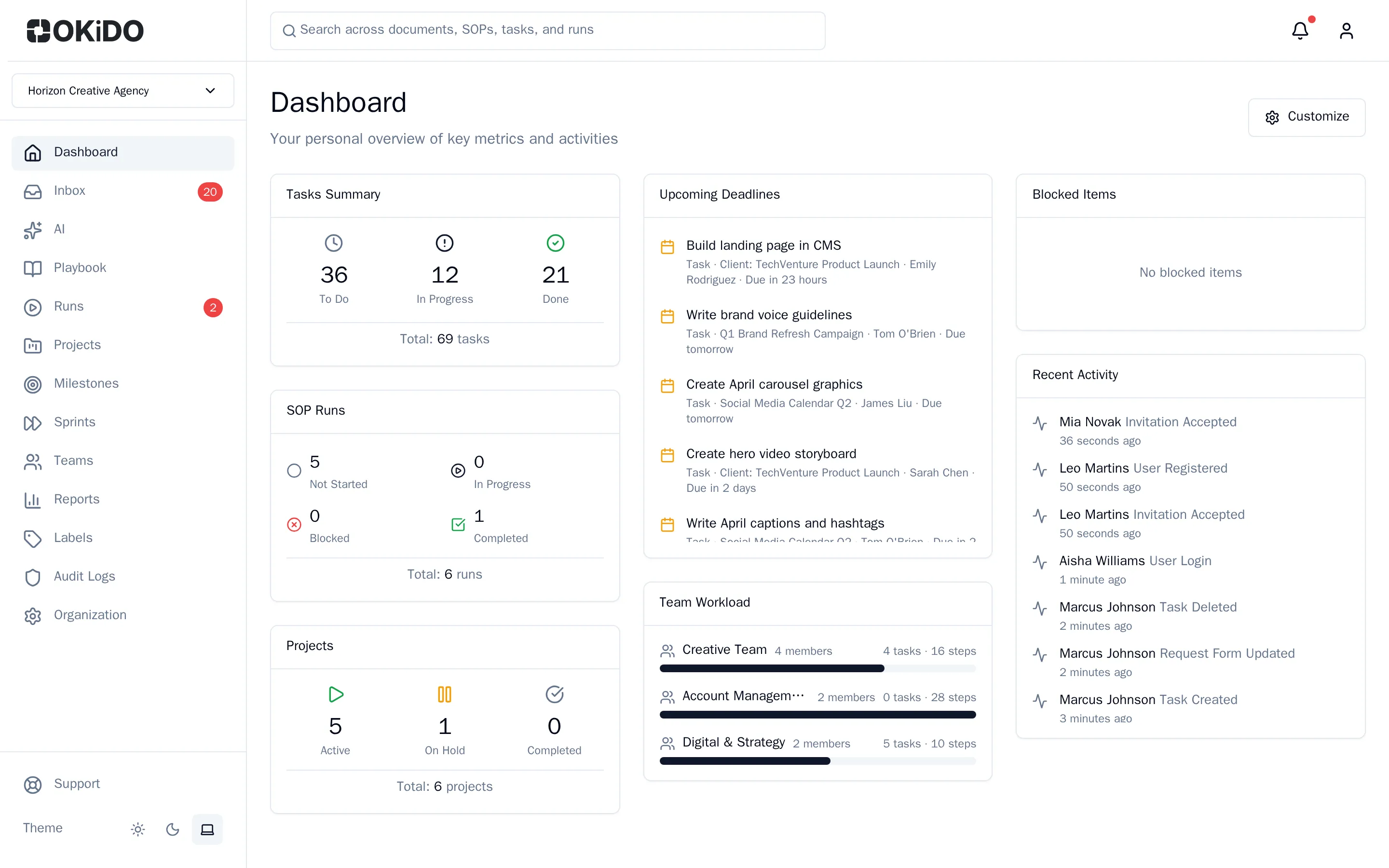
Every page in OKiDO has the same frame: the sidebar on the left, a top bar with search, your inbox and your account menu, and the page itself in the middle. A red number next to an item tells you how many things are waiting for you there.
The sidebar
At the top of the sidebar, the organization selector shows which organization you are looking at (see Switch between organizations). Below it:
| Item | What it opens |
|---|---|
| Dashboard | Your own overview, with widgets you choose (see Customize your dashboard) |
| Inbox | Your notifications: tasks assigned to you, mentions, approvals and more |
| AI | Chats with your organization's AI agents, and AI actions waiting for your approval |
| Playbook | Your organization's knowledge base: processes, SOPs and documents |
| Runs | SOP checklists and systems being carried out, with the steps waiting for you |
| Projects | Your projects and their tasks |
| Milestones | Every milestone across your projects, with the progress of its tasks |
| Sprints | Sprints: the work your team plans for the next weeks |
| Teams | Teams and their members |
| Reports | Time-tracking reports |
| Labels | Smart Labels for tasks (owners and admins) |
| Audit Logs | Security events and actions in your organization (owners and admins) |
| Organization | Organization settings: members, plan and integrations (owners and admins) |
At the bottom of the sidebar you find Support, where you ask the OKiDO team for help, and the Theme buttons for a light, dark or system theme.
Your account menu
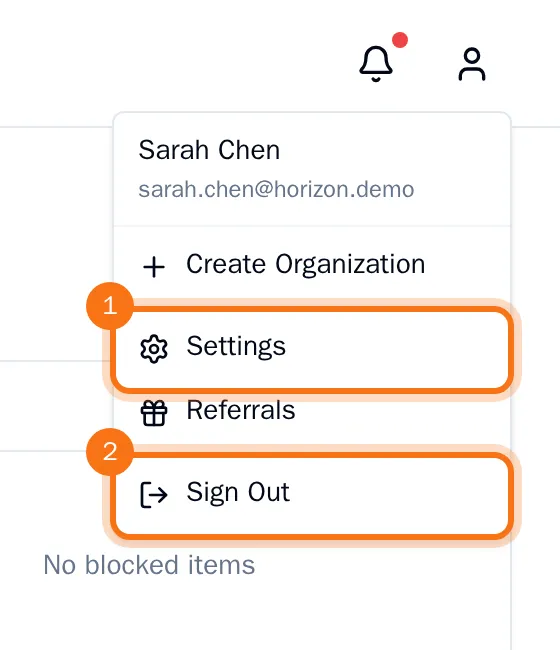
Your settings and sign-out are in the account menu, the person icon at the top right.
- Choose Account menu (the person icon).
- Choose what you need:
- Create Organization to set up another organization (see Create an organization).
- Settings for your profile, notifications, password and language.
- Referrals to invite others to OKiDO and earn rewards.
- Sign Out to sign out on this device.
The bell next to it opens your Inbox; a red dot means you have unread notifications. The search box opens quick search (see Find anything with Ctrl+K).
On your phone
On a small screen the sidebar makes way for a bar at the bottom with Dashboard, Inbox, Projects, Playbook and Runs. Choose More for Milestones, AI and Support (plus Labels, Audit Logs and Organization for owners and admins).
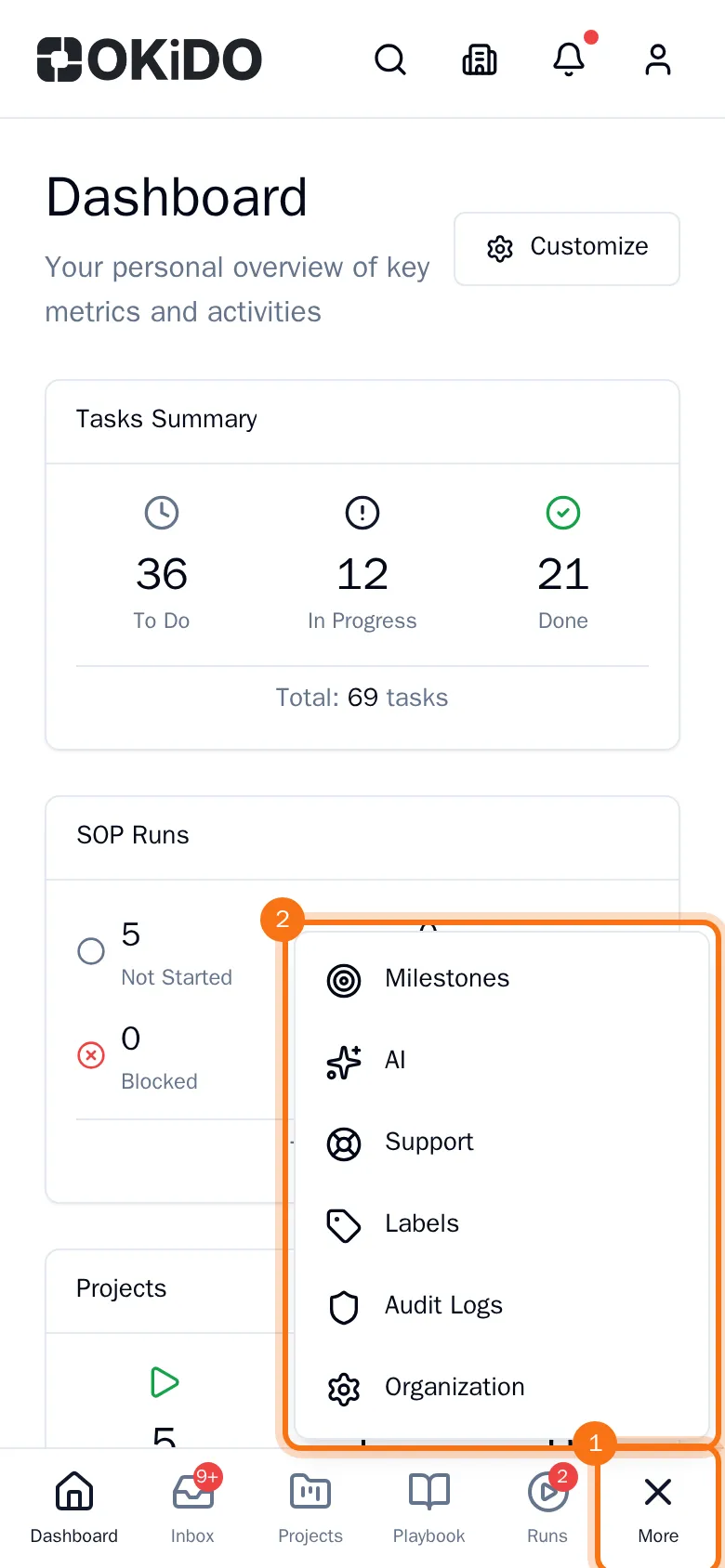
At the top, the search, organization, inbox and account buttons work as on a computer.