Plan a sprint
Put tasks into a sprint from the task itself, and mark the board column that holds the sprint's work.
Who can do this: Everyone in the organization
A sprint is a short, fixed stretch of work, for example two weeks. Plan it by putting the tasks your team takes on into it. Each project gets its sprints from your organization's sprint cadence; to set that up, see Set the sprint cadence.
Put a task into a sprint
- Open the task.
- In the panel on the right, choose a sprint under Sprint. The list shows the project's sprints with their dates.
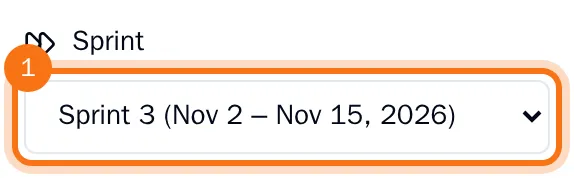
The task is now part of that sprint's work on the Sprints page. Choose No sprint to take it out again.
Mark the sprint column
On the board, one column can hold the work of the current sprint, for example In Progress. It has the Sprint badge. Every task that moves into that column joins the current sprint, so the sprint fills up as your team picks up work.
- On the board, choose the menu (the three dots) at the top of the column.
- Choose Set as Sprint Stage.
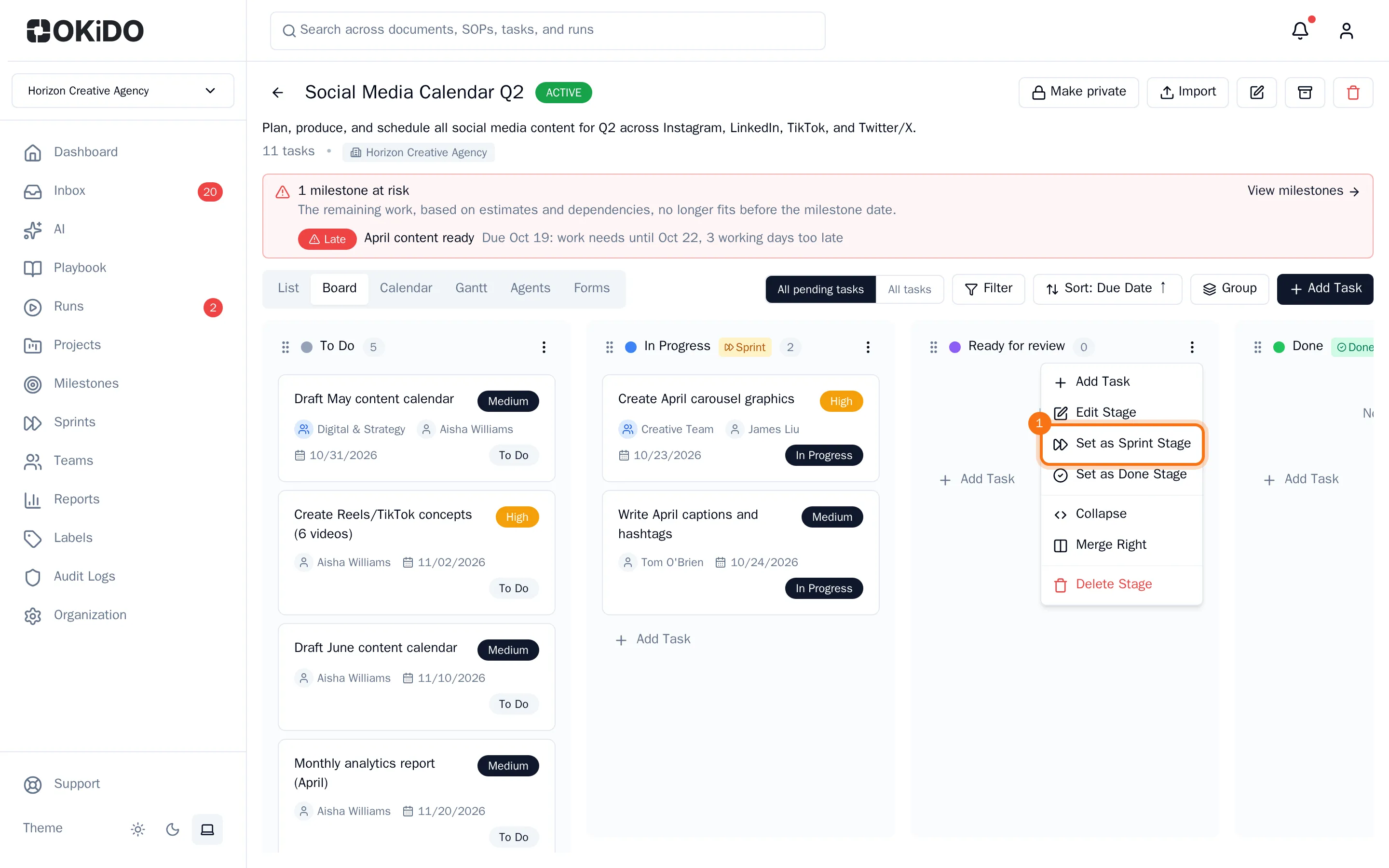
The column now has the Sprint badge, and the tasks already in it that have no sprint join the current sprint.
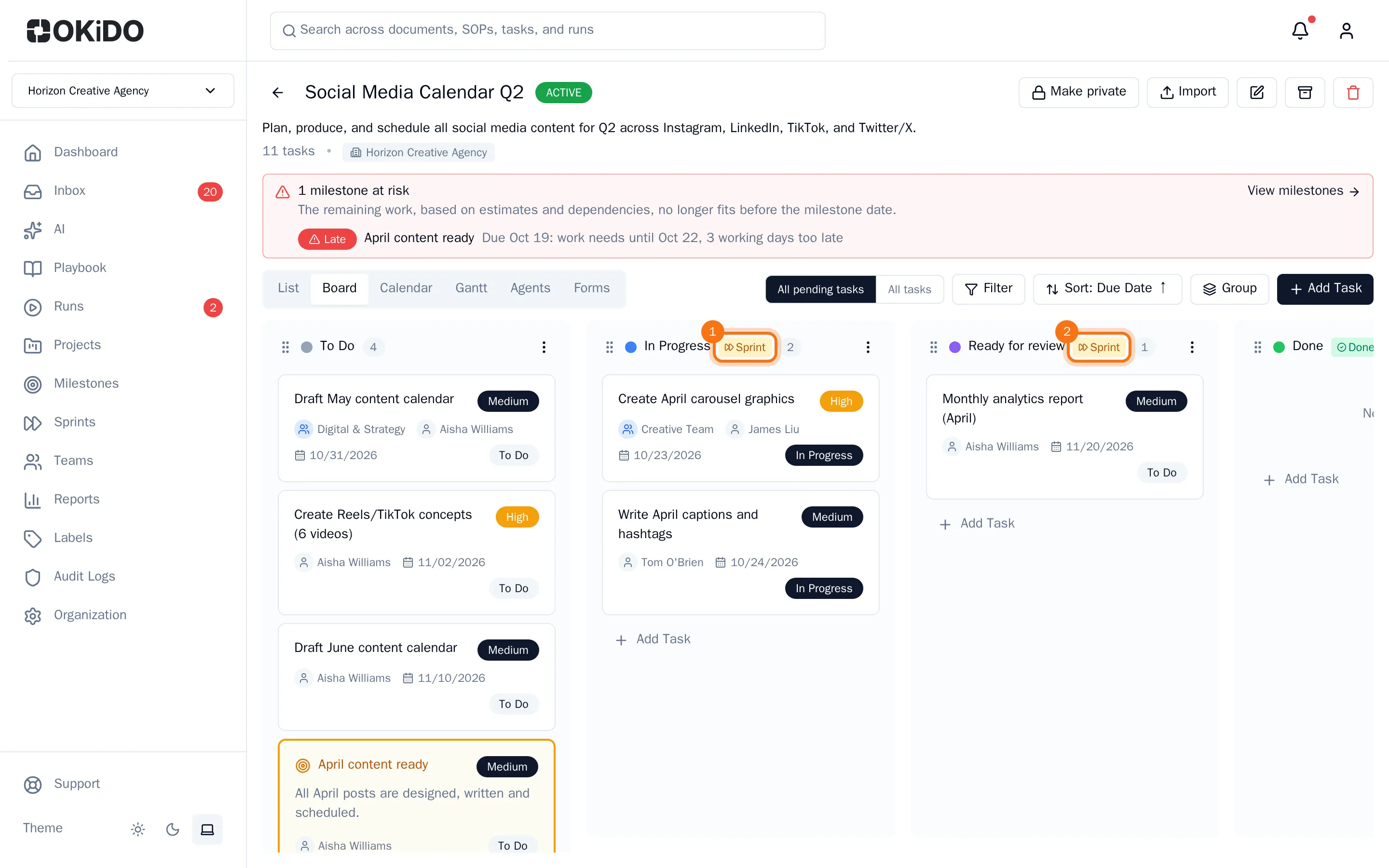
To undo it, choose Remove Sprint Stage in the same menu. The tasks keep their sprint.
Only organization owners and admins can mark a sprint column. Everyone who can edit tasks can put a task into a sprint.