Import tasks from Asana, Trello, Jira, Monday or ClickUp
Bring tasks over from Asana, Trello, Jira, Monday.com or ClickUp into a project with the import wizard.
Who can do this: Owner, Admin
Moving to OKiDO from another tool? Export your board or project there as a JSON file, and the import wizard turns it into tasks. It recognizes exports from Asana, Trello, Jira, Monday.com and ClickUp, and OKiDO's own export. Organization owners and admins can import.
Import into a project
- In the other tool, export the board or project as a JSON file.
- Open the OKiDO project the tasks should go to and choose Import.
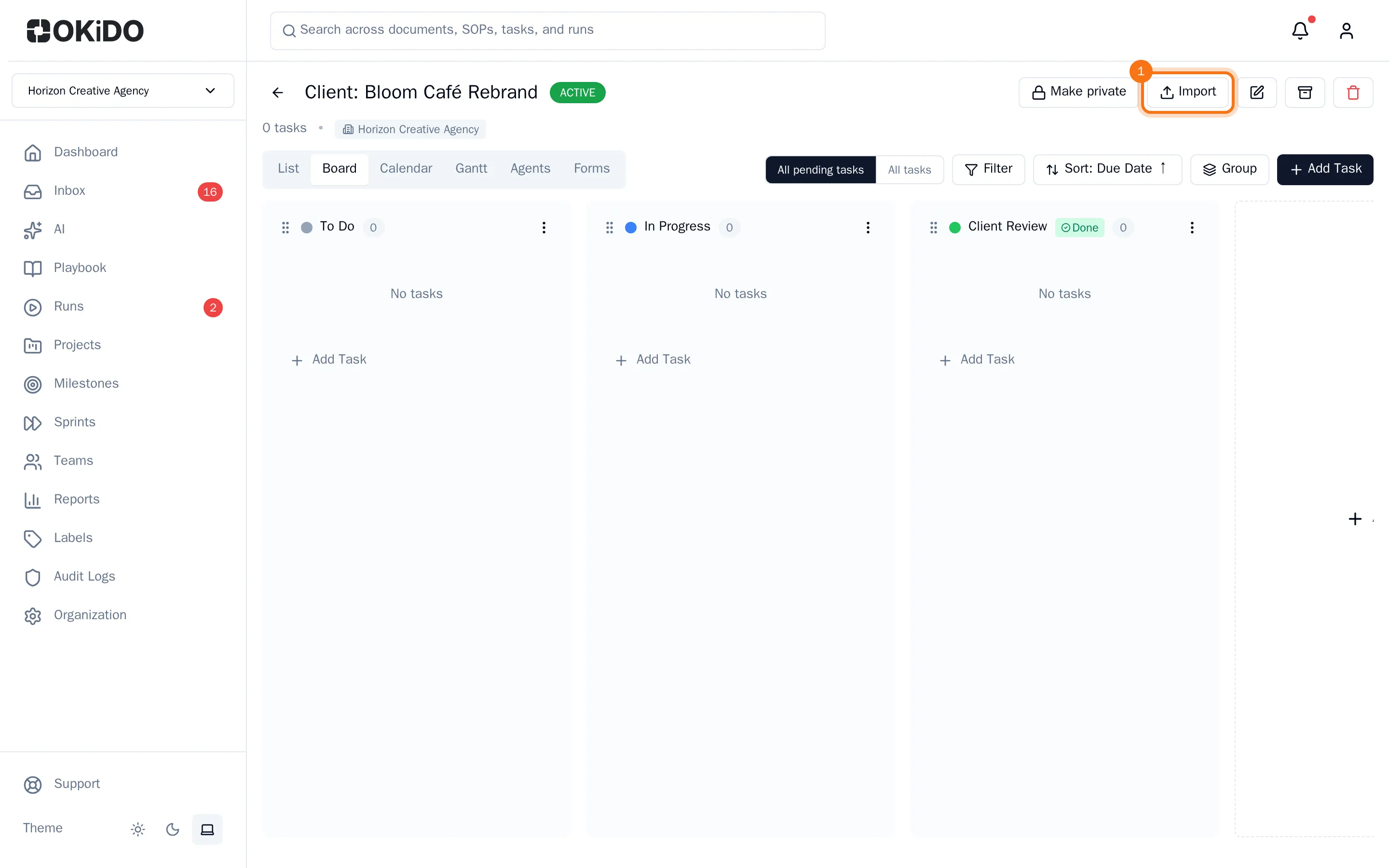
- Drop the file on the wizard, or click there to pick it. Choose Detect Format.
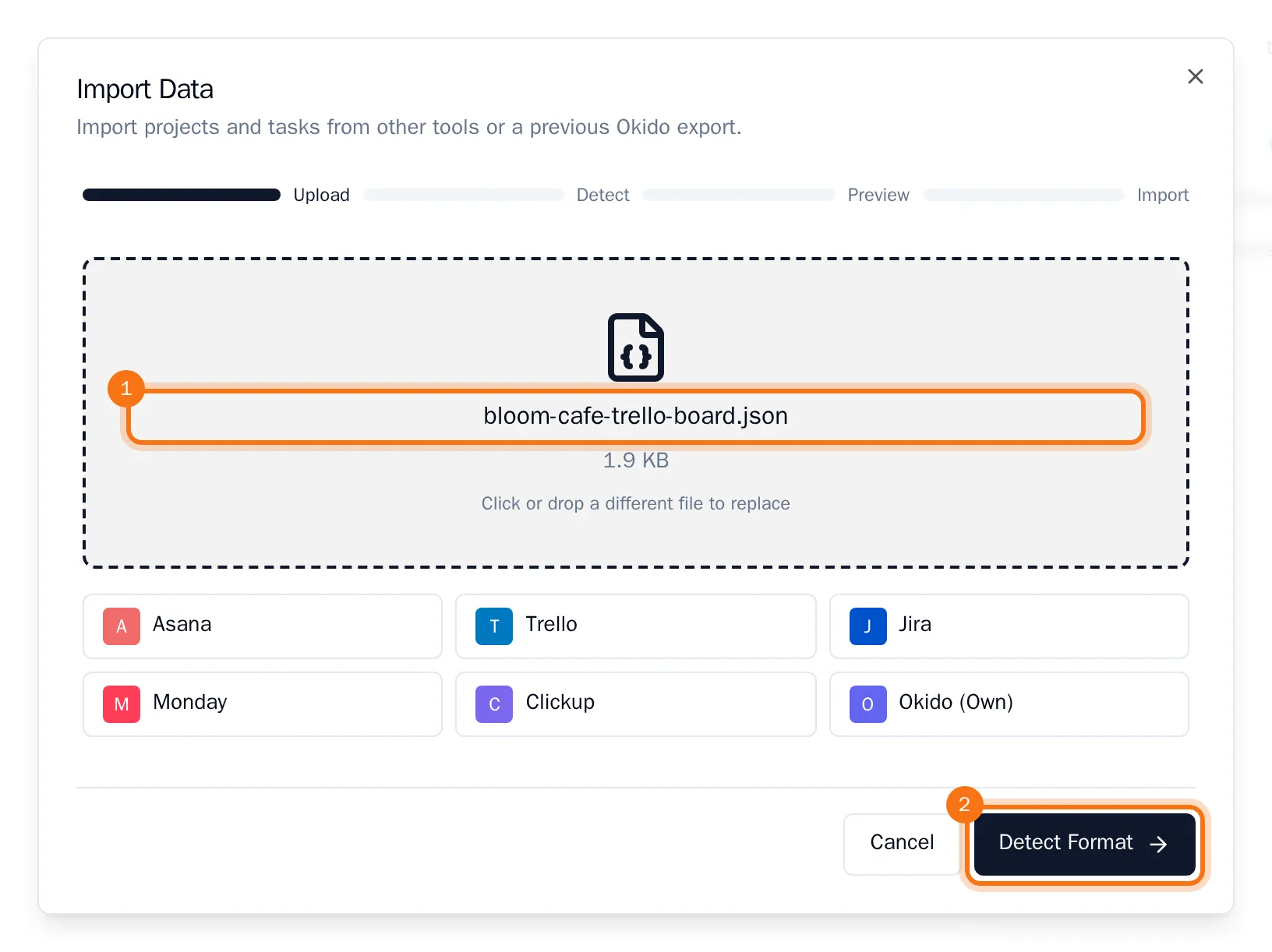
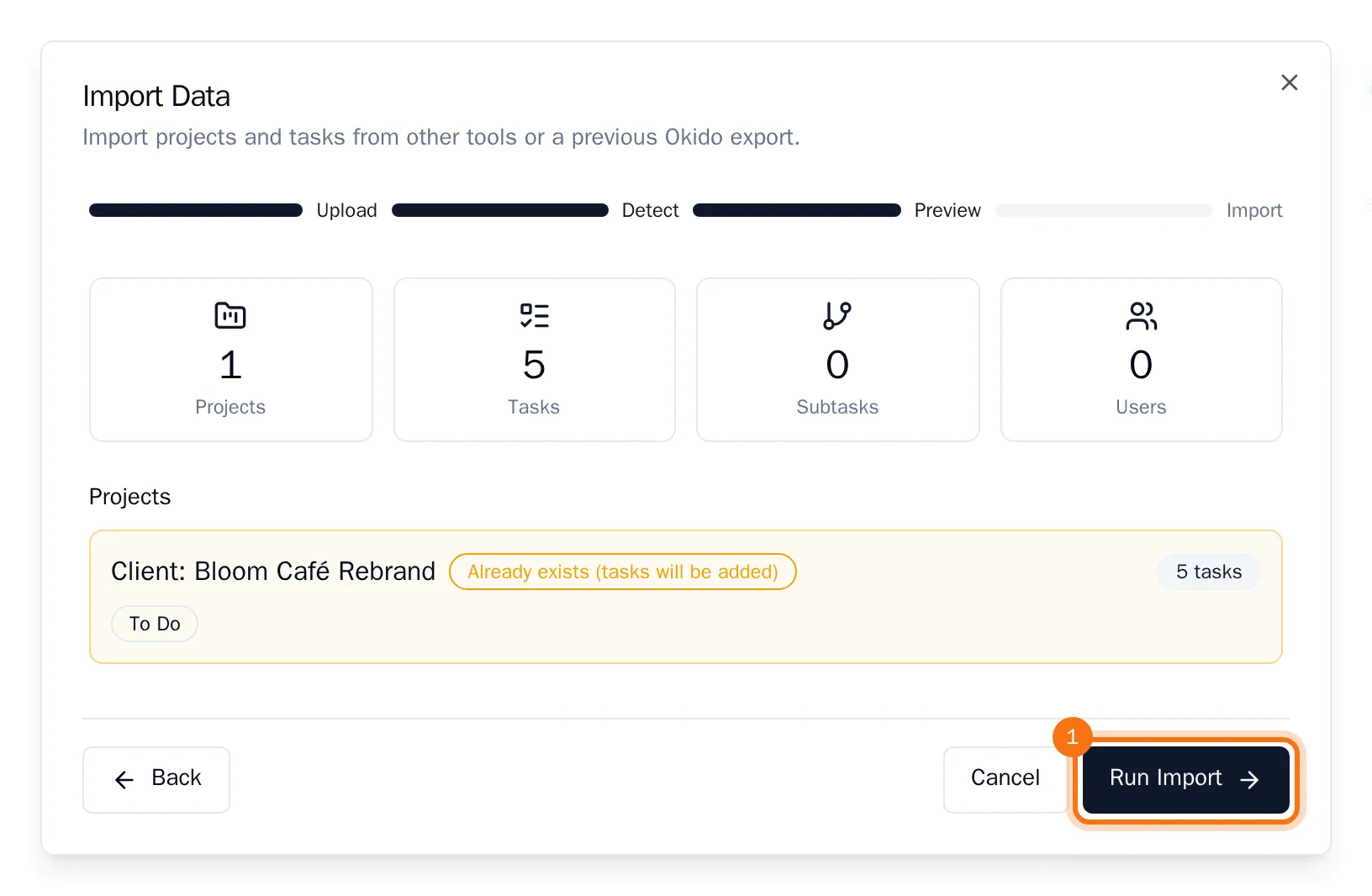
- Check that the wizard picked the right tool, then choose Preview Import.
- Check the preview: how many tasks, subtasks and people come over, and the columns they go to. Choose Run Import.
- When the wizard shows the result, choose Close.
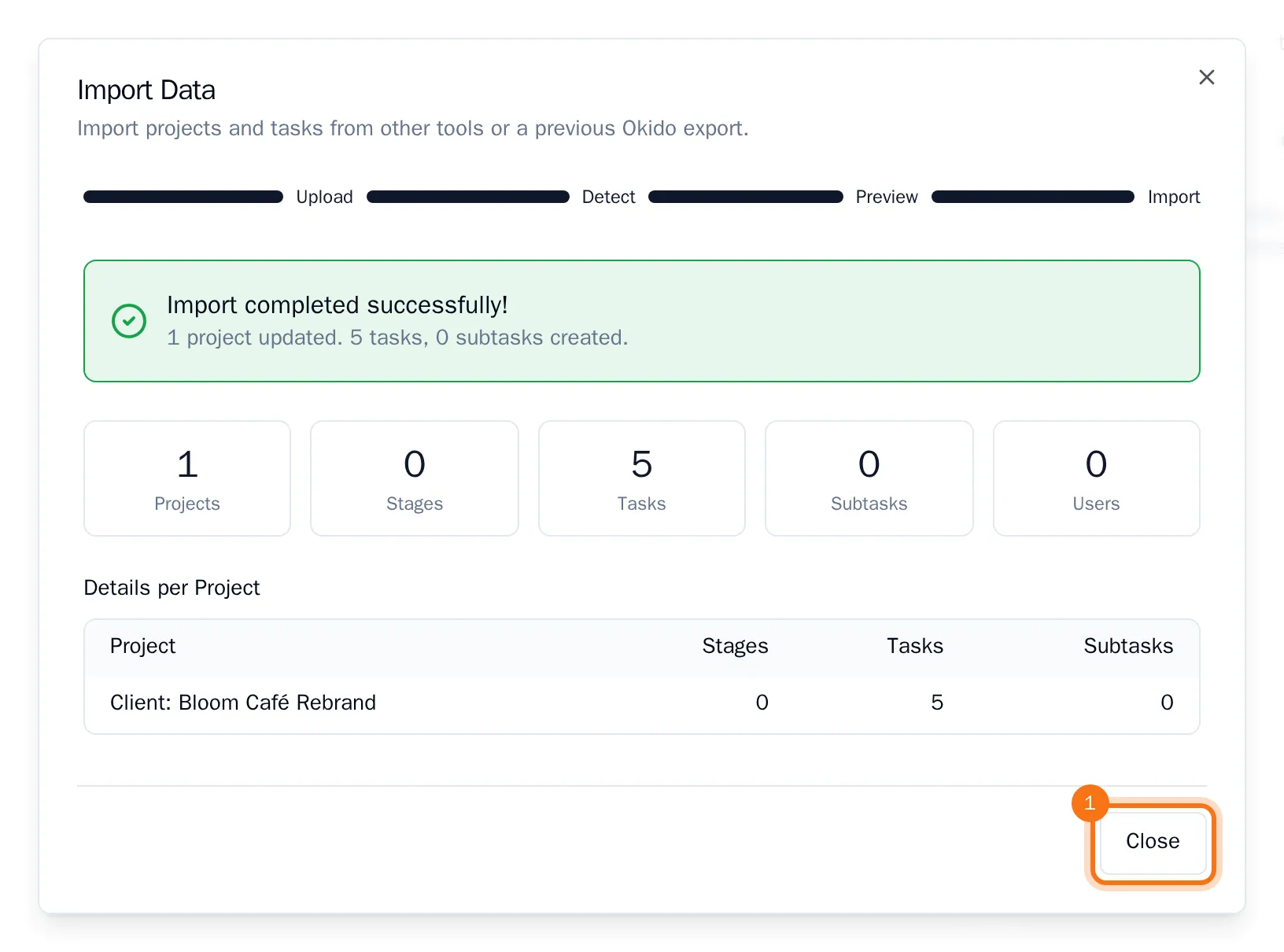
The tasks are now in the project. Each one lands in the board column with the same name as its list or column in the other tool, and the wizard adds a column for any name the project does not have yet. Checklists become subtasks, and start and due dates come along.
People named in the file who are not in OKiDO get placeholder accounts in your organization. They cannot sign in until you connect their real accounts.
Import into new projects
To create projects from the file instead, choose Organization in the sidebar, open the Data tab and choose Import Data. The wizard works the same way. Each board or project in the file becomes a project with its name, or adds its tasks to an existing project with that name. See Import data into your organization.
Tip: Importing the same file into the same project again does not create the tasks twice: tasks already there are skipped. Imported into another project, they are linked to it instead of copied.