Add checklists, files and variables to steps
Give the steps of an SOP checklist items, files and linked documents, and add variables that people fill in during a run.
Who can do this: Everyone in the organization
A step often needs more than a title: a few things to tick off, the file or guide people work from, and the details that change every time, such as the client's name. You add them once in the SOP template, and every run started from it gets them.
Owners and admins can edit every SOP template. Members can edit an SOP template when their team has edit access to its process; otherwise they see it read-only.
Add checklist items
- Open the SOP template from the Playbook and select a step in the list on the left.
- Under Checklist Items, choose Add Item and type the item.
- Tick Required next to the items that must be ticked before the step can be completed.
- Repeat for the other items.
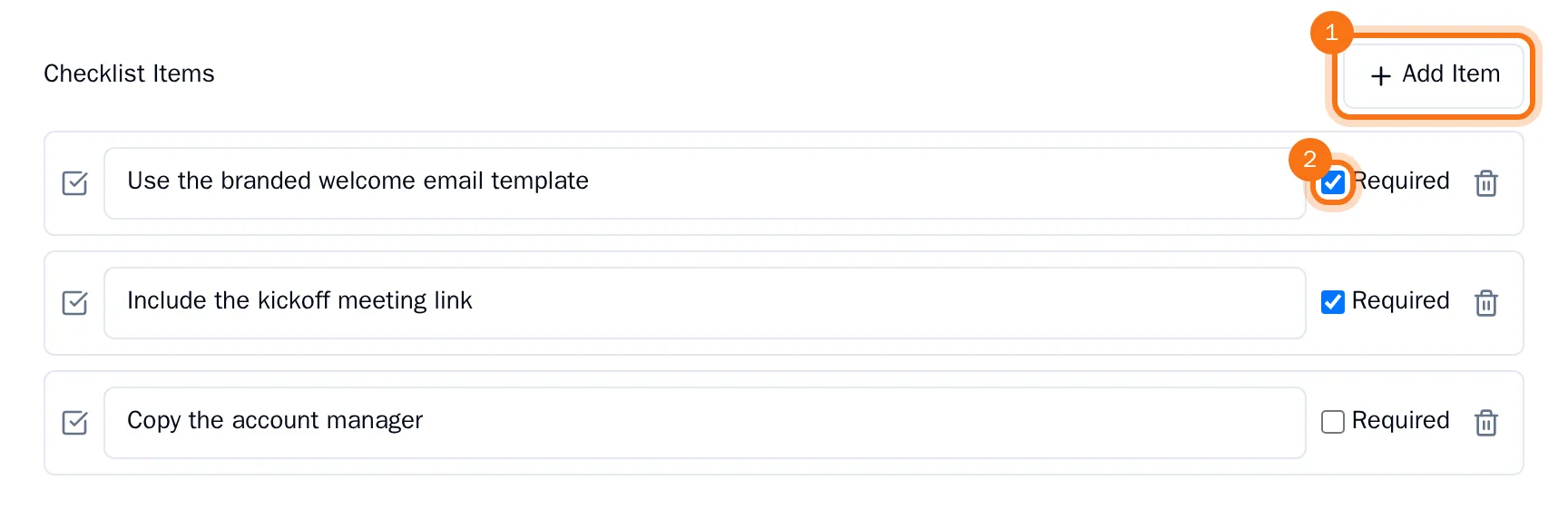
The list of steps shows how many checklist items a step has. In a run, the step can only be marked complete once its required items are ticked.
Attach files and link documents
Under Attachments & Links:
- Choose Upload File to attach a file from your computer.
- Choose Link Document and pick a document of the same process to link a Playbook page.
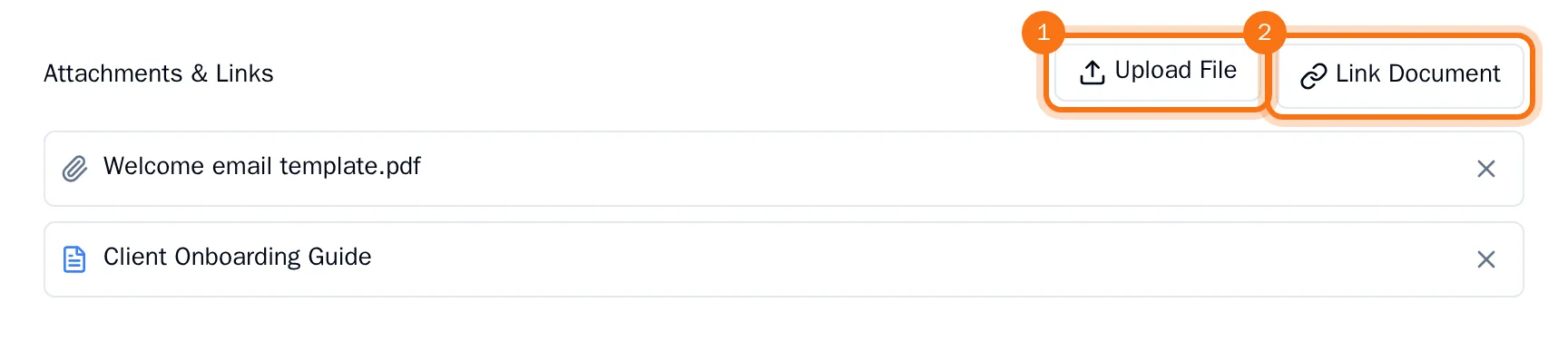
The file and the document are listed under the step, so whoever edits the SOP finds them in one place.
Add variables
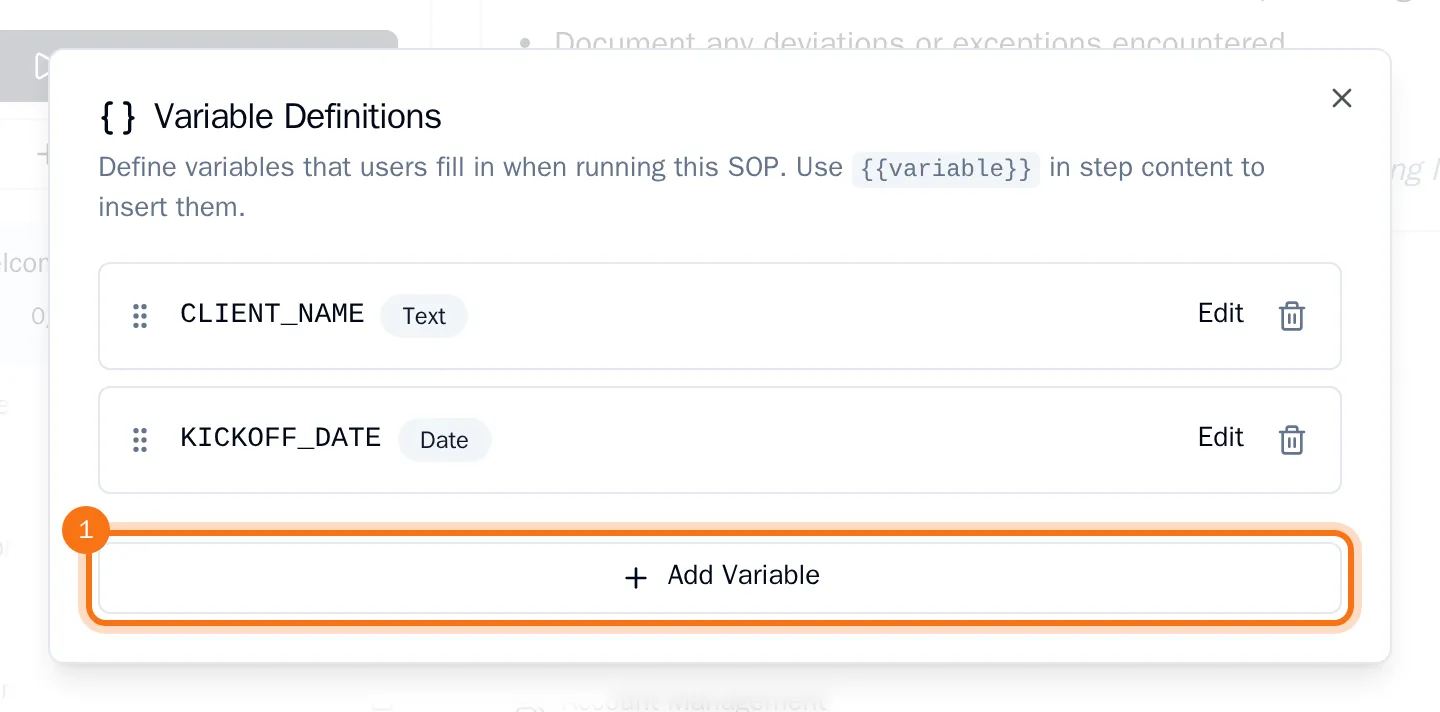
Variables are the details people fill in when they run the SOP, such as a client's name or a kickoff date. You define them once for the whole template and place them in the text of any step.
- Under the name of the template, choose the number of variables (for example "0 variables").
- Choose Add Variable, enter a Name such as CLIENT_NAME and pick a Type, such as Text or Date.
- Choose Create Variable. Repeat for each variable, then close the window.
- Select a step and click in its Rich Content where the value should go. Type
{{, then pick the variable from the list.
The variable appears as a purple label in the text. During a run it becomes a field: what someone fills in there is used everywhere the same variable appears. See Complete the steps of a run.