Follow and close a sprint
See the sprint work for you, your teams or one project or team on the Sprints page, then close the sprint and carry unfinished tasks over.
Who can do this: Everyone in the organization
The Sprints page shows the work of the current sprints in one table: your own, your teams', or everything in the sprint of one project or team. When a sprint is over, close it there, and the tasks that are not finished move on to the next sprint.
See your sprint work
Choose Sprints in the sidebar. The page opens on Me: the tasks and run steps assigned to you in the current sprints of all your projects.
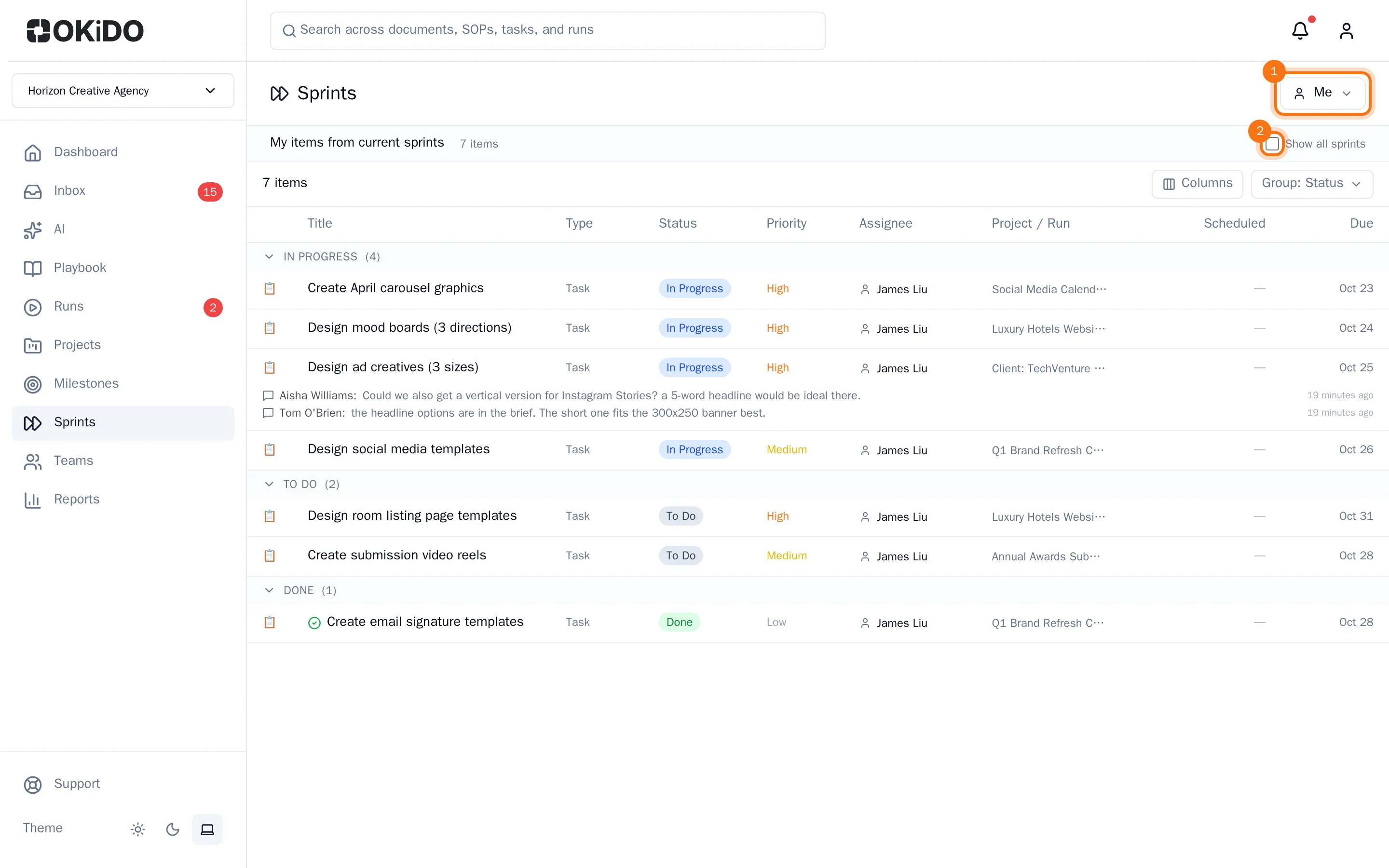
The items are grouped by status. Use the buttons above the table to group them differently or to choose the columns. Click a task to open it. Select Show all sprints to see your work in every sprint, not only the current ones.
Choose whose work you see
- Choose the button at the top right that shows whose work you see.
- Choose Me, My Teams, a team or a project.
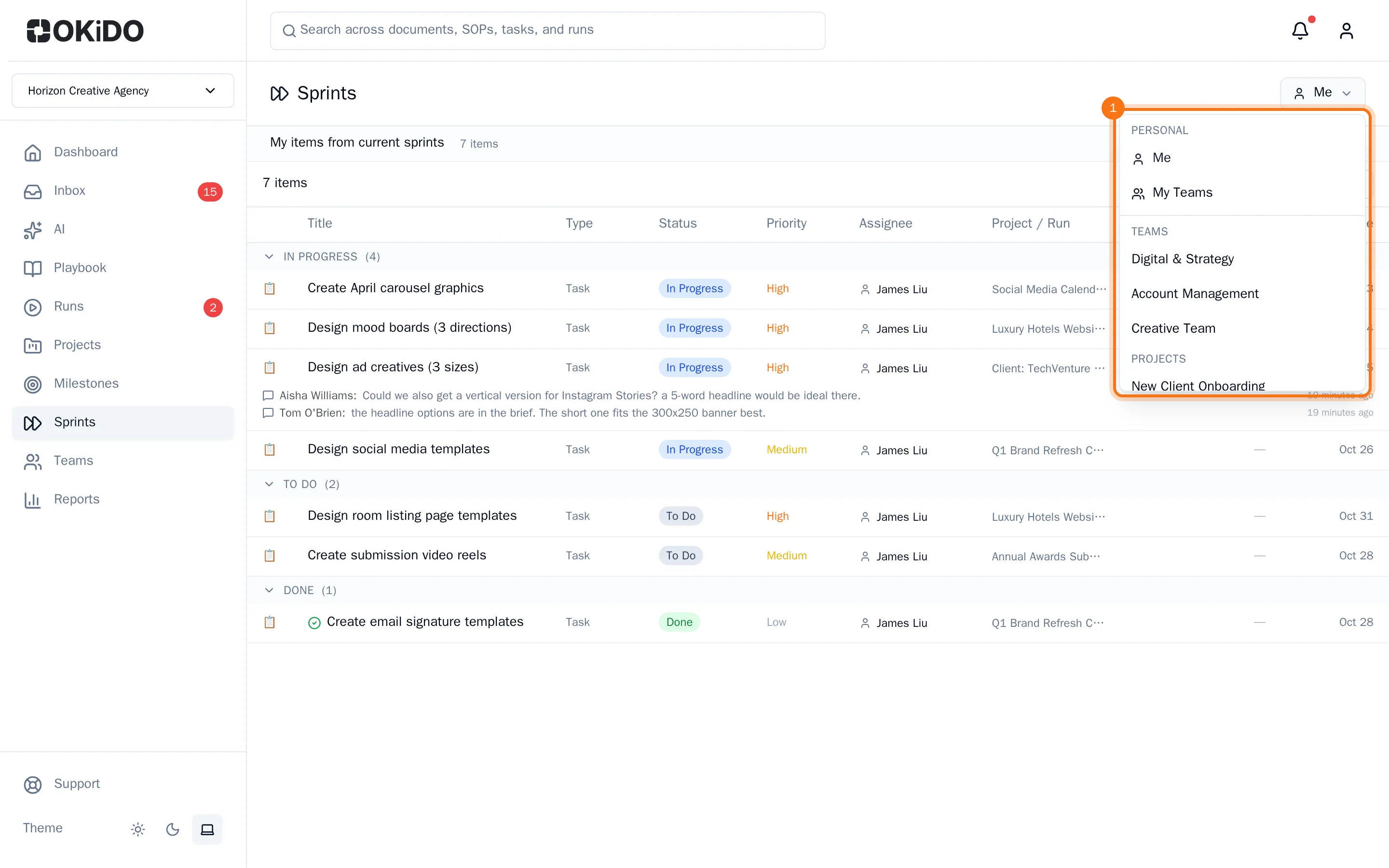
- For a team or a project, choose a sprint in the list next to it. The sprint that runs today is chosen for you.
For a team or a project, the bar above the table shows the sprint's dates, its status and how many tasks and run steps it holds. On the right, the meeting notes of the sprint open; see Run a sprint meeting. The button with the panel icon at the top right hides them, to give the table more room.
Close a sprint
- Choose the project or team and the sprint.
- Choose Close Sprint.
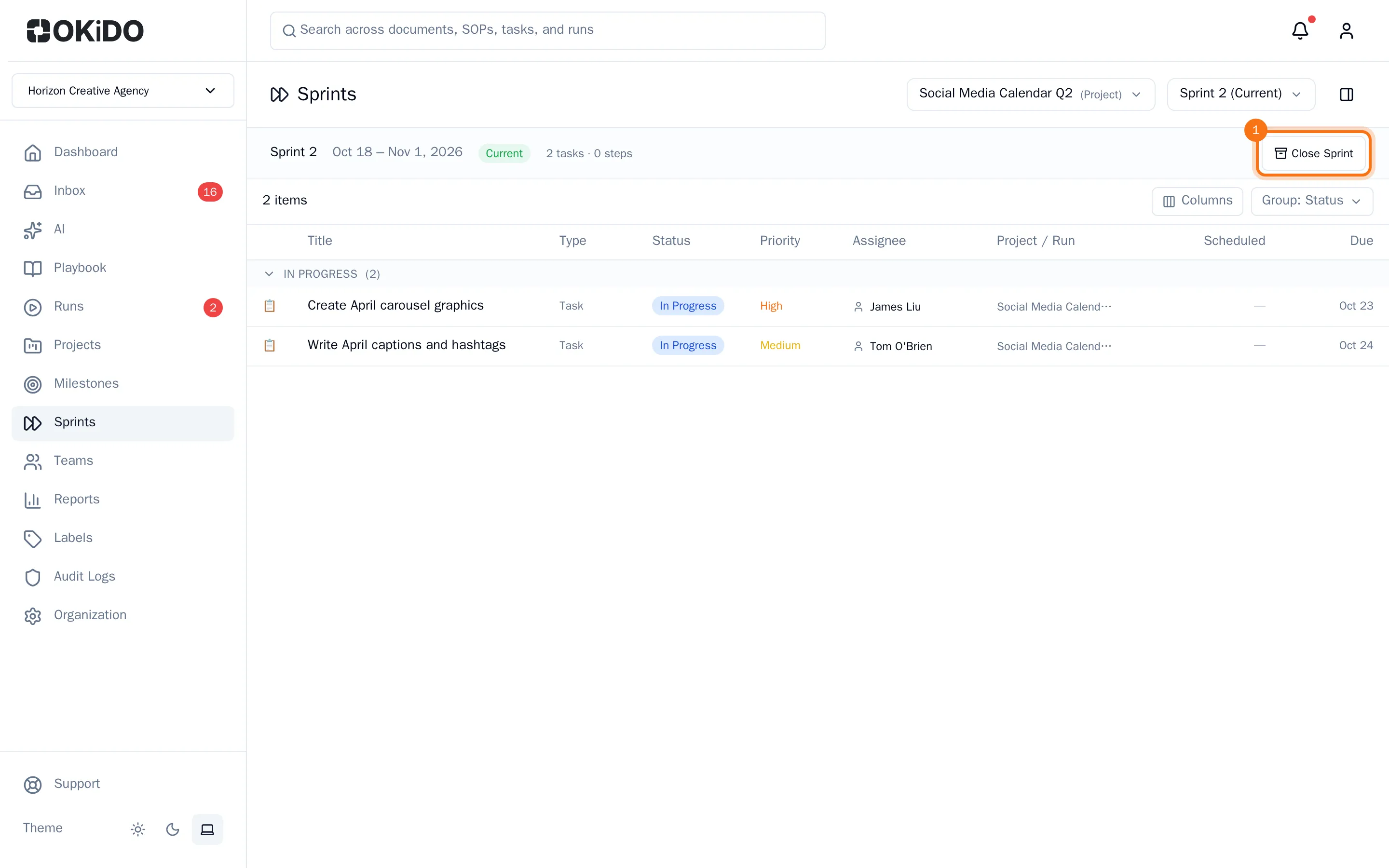
OKiDO closes the sprint and moves its unfinished tasks to the next sprint of the same project or team: the first active or planned sprint that starts after this one ends. Finished tasks stay in the closed sprint, and a closed sprint can no longer be chosen in a task's Sprint field.
Only organization owners and admins can close a sprint.