Follow, share or print a task
Follow a task to hear when it is done, ask the assignee for an update, copy its link, print it or create a follow-up task.
Who can do this: Everyone in the organization
Keep an eye on work that matters to you without doing it yourself. Follow the task, nudge the person who does it, or pass the task on with a link.
Follow a task
- Open the task and choose Follow task (the bell at the top of the task).
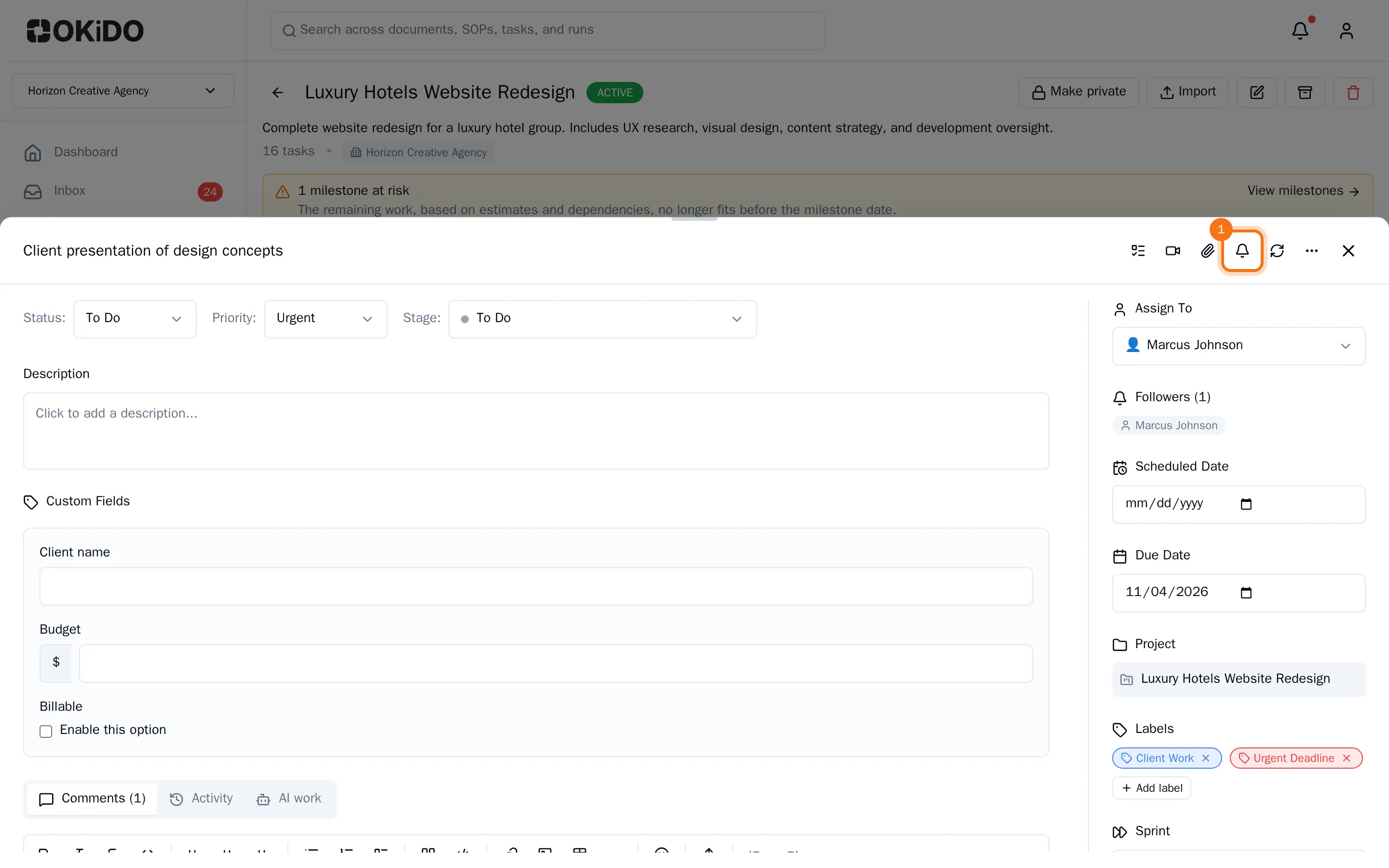
The bell turns blue and your name is added to the followers in the panel on the right. You get a notification when the task is completed or reopened. To stop, choose the bell again (Unfollow task).

People you @mention in a comment start following the task as well.
Ask for an update
Choose Request update (the circular arrows at the top of the task). The person assigned to the task gets a notification asking for an update. This works on tasks assigned to someone else.
Copy the link, print or follow up
- Choose More actions (the three dots at the top of the task).
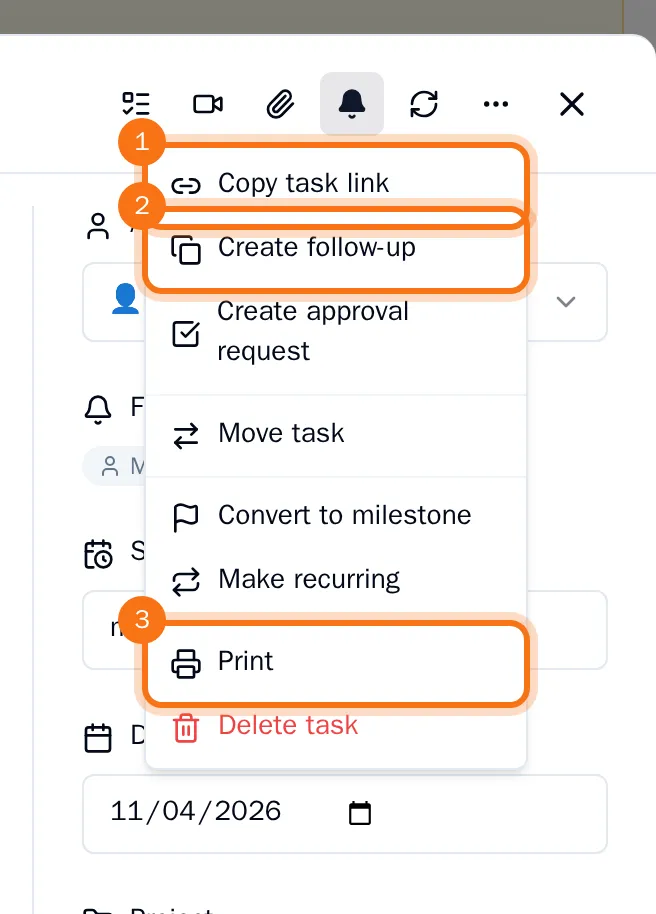
- Choose what you need:
- Copy task link copies a link to the task. Paste it in a chat or an email: a colleague who opens it lands on this task.
- Create follow-up adds a new task in the same column with the same priority, named after this one. Its description links back to this task. The new task opens right away.
- Print opens your browser's print window for the task.