Import data into your organization
Import projects, tasks and people from another tool or an OKiDO export, and check the preview before anything is created.
Who can do this: Owner, Admin
Moving from Asana, Trello, Jira, Monday.com or ClickUp? Export your board or project there as a JSON file and import it into OKiDO. The import recognizes which tool the file comes from and shows you what it will create before it creates anything.
Only owners and admins can import into the organization. To import tasks into one project, see Import tasks from Asana, Trello, Jira, Monday or ClickUp.
Upload the file
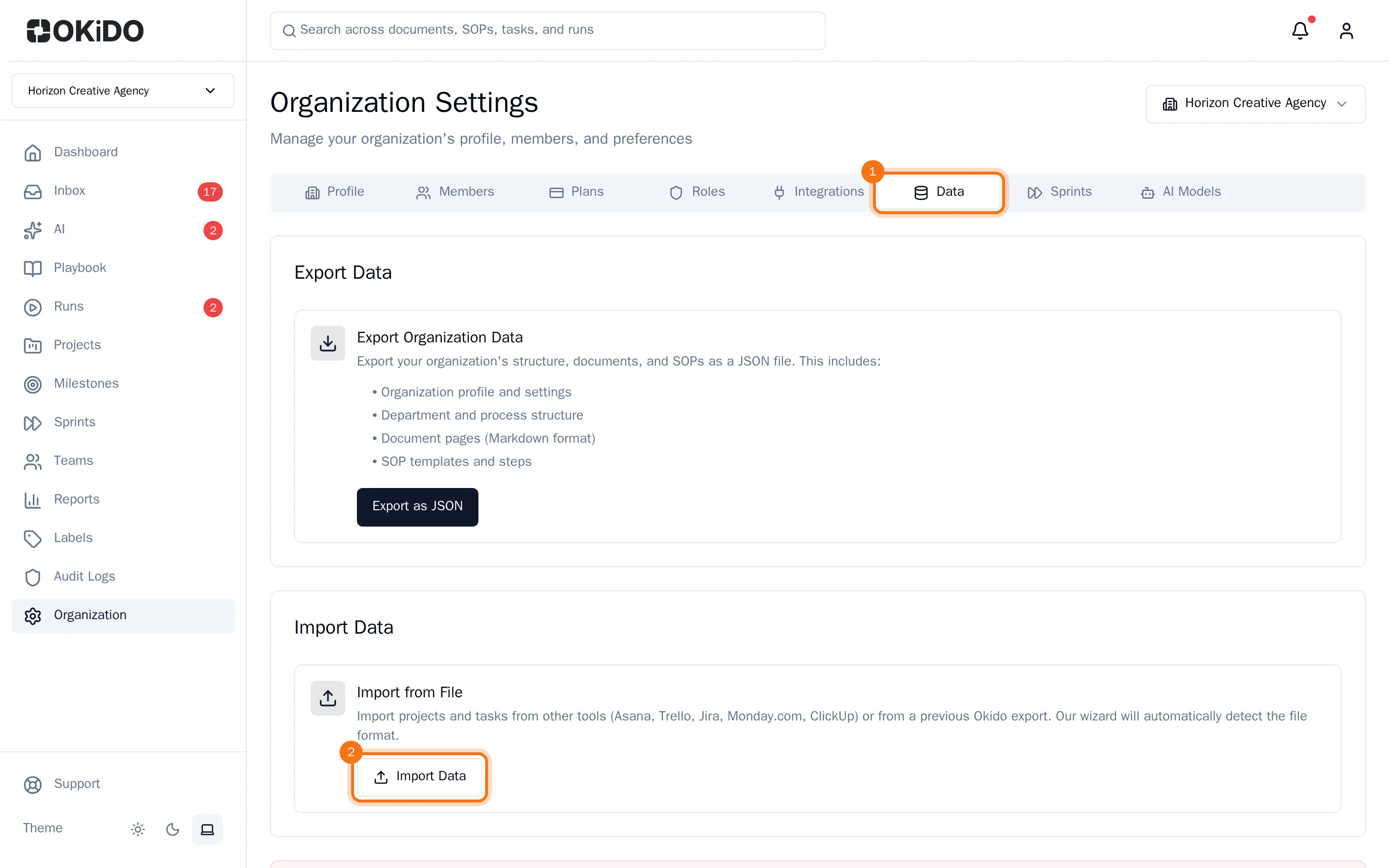
- In the menu on the left, choose Organization, then the Data tab.
- Under Import from File, choose Import Data.
- Drop your export file in the window, or click it to choose the file.
- Choose Detect Format.
- Check the tool the file was recognized as. If more than one tool is listed, select the right one.
- Choose Preview Import.
Check the preview
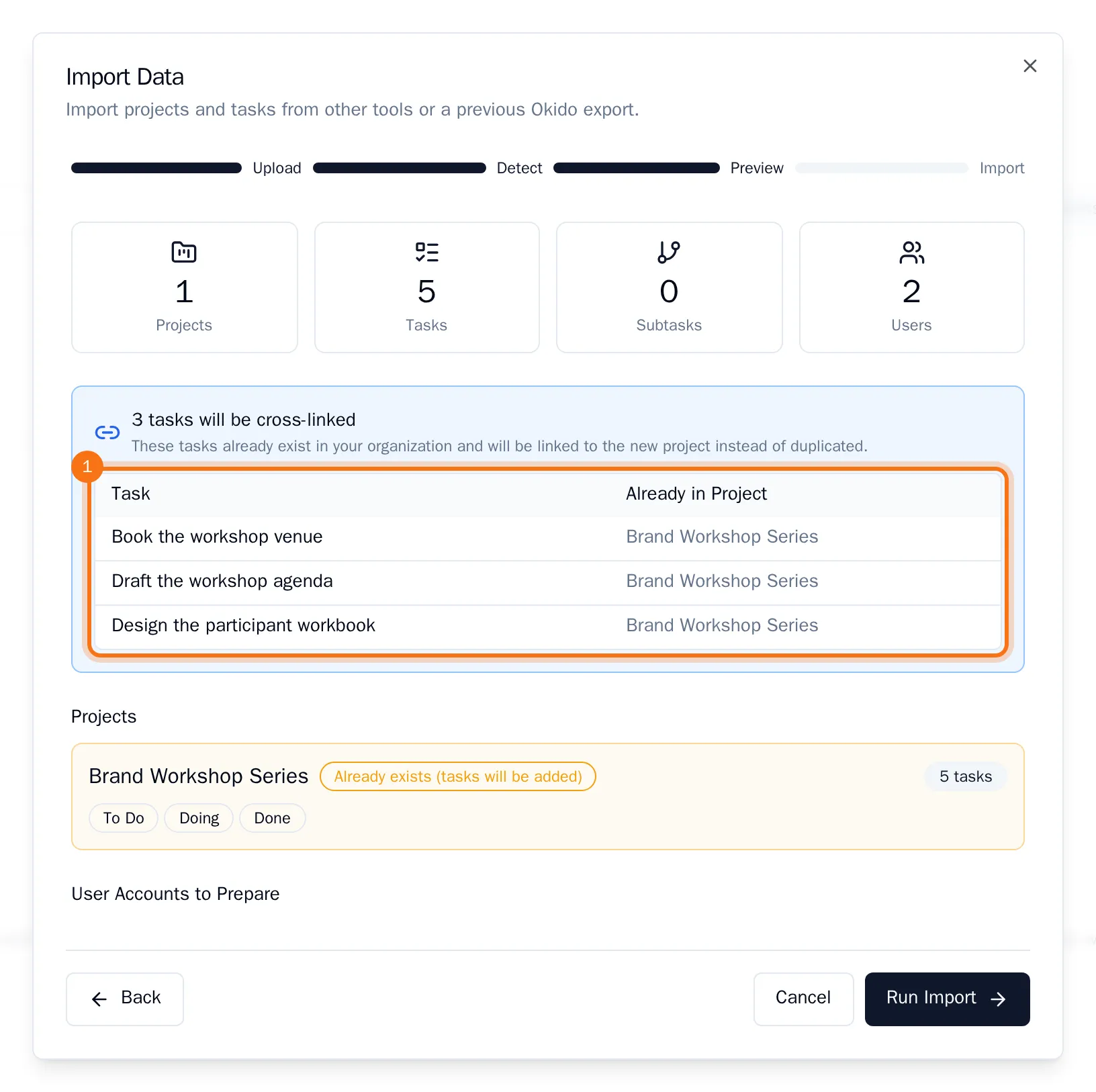
Nothing has been created yet. The preview shows how many projects, tasks, subtasks and people the import holds, and for each project its number of tasks and its stages (the lists or columns of your old tool).
- A project with the same name as one in your organization is marked Already exists (tasks will be added).
- Tasks you imported before are listed separately. OKiDO does not create them a second time.
- Under User Accounts to Prepare you see the people from the file. Someone with the same name as a member of your organization is linked to that member. For anyone else, OKiDO prepares an account that cannot sign in yet.
Run the import
Choose Run Import. When the import is done, you see what was created for each project and how many tasks were skipped because they already existed. Choose Close.
The imported projects are on your Projects page, with their tasks in the stages they had.