Set what an agent may do
Allow or block the tools an agent works with, decide which ones need your approval first, and limit the tool calls of a run.
Who can do this: Owner, Admin
Agents work through tools: one tool reads tasks, another writes a comment, sends an email or creates a project. For each agent you decide which tools it may use, and which ones it may only use after a person approved.
Allow or block a tool, or make it ask first
- Open the agent: AI, the Agents tab, then the agent.
- Choose the Permissions tab.
- In the Allowed column, choose the box next to a tool to block it (a red cross) or to allow it again (a green check).
- In the Requires Approval column, choose the box to make the agent ask first (an eye) or to let it use the tool without asking (a dash).
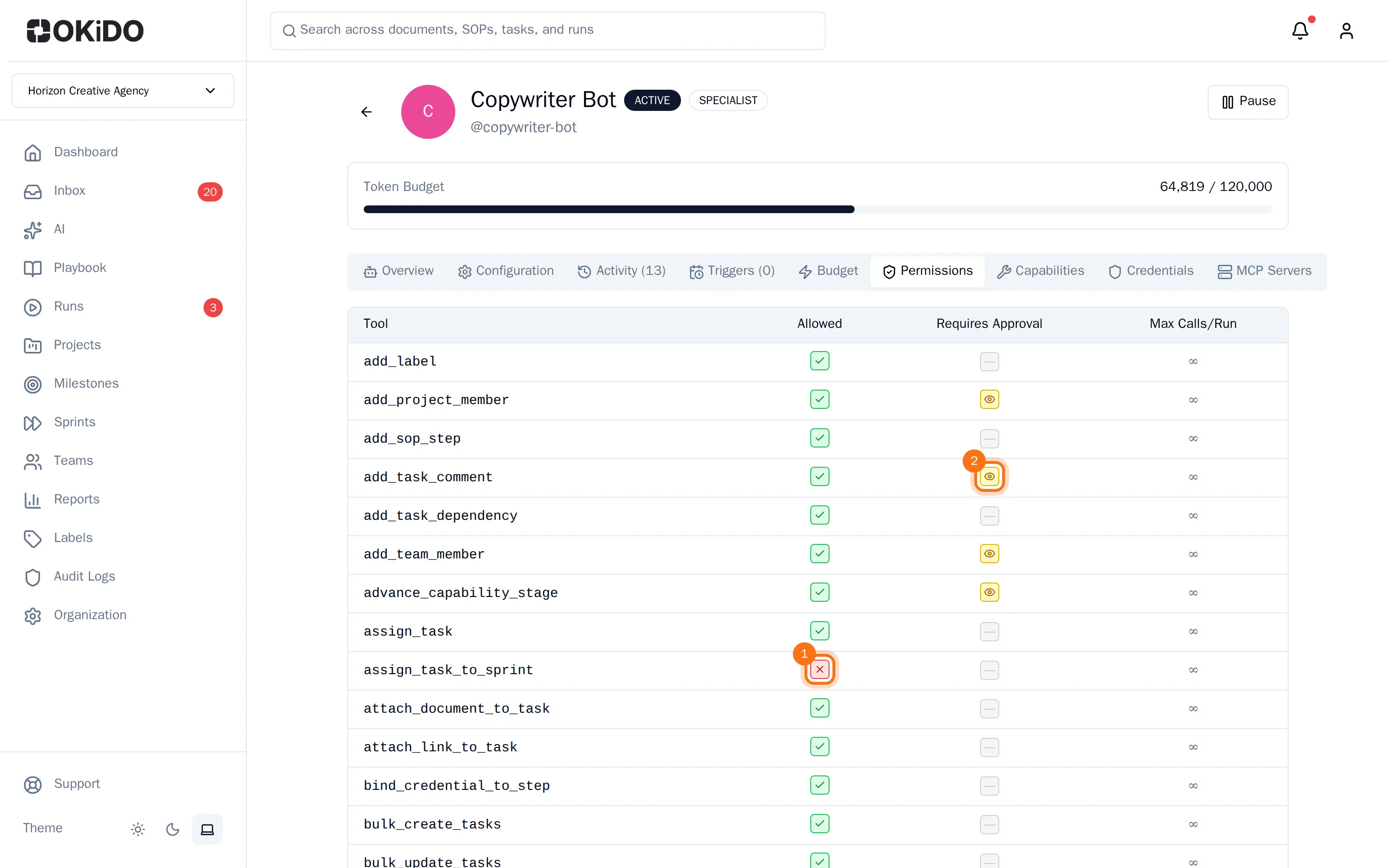
Each change is saved right away. When the agent wants to use a tool that asks first, the action waits under Activity until someone approves it (see Approve or reject agent actions). A blocked tool is not available to the agent at all.
See what each tool can change
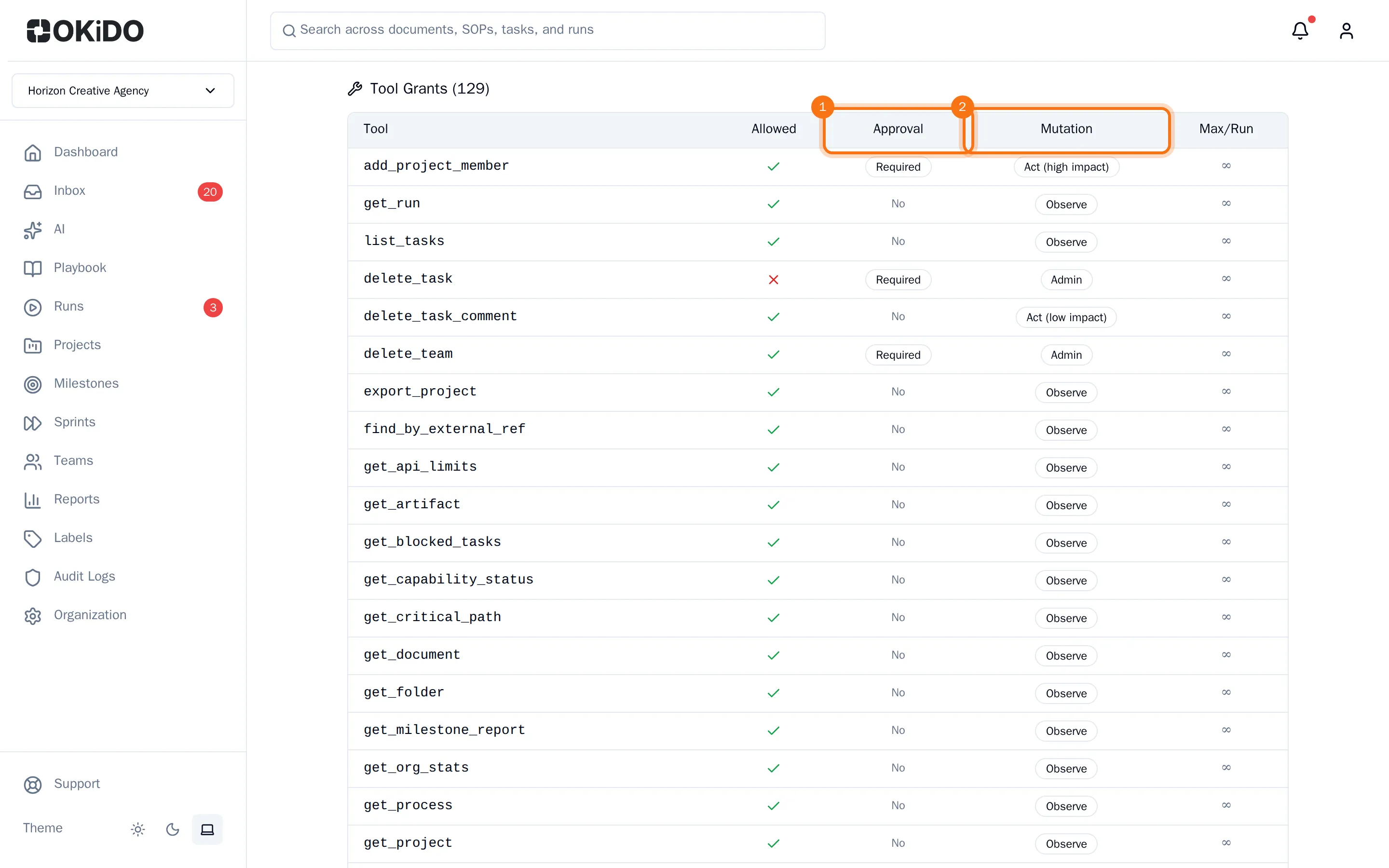
On the Capabilities tab, the list of tool grants shows the same tools with how much each one can change in the Mutation column: from Observe (only reads) through Act (low impact) and Act (high impact) to Admin (changes to the organization itself). Tools that ask first are marked Required.
Limit the tool calls of a run
To stop one run from using tools endlessly, set Max Tool Calls / Run on the Configuration tab and choose Save (see Configure an agent).