Record your screen
Record a video of your screen with your voice in a process and watch it back.
Available onAll plans
Who can do this: Everyone in the organization
Showing is often faster than writing. Record your screen while you talk someone through the work, and keep the video in the process where people look for it.
Record a video
- Open the Playbook, then the folder and the process the recording belongs to.
- Choose Add below the process, then Recording.
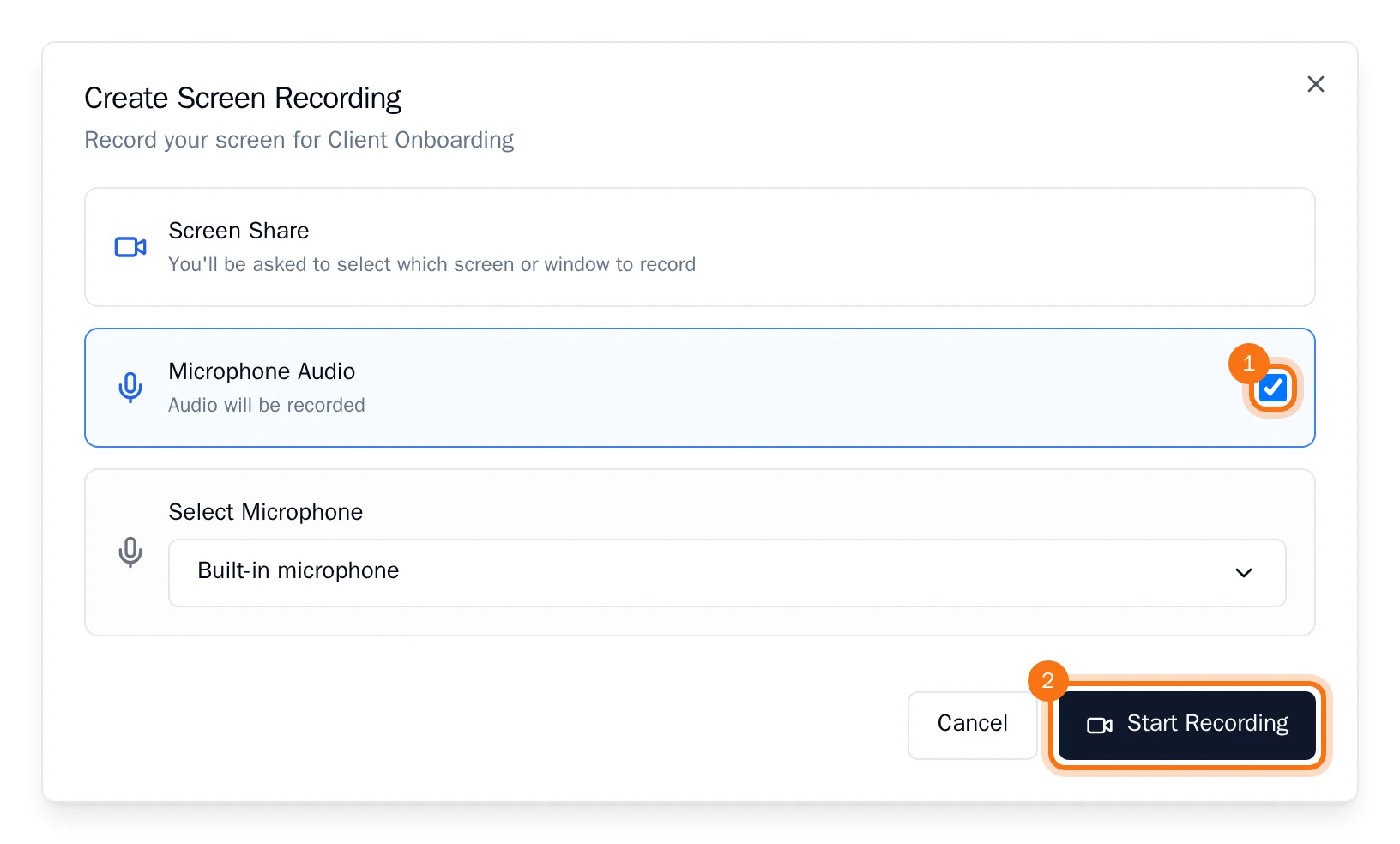
- Leave Microphone Audio on to record your voice, and choose your microphone if you have more than one.
- Choose Start Recording. Your browser asks which screen, window or tab to share: choose one and confirm.
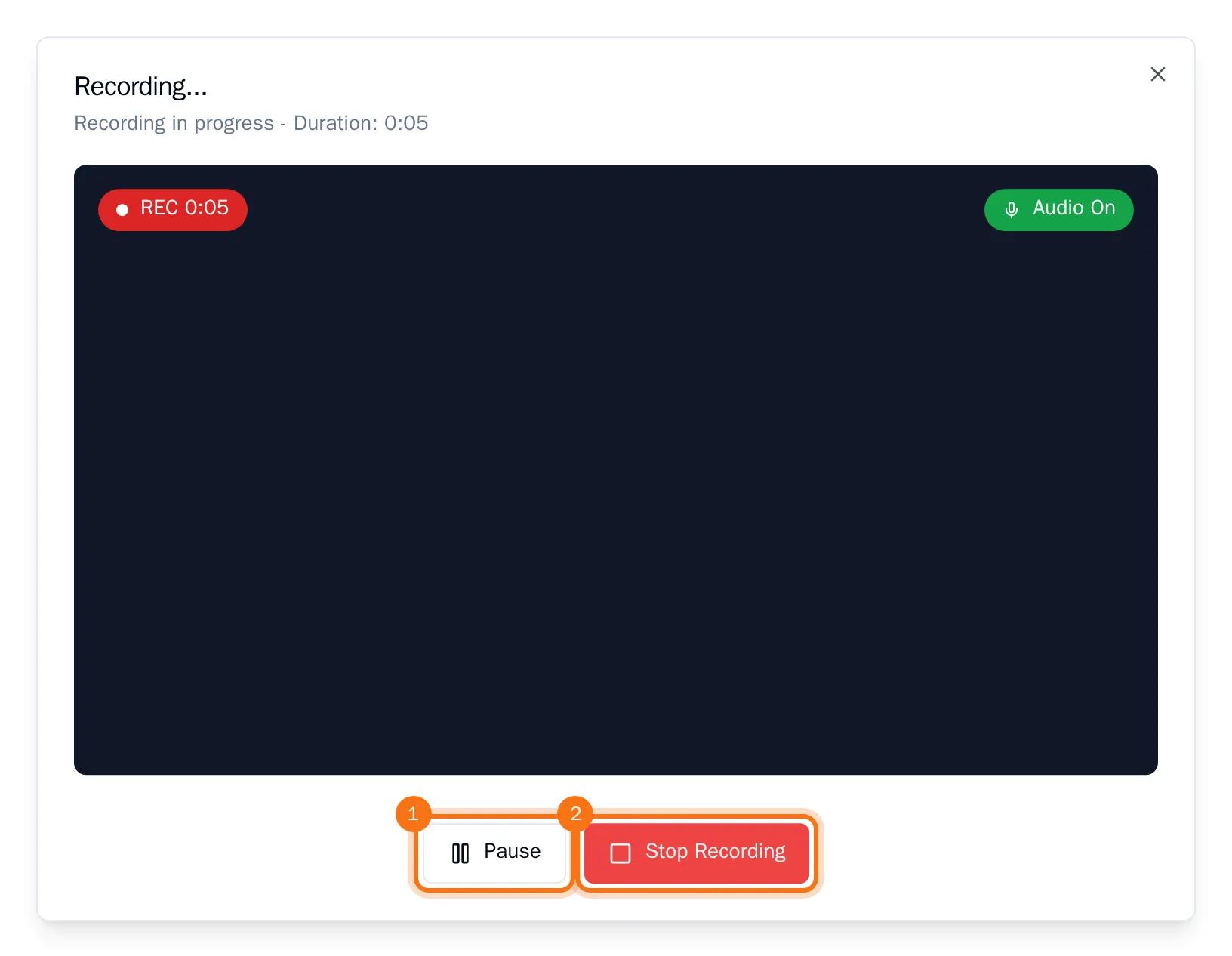
- After a countdown of three seconds the recording starts, and the window shows what is being recorded. Choose Pause if you need a moment, and Stop Recording when you are done.
- Watch the preview. Give the recording a title, add a description if you like and choose Save Recording. Not happy with it? Choose Re-record to start again.
The recording is now listed under the process, with a red video icon.
Watch a recording
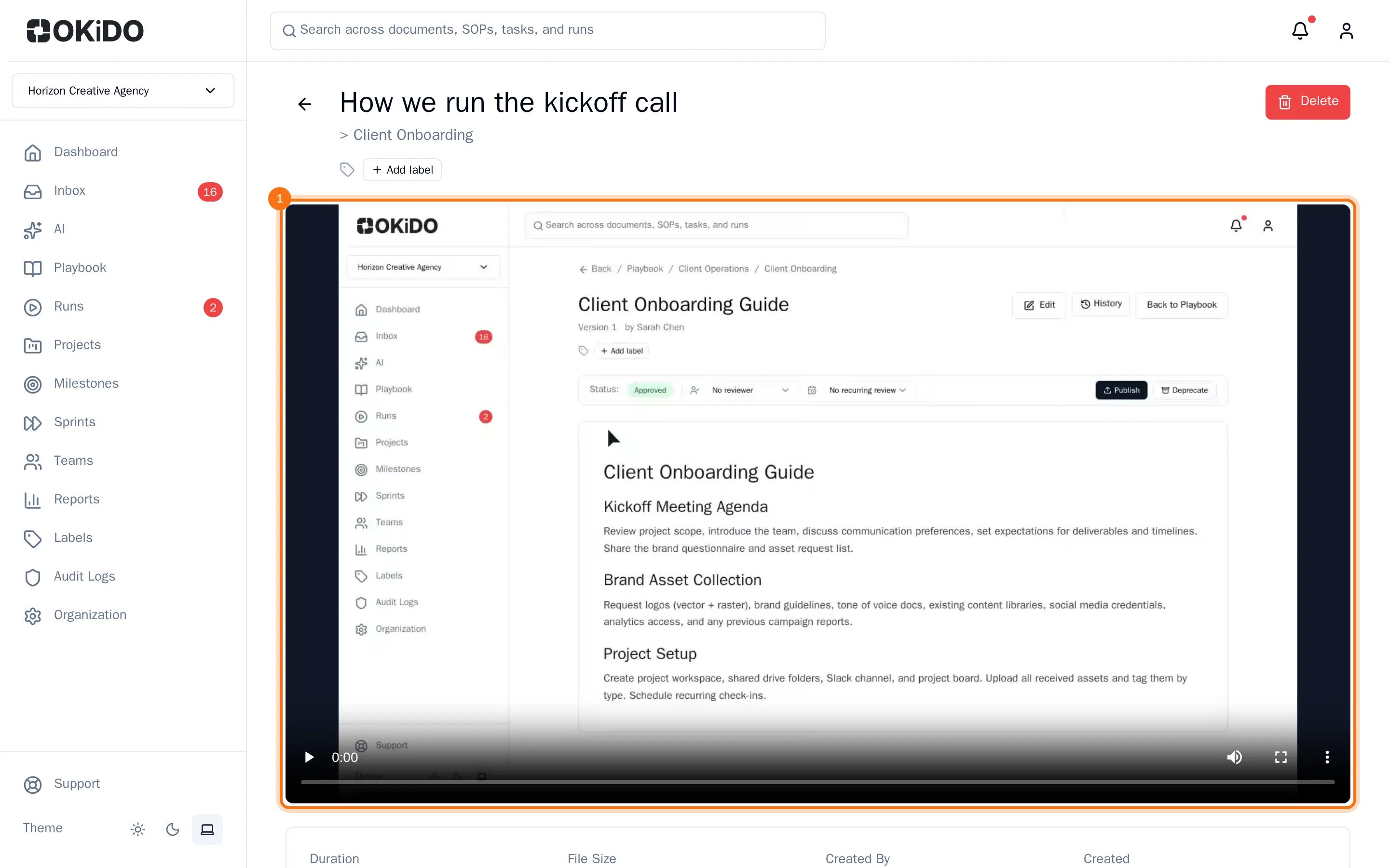
Click the recording in the Playbook. It opens with its player, how long it is, who recorded it and when.
Tip: To explain a single task, record a briefing on the task itself. See Attach files and record a briefing.