Choose how you get notified
Turn email, in-app and push notifications on or off, and choose whether OKiDO reminds you of open and due tasks.
Available onAll plans
Who can do this: Everyone in the organization
OKiDO lets you know when something needs you: a task assigned to you, a mention, an approval to give. You choose where those notifications reach you, and whether OKiDO also reminds you of tasks that are open or due.
Choose your notification channels
- Open the account menu (the person icon at the top right) and choose Settings.
- Choose the Preferences tab.
- Under Notification Channels, check the channels you want and clear the others:
- Push notifications: alerts from your browser on your computer or phone, even when OKiDO is closed (see Turn on push notifications).
- Email notifications: emails to the address you sign in with.
- In-app notifications: notifications in your Inbox.
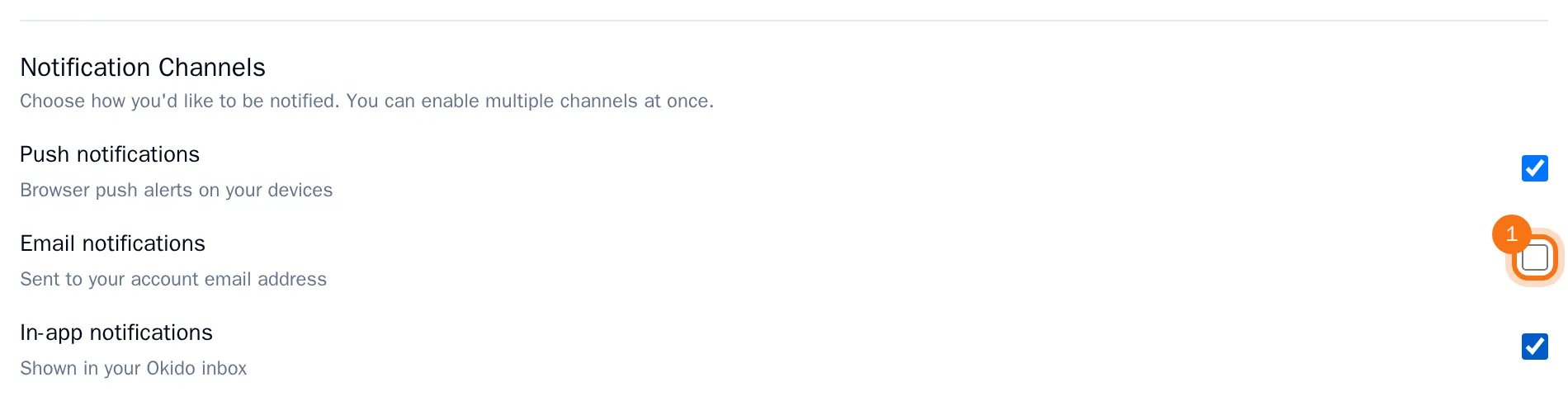
- Choose Save Preferences at the bottom of the tab.
New notifications now arrive only through the channels you checked. With In-app notifications cleared, new notifications no longer appear in your inbox at all, so keep at least one channel on.
Set your task reminders
- On the Preferences tab, under Task reminders, check Outstanding & due task reminders to get reminders of your open and due tasks, or clear it to stop them.

- Choose Save Preferences.
Reminders come through the channels you checked above, and only on your working days, within your working hours. Set those on your profile (see Update your profile and working hours).