Compare and restore document versions
Open a document's version history, compare a version with the current text and restore an older one.
Who can do this: Everyone in the organization
Every time someone saves a change to a document's text, OKiDO keeps the version before it. See who changed what and when, and go back to an earlier version if a change was a mistake.
Open the version history
- Open the document and choose History.
- The Version History opens on the right, newest version first, with who saved each version and when. The version you are reading is marked Current, the one readers see is marked Published.
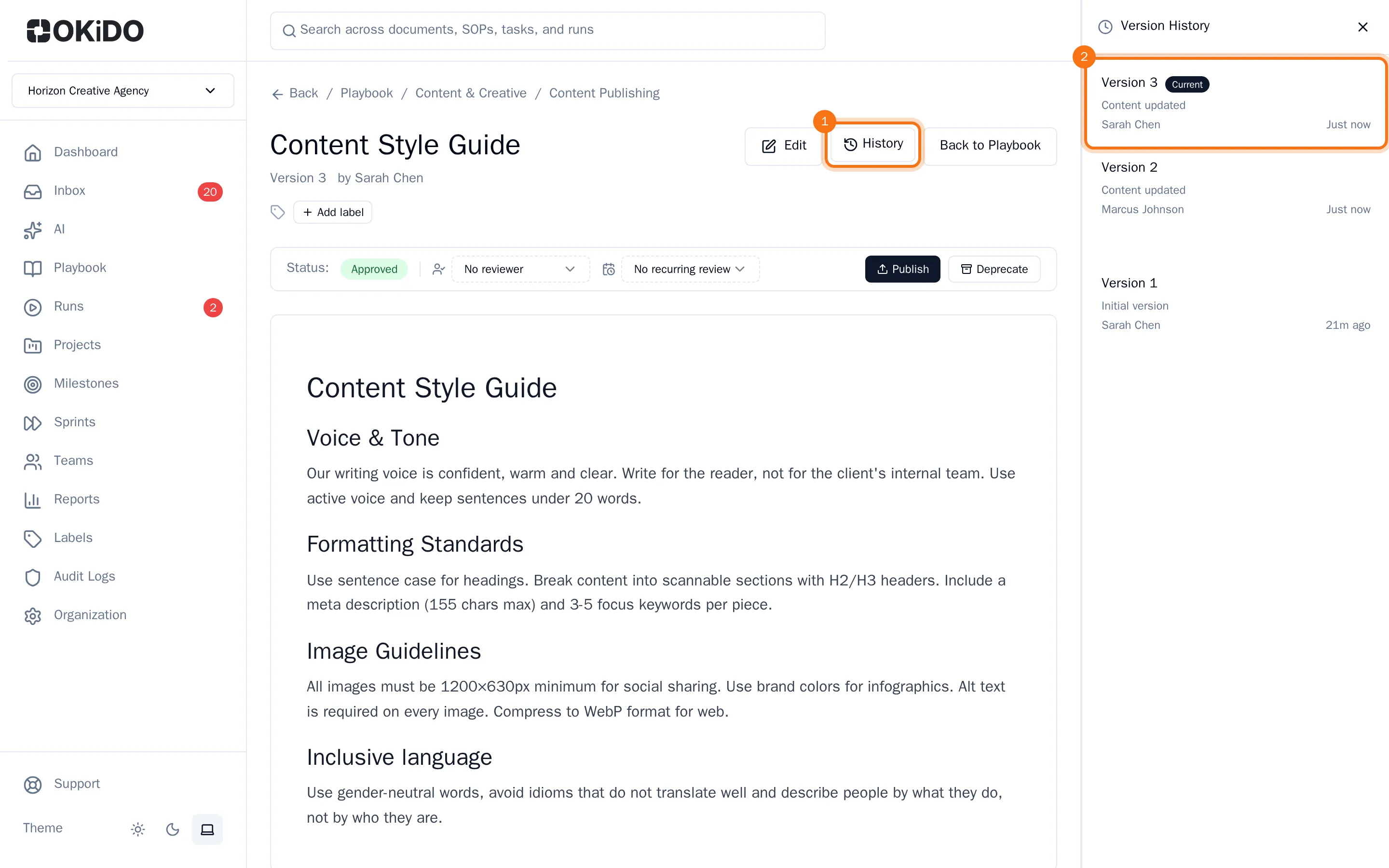
- Click a version to read it as it was. Choose Exit Preview to go back to the current text.
Compare a version with the current text
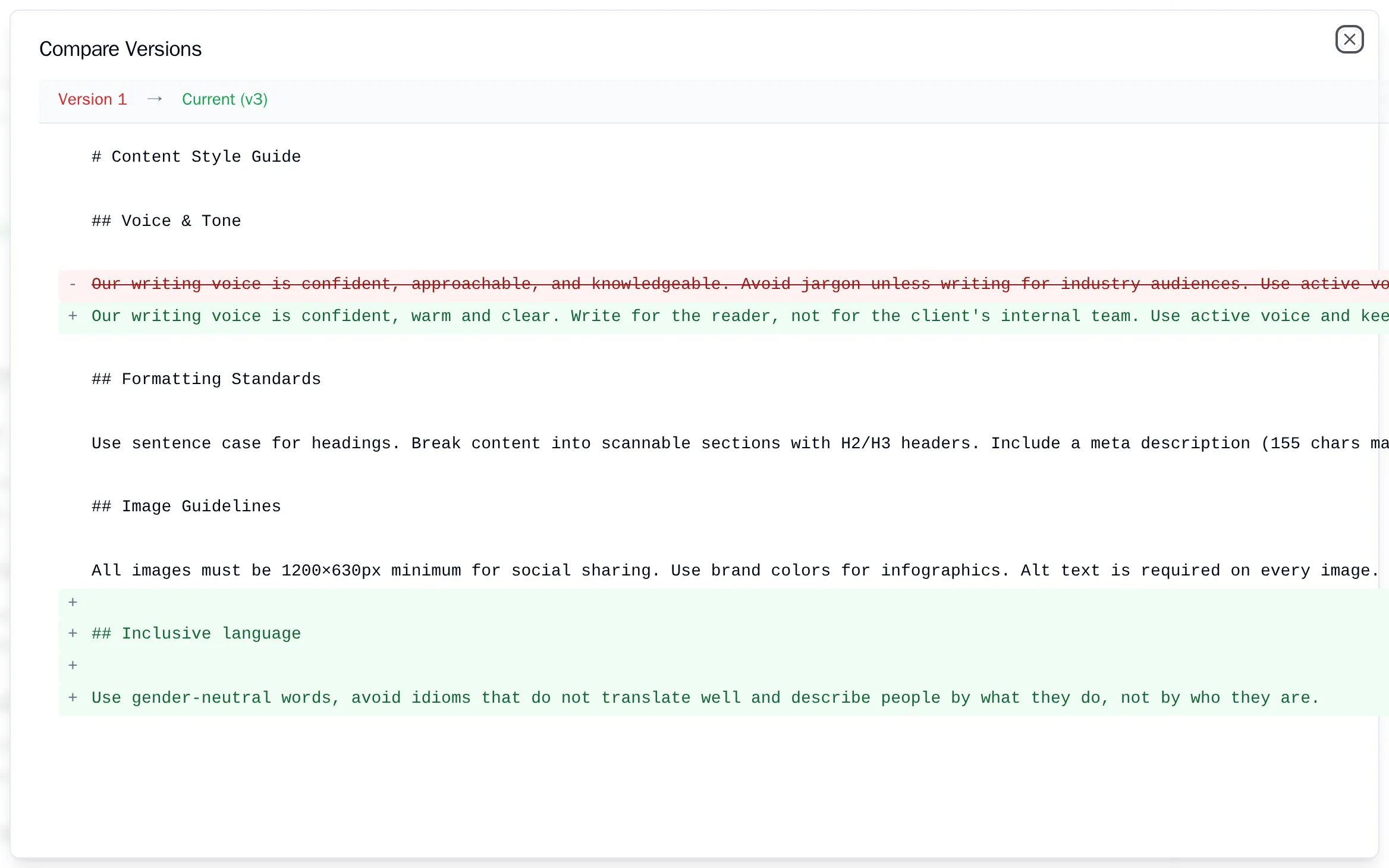
Point at a version in the history and choose Compare. The comparison lists the text line by line: lines that were added since that version are green, lines that were removed are red and struck through.
Restore an older version
- Point at the version you want back and choose Restore.
- Confirm with Restore.
The text of that version becomes the current text, as a new version. The versions in between stay in the history, so you can always go forward again. A published document is locked: unlock it first (see Review and publish a document).