Reuse a project as a template
Build a template project with relative due dates and start new projects from it with Clone.
Who can do this: Everyone in the organization
Do you run the same kind of project again and again, such as a website launch for each new client? Build it once as a template. Its tasks get due dates relative to the project's start or launch date, and every new project you start from it gets real dates.
Create a template project
- Choose Projects, then New Project.
- Enter a name, choose Template Project, then choose Create Project.
- Open the new project from the project list.
The project has a Template badge and a Clone button. Add columns and tasks as in any project.
Count back from a launch date
A template plans from its start date at first: "5 days after start". For launches, events and deadlines, count back from the end instead: "10 days before launch". Organization owners and admins can change this.
- In the template, choose the project settings button (the pencil) at the top right.
- On the General tab, set Plan dates from to Launch or end date.
- Choose Update Project.
Give tasks relative due dates
- Open a task in the template.
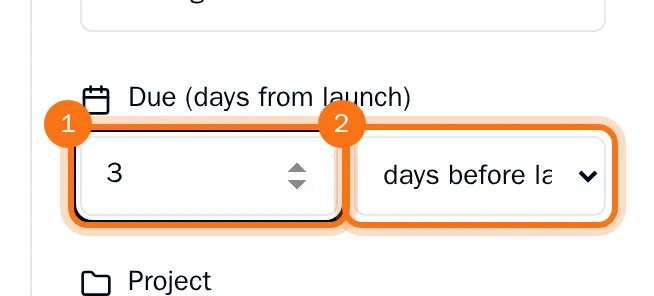
- Under the due date, enter a number of days. In a template that counts back from launch, also choose days before launch or days after launch.
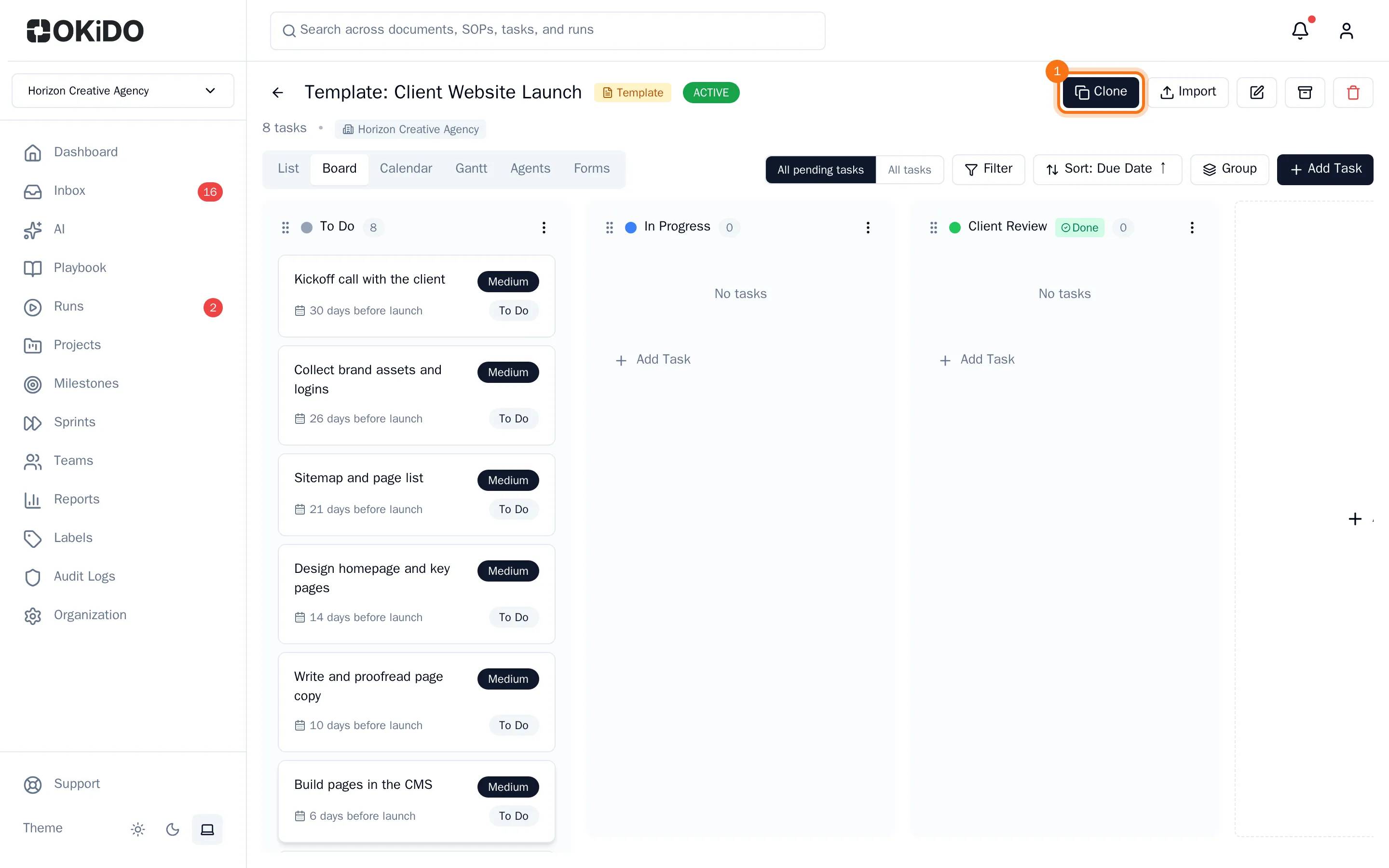
The task cards now show the relative due date instead of a calendar date.
Start a project from the template
- Open the template and choose Clone.
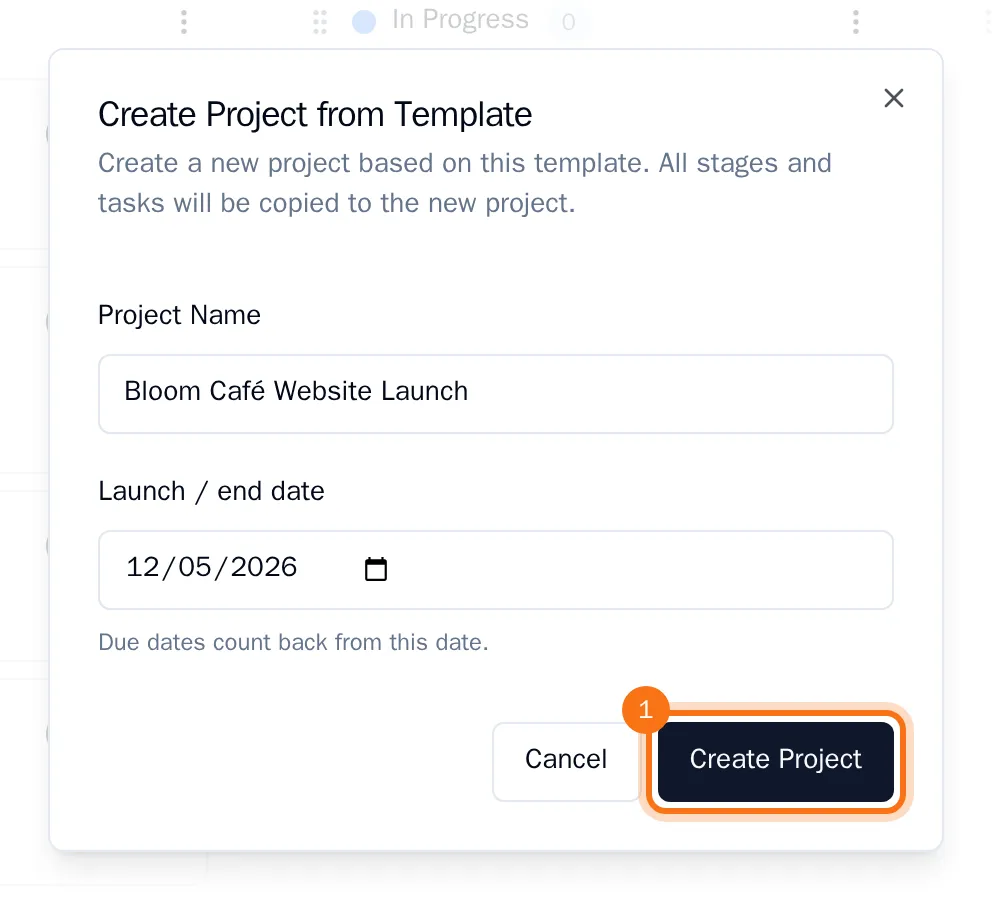
- Enter the Project Name.
- Pick the date the template counts from: the Launch / end date, or the start date (optional: without one, today is the start).
- Choose Create Project.
OKiDO opens the new project. It is a regular public project with the template's columns, tasks, labels and default labels, and each task has a real due date worked out from the date you picked. The template stays as it is, ready for the next one.