Set up board columns
Add, rename, recolor, reorder, collapse, merge and delete the columns of a project's board, and choose the column for finished work.
Who can do this: Owner, Admin
Each column on a project's board is a stage the work goes through. Shape the columns to match how your team works, for example with a column for client review before work is done.
Organization owners and admins can add, rename, recolor, move and delete columns and choose the done column. Anyone in the project can collapse and merge columns, and that changes the board for everyone.
Add a column
- Open the project's Board and choose Add Stage to the right of the last column.
- Enter a name and pick a Color.
- Choose Create Stage.
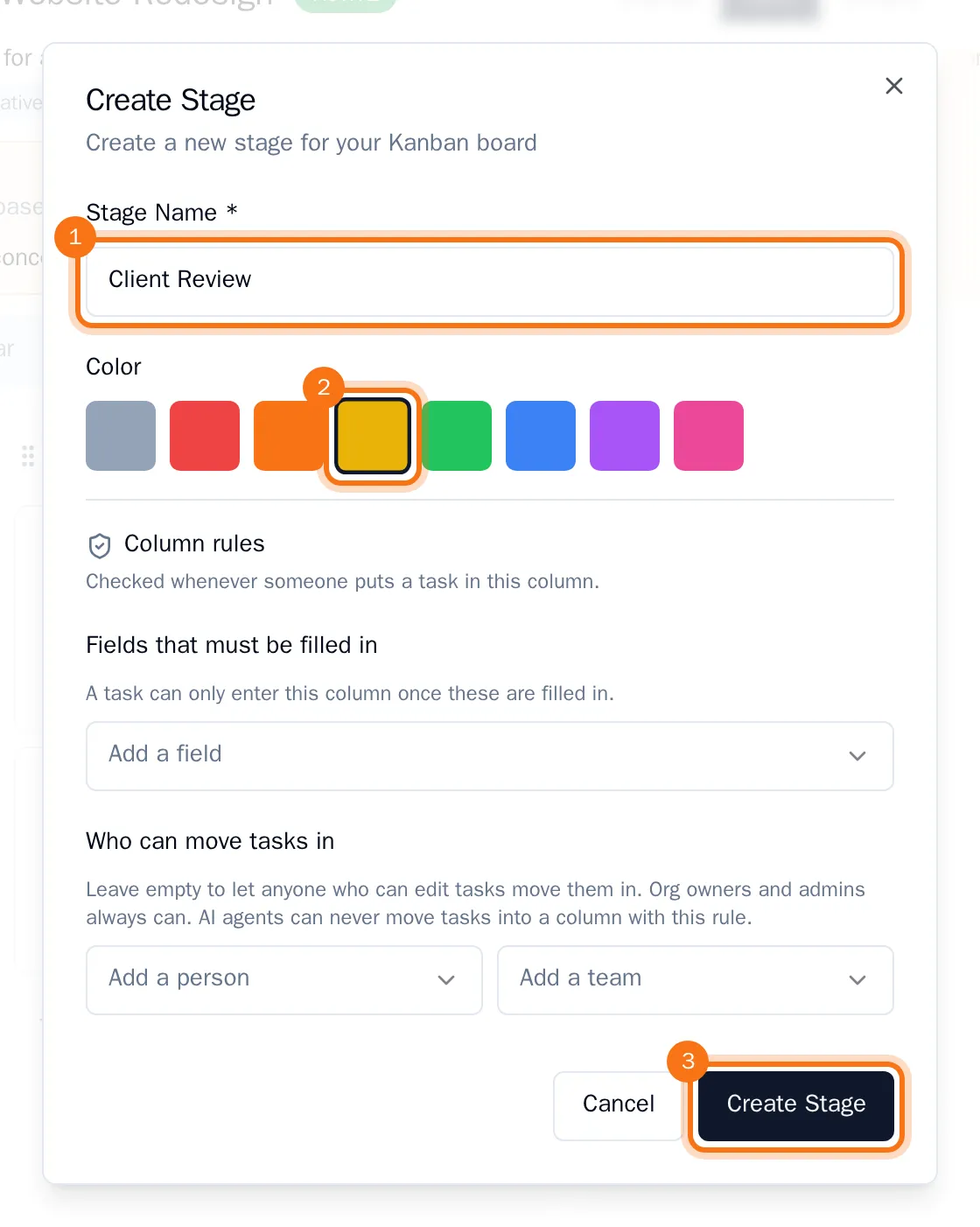
The new column appears at the right end of the board.
Move a column
Drag the column by the grip (the dotted icon) to the left of its name to the new place. The board saves the new order right away.
Rename or recolor a column
- Choose the menu button at the top right of the column, then Edit Stage.
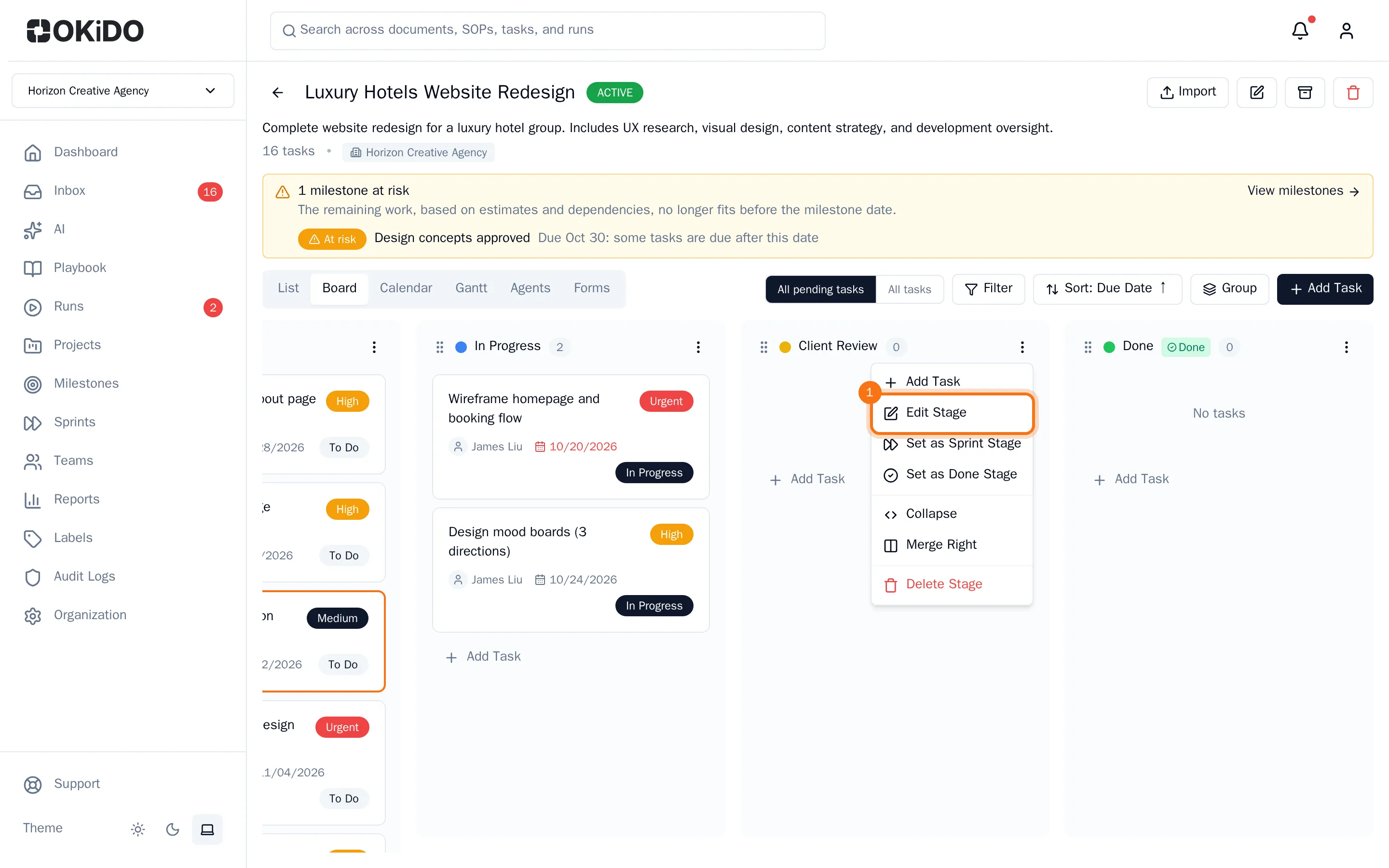
- Change the name or the color.
- Choose Update Stage.
The same dialog also holds the column's rules, see Add rules to a column.
Choose the done column
- Choose the column's menu button, then Set as Done Stage.
The column gets a Done badge. When someone marks a task as done, it moves into the first done column to its right on its own. A new project's last column is a done column from the start. Choose Remove Done Stage to turn it off.
Collapse or merge columns
- To collapse a column, choose Collapse in its menu. It becomes a narrow strip with its name and number of tasks. Click the strip to open it again.
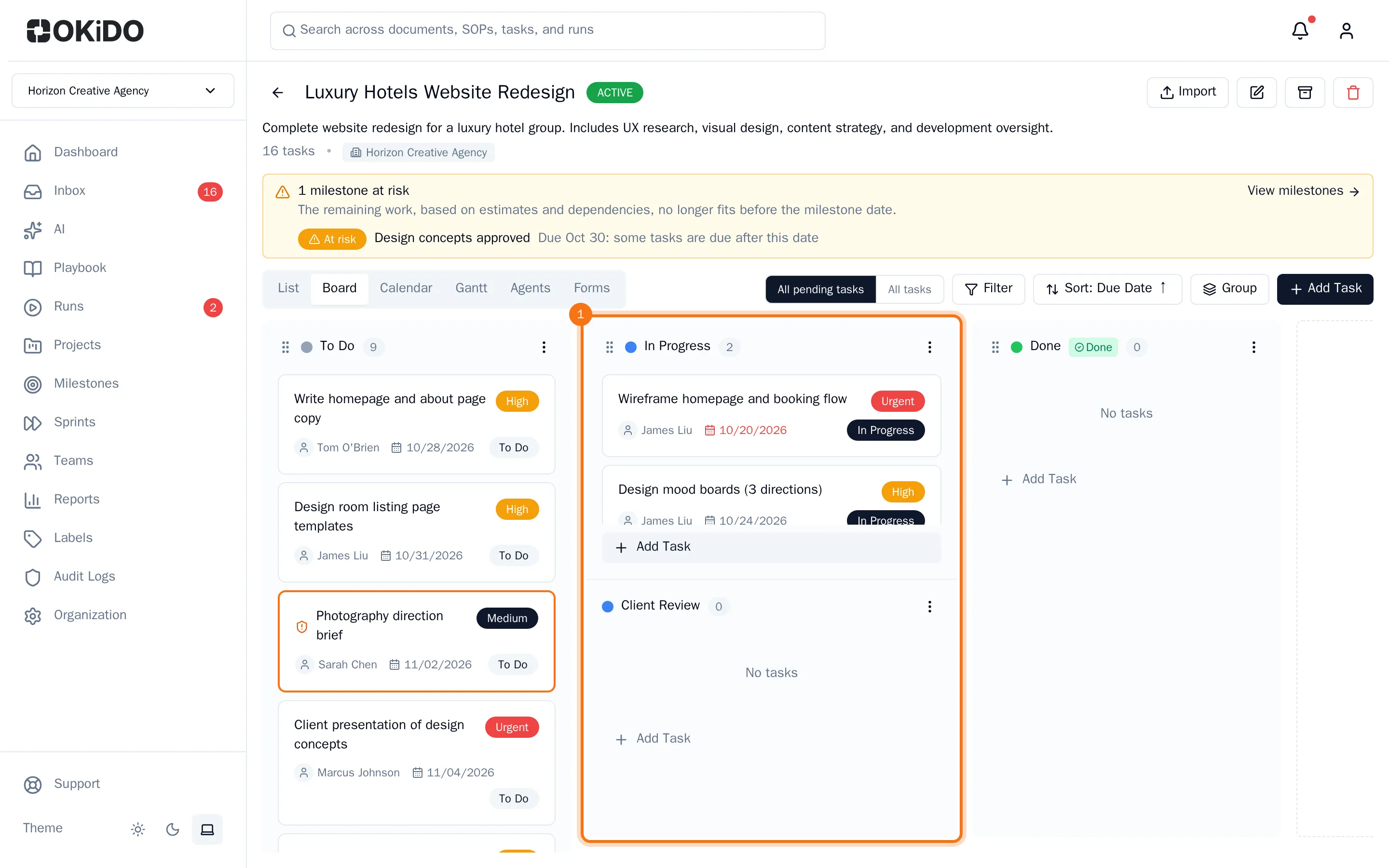
- To merge a column with the one to its right, choose Merge Right in its menu. Both stay separate stages, stacked in one column. Choose Unmerge in the menu of the top stage to split them again.
Delete a column
- Move the column's tasks to another column first: a column with tasks cannot be deleted.
- Choose the column's menu button, then Delete Stage.
The column is deleted at once, without a question.