Accept an invitation
Join an organization from the link in your invitation email, with a new account or the one you already have.
Who can do this: Everyone in the organization
When an owner or admin invites you to their organization, you get an email with an invitation link. The link shows who invited you, to which organization and with which role. It works for 7 days.
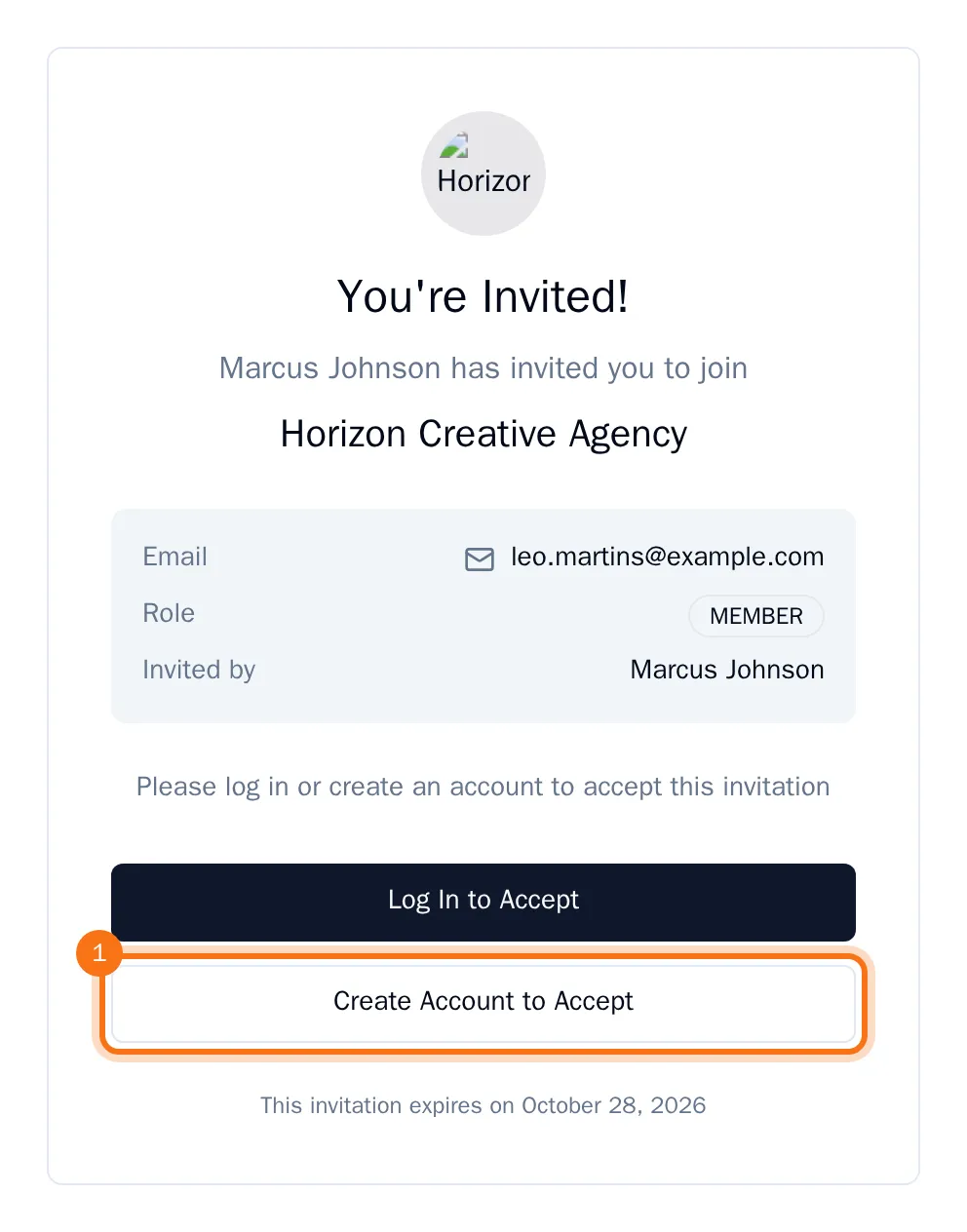
Join with a new account
- Open the link in your invitation email.
- Choose Create Account to Accept.
- Enter your Name, the Email address the invitation was sent to, and a Password of at least 8 characters.
- Choose Sign Up.
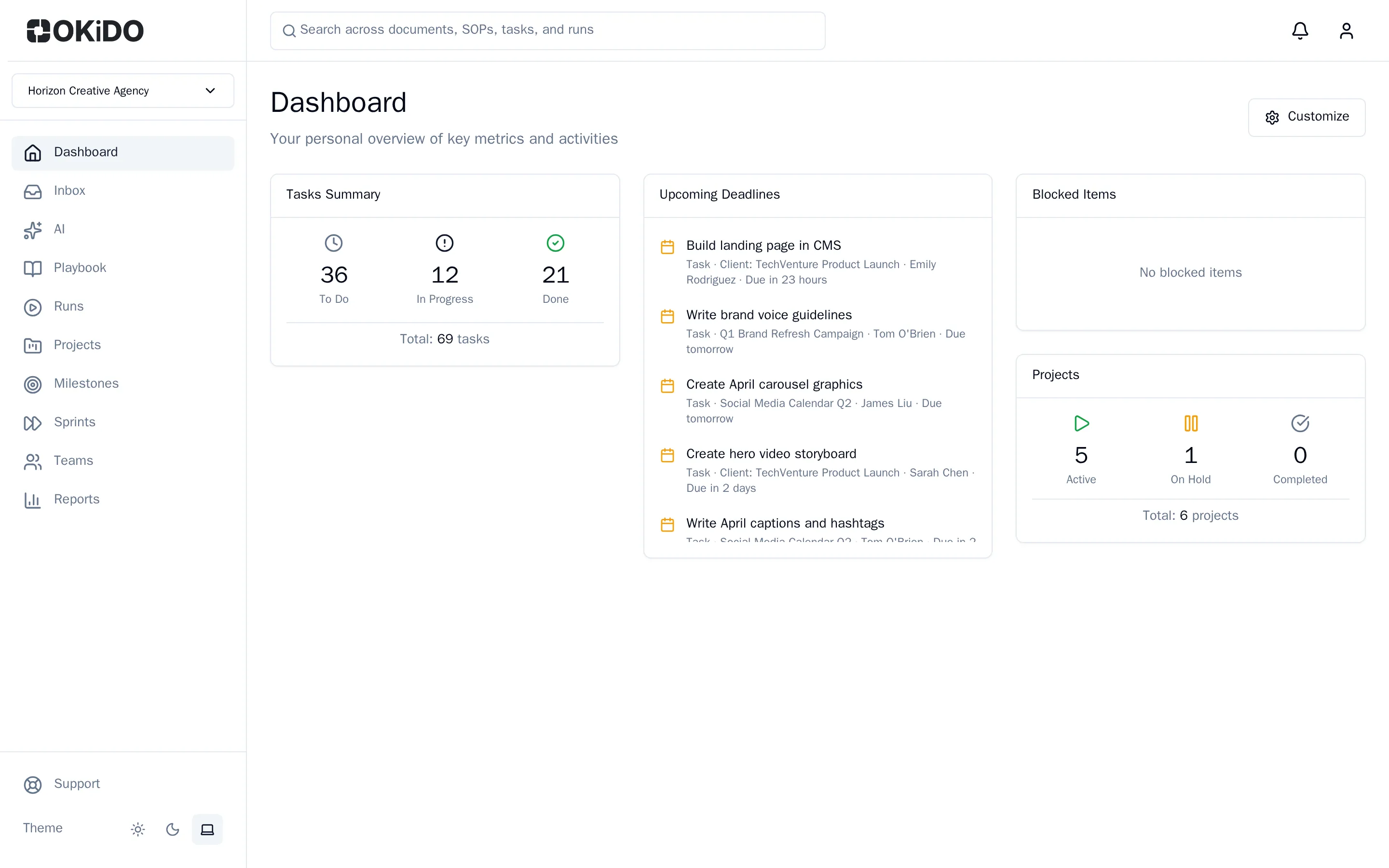
Your account is ready and you are in the organization, with the role from the invitation. Its dashboard opens, and the organization selector at the top of the sidebar shows its name.
Join with the account you already have
- Open the link in your invitation email.
- Choose Log In to Accept and sign in with the email address the invitation was sent to.
- Back on the invitation, choose Accept Invitation.
The organization is added to your account and opens right away. Your other organizations stay as they are; switch between them with the organization selector (see Switch between organizations).
Not interested? Choose Decline in step 3 instead of accepting.
Tip: Use the email address the invitation was sent to: an invitation only works for that address. A new account with another address gets an organization of its own instead of joining.