Customize your dashboard
Add, remove and rearrange the widgets on your dashboard, such as Tasks Summary, Upcoming Deadlines and My Time.
Available onAll plans
Who can do this: Everyone in the organization
Your dashboard is the first page you see after signing in. It is yours alone: choose the widgets that help you most, in the order you like, and nobody else's dashboard changes.
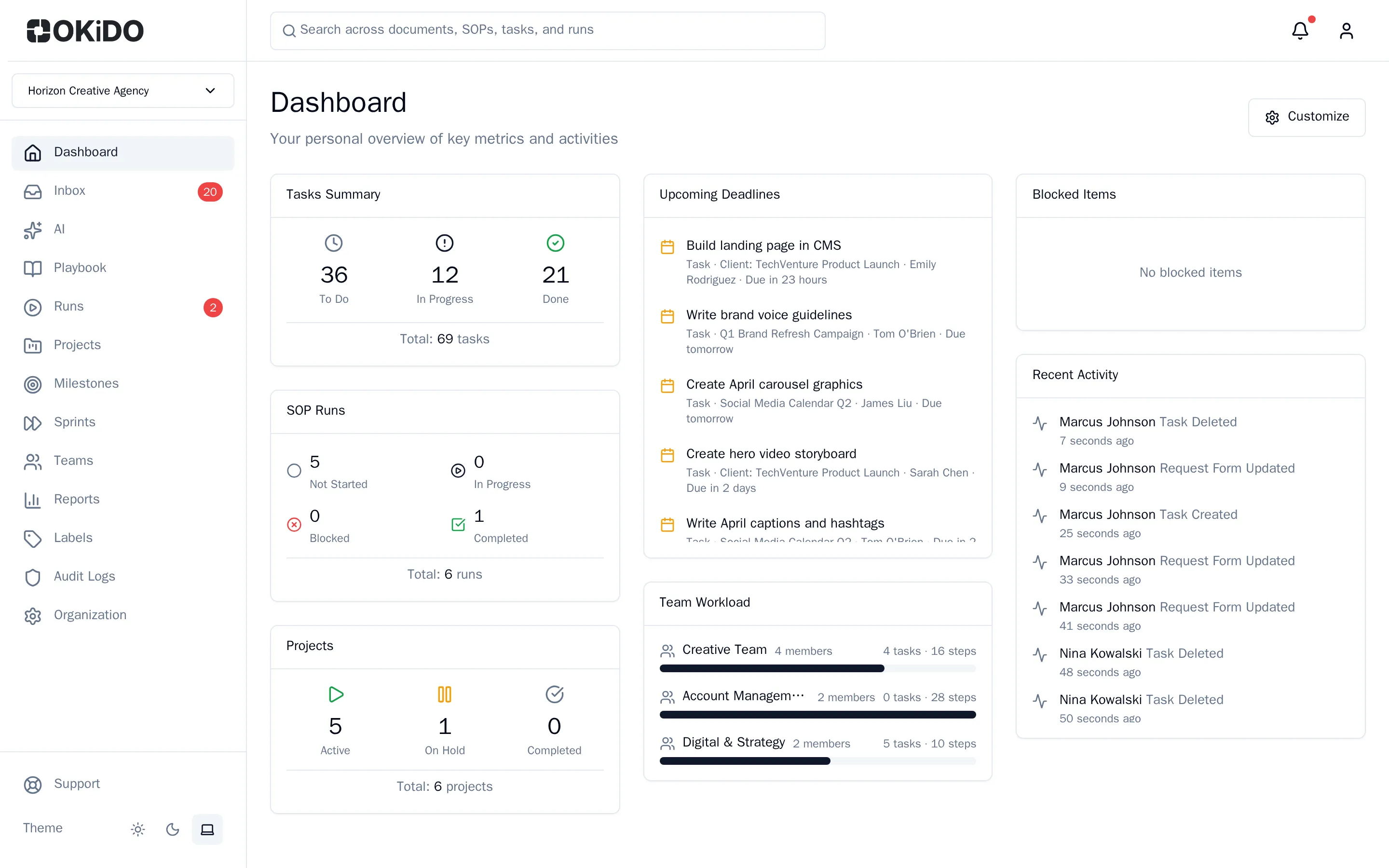
Add a widget
- On your Dashboard, choose Customize.
- Choose Add Widget.
- Choose the widget you want, for example My Time for the hours you logged today, this week and in the sprint.
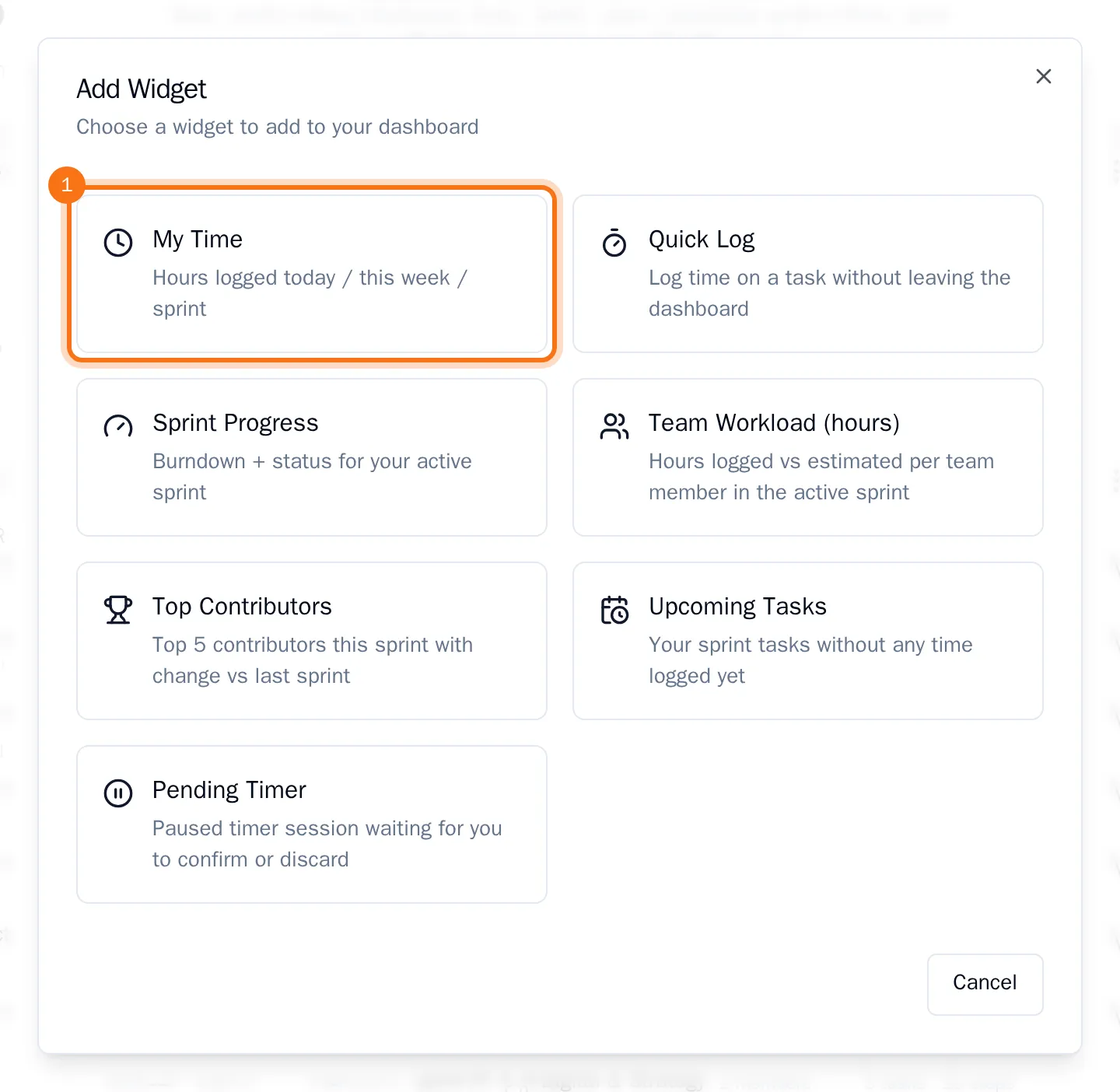
The widget is added at the end of your dashboard. The list only offers widgets that are not on your dashboard yet; Recent Activity is for owners and admins only.
Rearrange and remove widgets
- Choose Customize. Every widget now shows a handle on the left of its title and a cross on the right.
- Drag a widget by its handle and drop it on the place where you want it.
- Choose the cross on a widget to remove it.
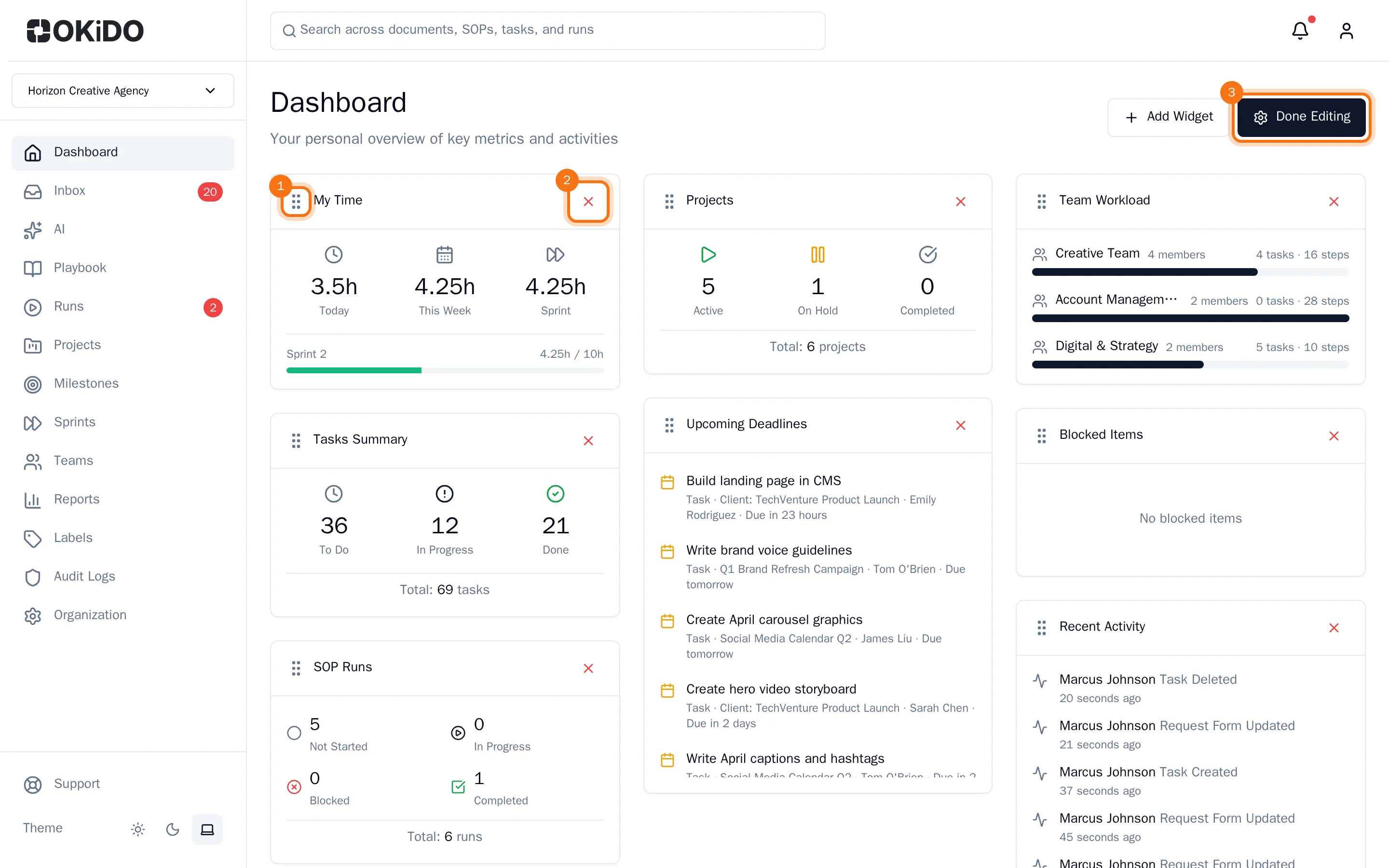
- Choose Done Editing.
OKiDO saves every change right away. Removed a widget by mistake? Add it again with Add Widget.
Tip: With several organizations selected, each widget shows which organization it belongs to, and Add Widget first asks for the organization.