Move a task to another project or organization
Move a task and its subtasks to another project, column or organization, and see who would lose access before you do.
Available onStarterProBusiness
Who can do this: Everyone in the organization
Added a task to the wrong project, or does the work belong somewhere else now? Move it. Its subtasks go with it.
Move a task to another project
- Open the task, choose More actions (the three dots at the top), then Move task.
- Under Project, choose the project the task moves to.
- Under Stage, choose the column it goes into.
- Choose Move Task.
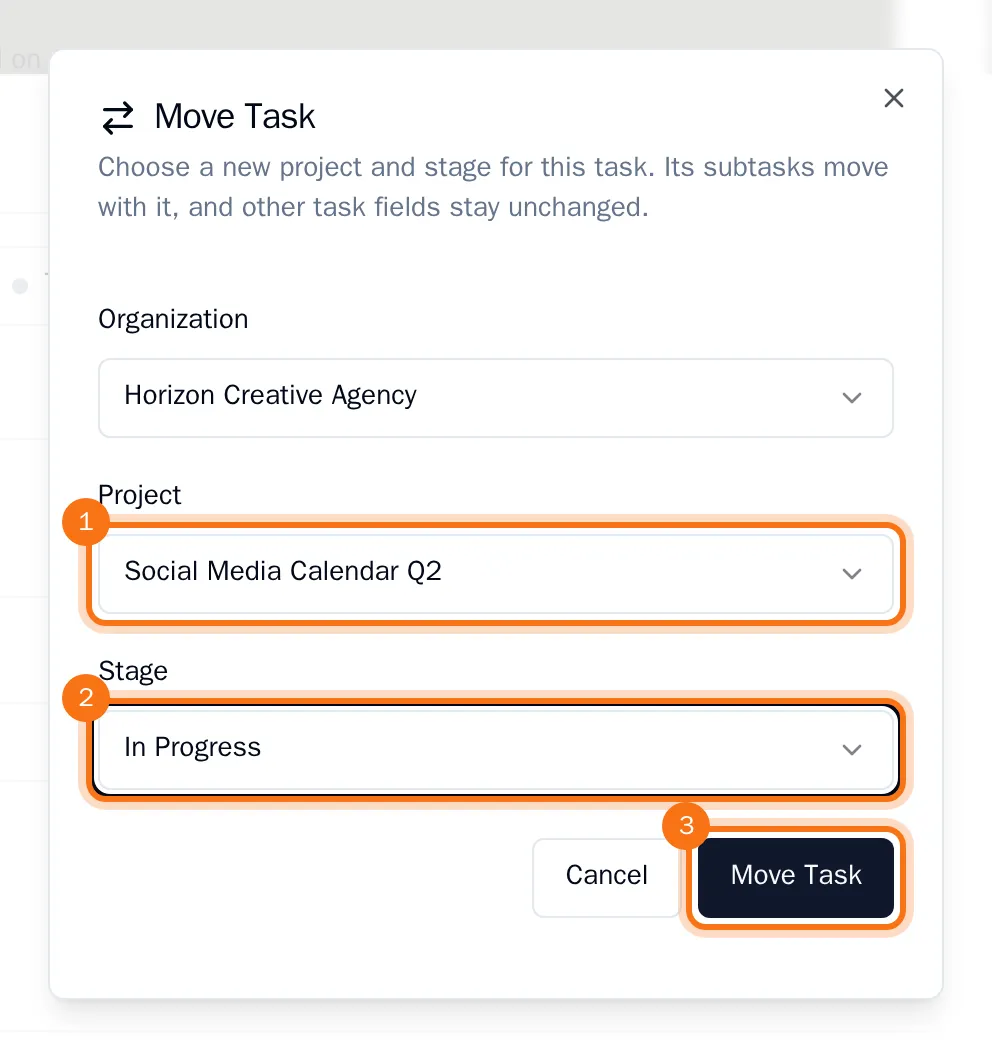
The task and its subtasks are now in the other project, in the column you chose. Everything else about the task stays the same. If the column has rules the task does not meet, OKiDO tells you what is missing and the task stays where it was.
Move a task to another organization
When you belong to more than one organization, the dialog also asks for the Organization.
- Under Organization, choose the other organization, then the project and the column.
- Read the warning before you move. It names everyone involved in the task who is not a member of the other organization: they lose access to the task. It also lists what stays behind, such as the assignee, the sprint and the labels, because they belong to this organization.
- Choose the move button, which names the other organization.
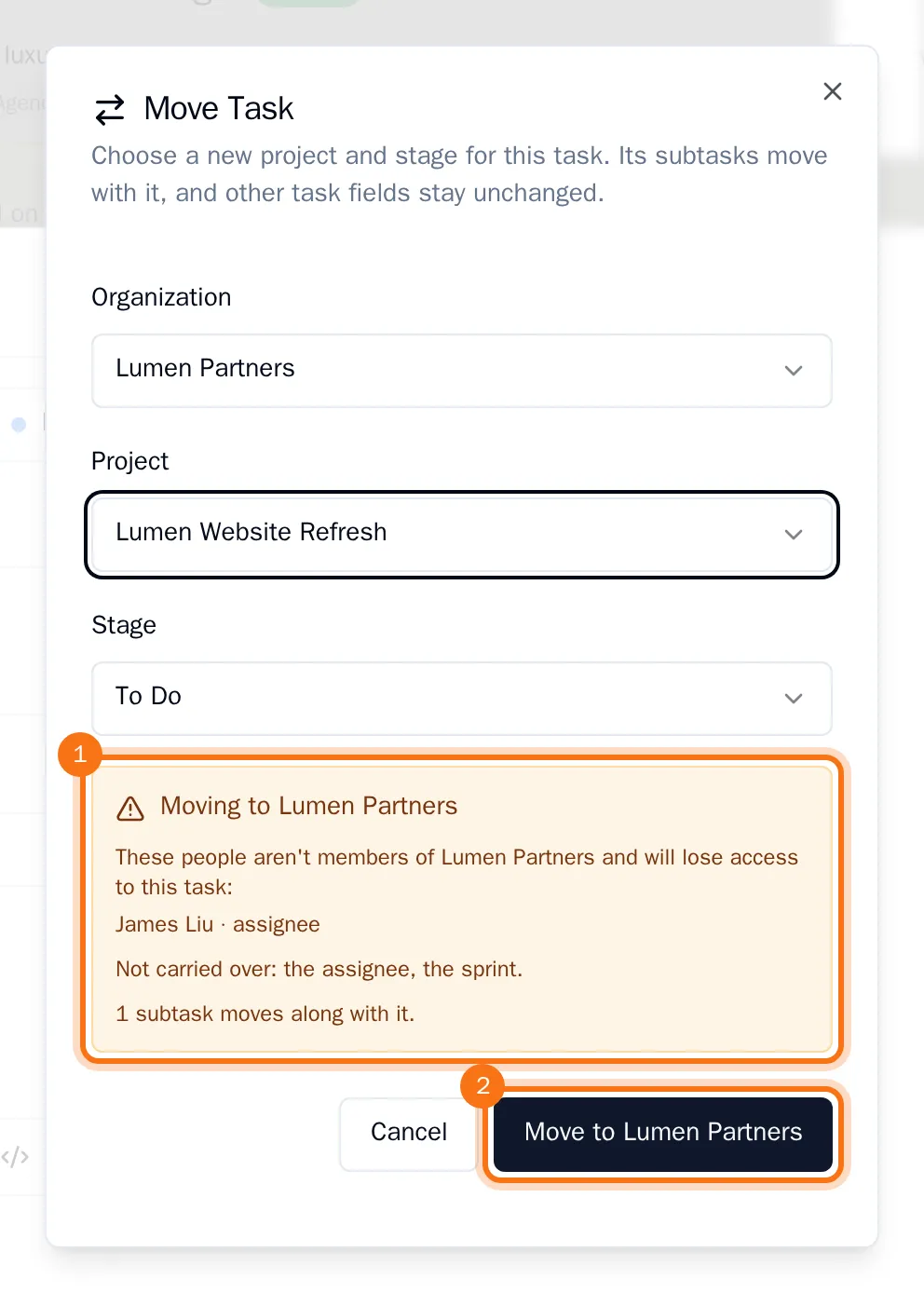
The task leaves this organization. Switch to the other organization to find it in its new project.