Send events to other apps with webhooks
Let OKiDO tell another app right away when tasks, runs, approvals or documents change, and check every delivery.
Who can do this: Owner, Admin
A webhook sends an event to another app the moment something happens in OKiDO: a task is created, a run is completed, an approval is decided. The other app, for example your CRM or an automation tool, gets a message at an address it gives you, and can act on it.
Only owners and admins can add and manage webhooks.
Add a webhook
- In the menu on the left, choose Organization, then the Integrations tab. Webhooks opens, with the organization's webhooks and the events each one receives.
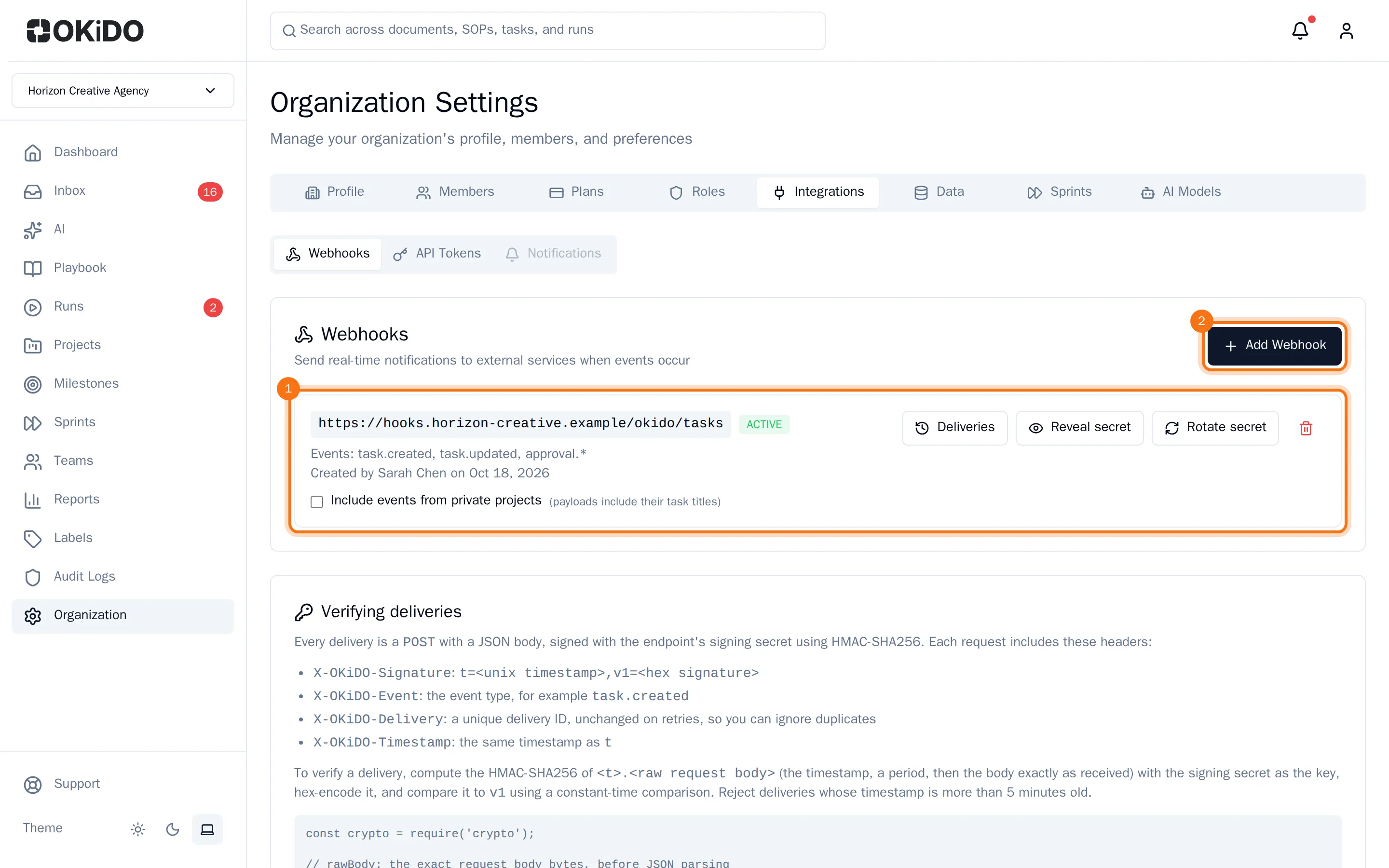
- Choose Add Webhook.
- Enter the Webhook URL: the address the other app gave you. It has to be a public internet address.
- Under Events, tick the events to send. All Run Events, for example, sends every change to a run.
- Tick Include events from private projects only if the other app may see the task titles of private projects.
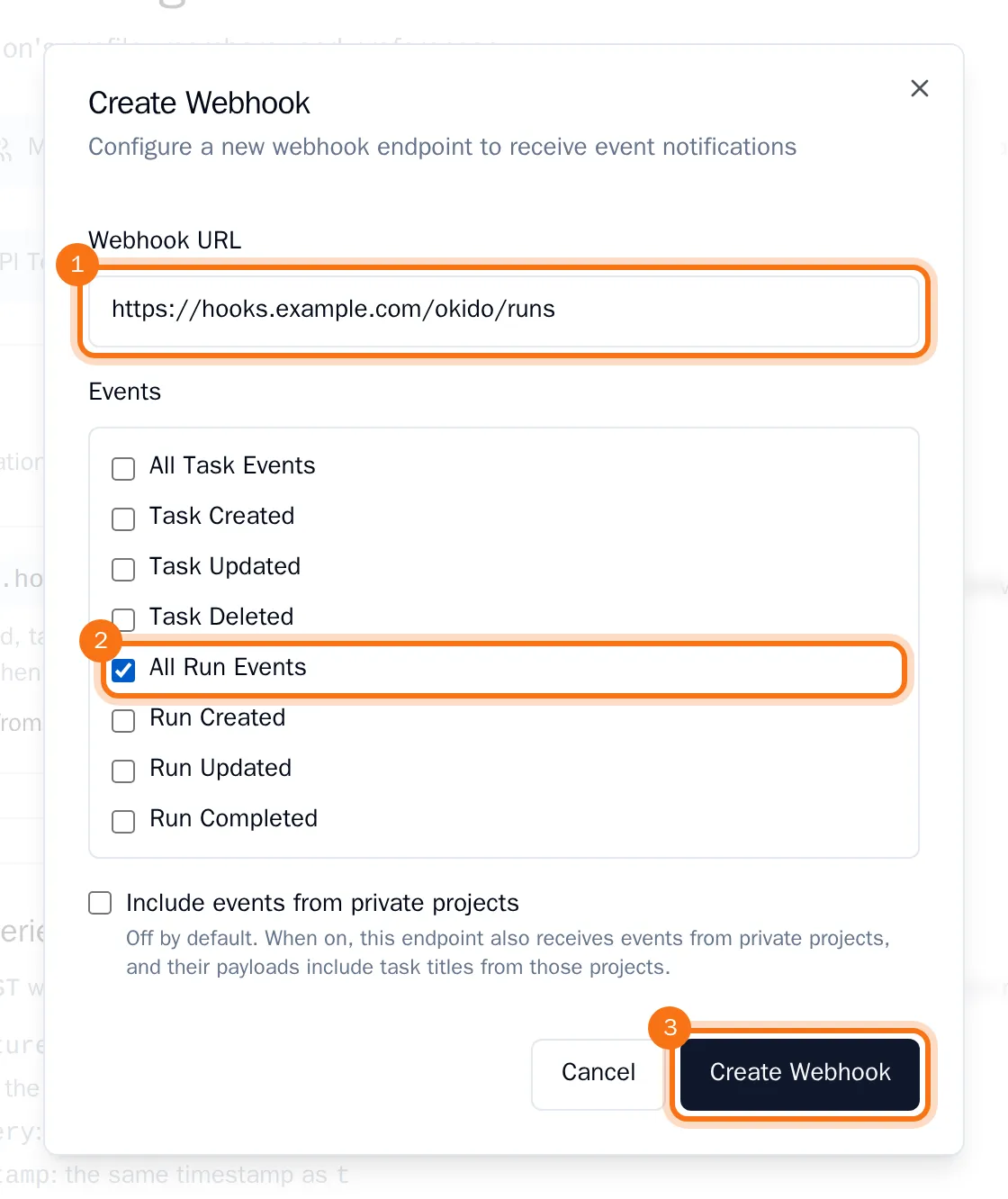
- Choose Create Webhook.
OKiDO shows the webhook's Signing Secret. Copy it into the other app: with it, the app can check that a message really comes from OKiDO. The section Verifying deliveries below the list explains how, for your developers. You can show the secret again later with Reveal secret, or replace it with Rotate secret.
Check the deliveries
- On the webhook, choose Deliveries. You see the recent deliveries, newest first: whether each one arrived (Delivered) or not (Failed), the event, the answer of the other app, and how many attempts it took.
- Choose a delivery to see every attempt and the message that was sent.
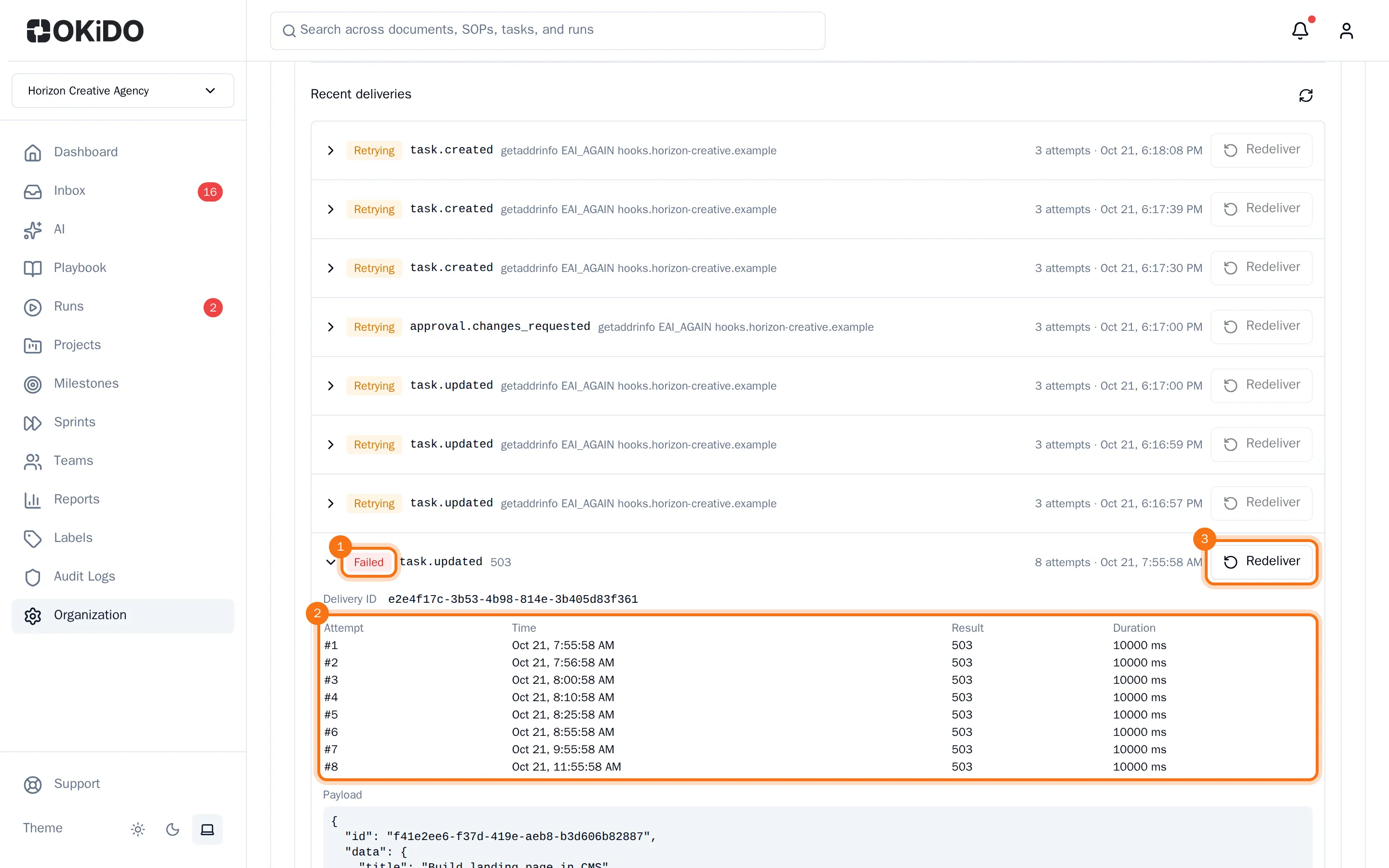
When the other app does not answer, OKiDO tries again on its own, up to 7 times over about 10 hours. Deliveries are kept for 30 days.
Send a delivery again
Fixed the problem at the other app? Choose Redeliver on the delivery. OKiDO sends the event again: a new delivery appears at the top of the list.
To stop sending events, choose the bin on the webhook and confirm with Delete.