Switch between organizations
Choose which of your organizations you see, or show several at once, with the organization selector.
Who can do this: Everyone in the organization
When you belong to more than one organization, for example your own company and a client who invited you, the organization selector at the top of the sidebar decides whose work you see. You can look at one organization at a time, or at several together.
Switch to another organization
- Choose the organization selector at the top of the sidebar. It lists every organization you belong to, with your role in each.
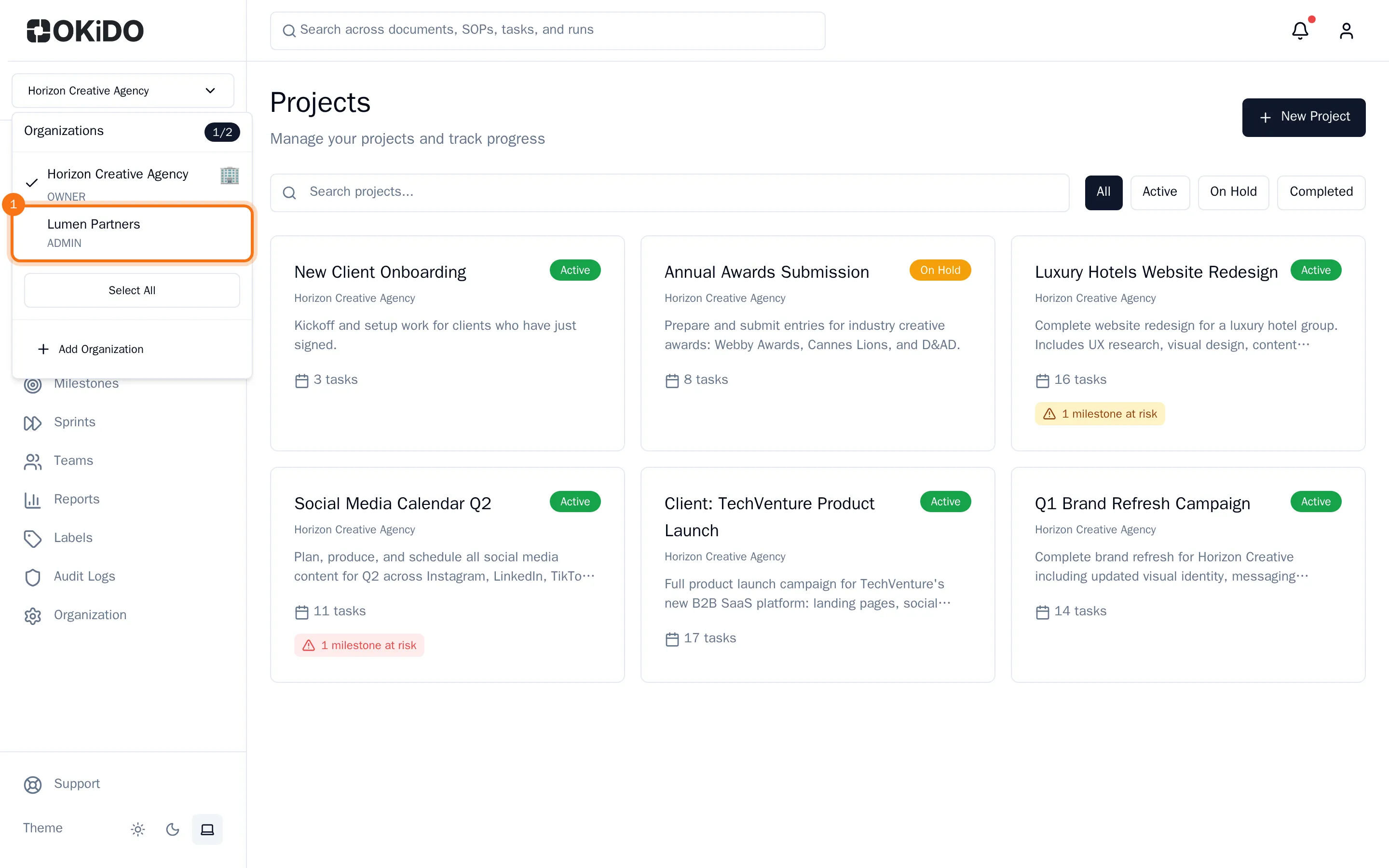
- Choose the name of the organization you want to see.
The page now shows that organization only, and the selector shows its name. OKiDO remembers your choice on this device.
Show several organizations at once
- Open the organization selector.
- Choose the check mark in front of another organization (Add to selection). The menu stays open, so you can add more.
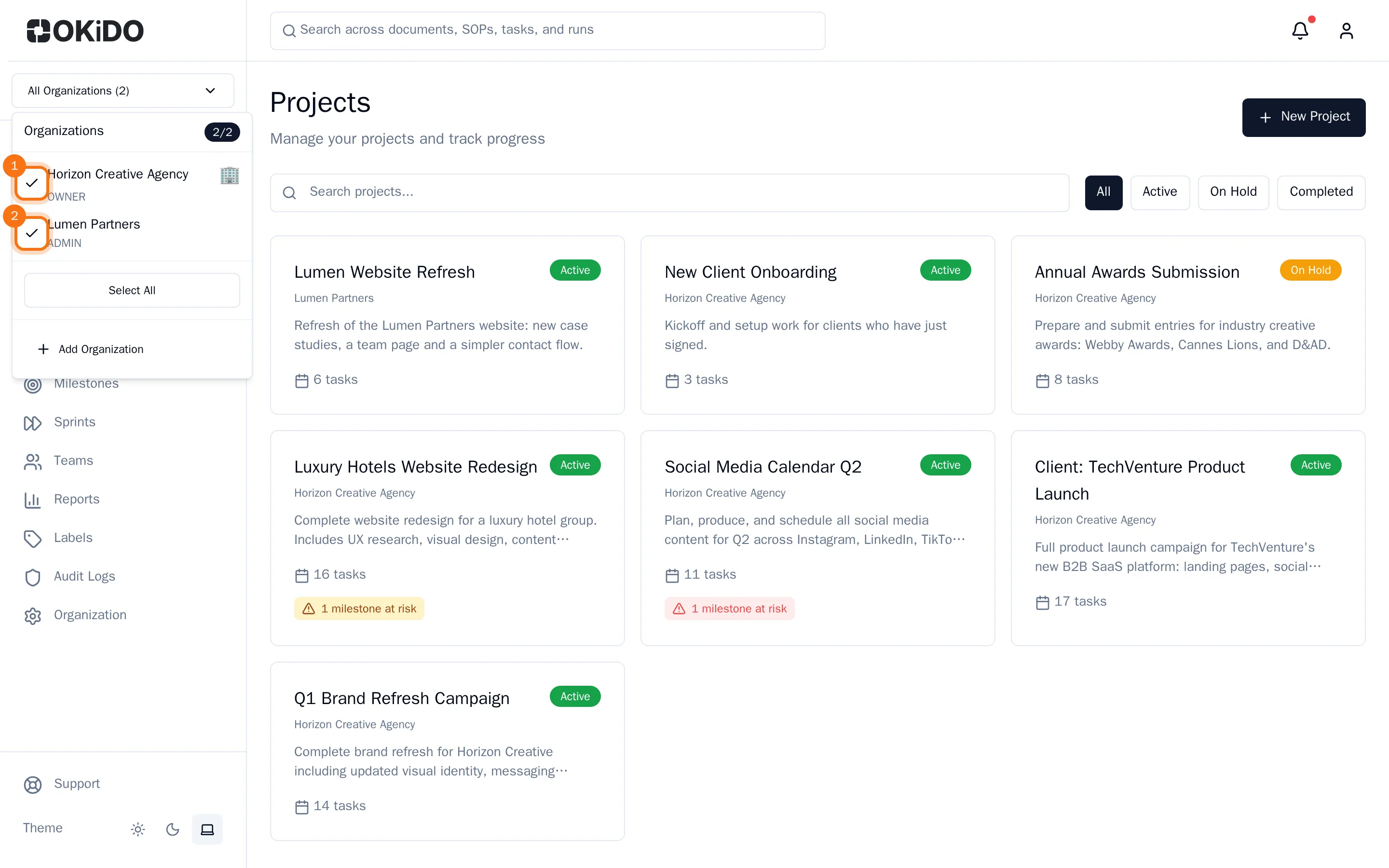
- Or choose Select All to see all your organizations at once.
Your projects, inbox, dashboard and search now cover every selected organization, and the selector shows how many you selected. Choose a check mark again to remove an organization (Remove from selection); at least one stays selected.
Tip: Need an organization of your own? Choose Add Organization at the bottom of the selector (see Create an organization).