Set the sprint cadence
Choose how long your sprints are, the day they start and how long the sprint meetings take, and create the upcoming sprints.
Who can do this: Owner, Admin
Sprints split work into short periods with a fixed rhythm. Here you set that rhythm for your whole organization: how long a sprint lasts, the day it starts and how long its meetings take. OKiDO then creates the upcoming sprints for you.
Sprints are available on the Pro and Business plans. Only owners and admins can change these settings.
Choose the cadence and the meetings
- In the menu on the left, choose Organization, then the Sprints tab.
- Under Sprint Cadence, choose Weekly, Bi-weekly or Monthly.
- Under Default Meeting Durations, choose how long each meeting takes, or None for a meeting you don't hold.
- Under Sprint Kickoff, choose the day under Sprint starts on. For the retrospective and the weekly catchup, choose the day under Happens on.
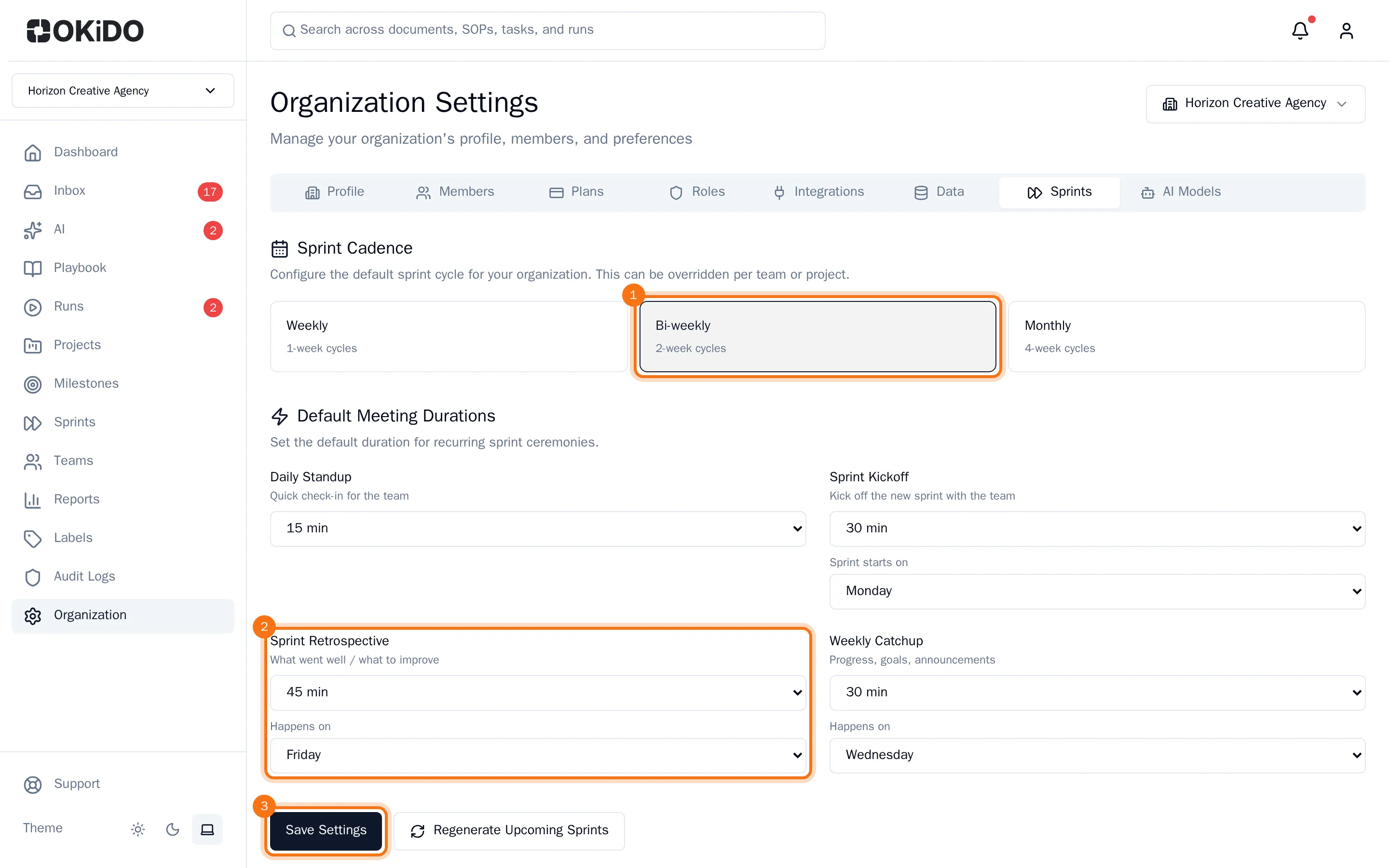
- Choose Save Settings.
Create the upcoming sprints
Choose Regenerate Upcoming Sprints. OKiDO creates the next 10 sprints from your settings, starting on the next start day.
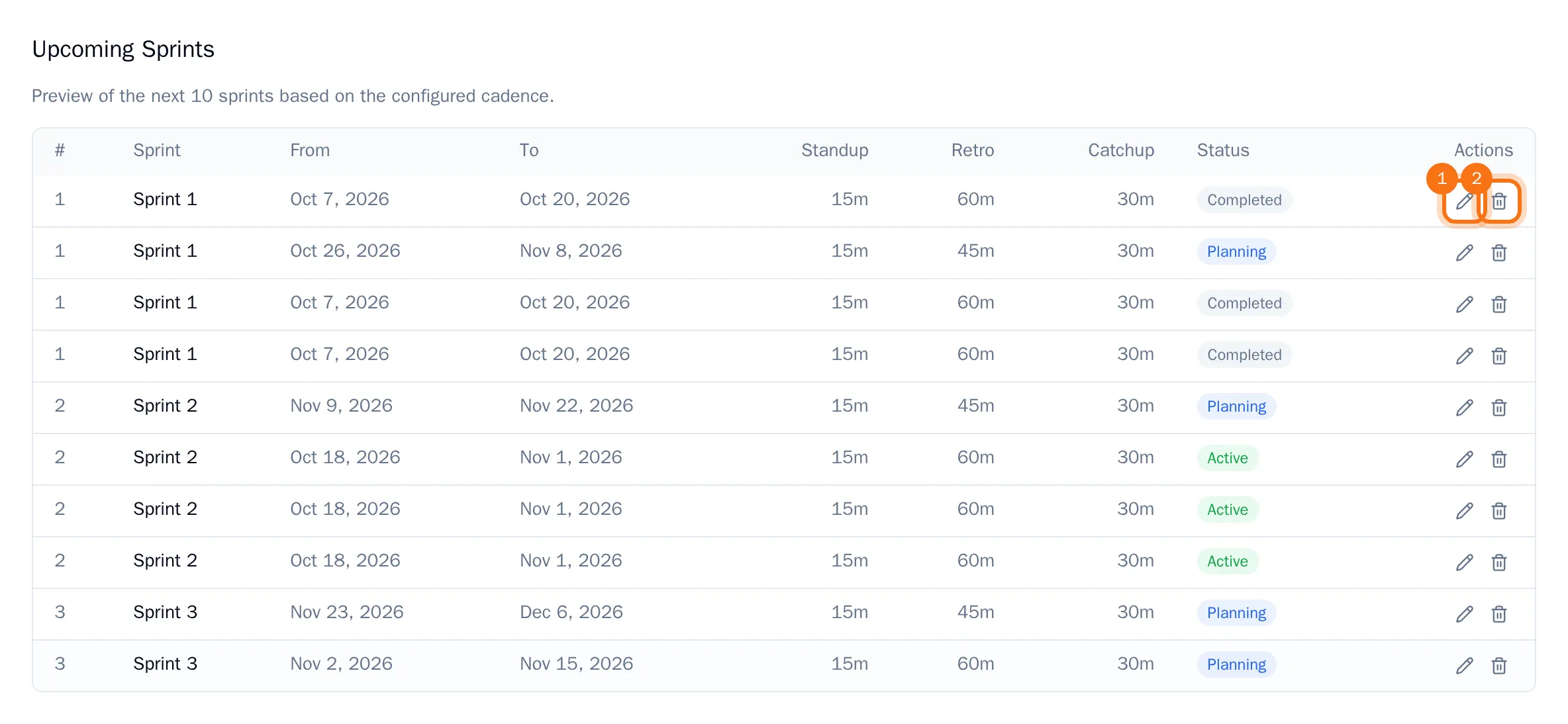
The table under Upcoming Sprints lists each sprint with its dates, meeting lengths and status. It also shows the sprints of projects that plan their own sprints. To rename a sprint or move its dates, choose Edit sprint (the pencil). To remove one, choose Delete sprint (the bin).
Tip: After changing the cadence, choose Regenerate Upcoming Sprints again. Sprints that have not started yet are replaced by a new series.