Build a decision tree
Turn a decision your team makes again and again into a guided flow of questions, branches and outcomes.
Who can do this: Owner, Admin
A decision tree asks a few questions and, depending on the answers, leads to an outcome: which campaign package fits a client, or whether a campaign needs a photo or a video shoot. Everyone who runs it reaches the same decision in the same way, and every run is logged.
You build a decision tree in a process of the Playbook: questions that store their answers in variables, outcomes, and branches that lead from one to the next.
Create a decision tree
- In the Playbook, open the folder and the process the tree belongs to.
- Choose Add at the end of the process, then Decision Tree.
- Enter a Name and, if you like, a Description.
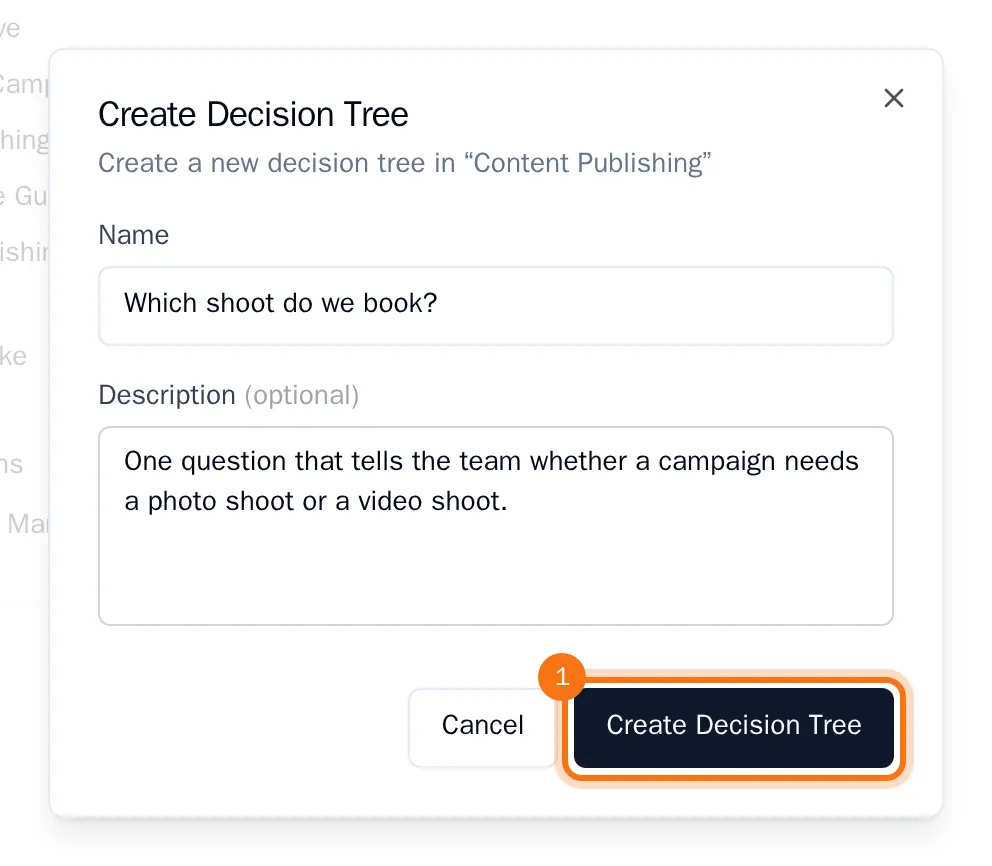
- Choose Create Decision Tree.
The editor opens, with a Start step on the canvas.
Add a question
Each question stores its answer in a variable, so the branches can check it. Declare the variable first.
- Choose Variables, type a key for the answer in capitals (for example MAIN_CHANNEL), and choose Add Variable. Close the panel.
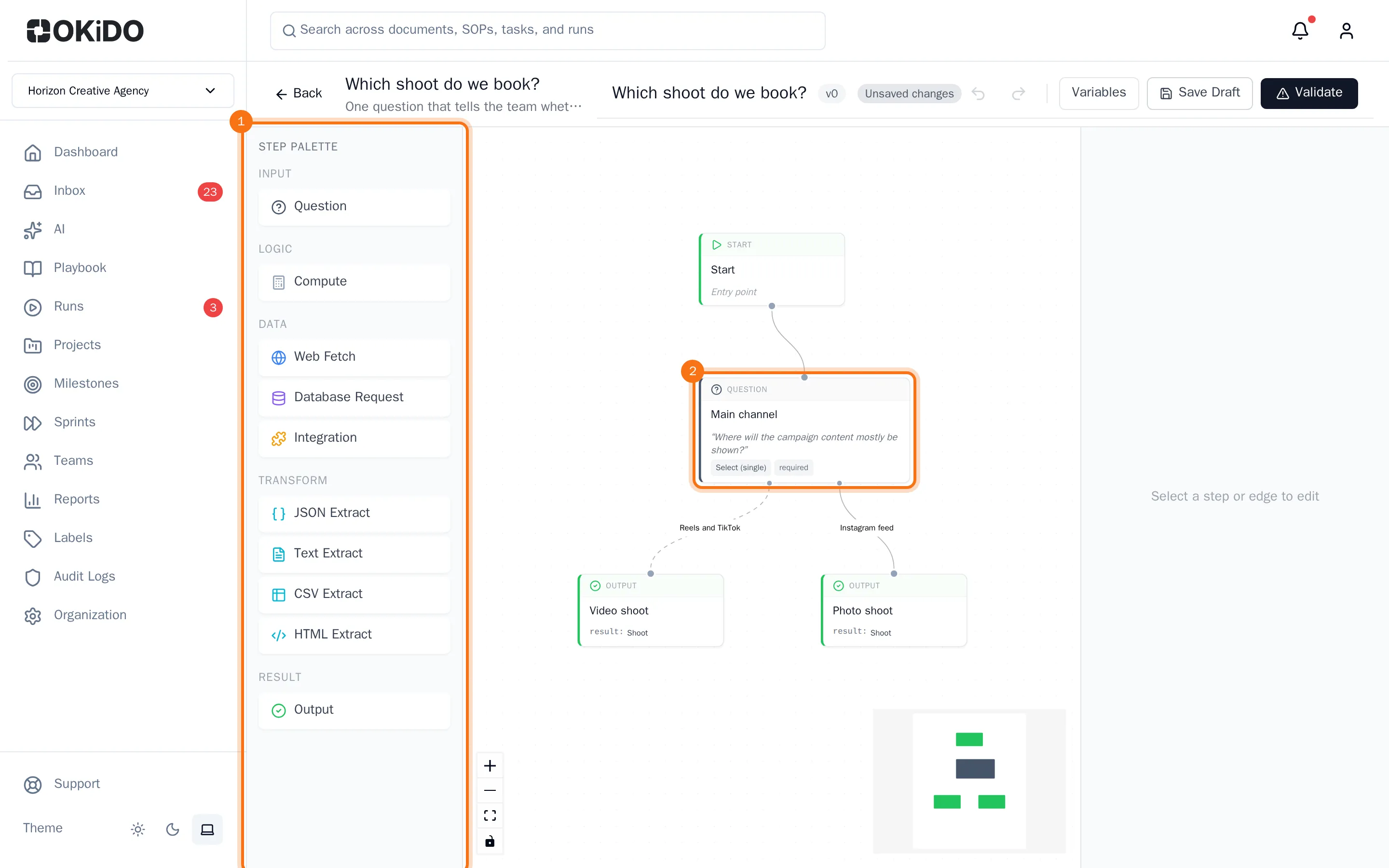
- In the Step Palette on the left, choose Question, then select the new step on the canvas.
- Fill in its Label and its Question Text.
- Choose an Input Type, for example Select (single), and under Store in Variable the variable for the answer.
- For a choice, choose Add Option for each answer and fill in its label and value.
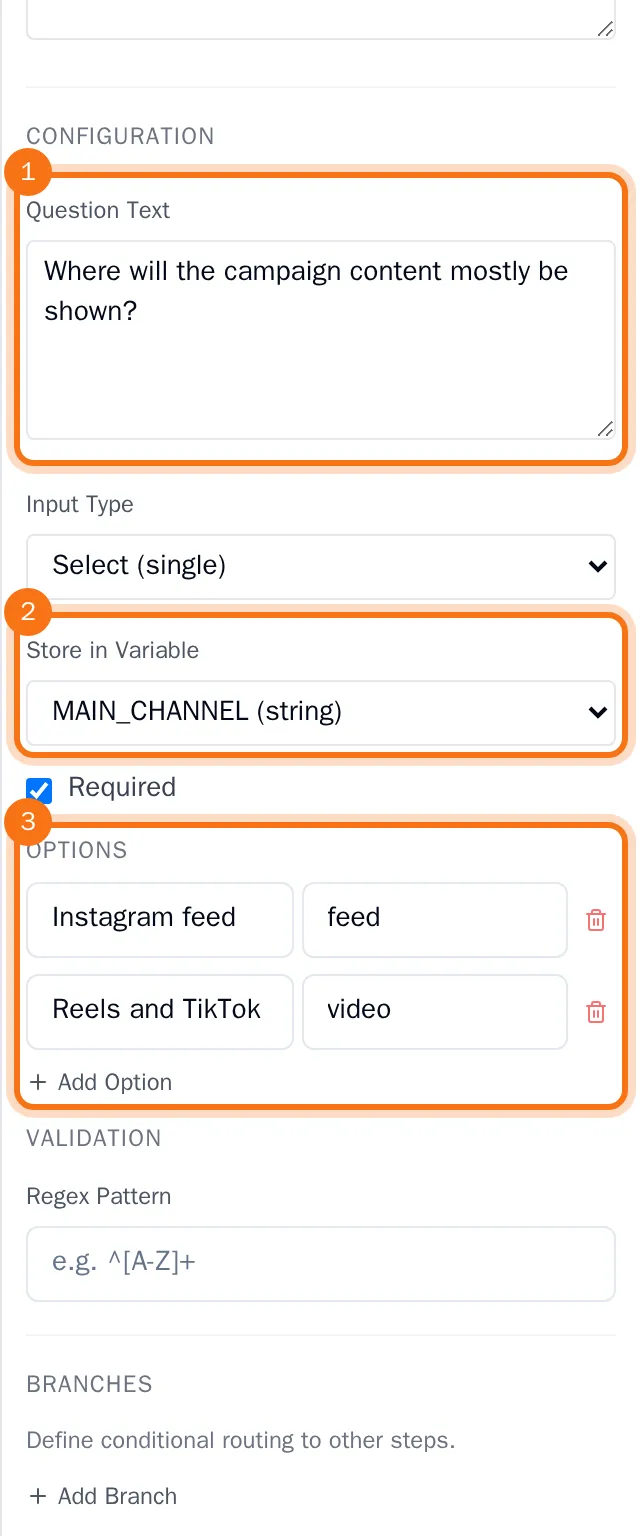
Add a question in the same way for every question of the tree.
Add the outcomes
- In the Step Palette, under Result, choose Output for each possible outcome.
- Select each outcome and give it a Label, such as "Photo shoot". Under Output Fields, fill in the result it gives.
Connect the steps
- Drag the steps into place on the canvas: the first question under the Start step, and the outcomes under the question.
- Drag from the dot at the bottom of the Start step to the dot at the top of the first question.
- Select the question. Under Branches, choose Add Branch for each way the tree can go on.
- For each branch, choose its Target Step, the next question or an outcome. Under Condition, choose the variable and enter the value of the answer that leads there.
- Tick Default on the branch to take when no other branch matches. The first branch you add is the default.
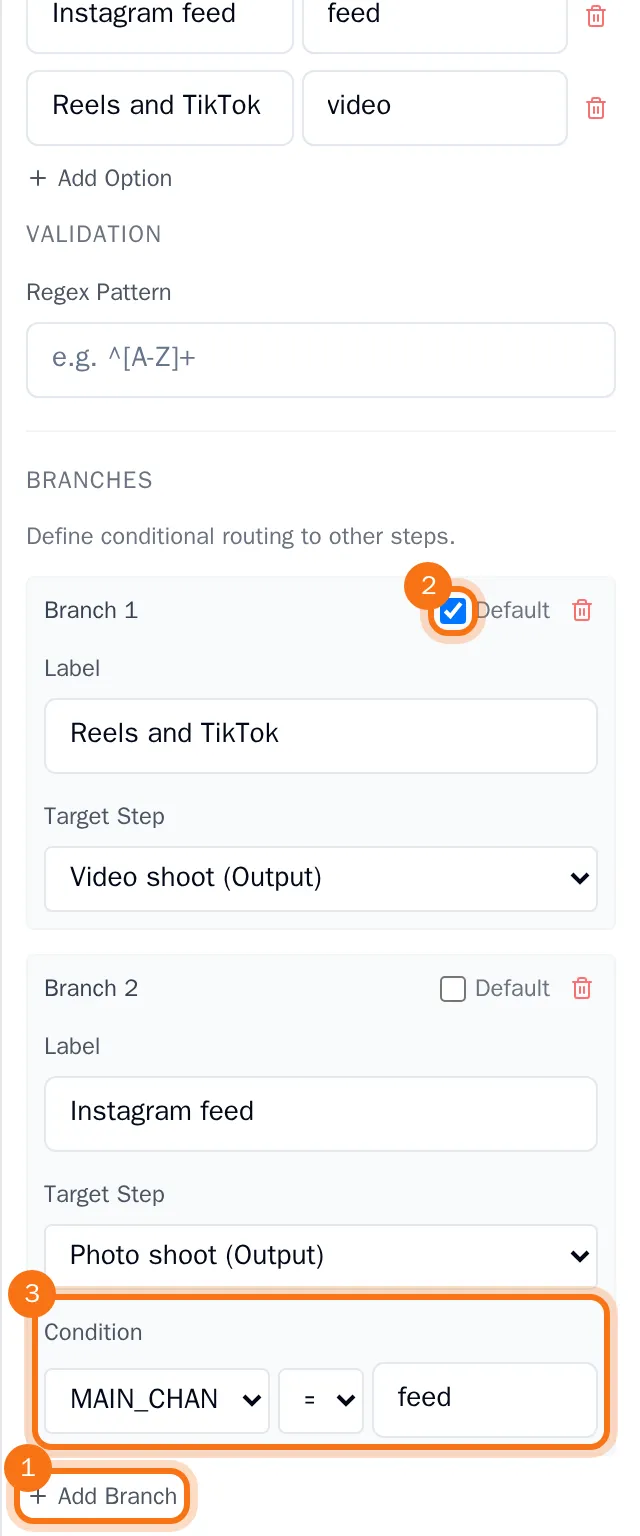
- Choose Save Draft.
The branches show as lines on the canvas once you save the tree and open it again.
Validate and publish
- Choose Validate. OKiDO saves the draft and checks the tree: every question needs a text, a declared variable and a branch, and the tree needs at least one outcome. If something is missing, a list shows what to fix.
- When the tree is valid, the button changes to Publish. Choose Publish.
The tree is published and ready to run: see Run a decision tree. A system can also ask someone to answer it (see Build a system).