Create an AI agent
Create a manager or specialist agent with the wizard, step by step from its role to its resource limits.
Who can do this: Owner, Admin
An agent is an AI team member with its own job: a manager that plans work and hands it on, or a specialist that does one kind of work well. The wizard asks for its role, its identity, how it behaves and how much it may use, then shows everything once more before you create it.
Owners and admins create agents, and members who have the Advanced AI features (see Change a member's role or Advanced AI access).
Create an agent
- In the menu on the left, choose AI, then the Agents tab, then Create Agent.
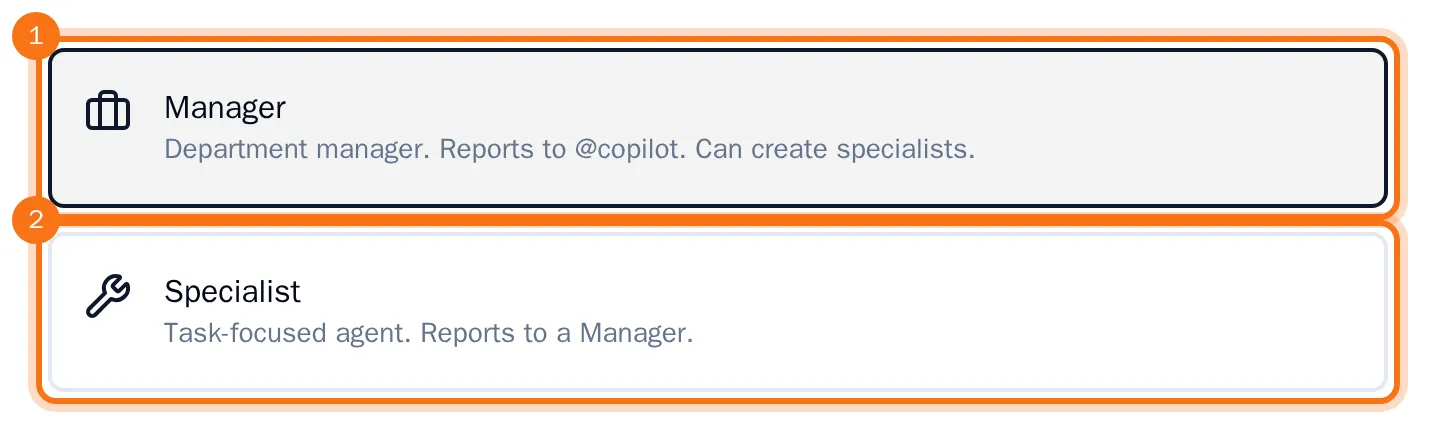
- Choose the role:
- Manager: reports to @copilot and can have specialists of its own. Under Choose a template (optional) you can start from a ready-made manager, which fills in the next steps for you.
- Specialist: does focused work and reports to @copilot or to a manager. Choose @copilot or the manager under Reports to.
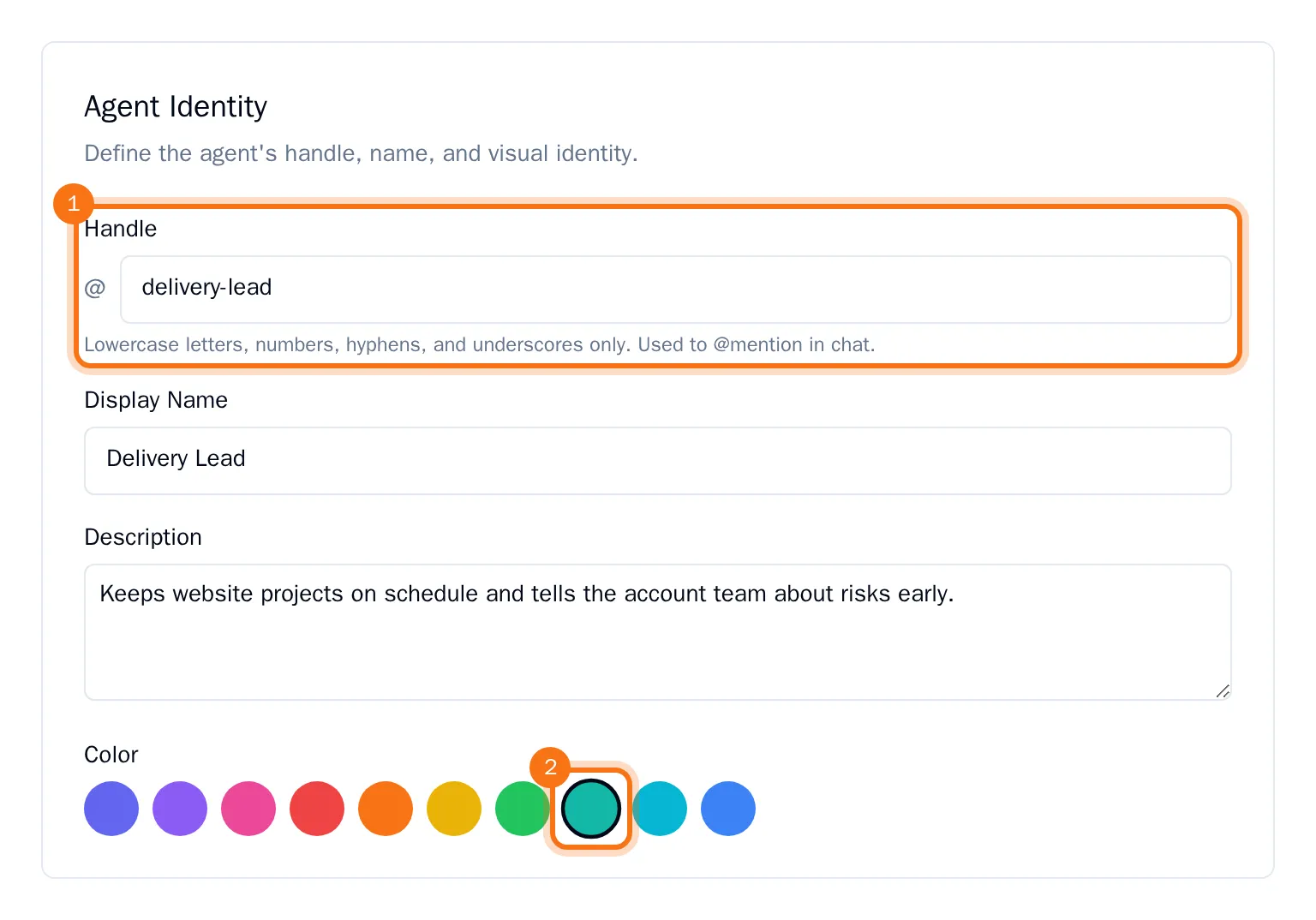
- Choose Next, then fill in the agent's identity: the Handle you use to @mention it, its Display Name, a Description and a Color.
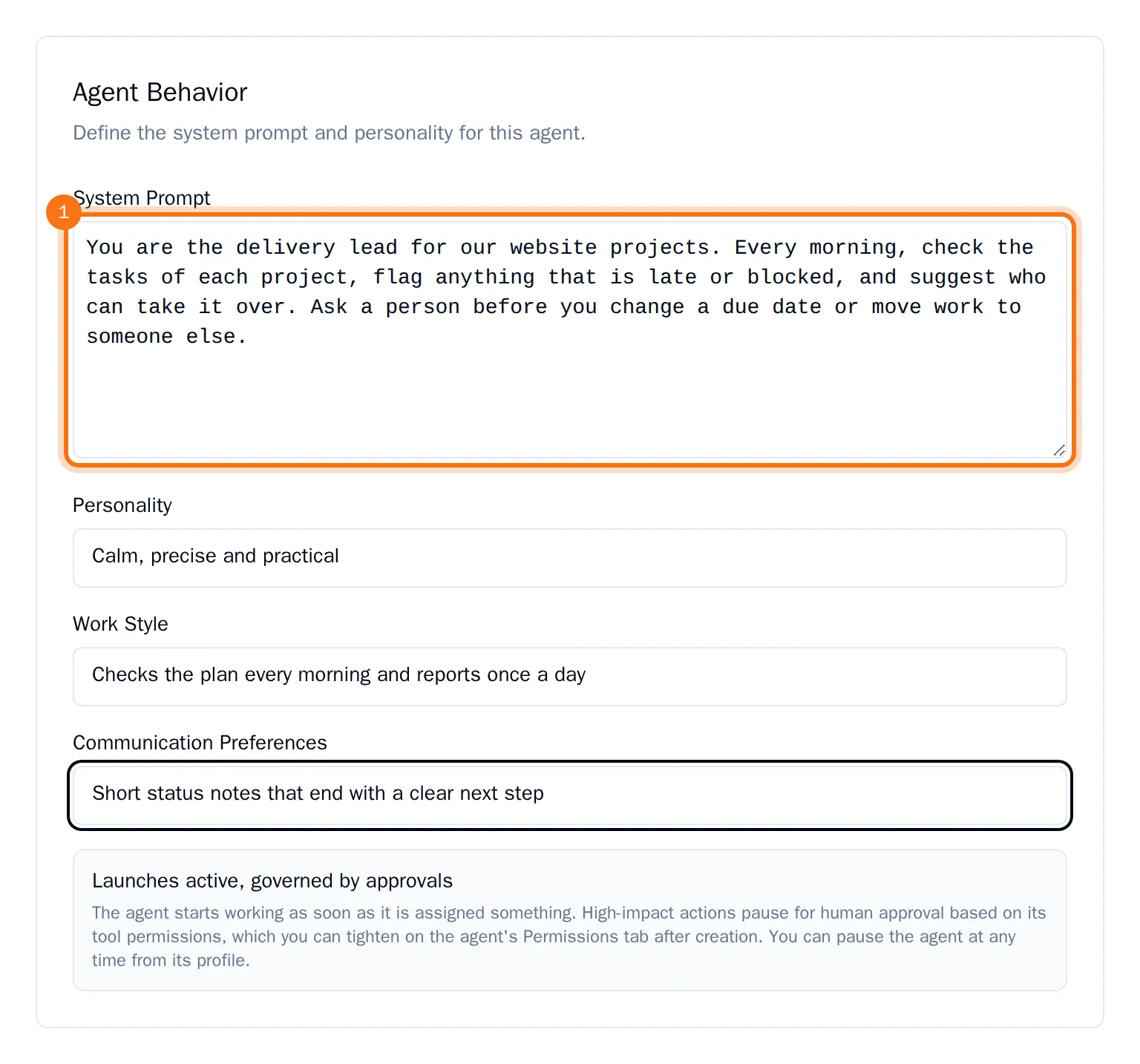
- Choose Next and write the System Prompt: what the agent is responsible for and how it should work. Add its Personality, Work Style and Communication Preferences if you like.
- Choose Next and set the resource limits: the Token Budget (per period), and how many tool calls, steps and seconds one run may take.
- Choose Next, check the summary and choose Create Agent.
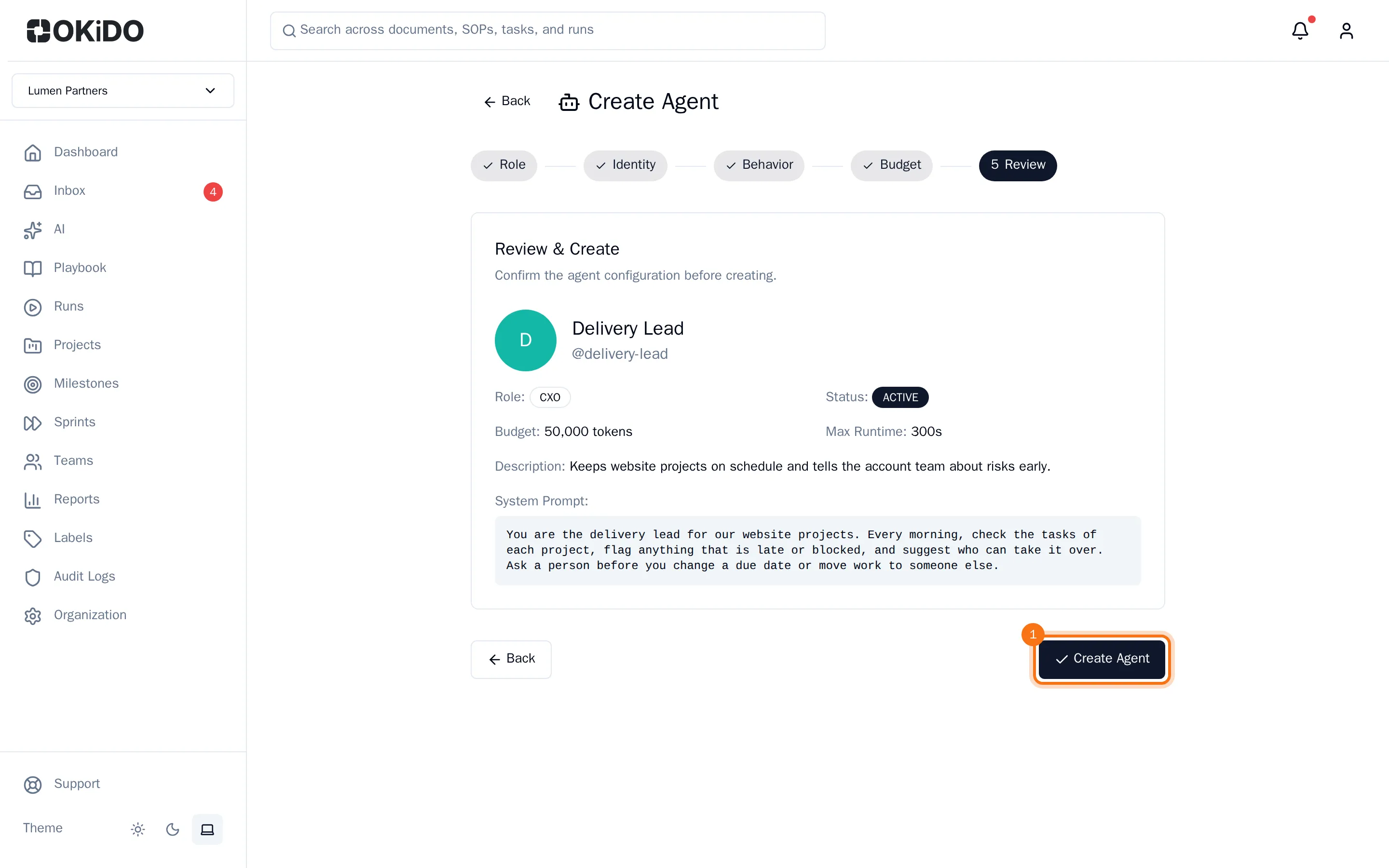
The agent's page opens. The agent is active right away: it starts working as soon as it is given work, for example a task assigned to it. Changes with a big impact wait for a person's approval, depending on its permissions (see Set what an agent may do).
Tip: Made a mistake in an earlier step? Choose the step's name at the top of the wizard to go back to it.