Make a task wait for another
Mark which tasks block a task, spot date conflicts and see blocked work on the board and the dashboard.
Who can do this: Everyone in the organization
Some work can only start when other work is finished: the campaigns can only go live once the ads are set up. Mark those other tasks as blocking it, and everyone sees what the task is waiting for.
Mark what blocks a task
- Open the task that has to wait. Under Blocked By in the panel on the right, choose Add blocking task.
- Search for the tasks that have to be finished first. The search covers every project, so a task can wait for work in another project.
- Click each task that blocks this one, then choose Save.
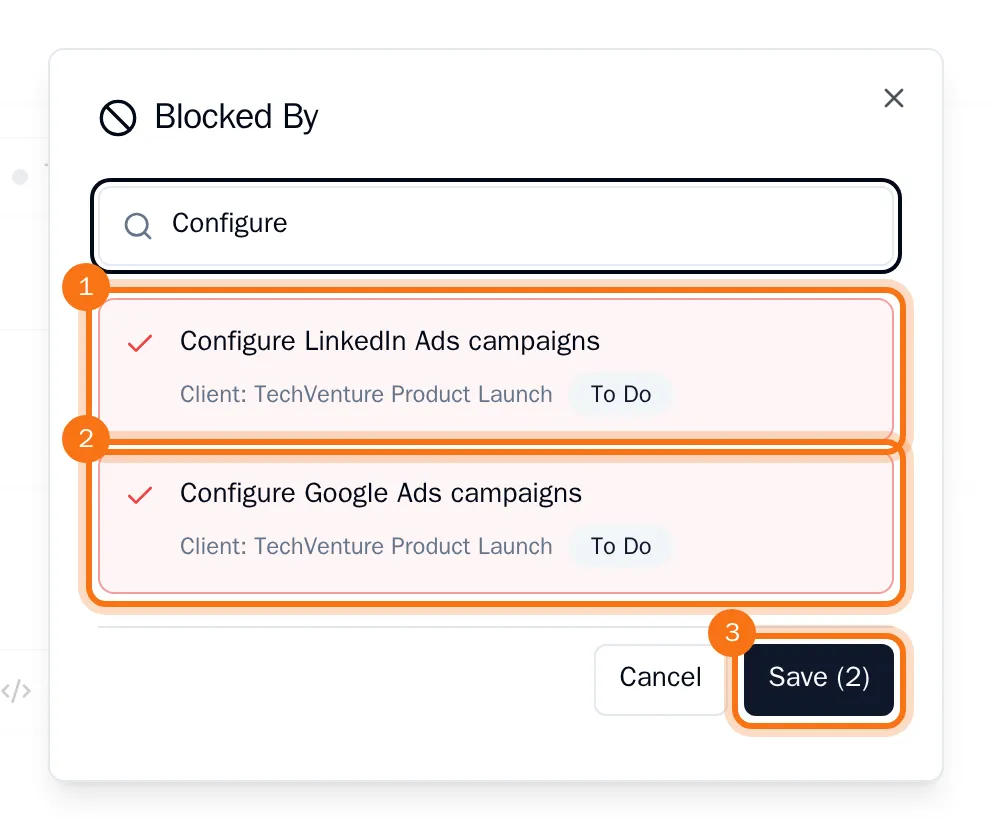
The tasks you chose are listed under Blocked By, with their project and status. Click one to open it. That task lists the waiting task under Blocking.
When a blocking task is completed, it leaves the list. When the last one is done, the person assigned to the waiting task gets a notification that the work can start.
Spot date conflicts
When a blocking task is due after the task that waits for it, the plan cannot work. The blocking task then shows Due date conflict: blocker due later in red. Move one of the two due dates to solve it.
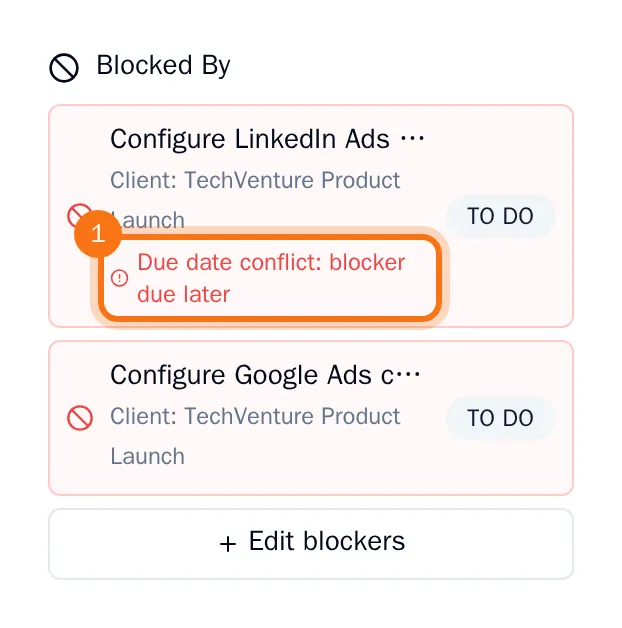
To change the list later, choose Edit blockers.
See blocked work
On the board, a blocked task has a red no-entry sign in front of its title. On the dashboard, the Blocked Items widget lists every blocked task with the tasks it waits for.
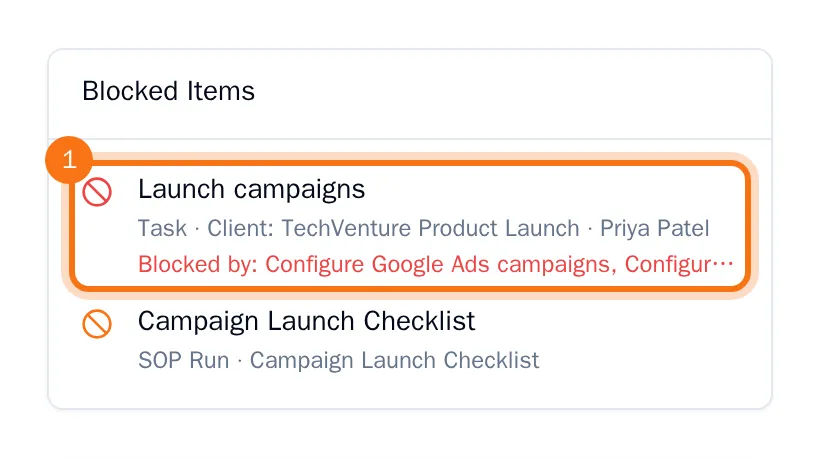
Tip: No Blocked Items widget on your dashboard? Choose Customize, then Add Widget. See Customize your dashboard.