Complete the steps of a run
Work through a run step by step: fill in its fields, tick its checklist and mark each step complete.
Who can do this: Everyone in the organization
A run lists its steps on the left. Select a step to see its instructions, fields and checklist on the right, and work through the steps from top to bottom.
Open the run
Go to Runs and select the run.
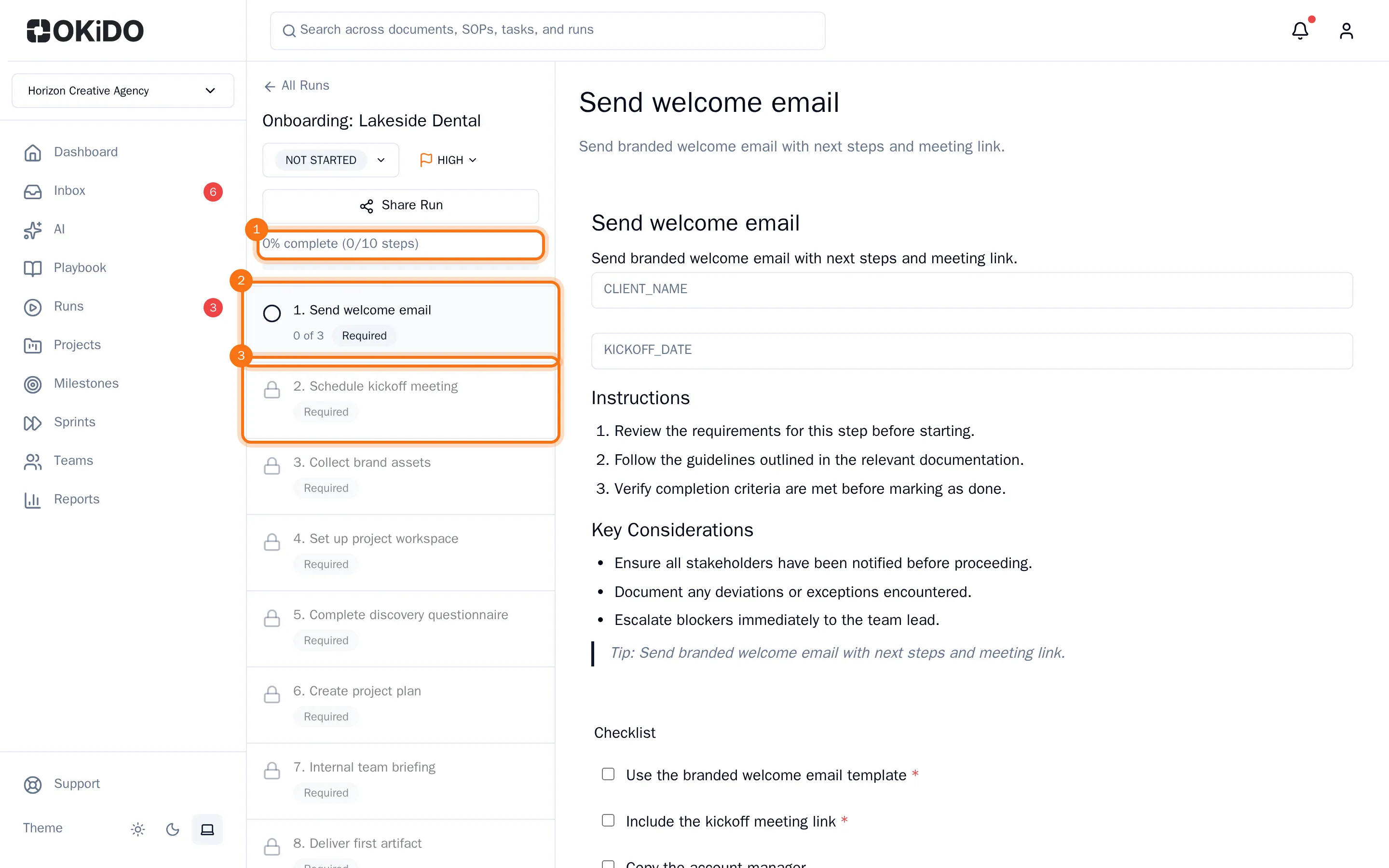
The run opens at the first step that is not done yet. Above the steps you see how far the run is. A lock in front of a step means it has to wait: the required steps above it come first.
Work through a step
- Fill in the fields in the step text, such as the client's name or a date. What you enter is saved right away.
- Tick the items under Checklist as you do them. Items with a red star are required.
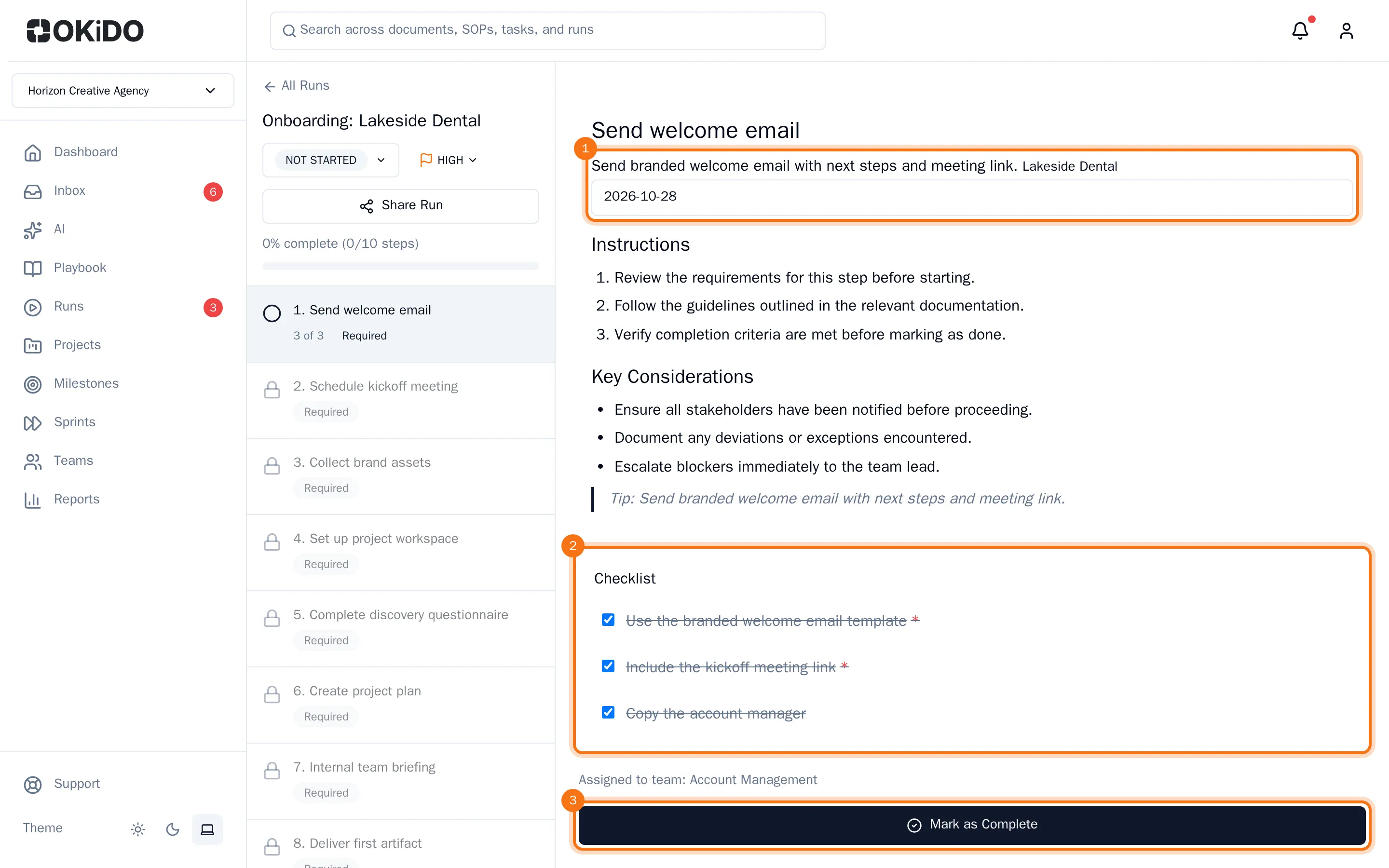
- Choose Mark as Complete.
The step now shows Completed, with the date, the time and your name. The progress goes up and the next step unlocks.
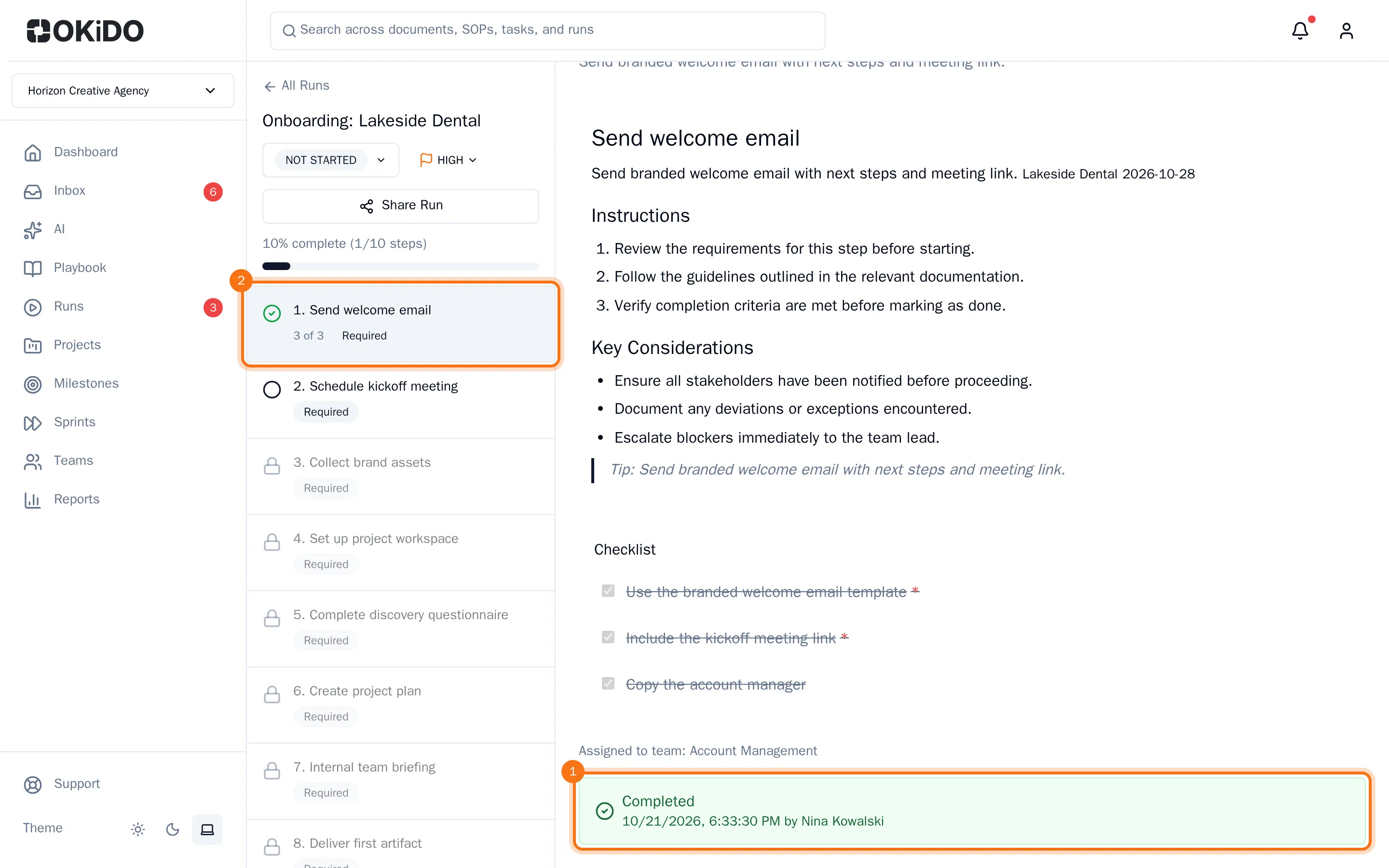
Mark as Complete stays unavailable while a required checklist item is not ticked or a required step above is not done yet. A step with an approval gate completes through its approvers instead, see Approve a step in a run.
When the last step is done, the run is completed.