Add rules to a column
Require fields to be filled in before a task can enter a column, and limit who may move tasks into it.
Who can do this: Everyone in the organization
Column rules keep work from moving on before it is ready. For example, a task can only go to client review once it has an assignee and a due date, and only the account manager decides what goes to the client.
The project owner sets the rules: the person who created the project, or an organization owner or admin.
Set the rules of a column
- On the project's Board, choose the menu button at the top right of the column, then Edit Stage.
- Under Fields that must be filled in, choose Add a field and pick a field, such as Assignee or Due date. Repeat for each field.
- To require a label, or a field of a label, pick Label fields and then the label or field in the second list.
- Under Who can move tasks in, choose Add a person or Add a team to name who may move tasks in. Leave it empty to let everyone who can edit tasks move them in.
- Choose Update Stage.
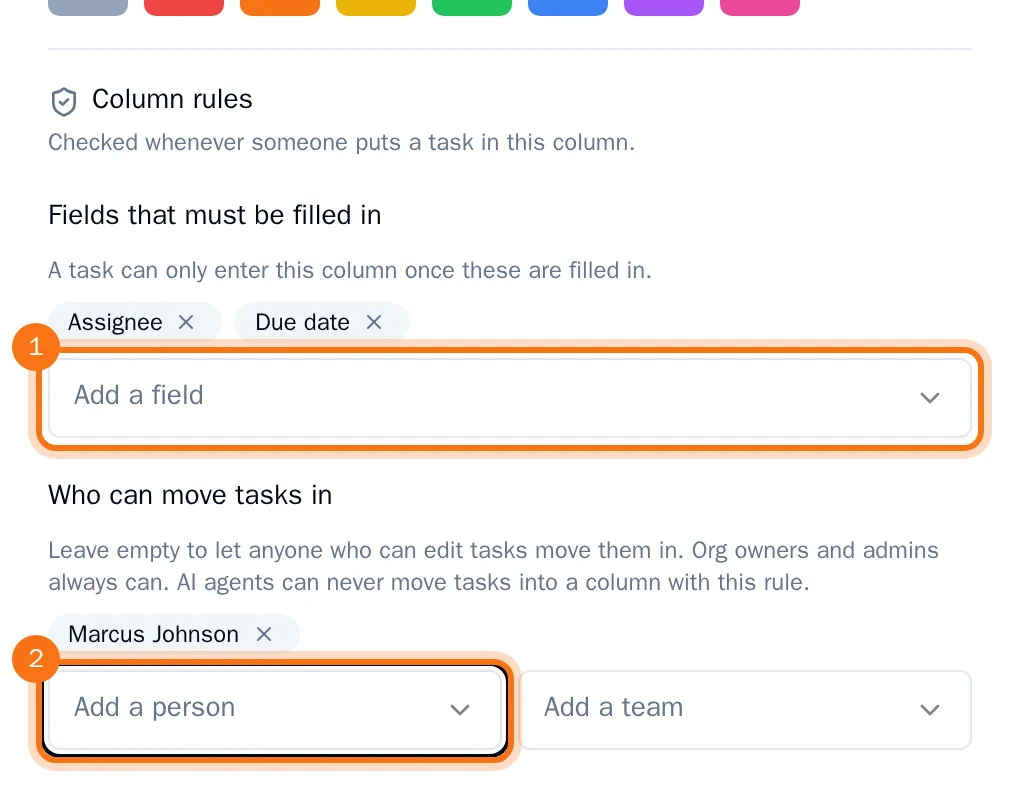
To remove a rule, choose the cross on it and save again.
What the rules do
The column shows a shield next to its name. Point at it to read its rules.
The rules are checked whenever a task enters the column: when someone drags it there, creates it there, or moves it there from the task. If a field is missing, the task stays where it was and a message says what to fill in. If the person may not move tasks into the column, the message says who can.

Organization owners and admins can always move tasks into the column, but the required fields still apply to them. AI agents can never move tasks into a column that limits who may move tasks in.