Switch between List, Board, Calendar and Gantt
Look at a project's tasks as a list, a board, a calendar or a Gantt chart, and pick the view that fits the job.
Who can do this: Everyone in the organization
Every project can show its tasks in four views. They all show the same tasks, so switch whenever another view suits what you are doing: a list to go through details, a board to move work along, a calendar to see what is due when, and a Gantt chart to plan over time. A project opens on its board.
To switch, open the project and choose List, Board, Calendar or Gantt above the tasks.
Go through tasks in a list
- Choose List.
- Choose Columns to show or hide columns, such as Team or Stage.
- Click a task to open it.
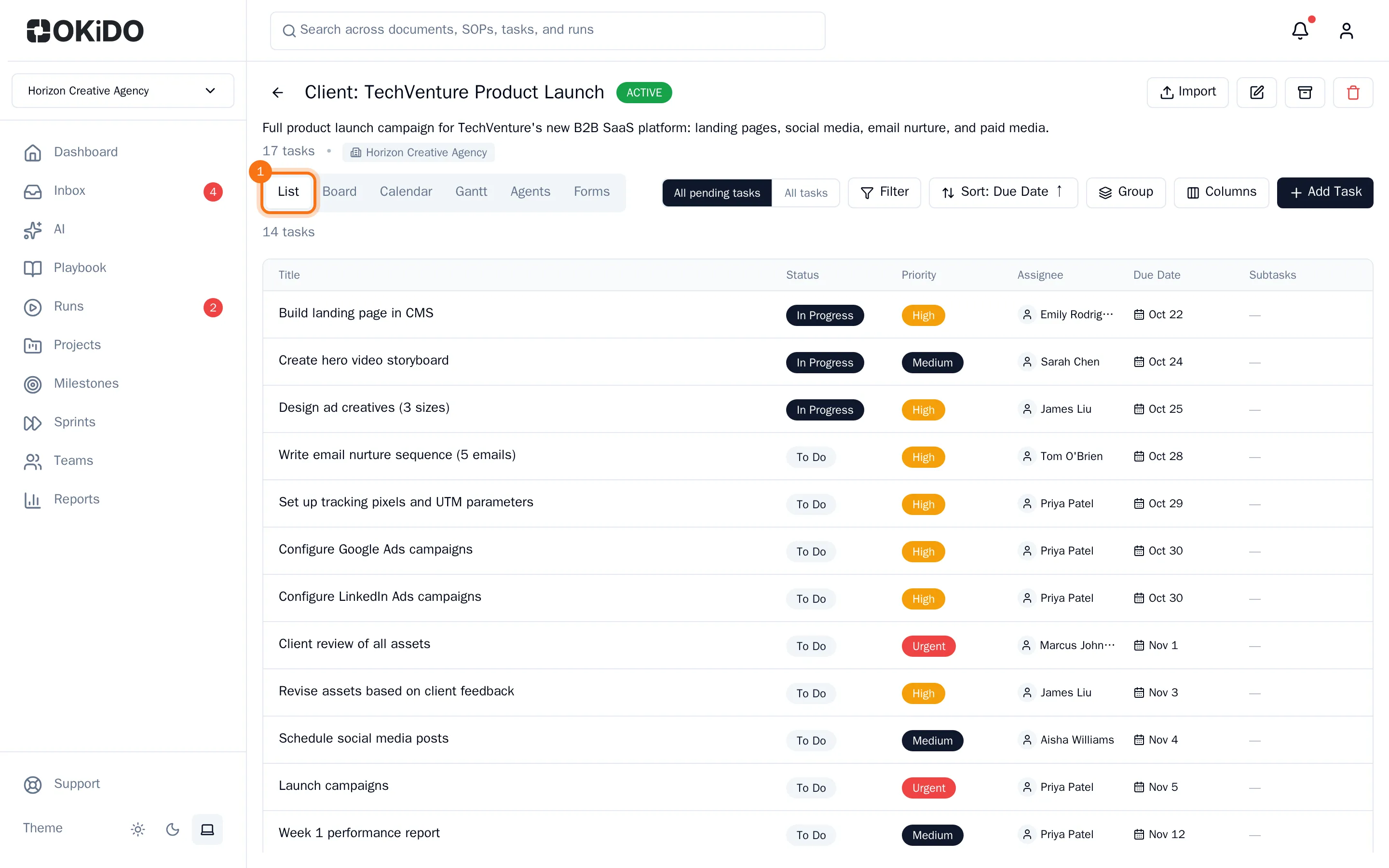
Each task is a row with its status, priority, assignee, due date and subtasks.
Move work along on the board
- Choose Board.
- Drag a card to another column to move the task to that stage, or up and down to change its order.
- Choose Add Task at the bottom of a column to add a task to it.
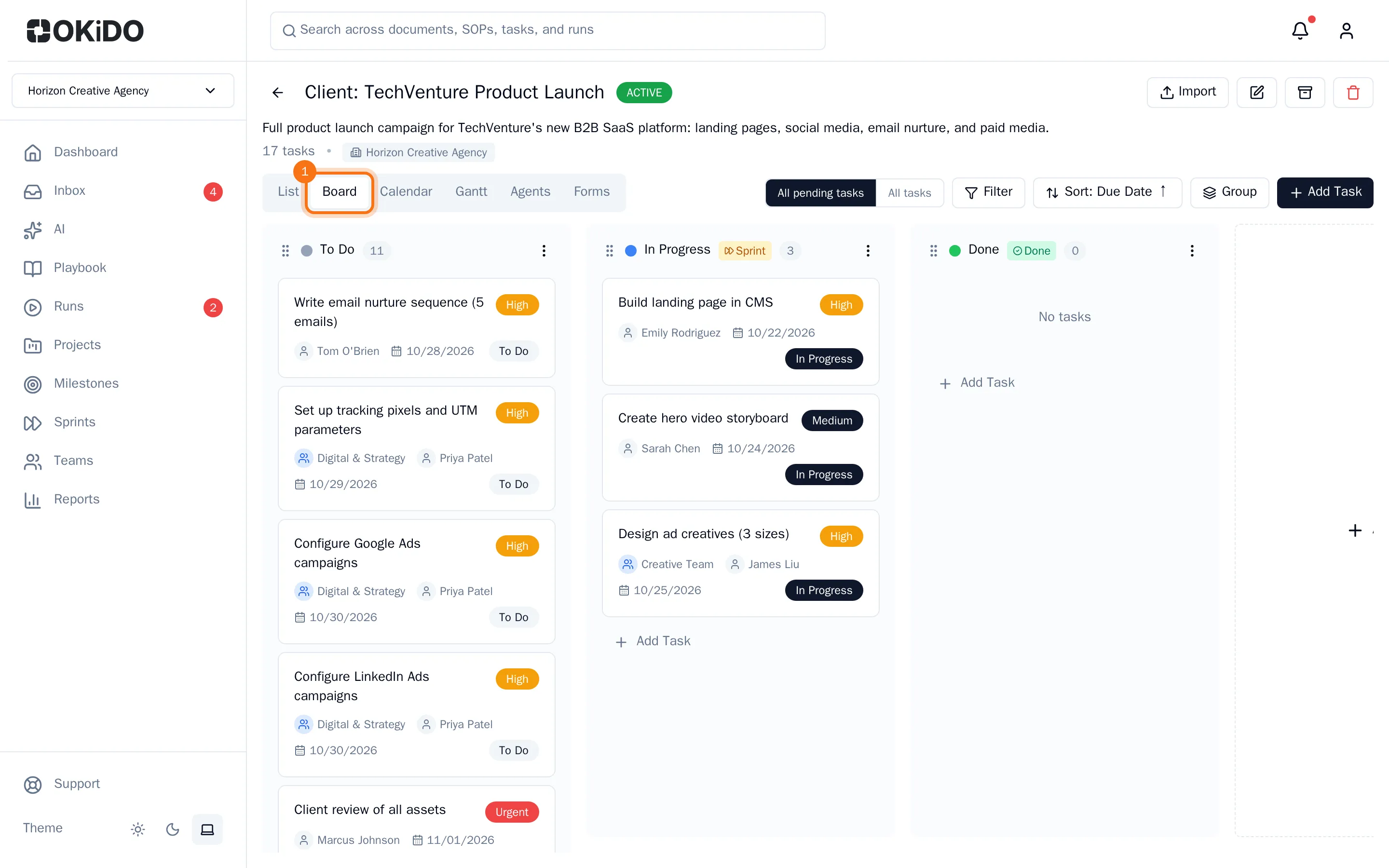
Each column is a stage of the work. To add, rename or reorder columns, see Set up board columns.
See what is due in the calendar
- Choose Calendar.
- Choose Month or Week, and use the arrows to go back or forward. Today brings you back to today.
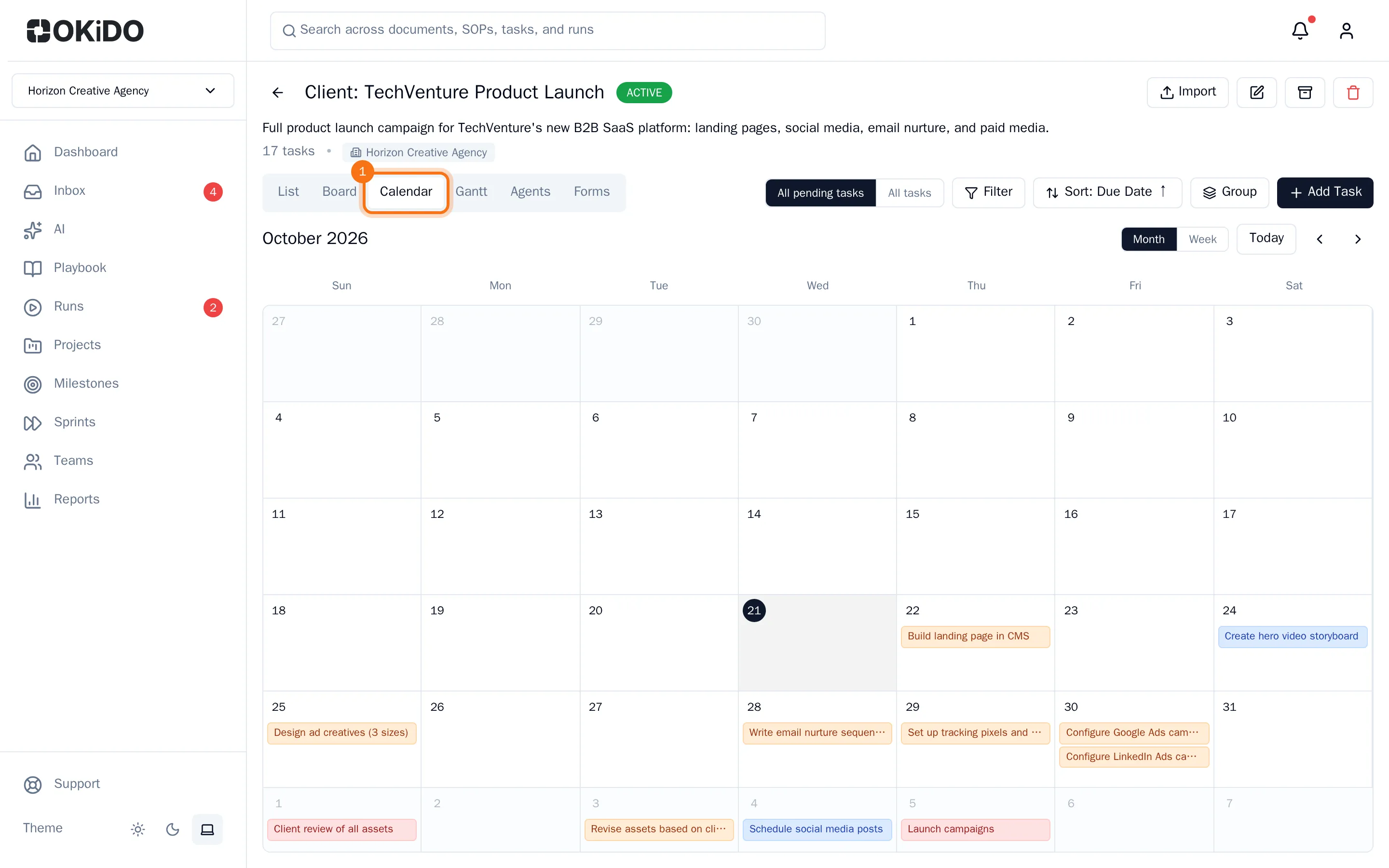
Tasks appear on their due date. A task with a scheduled date runs from that date to its due date.
Plan over time in the Gantt chart
- Choose Gantt.
- Use − and + at the top right to zoom out and in.
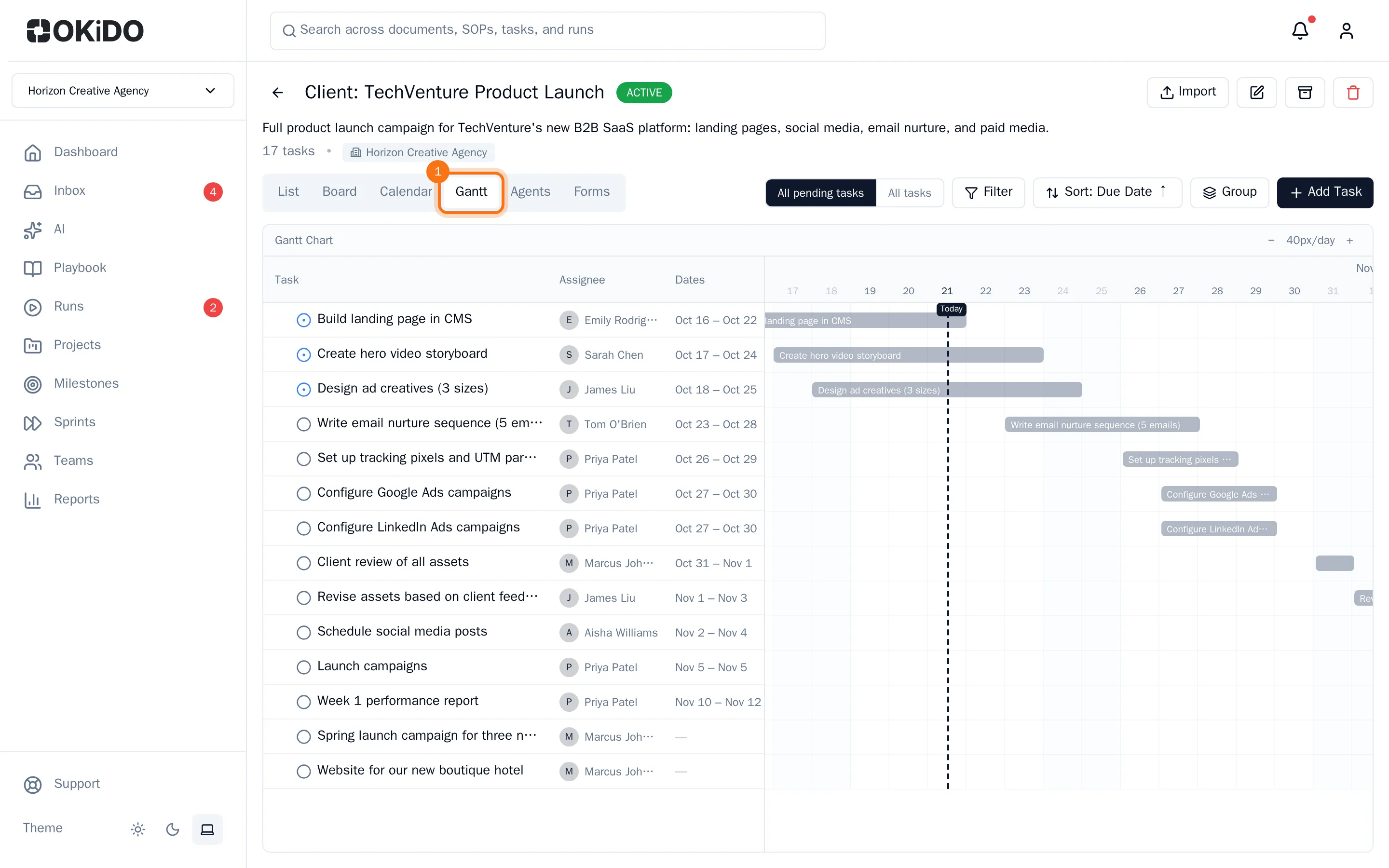
Each task is a bar from its start date to its due date, and a task with only a due date shows as a short bar on that day. Tasks are grouped under their milestones, arrows connect tasks that block each other, and a line marks today. Set start dates in the task to get full bars.
Tip: Every view hides done tasks at first. Choose All tasks in the toolbar to see them too. See Filter, sort and group tasks.