Share a run with a customer
Give people outside your organization a link to follow and complete a run, with an optional password and end date.
Who can do this: Owner, Admin
Some runs involve people outside your team, such as a client who has to send their logo files during onboarding. Share the run with a public link: they can follow its progress and complete steps without an OKiDO account.
Only owners and admins can share a run. Public run links are available on the Starter, Pro and Business plans.
Keep internal steps out of the link
Steps that are only for your team, such as an internal briefing, can be hidden from the link. Do this in the SOP template, before you start the run:
- Open the SOP template and select the step.
- Tick Internal Only.
The step gets an Internal label in the list of steps. Runs started from the template from now on leave this step out of their public link.
Share the run
- Open the run and choose Share Run.
- To protect the link, tick Password Protection and enter a password.
- To make the link stop working at a certain moment, tick Expiration Date and choose the date and time.
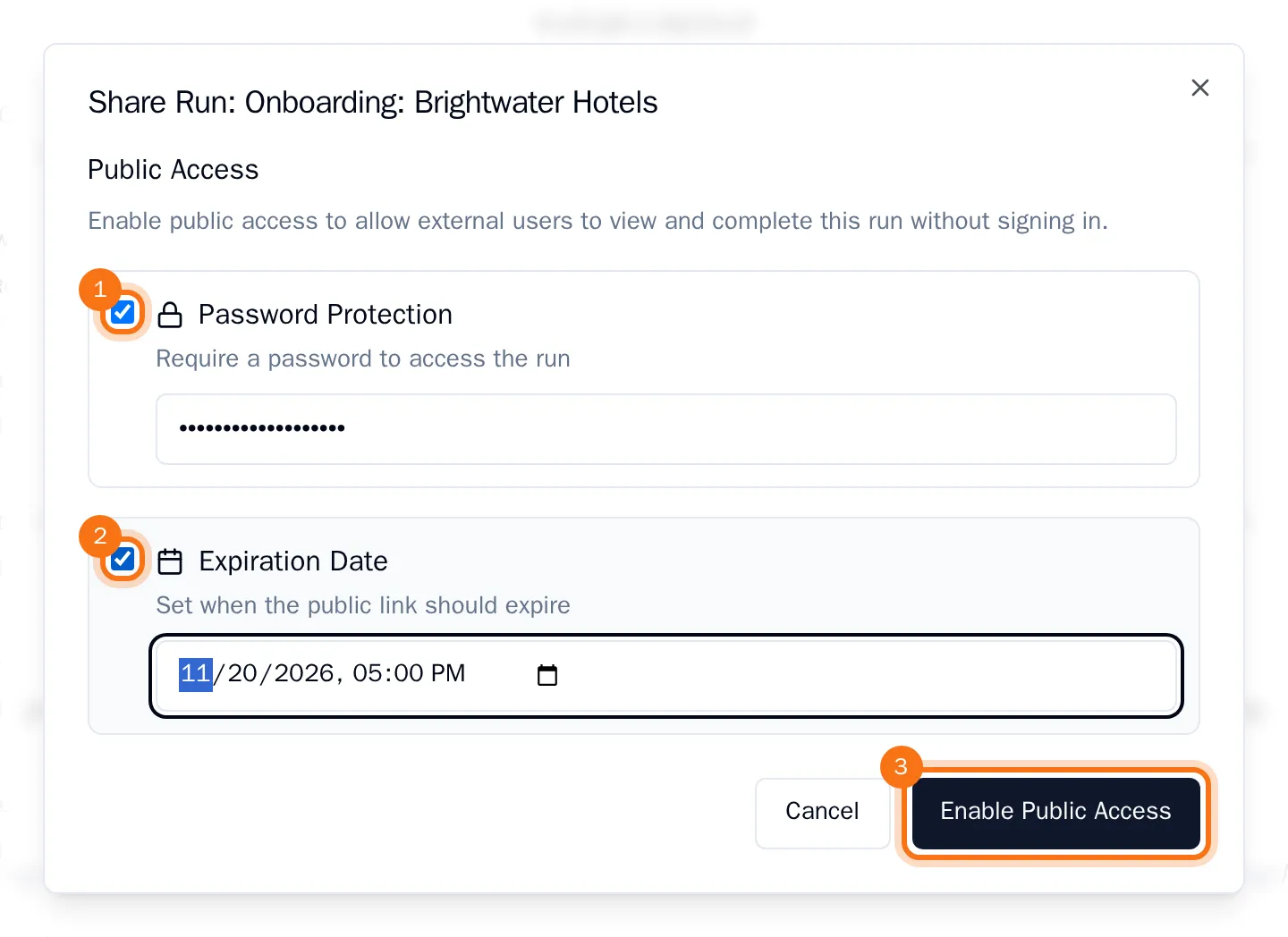
- Choose Enable Public Access.
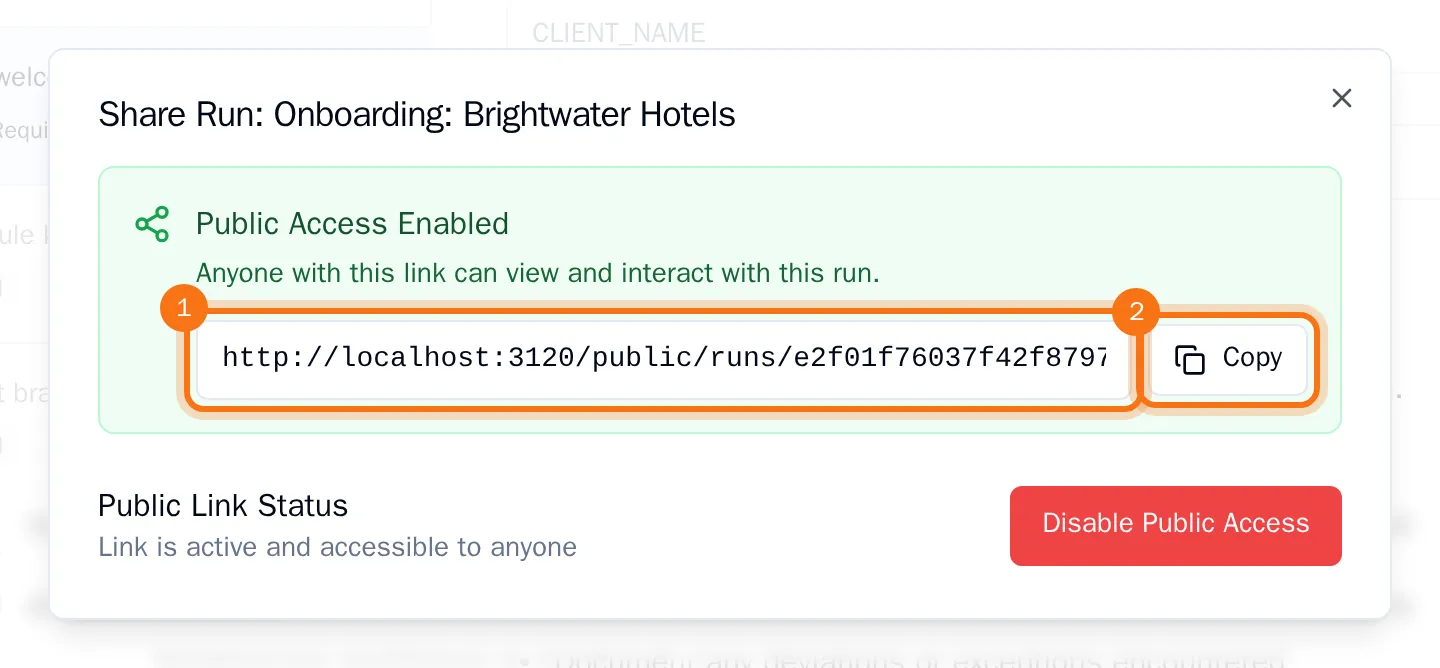
- Choose Copy and send the link to your customer, with the password if you set one.
What your customer sees
When your customer opens the link, they enter the password (if you set one), then their name and email address, and agree to the terms. They then see the run with its progress and all its steps except the internal ones. They can tick checklist items and mark steps as complete, just like your team.
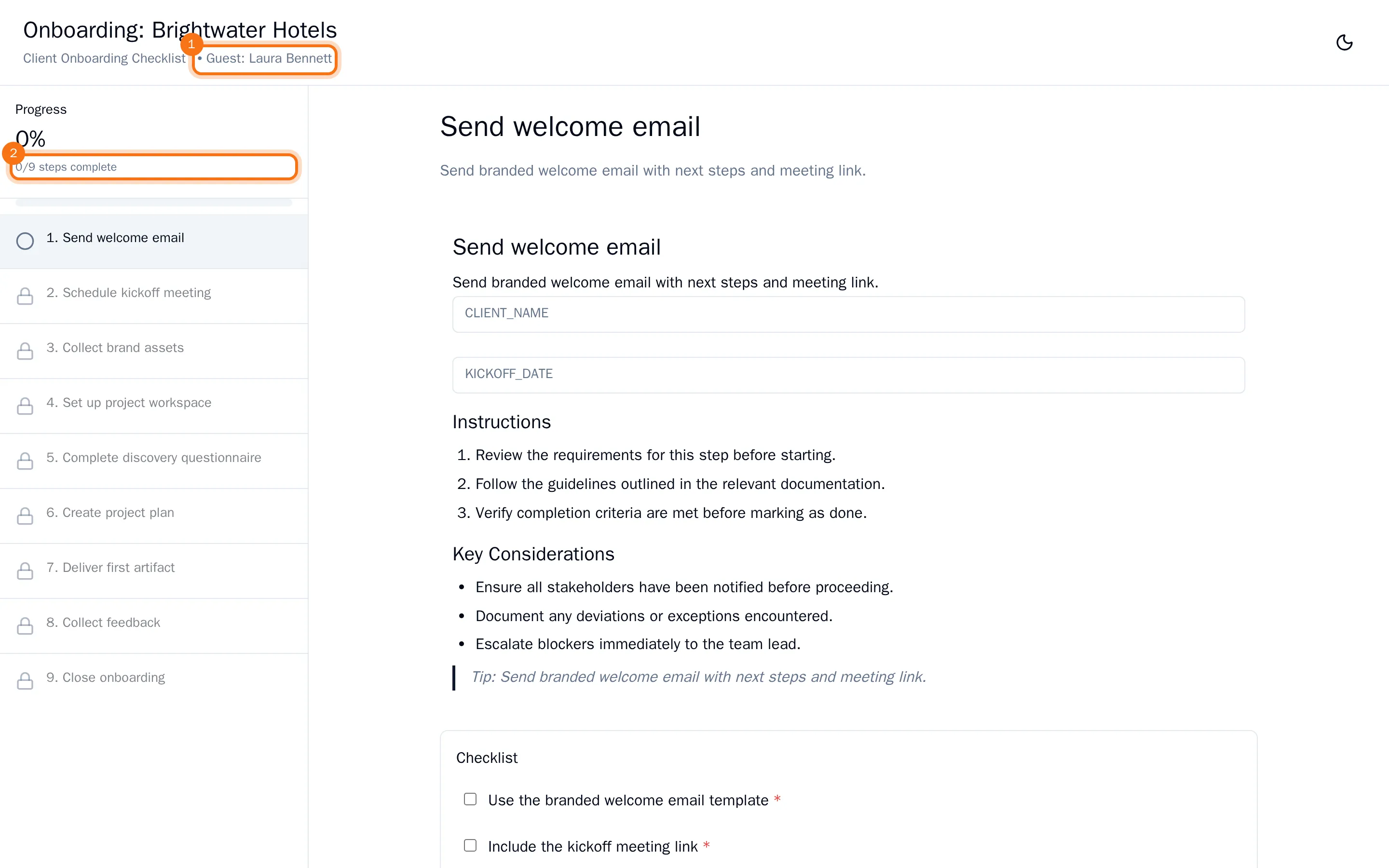
Steps your customer completes show their name in the run.
Turn the link off
Open the run, choose Share Run, then Disable Public Access, and confirm with Disable. The link stops working right away.