Control who can see a project
Make a project private or public, and add or remove the people and teams who can open a private project.
Who can do this: Owner, Admin
A public project is open to everyone in the organization. A private project is only for the people and teams you grant access, plus the person who created it. Organization owners and admins do not see a private project automatically: grant them access if they need it.
Make a project private
Only the person who created the project can switch it between public and private.
- Open the project and choose Make private.
- Select the teams and people who should see the project, then choose Review access.
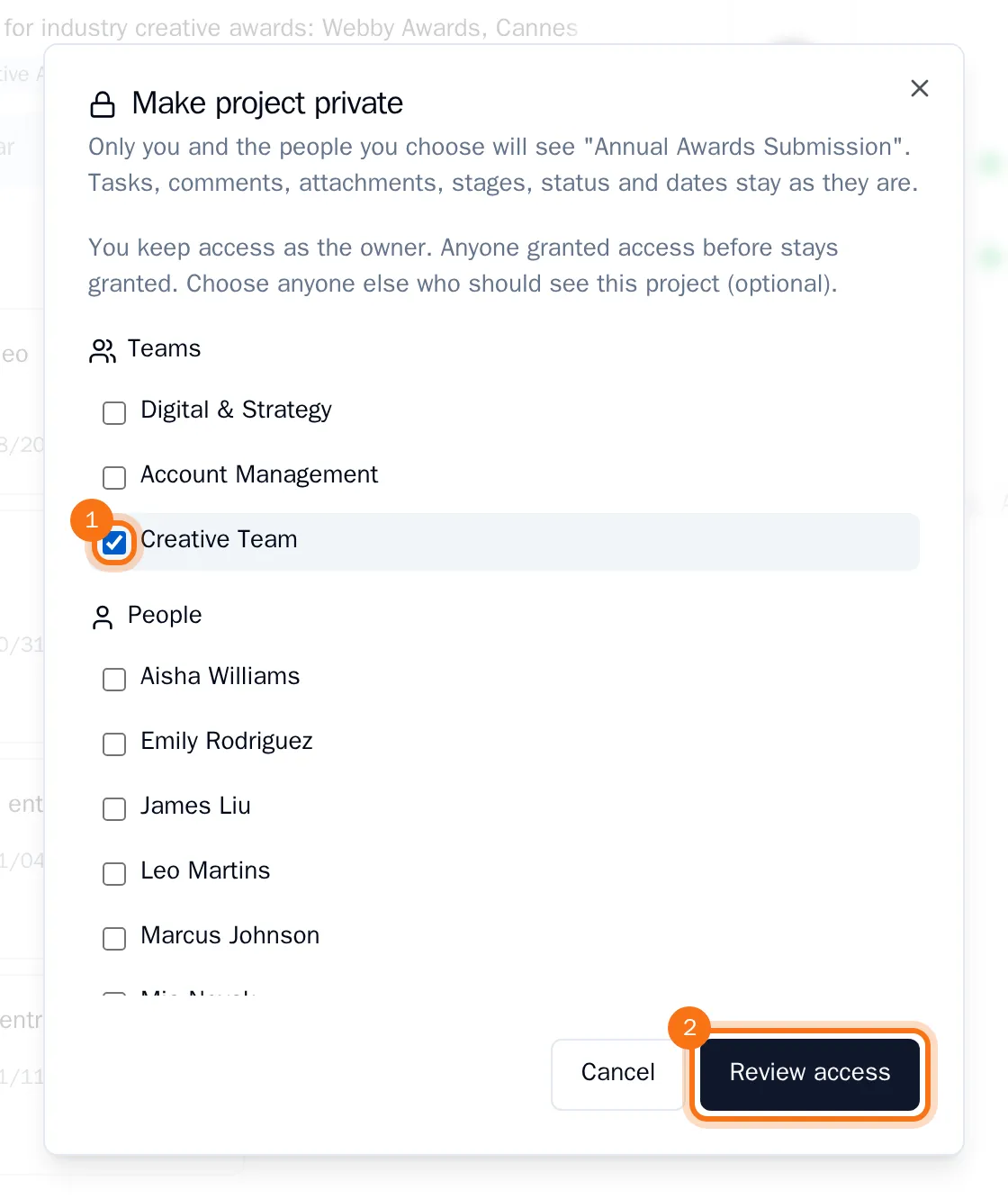
- Check the list under Who will have access, then choose Make private.
The project now has a Private badge and a Members button. Its tasks, comments, columns and dates stay as they are. People who lose access keep the tasks assigned to them, but can no longer open them.
Add or remove people and teams
Organization owners and admins who can see the private project can change who else can.
- Open the project and choose Members.
- Under Add member, choose User or Team, pick the person or team, then choose Add.
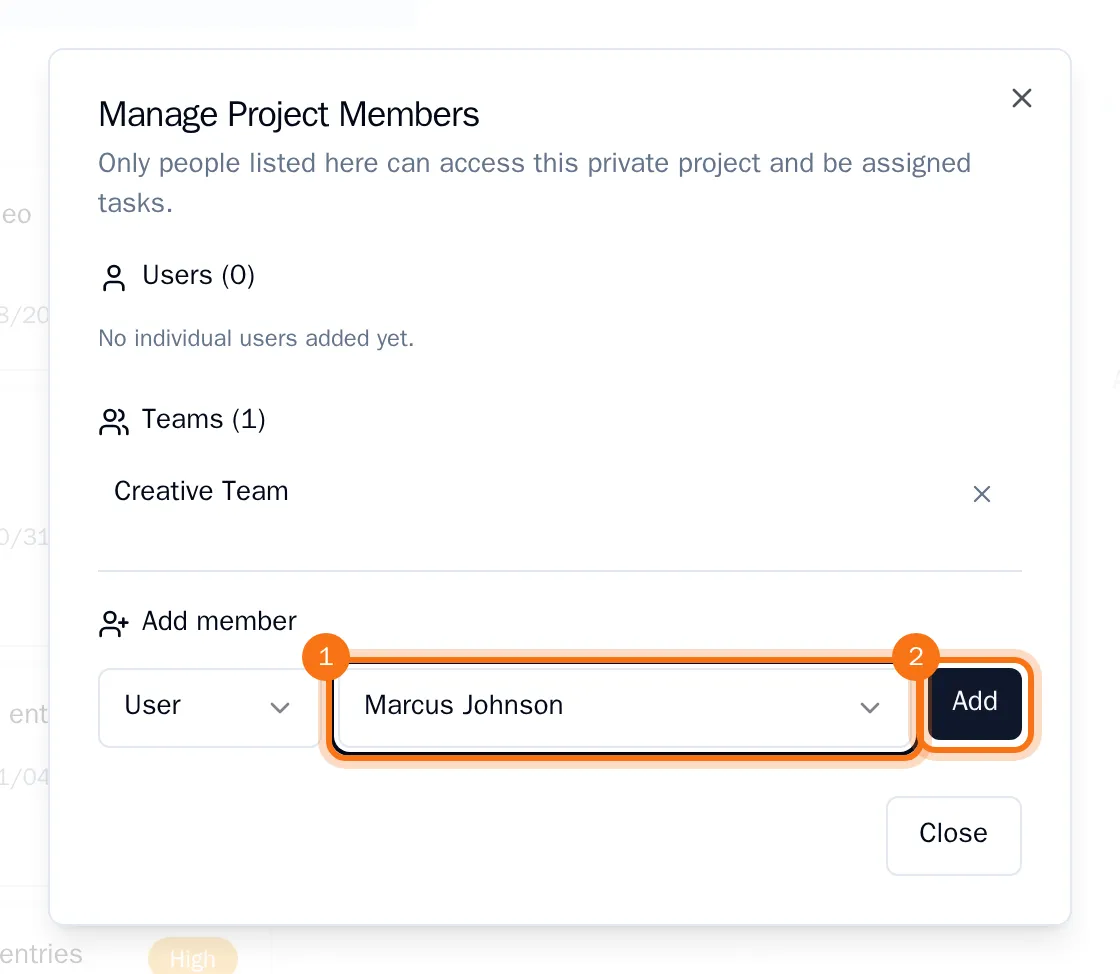
- To remove a team, choose the cross next to its name.
- To remove a person, choose the cross next to their name. Under Re-assign their tasks to, pick who takes over their tasks in this project, or keep Leave unassigned, then choose Remove.
Only the people listed here, the members of the listed teams and the person who created the project can open it and be assigned its tasks.
Make a project public again
- Open the project and choose Make public.
- Select I understand, make it public, then choose Make public.
Everyone in the organization can see the project and all of its tasks again.