Add an approval gate to a step
Make a step of an SOP wait for approval from the people you choose before the run can go on.
Who can do this: Everyone in the organization
Some steps need a sign-off, such as the final check before a deliverable goes to the client. An approval gate makes that step wait until enough of the chosen approvers approve it. Until then, the steps after it stay locked.
Owners and admins can edit every SOP template. Members can edit an SOP template when their team has edit access to its process.
Turn on the gate
- Open the SOP template from the Playbook and select the step that needs approval.
- Tick Approval Gate.
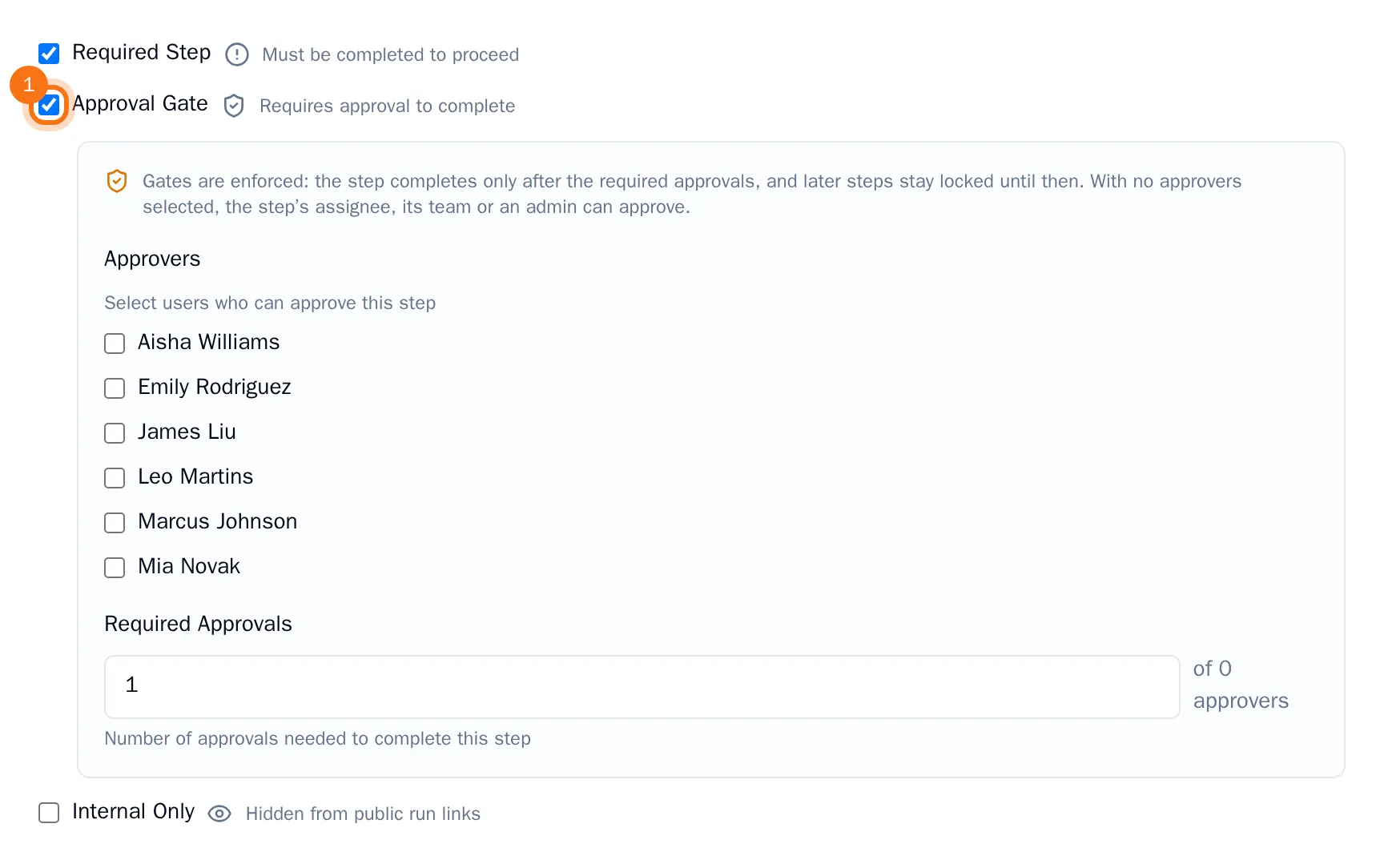
The step now shows a Gate label in the list of steps.
Choose the approvers
- Under Approvers, tick the people who may approve the step.
- Under Required Approvals, enter how many of them have to approve. With two approvers and 1 required approval, either of them can give the sign-off.
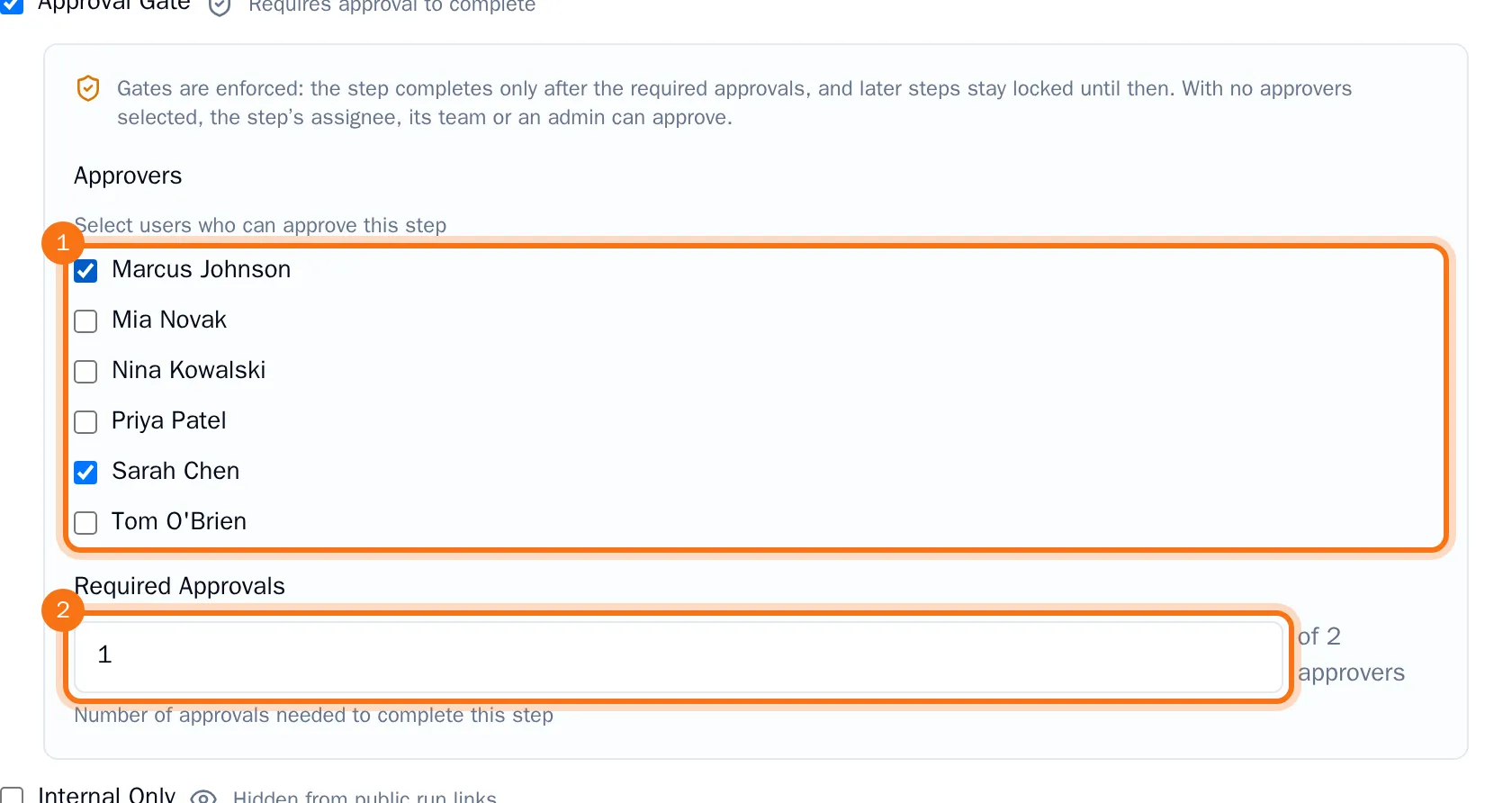
Your changes are saved automatically. Every run started from the template from now on waits at this step until it has enough approvals. If you choose no approvers, the step's assignee, its team or an admin can approve it.
To learn how approvers decide, see Approve a step in a run.