Answer a decision tree for a running system
When a running system needs your decision, find the request in your inbox and answer the decision tree so the system can go on.
Who can do this: Everyone in the organization
Some systems stop at a decision: for a new campaign request, for example, the account manager chooses the package before the system creates the matching proposal task. The system then waits until the person it asks has answered the decision tree.
Find the request
When a system needs your decision, you get a notification in your Inbox.
- Open the Inbox and choose DT Input Requests.
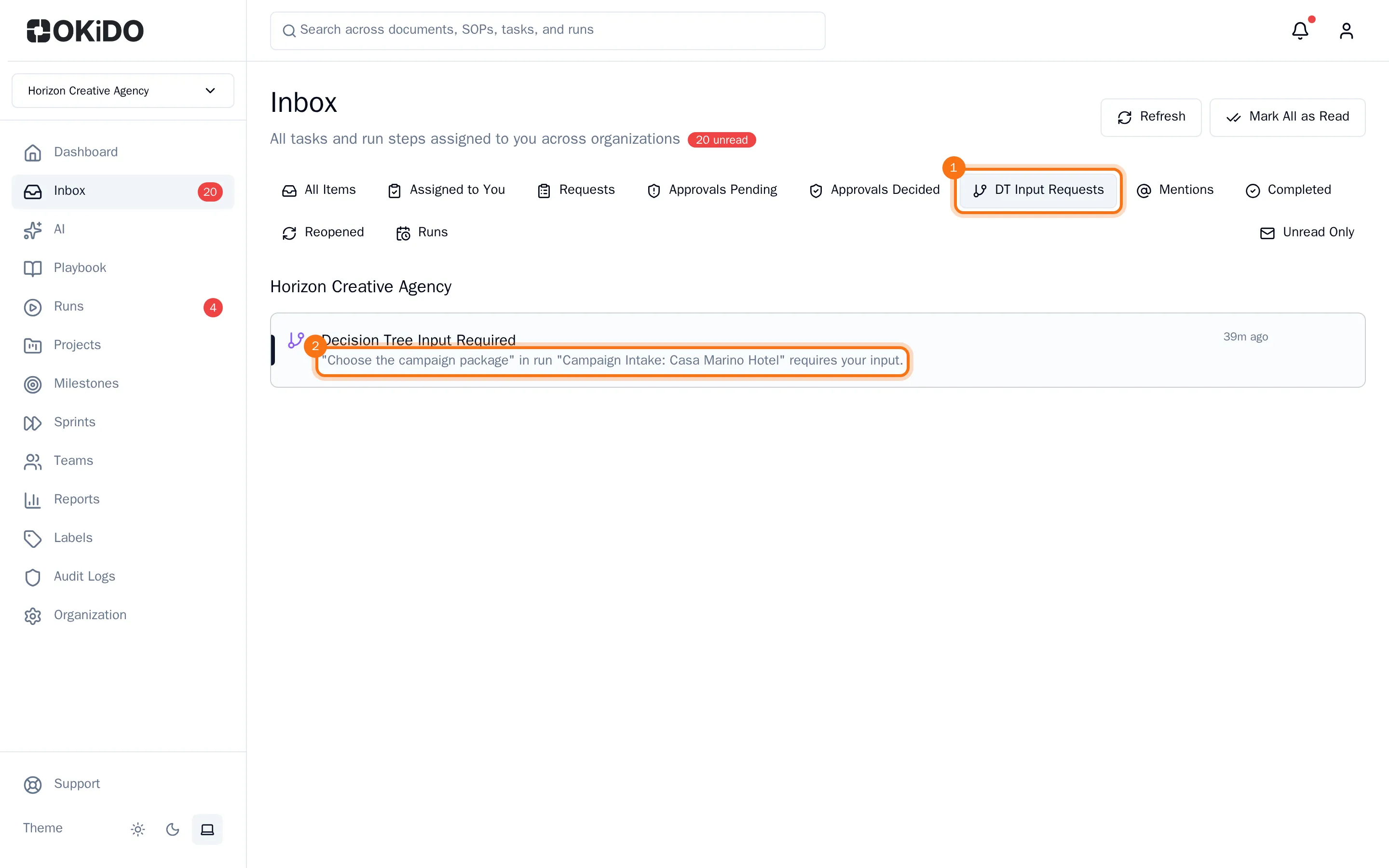
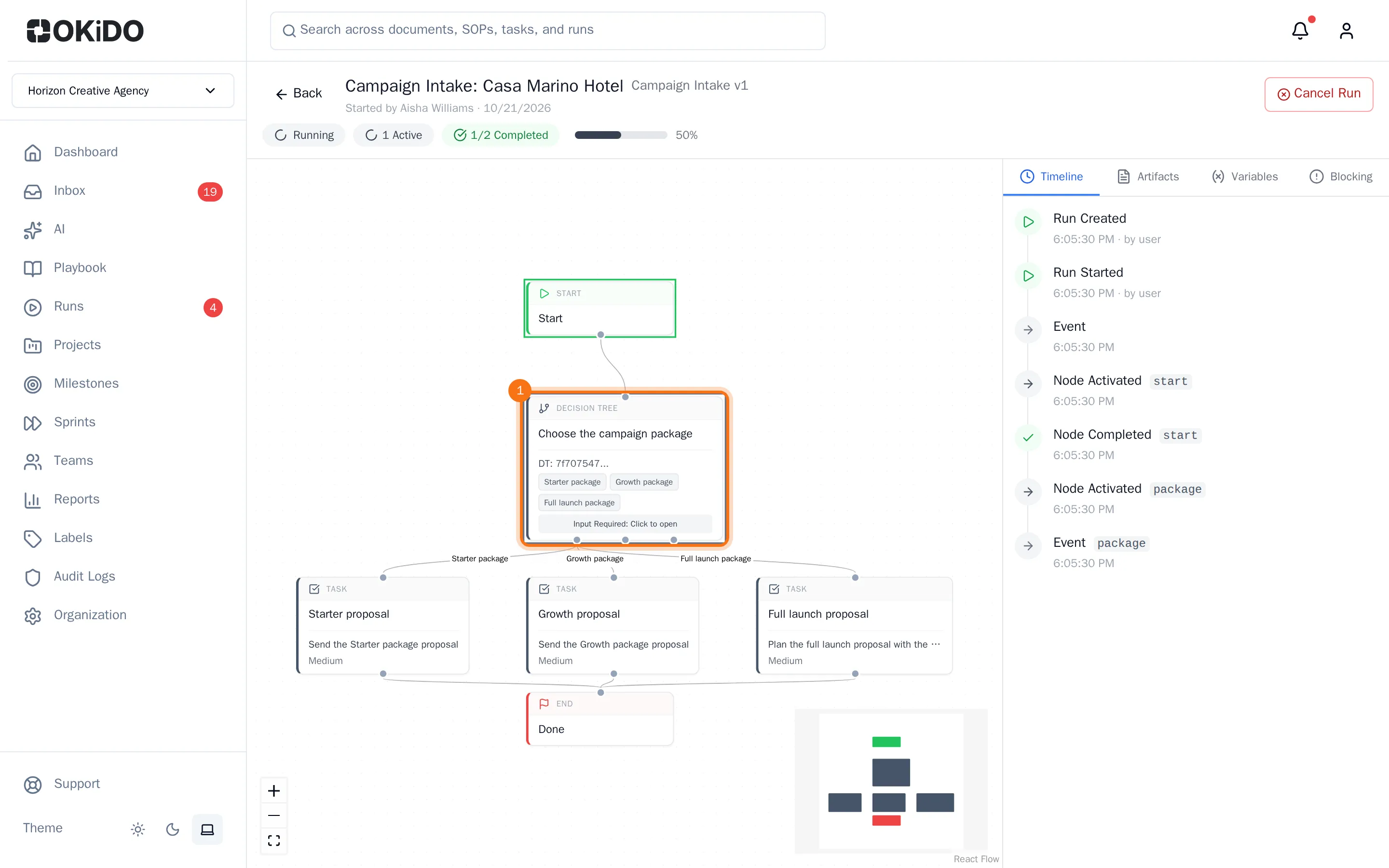
- Choose the request. The run of the system opens. The decision tree that waits for you has a pulsing ring.
Answer the decision tree
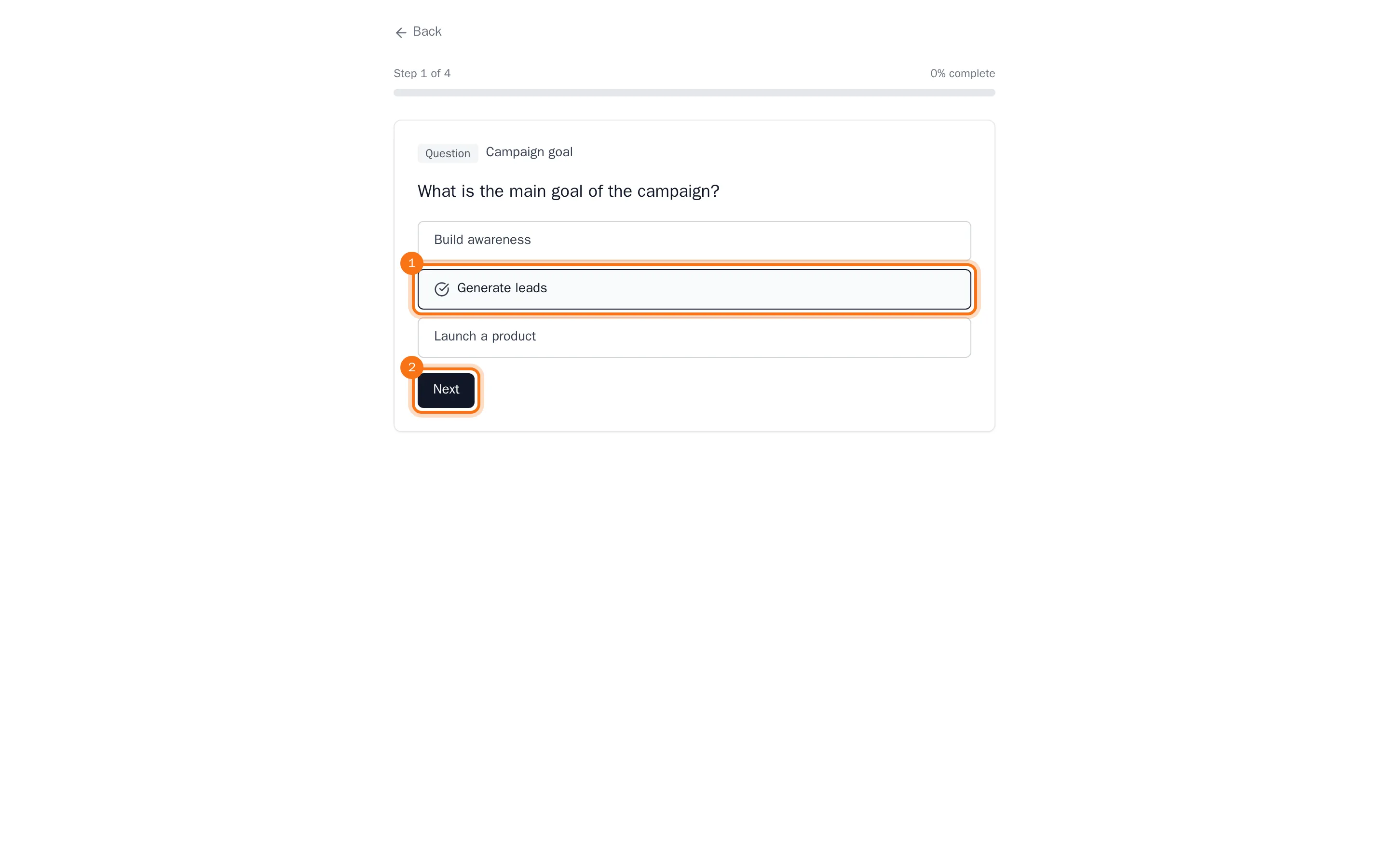
- Choose the decision tree with the pulsing ring. Its first question opens.
- Choose your answer, then Next. Answer the next questions in the same way.
After the last answer you see the decision. The system goes on right away with the step that belongs to your decision, for example the proposal task for the package you chose. Open the run again to follow it.
For more about the questions and the decision log, see Run a decision tree.